

- Booking Form Logic Just Got Smarter in GHL
- Quick Summary – Booking Form Logic
- Here are this weeks HighLevel Updates
- What’s New in GHL Booking Form Logic
- What Changed in GHL Booking Form Logic
- Why GHL Booking Form Logic Matters for Agencies
- How GHL Booking Form Logic Now Works
- How to Set Up Booking Form Logic Step by Step
- Pro Tips to Maximize GHL Booking Form Logic
- Real-World Examples of Booking Form Logic
- Common Mistakes to Avoid Booking Form Logic
- FAQs About GHL Booking Form Logic
- Smarter Control With GHL Booking Form Logic
Booking Form Logic Just Got Smarter in GHL
GHL Booking Form Logic Just Got Smarter in Go High Level. If you’ve ever built qualification into your calendar flows, you know the real frustration isn’t creating the form. It’s controlling what happens after someone clicks submit.
Especially when redirects fire inconsistently. Or worse… unqualified leads still book time on your calendar.
Disqualify rules didn’t always stop the appointment. Confirmation pages didn’t always respect form behavior. And redirect logic could feel unpredictable inside booking flows. It worked. But it wasn’t tight.
Now, the upgraded Booking Form Logic inside GHL changes that completely. Disqualify conditions are enforced before an appointment is created. No booking. No payment. No calendar slot wasted.
Redirect URLs and custom messages now fire consistently after submission. And with the new “Use custom form rules” confirmation setting, you control exactly what happens after a successful booking.
For agencies qualifying leads before strategy calls, this is a serious quality-of-life upgrade. Smarter Booking Form Logic reduces bad appointments, protects your team’s time, and makes your booking flows predictable. What used to feel messy now feels controlled.
The latest GoHighLevel Changelog includes several other GHL feature updates that round out your daily workflow:
- New QR Code Styling Options: Shapes, Borders, and Rim Text
- Collapse & Resize Pipeline Stages in Kanban View
- Notes just got smarter for the contacts page!
- New Asana actions in workflows – Find Project and Find section
- Email AI + Knowledge Base Integration 🚀
- Dialer: Auto-minimize, Pin & Drag
- Schema Markup Using AI
Keep reading for much more on all these updates and a deep dive into the Form Logic feature!

Quick Summary – Booking Form Logic
Purpose
This update improves how Booking Form Logic works inside GHL calendar booking flows. It ensures disqualify rules run before appointments are created and gives users more control over confirmation behavior.
Why It Matters
Booking Form Logic now protects your calendar from bad-fit leads, prevents unwanted appointments, and ensures redirect and confirmation behavior is consistent and predictable.
What You Get
You get pre-booking lead qualification, reliable redirect handling, dynamic show and hide field behavior, and a new “Use custom form rules” confirmation option for full post-booking control.
Time to Complete
Setting up Booking Form Logic typically takes 15 to 30 minutes depending on how complex your qualification conditions are.
Difficulty Level
Beginner to intermediate. The setup is simple, but testing your conditions carefully is important to avoid logic errors.
Key Outcome
You gain tighter control over who books your calendar, what happens after submission, and how your confirmation flow behaves — resulting in fewer wasted calls and cleaner automation.
Here are this weeks HighLevel Updates
New QR Code Styling Options: Shapes, Borders, and Rim Text
What it does:
Lets you stop using boring QR codes. You can now tweak the shape, style the border, and add text around the edge.
Where in GHL:
Accessible via Sites → QR Codes and within QR tools embedded in Funnel and Website builders.
Automate marketing, manage leads, and grow faster with GoHighLevel.

Impact:
Improves visual presentation and brand alignment while increasing scan appeal.
Best suited for:
Agencies that care about branding, small businesses running local promotions, online stores, and teams pushing QR campaigns.
Collapse & Resize Pipeline Stages in Kanban View
What it does:
Lets you hide pipeline stages you’re not actively using and adjust column widths so your board fits the way you work.
Where in GHL:
Inside Opportunities when you’re viewing your pipeline in Kanban mode.
Impact:
No more dragging your screen forever just to find the deals that matter.
Best suited for:
Owners running multi-stage pipelines, reps working deals every day, and anyone fed up with a messy board.
Notes Just Got Smarter for the Contacts Page
What it does:
Upgrades the notes area so it’s easier to write, review, and keep things organized inside a contact record.
Where in GHL:
Found directly within each contact’s profile under Notes.
Impact:
Makes it simpler to see what’s been discussed and who added what — without digging through clutter.
Best suited for:
Teams collaborating on accounts and businesses that document every client touchpoint.
New Asana Actions in Workflows – Find Project & Find Section
What it does:
Lets your workflow check what already exists in Asana before adding anything new.
Where in GHL:
Go to Workflows, add an action, and choose the Asana integration.
Impact:
No more duplicate projects. No more messy task boards. Just cleaner automation.
Best suited for:
Operations teams and agencies that rely on Asana to manage client delivery.
Email AI + Knowledge Base Integration
- What it does:
Allows Email AI to reference your Knowledge Base for smarter, more accurate responses. - Where in GHL:
Found in Conversations → Email composer with AI enabled and Knowledge Base settings under AI configuration. - Impact:
Smarter email suggestions that understand your business and help you reply quicker. - Best suited for:
Support teams, agencies managing inboxes, and businesses scaling communication with AI.
Dialer: Auto-Minimize, Pin & Drag
- What it does:
Lets you auto-minimize the dialer during calls, pin it in place, and drag it anywhere on screen. - Where in GHL:
Found in Conversations → Dialer. - Impact:
Cleaner workspace and easier multitasking during sales or support calls. - Best suited for:
Sales teams, outbound callers, appointment setters, and agencies making daily calls.
Schema Markup Using AI
- What it does:
Generates structured schema markup automatically using AI for SEO enhancement. - Where in GHL:
Found in Sites → Website or Funnel settings within AI or SEO sections. - Impact:
Improves search visibility without manual coding. - This works well for:
Teams building websites that need stronger search visibility, from agencies to small local businesses.
What’s New in GHL Booking Form Logic
Booking Form Logic inside GHL now behaves the way you always expected it to. The system is tighter. More predictable. And built for real qualification before scheduling.
Here’s what changed.
Disqualify lead logic now runs before the appointment is created. That means if a lead fails your conditions, the system stops the booking immediately. No calendar slot is taken. No payment is processed. No cleanup needed later.
Redirect URLs and custom messages now fire consistently after form submission. Before, behavior could feel inconsistent depending on the booking flow. Now it works the same way every time.
There’s also a new confirmation page setting called “Use custom form rules.” This gives you full control over what users see after booking. Instead of always defaulting to the calendar confirmation page, you can let your form logic decide the outcome.
Show and Hide field logic continues to work seamlessly inside booking flows. If you’re dynamically revealing questions based on user input, nothing breaks. In fact, it’s smoother.
And this is just the start. Support for conditional logic in booking flows will soon extend to Services (v2) and Rentals. That means this improved Booking Form Logic is expanding across more scheduling types inside GHL.
This isn’t just a small tweak. It’s a structural improvement to how booking flows behave from start to finish.
What Changed in GHL Booking Form Logic
Before this update, Booking Form Logic inside calendar flows didn’t always follow a clean sequence. The form would collect the data. But what happened next could feel inconsistent.
In some cases, disqualify conditions didn’t fully stop the booking process. A lead could trigger a disqualification rule, but the appointment was already created. That meant extra cleanup. Manual cancellations. And awkward follow-ups.
Redirect behavior could also feel unpredictable. Sometimes the calendar confirmation page would override your form settings. Other times the custom redirect would fire. It depended on how the flow was structured.
That lack of consistency made it harder to trust your booking automation.
Now the system evaluates logic in a clear order.
First, Show and Hide field rules adjust the form dynamically based on input. Then the system checks disqualify conditions. If the lead fails, the booking stops immediately. No appointment is created. No payment is collected.
If the lead qualifies, the appointment is created. Then the confirmation experience follows the setting you choose: Default, Redirect URL, or Use custom form rules.
The difference is predictability. Booking Form Logic now follows a strict sequence. No guessing. No surprise behavior. Just clean automation that behaves the same way every time.
Why GHL Booking Form Logic Matters for Agencies
If you run an agency, your calendar is money. Every bad-fit lead that books a call costs time. Every unqualified prospect that sneaks through eats into your team’s schedule. And every messy confirmation flow creates friction.
That’s why this Booking Form Logic update matters.
First off, it saves you from wasting hours on the wrong people. If someone doesn’t qualify, they never make it onto your calendar in the first place. No more awkward follow-ups. No more cleaning up bookings that shouldn’t have happened.
Second, it improves lead quality. You can ask budget questions. Service qualification questions. Geographic filters. If they don’t meet your criteria, the system handles it instantly. No manual review needed.
Third, it creates a predictable booking experience. Redirects fire consistently. Custom messages show when they should. And confirmation behavior follows the rule you select.
That consistency builds trust. For marketers running paid traffic, this is huge. You can send low-fit leads to a nurture page instead of letting them book. You can protect paid consultations. You can route prospects based on answers without breaking the booking flow.
For coaches and consultants, it means fewer awkward calls. For local businesses, it means screening appointment types properly. Booking Form Logic now works like a gatekeeper instead of a suggestion box.
And when your automation behaves predictably, you scale with confidence.
How GHL Booking Form Logic Now Works
Booking Form Logic inside GHL now follows a strict order. That’s the key difference.bNo guessing. No overlap. No weird overrides.
Here’s exactly what happens when someone fills out a booking form.
First, the Show and Hide field logic runs. As the user answers questions, the form dynamically adjusts. Fields appear or disappear based on the rules you’ve set. This keeps the form clean and personalized.
Second, once the form is submitted, the system evaluates your disqualify conditions. This is the gatekeeper step.
If the lead is disqualified:
- No appointment is created
- No payment is collected
- The redirect URL or custom message you configured is shown
The booking process stops immediately.
If the lead qualifies:
- The appointment is created
- Payment (if required) is processed
- The confirmation experience is determined by your Confirmation Page setting
And this is where the new control comes in.
You now have three confirmation options:
Default
The standard calendar confirmation page is shown.
Redirect URL
Users are sent to a custom page you define.
Use custom form rules
The form’s redirect or custom message is shown after booking.
If no redirect or custom message is configured in the form, GHL automatically falls back to the default confirmation page.
That fallback behavior makes the system stable. You won’t break your flow if something is missing.
This sequence makes Booking Form Logic predictable. Every step has a defined order. And that order protects your calendar before anything else happens. That’s how it should’ve worked from day one.
How to Set Up Booking Form Logic Step by Step
Configuring Booking Form Logic in GHL requires you to adjust both your calendar settings and the form attached to your booking flow. You will access your calendar, attach or confirm the correct form is connected, set up conditional logic inside the form builder, and then configure the confirmation behavior to control what happens after submission.
This process ensures disqualify rules are enforced properly, redirects fire consistently, and your booking flow behaves exactly as intended. Follow the steps below carefully to set up and test your Booking Form Logic inside GoHighLevel.
- Access the Calendar Booking Settings.
- Access the Calendar You Want to Edit.
- Attach or Confirm Your Custom Form.
- Configure Conditional Logic Inside the Form.
- Configure Your Booking Form Logic.
- Set Up Disqualify Lead Conditions.
- Set Confirmation Page Behavior.
To start, make sure you are logged in to your GoHighLevel sub-account.
Step 01 – Access the Calendar Booking Settings
- You will open the area where your calendar configuration and booking rules are managed.
1.1 On the left-hand sidebar, click on “Calendars.”
- This takes you to the main Calendars dashboard where all your booking calendars are listed.
1.2 Click “Calendar Settings.”
- This opens the settings area where you can control booking forms, availability, confirmations, and other calendar behavior.

Step 02 – Access the Calendar You Want to Edit
- In this step, you will open the specific calendar where you want to adjust booking and form settings.
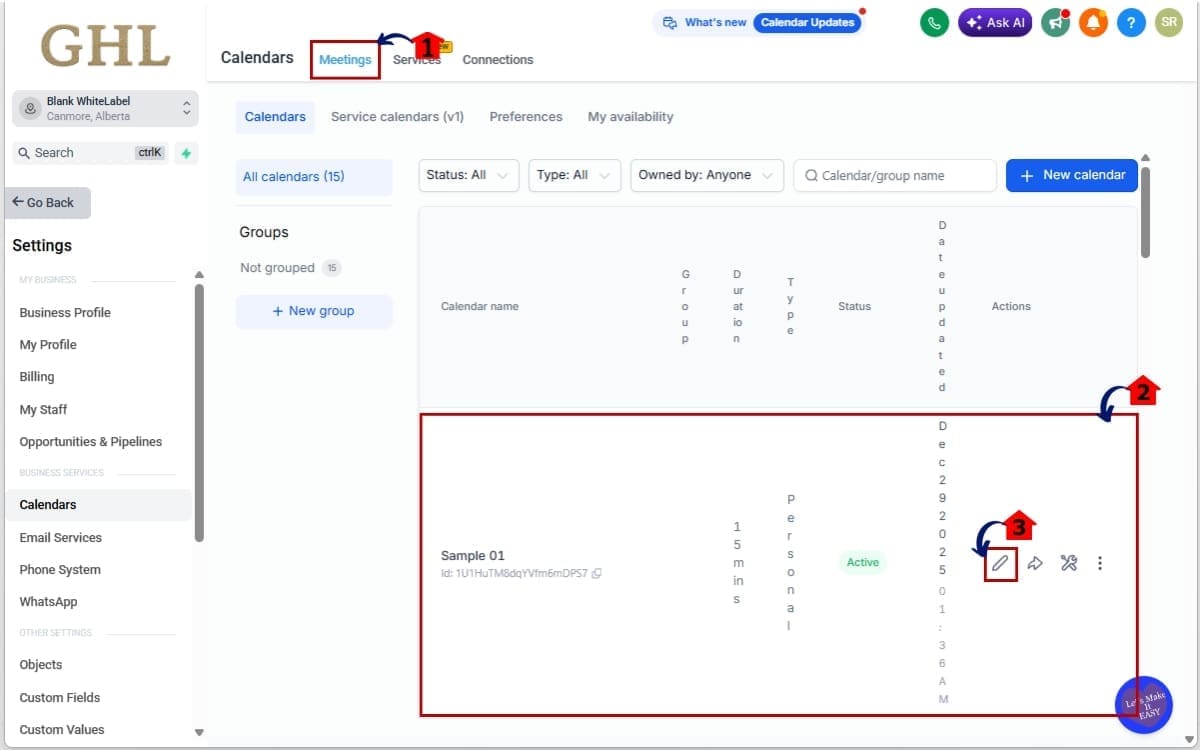
2.1 Click “Meetings.”
- This opens the list of all meeting calendars created inside your GHL sub-account.
2.2 Select the calendar you want to edit.
- Click on the name of the calendar that is connected to your booking flow.
2.3 Click the pencil icon or “Edit Calendar.”
- This opens the calendar configuration screen where booking behavior, attached forms, availability, and confirmation settings are controlled.
Step 03 – Attach or Confirm Your Custom Form
- In this step, you will connect the correct form to your calendar so qualification and disqualify rules can control the booking flow.
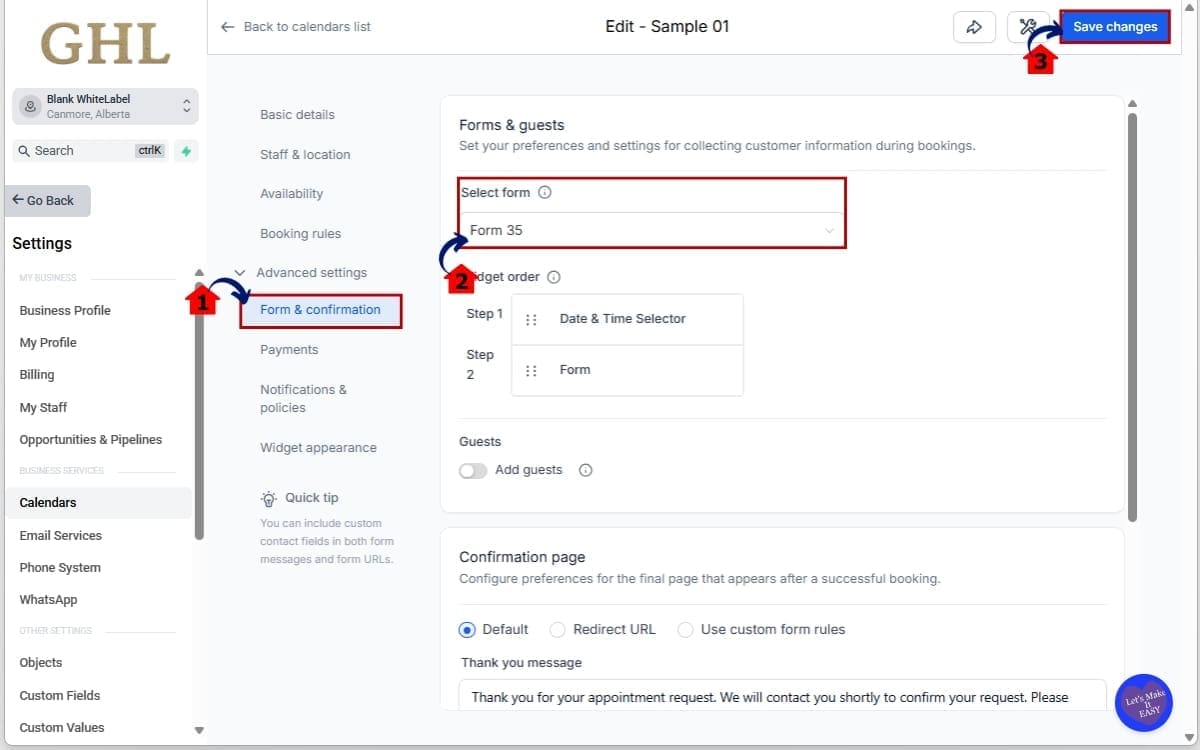
3.1 Inside the calendar settings, locate the “Forms & Payments” section.
- This section controls which form appears before a user can book an appointment.
3.2 Under the “Form” dropdown, select the custom form you want to use.
- Choose the form that contains your conditional logic and disqualify rules.
3.3 Click “Save Changes.”
- This confirms the form is attached and ensures your booking flow follows the form’s logic settings.
Step 04 – Configure Conditional Logic Inside the Form
- In this step, you will open the connected form and configure field logic and disqualification rules to control booking behavior.
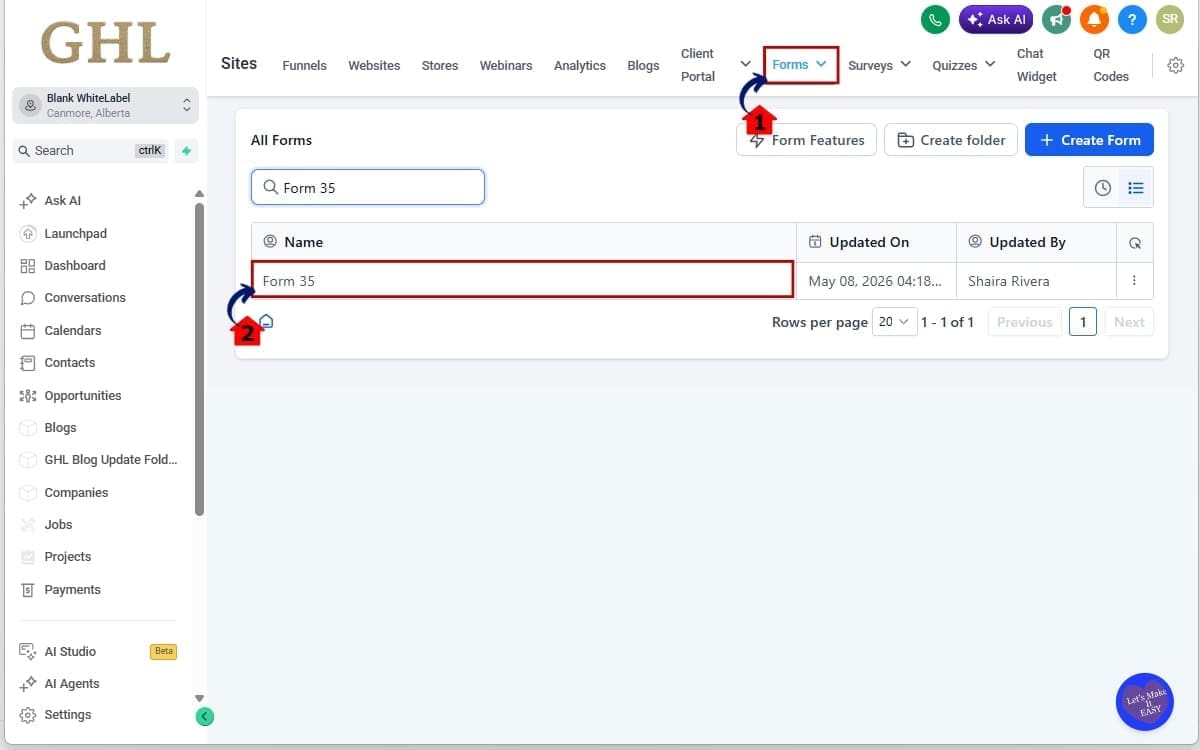
4.1 Click “Forms.”
- This opens the full list of forms available inside your GHL sub-account.
4.2 Open the form connected to your calendar.
- Click the name of the form you attached in Step 03 to open it inside the Form Builder, where you can edit conditional logic and disqualify settings.
Step 05 – Configure Your Booking Form Logic
- In this step, you will set up conditional rules that control which fields appear based on user responses inside the form.
Show / Hide Field Rules
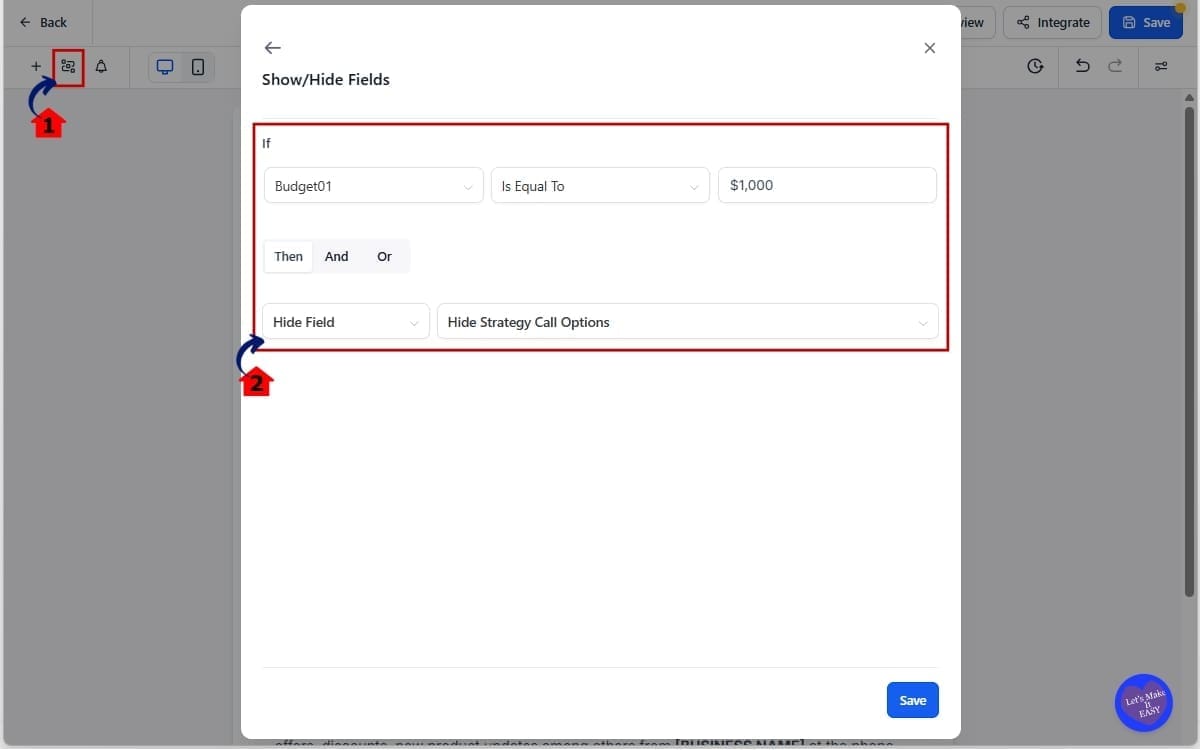
5.1 Click on a field inside the form and select “Conditional Logic.”
- This opens the logic settings for that specific field so you can control when it appears or stays hidden.
5.2 Set the rule for when this field should appear or be hidden based on user input.
- Define the condition that must be met for the field to show or hide.
For example:
- If “Budget” equals $1,000 → Hide “Strategy Call Options.”
This ensures only qualified users see certain booking options, keeping your calendar protected from unqualified appointments.
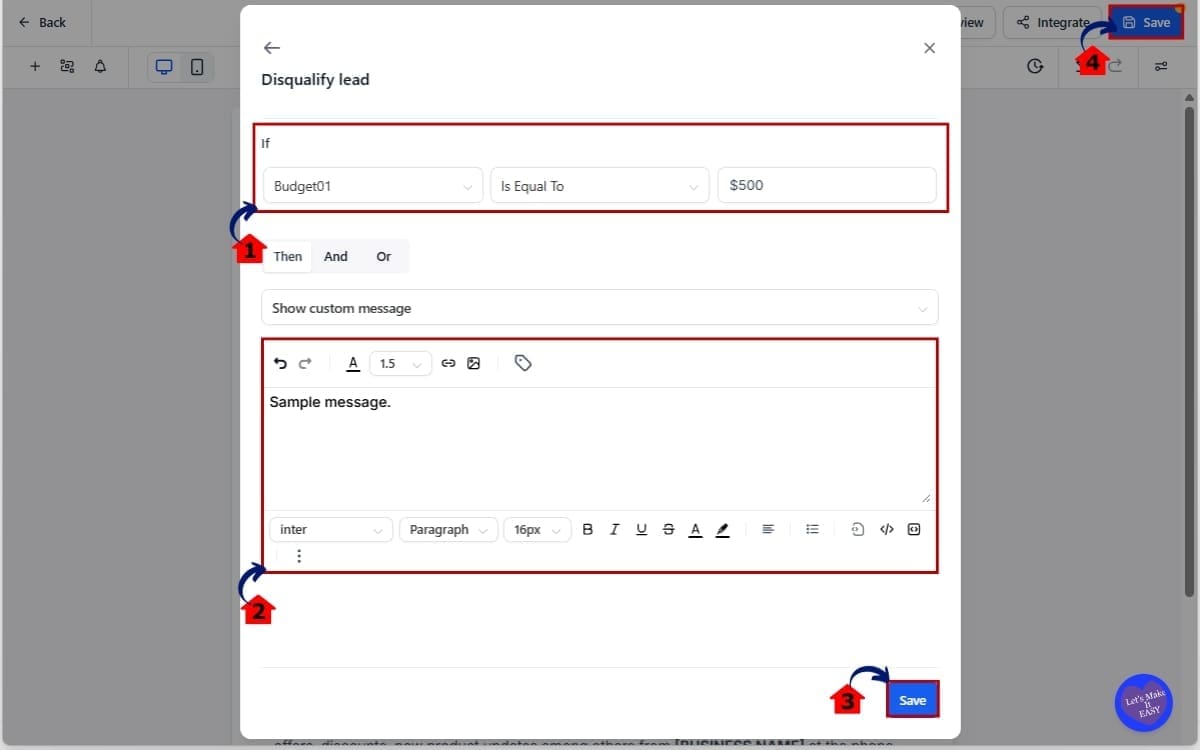
Step 06 – Set Up Disqualify Lead Conditions
• In this step, you will create rules that completely stop unqualified users from booking an appointment on your calendar.
6.1 Add your disqualification conditions.
- Click “Add Condition” inside the Disqualify section and define the rule that determines when a lead should be blocked from booking.
For example:
- If “Budget” equals $500 → Disqualify lead.
This prevents low-budget prospects from reaching your calendar.
6.2 Set what should happen if the lead is disqualified.
- Choose the action that will trigger when the condition is met.
Options may include:
- Show custom message
- Redirect to another page (if configured)
6.3 Click “Save.”
- This saves your disqualification rule settings inside the logic panel.
6.4 Click “Save Form.”
- This ensures all changes are applied to the form and connected booking flow.
Your Booking Form Logic is now active and will prevent unqualified leads from booking time on your calendar.
Step 07 – Set Confirmation Page Behavior
- In this step, you will control what happens after a user successfully submits the form and qualifies to book.
7.1 Go back to your Calendar settings, then navigate to “Forms & Confirmation.”
- This is where you manage how the booking confirmation behaves after form submission.
7.2 Scroll to the “Confirmation Page” section.
- Here you will see the available confirmation behavior options.
You will now see three options:
- Default
- Redirect URL
- Use Custom Form Rules
7.3 Select “Default.”
- If no redirect or custom message is set inside the form, GHL will automatically display the default confirmation page after booking.
7.4 Click “Save Changes.”
- This applies your confirmation page behavior to the booking flow.

Testing ensures your Booking Form Logic works exactly how you designed it.
If something doesn’t behave correctly, double-check:
- Your disqualify conditions
- Your confirmation page selection
- Your form redirect settings
Once verified, your booking flow is now protected and predictable.
Pro Tips to Maximize GHL Booking Form Logic
Booking Form Logic isn’t just about blocking bad leads. It’s about building smarter funnels before the calendar.
So how do you actually use this properly:
Use Disqualification as a Routing Tool
Don’t just block people. Redirect them strategically.
If someone selects a low budget, send them to:
- A lower-tier offer
- A webinar
- A nurture sequence
- A waitlist
You’re not rejecting them. You’re redirecting them.
Protect Paid Consultations
If you charge for strategy calls, use Booking Form Logic to enforce qualification before payment is even considered.
Example: If Revenue < $5,000/month → Disqualify.
This prevents refund requests and awkward conversations later.
Pre-Segment Before the Call
Add service-type questions and route users differently.
For example:
- Marketing Audit → Redirect to Prep Page A
- Automation Setup → Redirect to Prep Page B
This makes your sales calls cleaner and more prepared.
Keep Conditions Simple
Over complicated conditional logic causes confusion.
Use clear:
- Equals
- Does not equal
- Greater than
- Less than
Test every condition individually before stacking multiple rules.
Always Select “Use Custom Form Rules”
If you forget this step, your Booking Form Logic redirect may not behave the way you expect.
Most user errors happen here. Combine With Workflows
After a qualified booking:
- Add tags
- Trigger onboarding emails
- Assign pipeline stages
After disqualification:
- Add nurture tags
- Trigger alternate workflows
- Notify internal team
Booking Form Logic controls entry. Workflows control follow-up. Use both together.
Don’t Skip Testing
Test both:
- Qualified scenarios
- Disqualified scenarios
Then test again. Small logic errors can create big calendar headaches. This feature is powerful. But power only works when it’s configured correctly.
Real-World Examples of Booking Form Logic
This is where Booking Form Logic really shines. It’s not just about stopping bad bookings. It’s about building smarter funnels before someone ever talks to you.
Here are real scenarios agencies and businesses can use immediately.
Agency Qualifying Strategy Calls
An agency runs paid ads offering a free strategy call.
Inside the booking form, they ask:
- Monthly revenue
- Ad spend budget
- Industry
Anyone making less than $3,000 a month doesn’t move forward.
Instead of booking a call, they’re redirected to:
- A free training
- A DIY course
- A lower-ticket offer
The agency protects its calendar. The lead still gets value. No awkward “we’re not a fit” conversation.
Coach Screening High-Ticket Clients
A business coach charges $497 for a consultation.
They use Booking Form Logic to require:
- Minimum revenue threshold
- Specific niche alignment
- Commitment level
If the prospect doesn’t meet criteria, the system blocks the booking before payment. That prevents refund issues and protects brand positioning.
Local Service Business Filtering Appointment Types
A home services company offers:
- Emergency repairs
- Standard maintenance
- Installation consultations
Using conditional logic, the form shows different follow-up fields based on service type.
If someone selects a service not currently offered, they are redirected to a waitlist page instead of booking. Clean. Controlled. Efficient.
Protecting Limited Calendar Availability
If a consultant only wants 10 strategy calls per week, Booking Form Logic can be paired with budget screening.
Lower-budget prospects are automatically redirected to an automated webinar funnel.
Only ideal-fit clients reach the booking stage. Calendar time is reserved for high-value conversations.
Paid Consultation Protection
If someone must prepay to book, disqualification happens before payment processing.
That means:
- No failed charges
- No refund requests
- No admin cleanup
The system blocks the wrong fit before money is involved. That’s smart automation. Booking Form Logic turns your calendar into a gatekeeper. And when your calendar is protected, your business scales cleaner.
Common Mistakes to Avoid Booking Form Logic
Booking Form Logic is powerful. But small setup mistakes can break the experience fast.
Here’s what to watch for.
Forgetting to Select “Use Custom Form Rules”
This is the most common mistake. You configure disqualify logic. You set a redirect. You test the form directly. It works.
But inside the calendar flow, the confirmation page ignores your form rules. Why? Because you didn’t select “Use custom form rules” inside the Confirmation Page settings. Always double-check this setting.
Not Testing Both Scenarios
Too many users only test a qualified submission.
You must test:
- A qualified lead
- A disqualified lead
Confirm that:
- No appointment is created for disqualified users
- No payment is processed
- The correct redirect or message appears
If you don’t test both paths, you’re guessing.
Over complicating Conditional Logic
Stacking too many AND/OR conditions can create confusion.
Start simple.
Example: If Budget < $2,000 → Disqualify.
Once that works, then layer additional rules. Complex logic without testing creates unexpected behavior.
Confusing Redirect URL With Confirmation Page
These are not the same. The Form Redirect controls what happens after submission. The Confirmation Page setting controls what happens after booking. If you don’t understand the difference, your flow may behave differently than expected.
Always map the sequence clearly: Form Logic → Disqualify Check → Booking → Confirmation Setting
Not Saving or Republishing the Form
After editing conditional logic, make sure you save the form.
If changes don’t seem to apply, confirm that:
- The updated form is attached to the calendar
- You saved the latest version
- You cleared browser cache before testing
Using Default Calendar Without Custom Form
Booking Form Logic improvements apply when using a custom form.
If you’re using a basic default booking setup without a custom form attached, you won’t have access to disqualify and redirect control.
Always confirm a custom form is connected.
Skipping Workflow Integration
Booking Form Logic controls entry. But many users forget to connect follow-up workflows.
After a qualified booking:
- Trigger onboarding emails
- Add pipeline stage
- Assign internal task
After a disqualification:
- Add nurture tag
- Send alternate offer
- Trigger long-term follow-up
Don’t stop at the gate. Build the next step. When configured correctly, Booking Form Logic makes your calendar smarter.
When rushed, it creates confusion. Slow down. Map it out. Test it properly.
FAQs About GHL Booking Form Logic
Smarter Control With GHL Booking Form Logic
Booking Form Logic inside GHL is no longer a “set it and hope” feature.
It’s now structured. Predictable. And built to protect your calendar before bad-fit leads ever take up space.
Disqualify rules run first. Redirects fire consistently. Confirmation behavior follows the setting you choose. And with the new “Use custom form rules” option, you control the entire post-booking experience.
That means:
- Fewer wasted calls
- Better lead qualification
- Cleaner confirmation flows
- More predictable automation
For agencies, coaches, consultants, and local businesses, this is a serious upgrade. Your calendar becomes a gatekeeper instead of a gamble.
And when your Booking Form Logic works correctly, your sales process feels smoother. Your team wastes less time. Your automation behaves exactly how you designed it.
Honestly, this is how booking flows should’ve worked all along. If you haven’t tried it yet, jump into your calendar and test one qualified lead and one that doesn’t pass. You’ll notice the difference right away.
Have you updated your booking flows to use the new confirmation setting yet? What kind of qualification rules are you adding?
Let me know how you’re using it. And check back to the GHL Growth Garage blog for more deep-dive guides on the latest GoHighLevel updates.
Scale Your Business Today.
Streamline your workflow with GoHighLevel’s powerful tools.


