

- A Better Way to Send Bulk Emails in GHL
- Quick Summary – Bulk Email Campaigns
- What’s New With GHL Bulk Email Campaigns
- Why GHL Bulk Email Campaigns Matter
- Why GHL Bulk Email Campaigns Matter
- How to Send Bulk Email Campaigns in GHL
- Quick Tips for Better GHL Bulk Email Campaigns
- Real-World GHL Bulk Email Campaign Examples
- What GHL Bulk Email Campaigns Mean for Your Business
- GHL Bulk Email Campaigns FAQs
- GHL Bulk Email Campaigns Make Targeting Easier
A Better Way to Send Bulk Emails in GHL
GHL has made bulk email campaigns more practical, helping you target linked Contacts from Companies and Custom Objects with ease.
You can now send emails straight from Company and supported Custom Object lists, using the Contacts already connected to those records.
Previously, you could do all the hard work of building a solid segment with Company or Custom Object data, only to hit a wall when it came time to send the email.
You’d often have to head back into Contacts and build the audience again.
Not anymore.
Now you can filter the records you want, select them, choose the associated Contacts, and move straight into the email.
That opens up some useful options.
You could narrow Properties down by status, sort Companies by account type, find Policies coming up for renewal, or pull Memberships that are close to expiring. Once you have the right records, you can email the Contacts connected to them.
You can also decide whether GHL should use the earliest associated Contact, the most recent one, or all associated Contacts.
Personalization is built in too. Contact, Company, and Custom Object fields can all be used inside the bulk email campaigns.
Then you can send immediately, schedule the campaign, or use batch mode.
For agencies, this removes a lot of unnecessary back-and-forth and makes Custom Objects far more useful for real campaign work.
The latest GoHighLevel Changelog includes several other GHL feature updates that round out your daily workflow:
- Wait Action Enhancement: TikTok DM Replies
- India Recurring Mandate Support for Affiliate Indian Signup Pages
- Housecall Pro – More Workflow Actions & Triggers
- Email Services Dashboard for Agencies
- Email Sequences Now Available in Beta Labs
- Group Your Contacts by Source in Dashboards & Reporting
- MMLite Adoption Banner in Conversations
Keep reading for much more on all these updates and a deep dive into the Bulk Email Campaigns feature!

Quick Summary – Bulk Email Campaigns
Purpose: GHL bulk email campaigns now let you send emails directly from Companies and supported Custom Objects to their associated Contacts.
Why It Matters: You can build the right segment first, then communicate with the related Contacts without rebuilding the audience inside the Contacts list.
What You Get: You can choose association labels, select the earliest, most recent, or all associated Contacts, personalize emails with Company or Custom Object fields, and use templates or GHL’s email builders.
Time To Complete: Most users should be able to set up and launch a basic campaign in just a few minutes once their records, associations, and filters are ready.
Difficulty Level: Beginner to Intermediate. The workflow is simple, but Custom Object associations and audience logic should be checked carefully before sending.
Key Outcome: You get faster campaign setup, cleaner targeting, and a more direct way to turn Company and Custom Object data into useful email outreach.
What’s New With GHL Bulk Email Campaigns
The latest GHL update connects Custom Object data to bulk email campaigns in a much more practical way.
You don’t have to build every bulk email campaigns audience from the Contacts section anymore. Start with the Company or Custom Object records that matter to the campaign instead.
Select the records, choose the linked Contacts, and send the bulk email campaigns from there.
Automate marketing, manage leads, and grow faster with GoHighLevel.

For Companies, GHL already knows to use the Contact association. For Custom Objects, you can choose the association labels yourself.
That matters when one record is connected to several different people.
Take a Property, for example. It might have an Owner, Agent, and Potential Buyer attached to it. You can choose which relationship should be used for the bulk email campaigns instead of sending the same message to everybody.
GHL lets you decide how broad the recipient list should be. Pick the oldest association, the newest association, or include every Contact tied to the record.
You can then personalize the bulk email campaigns with information from the Contact, Company, or Custom Object.
Once the content is ready, you can build it with Quick Compose, Smart Builder, or a template you already use.
You’ve also got flexibility on timing. Send now, schedule it, or spread the send out with batch mode.
And if the same Contact gets pulled in through multiple association labels, GHL cleans that up before sending.
Campaign tracking is available through Bulk Actions and the Bulk Email Campaigns area under Marketing → Emails.
It’s a cleaner setup from start to finish, especially if your CRM relies heavily on Company or Custom Object records.
Why GHL Bulk Email Campaigns Matter
A good segment is only useful if you can actually do something with it.
That was the awkward part of the old workflow.
You could build a Smart List around Company or Custom Object data and get exactly the records you wanted, but sending an bulk email campaigns to the right Contacts could still mean heading somewhere else and rebuilding the audience.
Now you can stay closer to the original segment.
Start with the Company, Property, Policy, Membership, Subscription, or other Custom Object record, then work with the Contacts connected to it.
For agencies, that’s a practical improvement because different clients organize their data in different ways.
One client may work around Companies. Another may depend on Policies. Another may have a custom Property setup.
You can now use those structures as part of the campaign instead of treating them like separate pieces of information.
A Policy renewal list can lead straight into an bulk email campaigns to Policy Holders.
A filtered Company list can become the starting point for a B2B campaign.
That makes GHL bulk email campaigns easier to launch and gives the CRM data more purpose.
You’re not just collecting and sorting records anymore. You can use them to help decide who gets the message and when.
Why GHL Bulk Email Campaigns Matter
A good segment is only useful if you can actually do something with it.
That was the awkward part of the old workflow.
You could build a Smart List around Company or Custom Object data and get exactly the records you wanted, but sending an email to the right Contacts could still mean heading somewhere else and rebuilding the audience.
Now you can stay closer to the original segment.
Start with the Company, Property, Policy, Membership, Subscription, or other Custom Object record, then work with the Contacts connected to it.
For agencies, that’s a practical improvement because different clients organize their data in different ways.
One client may work around Companies. Another may depend on Policies. Another may have a custom Property setup.
You can now use those structures as part of the campaign instead of treating them like separate pieces of information.
A Policy renewal list can lead straight into an email to Policy Holders.
A filtered Company list can become the starting point for a B2B campaign.
That makes GHL bulk email campaigns easier to launch and gives the CRM data more purpose.
You’re not just collecting and sorting records anymore. You can use them to help decide who gets the message and when.
How to Send Bulk Email Campaigns in GHL
GHL bulk email campaigns can now be sent directly from Companies and supported Custom Objects. You’ll first select the records you want to target, then choose which associated Contacts should receive the email.
You’ll then build the message, choose how it should be sent, and track the results inside GHL. Here are the steps to send bulk email campaigns from Companies and Custom Objects in GoHighLevel.
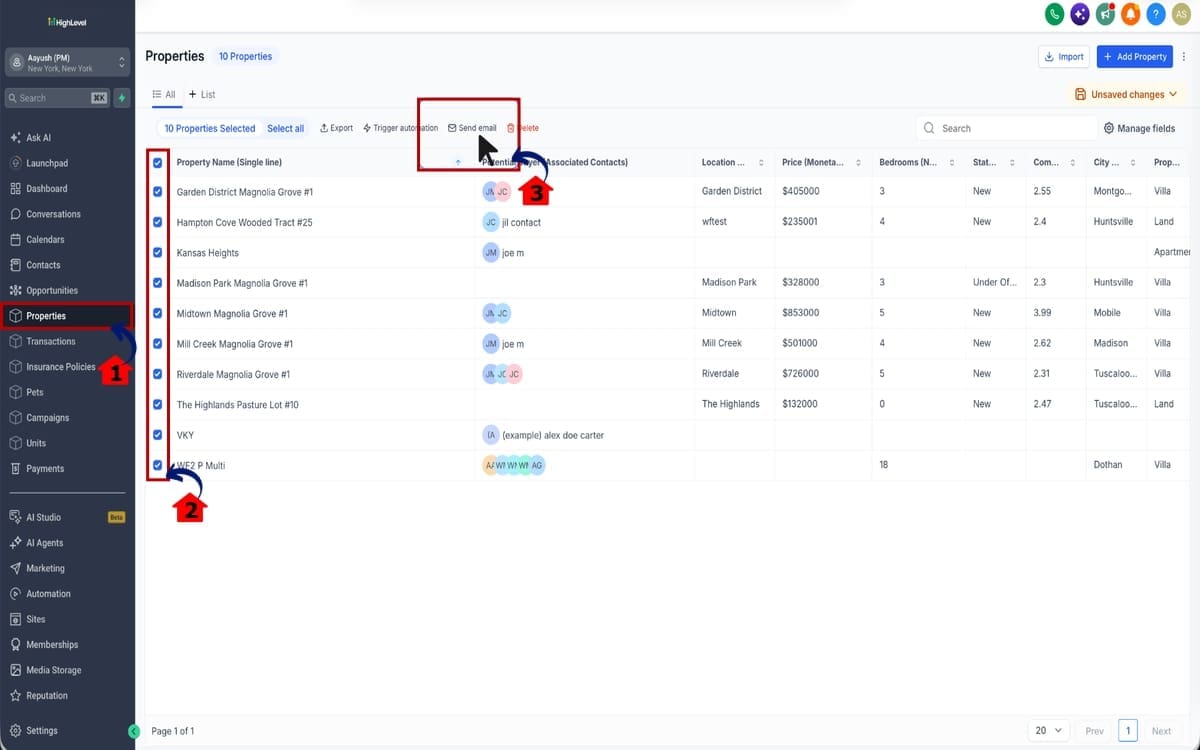
- Open Properties and Select the Send Bulk Email Campaigns Action.
- Choose the Associated Contacts.
- Build the Bulk Email Campaign.
- Choose How the Email Should Send.
- Track the Bulk Email Campaign.
To start, make sure you are logged in to your GoHighLevel sub-account.
Step 01 – Open Properties and Select the Send Bulk Email Campaigns Action
- Start by opening the properties and use the bulk action menu to start the email process.
1.1 Go to Properties where leads are stored.
- This is where you can view, filter, and select the records you want to use for the bulk email campaign.
1.2 Select the records you want to email from.
- Confirm that the correct Companies or Custom Object records are selected.
1.3 Click Send email.
- This opens the bulk email setup for the selected records.
Step 2.0 – Choose the Associated Contacts
- Decide which Contacts linked to the selected records should receive the email.
2.1 Select the required association label or labels.
- This step applies when sending from Custom Objects.

Step 3.0 – Build the Bulk Email Campaign
- Create the email you want to send to the selected associated Contacts.
3.1 Choose how you want to create the email.
- You can use Quick Compose. You can use Smart Builder. You can use an existing email template.
3.2 Add your email content.
- Write or load the message you want to send.

Step 4.0 – Choose How the Email Should Send
- Decide when and how GHL should process the bulk email campaign.
4.1 Review the email before sending.
- Check the content, personalization, and audience setup.
4.2 Choose Send now if you want the campaign to start immediately. Choose Schedule for later if you want the email sent at a future time and Choose batch mode if you want the emails sent in controlled groups.
- GHL will process the bulk action once you confirm the send. Use this when the campaign needs to go out on a specific date or time.

Step 5.0 – Track the Bulk Email Campaign
- Check the status, delivery, and engagement after the bulk action starts.
5.1 Review delivery and engagement.
- Check how the campaign performed after GHL processes the recipients.

This update is available for Custom Objects that have an association with Contacts. For Companies, the Contact association is selected automatically. Existing email permissions, consent requirements, and deliverability rules still apply.
Quick Tips for Better GHL Bulk Email Campaigns
Sending Bulk Email Campaigns from Companies and Custom Objects is now a lot smoother in GHL, but the results still come down to how clean your data, filters, and Contact links are.
A few simple checks before sending can help you avoid mistakes and make each campaign more useful.
Start With Clean Filters
Build your audience before you click Send email.
Use Company or Custom Object filters to narrow the records down to the exact group you want to reach. The cleaner your starting segment is, the easier it is to send a focused campaign.
Choose Association Labels Carefully
Association labels control which Contacts receive emails from Custom Object records.
One Property can have different types of Contacts attached to it. You might have an Owner, Agent, and Potential Buyer on the same record. For a buyer-only campaign, select just the Potential Buyer relationship.
Use All Associated Contacts Only When It Makes Sense
The All associated Contacts option can be powerful, but don’t automatically use it for every campaign.
If only one person needs the information, choose the earliest or most recently associated Contact instead. This helps keep your messages relevant and reduces unnecessary emails.
Make Your Merge Fields Useful
Company and Custom Object merge fields are one of the strongest parts of this update.
Use those details when they give the recipient something relevant.
A Policy renewal campaign could include policy details. A Property email could include information about the property. A Company campaign could pull in relevant account information.
Don’t overload the email with custom data. Use only the details that make the message clearer.
Check Associations Before Scheduling
GHL resolves the final recipient list when the bulk action runs.
That means changes to associations before a scheduled campaign runs can affect who receives the email.
If the campaign is important, review your records and associations before the scheduled send time.
Use Batch Mode for More Controlled Sending
Batch mode gives you another option for managing larger bulk email campaigns.
Instead of processing the full audience at once, you can use batch mode when you want a more controlled sending process.
Remember that existing email consent, permissions, and deliverability rules still apply.
And if the same Contact appears through multiple selected association labels, GHL de-duplicates that Contact before sending. That helps stop the same person from receiving duplicate emails from one Bulk Email Campaigns action.
Real-World GHL Bulk Email Campaign Examples
GHL bulk email campaigns become much more useful when you start with the right Custom Object or Company segment.
Instead of thinking only in terms of Contacts, you can now build the campaign around the actual business record that matters.
That opens up some strong use cases.
Property Campaigns
A Property list can be trimmed down using things like city, price, property type, or status. From there, the message can go straight to the Potential Buyers tied to those records.
This makes it much easier to turn a filtered Property list into a targeted campaign without rebuilding that audience from Contacts.
Policy Renewal Campaigns
An insurance business could filter Policies by renewal date. Then, they could email the associated Policy Holders with a reminder, renewal notice, or next-step message.
This is a clean way to turn record-level data into timely outreach.
B2B Company Campaigns
A sales team could filter Companies by industry, lifecycle stage, account tier, or owner. Then, they could launch a targeted B2B campaign to the associated Contacts.
That makes GHL bulk email campaigns especially useful for account-based outreach.
Membership and Subscription Campaigns
A business could filter Memberships or Subscriptions by expiry date. Then, they could email the associated members before access ends.
It could help with expiring memberships, customer retention efforts, or offers for a higher-level package.
Custom Object Campaigns
The same logic works with any supported Custom Object that has a Contact association.
You can build a Smart List around Custom Object fields, select the records that match your criteria, and send the campaign to the associated Contacts.
That’s the real value of this update.
You’re not just sending email from a new screen. You’re turning Company and Custom Object data into a practical communication workflow.
For agencies, that means more flexibility across different client industries without forcing every campaign into the same Contact-only structure.
What GHL Bulk Email Campaigns Mean for Your Business
One of the nicest things about this update is that it cuts out a step you probably should not have needed in the first place.
If the right audience is already defined by Company or Custom Object data, you should not have to rebuild it again inside Contacts.
Now you do not.
You can start with the records that matter, choose the linked Contacts, and continue with the campaign.
That works especially well for agencies managing different types of businesses.
A Property may be the key record for one client.
A Policy may be the key record for another.
Some accounts may rely on Companies, Memberships, or Subscriptions.
The campaign can now follow those same structures.
That gives Custom Objects more value too.
They are no longer just there to make the CRM more organized. They can help drive the actual outreach.
For agencies, that means more useful builds and less duplicated setup.
You can work from the client’s real data, reach the right people, and get campaigns out with fewer detours along the way.
GHL Bulk Email Campaigns FAQs
GHL Bulk Email Campaigns Make Targeting Easier
GHL has made it easier to turn a filtered CRM list into an actual campaign.
You can work from Companies or supported Custom Objects, choose the records that matter, and email the associated Contacts from there.
That removes one of the more repetitive parts of the old process.
For agencies, the value is in the flexibility.
You can target from Company fields, Custom Object data, association labels, and Contact relationships instead of trying to force every campaign through a basic Contact filter.
You also have a few ways to handle the send.
Run it immediately, schedule it for later, or use batch mode.
Once it starts, you can review what’s happening in Bulk Email Campaigns Actions or under Marketing → Emails → Bulk Action Campaigns.
If you already use Smart Lists or Custom Objects in GHL, test this with a small audience first.
Double-check the linked Contacts and make sure the merge fields are pulling from the right place.
That small test can save you from a messy send later.
For agencies building custom CRM systems, this update makes those setups more useful for real campaign work.
Scale Your Business Today.
Streamline your workflow with GoHighLevel’s powerful tools.


