

- Calendar Validation Errors Fixed Fast
- Quick Summary – Calendar Validation Errors
- Here are this weeks HighLevel Updates
- What’s Changed in GHL Calendar Validation Errors
- Why Calendar Validation Errors Matter for Agencies
- How GHL Calendar Validation Errors Now Work
- How to Use the Updated Calendar Save Experience
- Pro Tips to Avoid Calendar Validation Errors
- What This Means for Your Business
- Real-World Agency Use Case
- FAQs About Calendar Validation Errors
- GHL Calendar Validation Errors Fixed Fast
Calendar Validation Errors Fixed Fast
GHL Calendar validation errors used to be more frustrating than they should’ve been. If you’ve ever edited a calendar and hit “Save Changes,” you know the real problem wasn’t creating the settings.
It was figuring out why nothing saved.
Especially when required fields were missing… but the system didn’t clearly show you where. You’d click save. The page would stay put. No clear direction. No instant feedback.
Calendar validation errors didn’t always tell you what was wrong. Required fields weren’t always obvious. And when issues lived inside another tab, you had to hunt for them manually. It worked. But it wasn’t tight.
Now, the upgraded calendar experience inside GHL changes that completely.
If there’s a problem, the system scrolls directly to the exact required field and highlights it clearly. If the issue lives in another tab, GHL takes you there automatically. No guessing. No silent failures. No wasted clicks.
For agencies building booking systems for clients, this is a serious quality-of-life upgrade. Smarter handling of calendar validation errors reduces setup mistakes, protects your team’s time, and makes calendar configuration predictable.
What used to feel unclear now feels controlled.
The latest GoHighLevel Changelog includes several other GHL feature updates that round out your daily workflow:
- New QR Code Styling Options: Shapes, Borders, and Rim Text
- Collapse & Resize Pipeline Stages in Kanban View
- Notes just got smarter for the contacts page!
- New Asana actions in workflows – Find Project and Find section
- Email AI + Knowledge Base Integration 🚀
- Dialer: Auto-minimize, Pin & Drag
- Schema Markup Using AI
Keep reading for much more on all these updates and a deep dive into the Calendar Validation Errors feature!
Quick Summary – Calendar Validation Errors
Purpose: This update improves how calendar validation errors are handled inside GHL by automatically guiding users to missing required fields when saving a calendar.
Why It Matters: Instead of guessing why a calendar won’t save, GHL now scrolls or switches tabs to highlight the exact issue. This reduces frustration and setup time.
What You Get: Automatic tab navigation, visual error highlighting, and a smoother calendar configuration experience across all sub-accounts.
Time To Complete: Less than 5 minutes to understand and apply when editing or creating a calendar.
Difficulty Level: Beginner-friendly. No advanced setup required.
Key Outcome: Faster calendar setup, fewer configuration mistakes, and more confidence when saving edits inside GHL.
Here are this weeks HighLevel Updates
New QR Code Styling Options: Shapes, Borders, and Rim Text
What it does:
Lets you stop using boring QR codes. You can now tweak the shape, style the border, and add text around the edge.
Where in GHL:
Accessible via Sites → QR Codes and within QR tools embedded in Funnel and Website builders.
Automate marketing, manage leads, and grow faster with GoHighLevel.

Impact:
Improves visual presentation and brand alignment while increasing scan appeal.
Best suited for:
Agencies that care about branding, small businesses running local promotions, online stores, and teams pushing QR campaigns.
Collapse & Resize Pipeline Stages in Kanban View
What it does:
Lets you hide pipeline stages you’re not actively using and adjust column widths so your board fits the way you work.
Where in GHL:
Inside Opportunities when you’re viewing your pipeline in Kanban mode.
Impact:
No more dragging your screen forever just to find the deals that matter.
Best suited for:
Owners running multi-stage pipelines, reps working deals every day, and anyone fed up with a messy board.
Notes Just Got Smarter for the Contacts Page
What it does:
Upgrades the notes area so it’s easier to write, review, and keep things organized inside a contact record.
Where in GHL:
Found directly within each contact’s profile under Notes.
Impact:
Makes it simpler to see what’s been discussed and who added what — without digging through clutter.
Best suited for:
Teams collaborating on accounts and businesses that document every client touchpoint.
New Asana Actions in Workflows – Find Project & Find Section
What it does:
Lets your workflow check what already exists in Asana before adding anything new.
Where in GHL:
Go to Workflows, add an action, and choose the Asana integration.
Impact:
No more duplicate projects. No more messy task boards. Just cleaner automation.
Best suited for:
Operations teams and agencies that rely on Asana to manage client delivery.
Email AI + Knowledge Base Integration
- What it does:
Allows Email AI to reference your Knowledge Base for smarter, more accurate responses. - Where in GHL:
Found in Conversations → Email composer with AI enabled and Knowledge Base settings under AI configuration. - Impact:
Smarter email suggestions that understand your business and help you reply quicker. - Best suited for:
Support teams, agencies managing inboxes, and businesses scaling communication with AI.
Dialer: Auto-Minimize, Pin & Drag
- What it does:
Lets you auto-minimize the dialer during calls, pin it in place, and drag it anywhere on screen. - Where in GHL:
Found in Conversations → Dialer. - Impact:
Cleaner workspace and easier multitasking during sales or support calls. - Best suited for:
Sales teams, outbound callers, appointment setters, and agencies making daily calls.
Schema Markup Using AI
- What it does:
Generates structured schema markup automatically using AI for SEO enhancement. - Where in GHL:
Found in Sites → Website or Funnel settings within AI or SEO sections. - Impact:
Improves search visibility without manual coding. - This works well for:
Teams building websites that need stronger search visibility, from agencies to small local businesses.
What’s Changed in GHL Calendar Validation Errors
Calendar validation errors used to feel silent. You would click “Save Changes.” If something was missing, the save would fail. But the interface didn’t clearly guide you to the problem. You were left scanning through tabs, guessing which required field was incomplete.
That’s where the friction lived. Now, GHL handles calendar validation errors in a much smarter way.
The moment you hit “Save Changes,” GHL takes a quick look to see if anything important is missing. If something’s incomplete in the tab you’re on, it jumps right to that spot and clearly shows you what needs fixing. No digging around. No clicking through every section trying to figure it out.
If the issue exists in a different tab, GHL automatically navigates you to that tab and highlights the required field there.
It’s direct. It’s visual. It’s instant.
Instead of wondering why your calendar won’t save, you immediately see what needs attention. The system guides you to the exact problem so you can fix it in seconds.
This upgrade doesn’t change how calendars function. It changes how confidently you can edit them.
Now, calendar validation errors aren’t something you chase down. They’re something the system points out clearly and resolves fast.
Why Calendar Validation Errors Matter for Agencies
Calendar validation errors might sound small. They’re not.
When you’re building one calendar, a missing required field is an annoyance. When you’re building five, ten, or twenty for clients, it becomes friction. Every failed save breaks momentum.
Agencies move fast. VAs move fast. Marketing teams move fast. When a calendar won’t save and the system doesn’t clearly show why, you lose time hunting through tabs. That time adds up quickly.
Worse, it creates doubt. Did it save? Did I miss something? Is the form broken? Will bookings fail? That hesitation slows down launches.
For onboarding new clients, calendar setup is often one of the first technical steps. If validation errors aren’t clear, it can make the platform feel confusing to new users. That leads to more internal messages, more support questions, and unnecessary troubleshooting.
This update fixes that.
Now calendar validation errors are obvious and immediate. The system shows you exactly what needs to be fixed. That reduces friction for:
- Agency owners setting up strategy call calendars
- VAs configuring multiple booking types
- Marketers building qualification flows
- Teams editing availability or notifications
It also reduces small mistakes that can delay launches. Smarter handling of calendar validation errors means fewer interruptions, faster configuration, and more confidence when you hit Save. And when your setup process is predictable, your business runs smoother.
How GHL Calendar Validation Errors Now Work
Calendar validation errors now work the way they should have from the start.
The moment you click “Save Changes,” GHL runs a validation check across all required fields in your calendar settings. Instead of failing silently, the system now actively guides you to the problem.
Here’s what happens behind the scenes.
If the calendar validation error exists inside the tab you’re currently editing, the page automatically scrolls down to the exact field that needs attention. That field is clearly highlighted so there’s no confusion about what’s missing.
You see it instantly. You fix it instantly. You save again.
If the missing required field exists in a different tab, GHL automatically switches you to that tab. Then it highlights the exact field that’s causing the calendar validation error.
No manual searching. No guessing which section is wrong. No clicking through every tab trying to find the issue. The system now does the navigation for you.
This creates a simple and predictable flow:
- Click Save.
- GHL checks required fields.
- GHL scrolls or switches tabs.
- Missing field is highlighted.
- You correct it.
- Save succeeds.
That’s it. Calendar validation errors are no longer something you hunt down. They are clearly surfaced, visually identified, and easy to resolve.
This may look like a small interface improvement, but in daily agency work, small friction points matter. When you’re editing availability, updating form fields, adjusting notifications, or changing assignments, the save process now feels controlled instead of uncertain.
You always know why something didn’t save. And that changes the experience completely.
How to Use the Updated Calendar Save Experience
Editing a calendar in GHL now includes improved validation guidance when saving changes. In this section, you’ll access your calendar settings, intentionally leave a required field incomplete, and observe how the new validation behavior responds.
You’ll see how GHL scrolls to or switches tabs to highlight missing fields before allowing the save. Follow the steps below to understand how the updated save process works and how to use it confidently when configuring calendars.
- Access the Main Left Hand Menu in GoHighLevel.
- Choose the Calendar to Edit.
- Navigate Through Calendar Tabs.
- Fix the Calendar Validation Error.
To start, make sure you are logged in to your GoHighLevel sub-account.
Step 01 – Access the Main Left Hand Menu in GoHighLevel
- The Main Menu on the left side of your screen contains all the core areas you work in inside GHL.
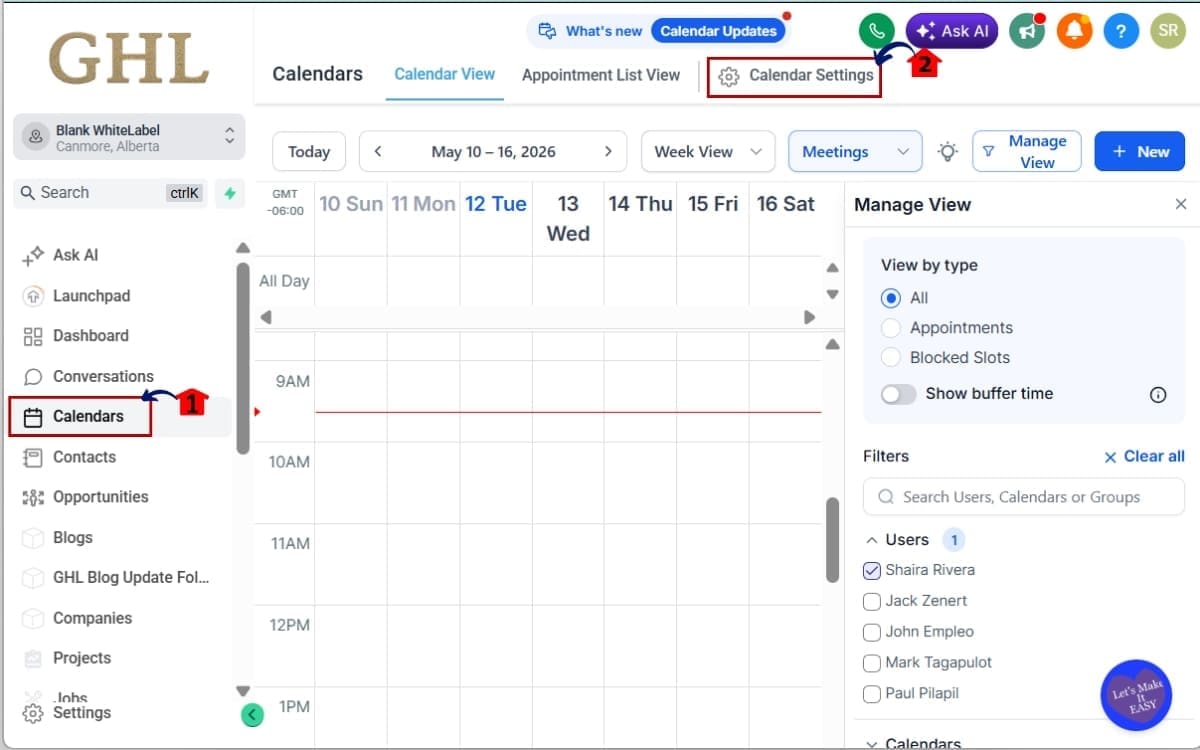
1.1 Click on the “Calendars” menu item.
- This will take you to the Calendars dashboard where all your booking calendars are stored.
1.2 Click on “Calendar Settings.”
- You’ll now see a list of existing calendars.
Step 02 – Choose the calendar to edit
- From here, you can edit an existing calendar or create a new one.
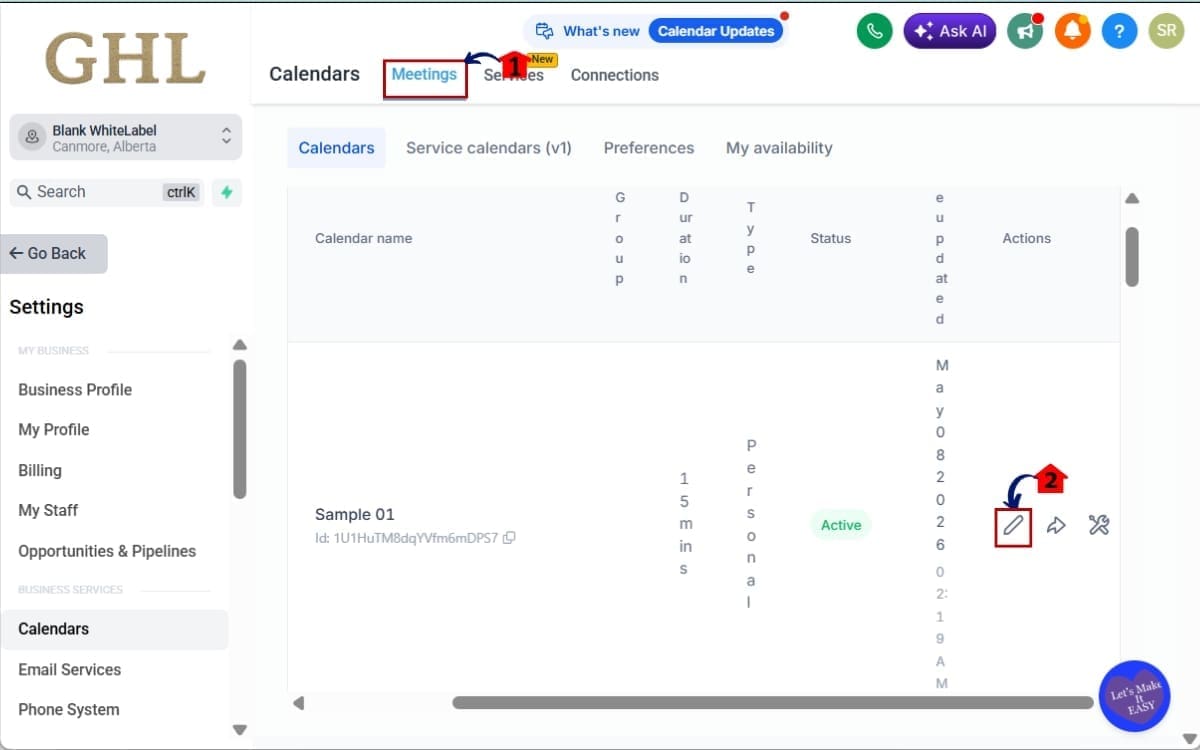
2.1 Click Meetings
- To see the lists of calendars you need to go to meetings.
2.2 Select an existing calendar to edit and click the pencil icon
- Click the calendar name to open its configuration settings.
Step 03 – Navigate Through Calendar Tabs
- Inside a calendar, you’ll see multiple configuration tabs such as Availability, Forms, Notifications, and Team Members.
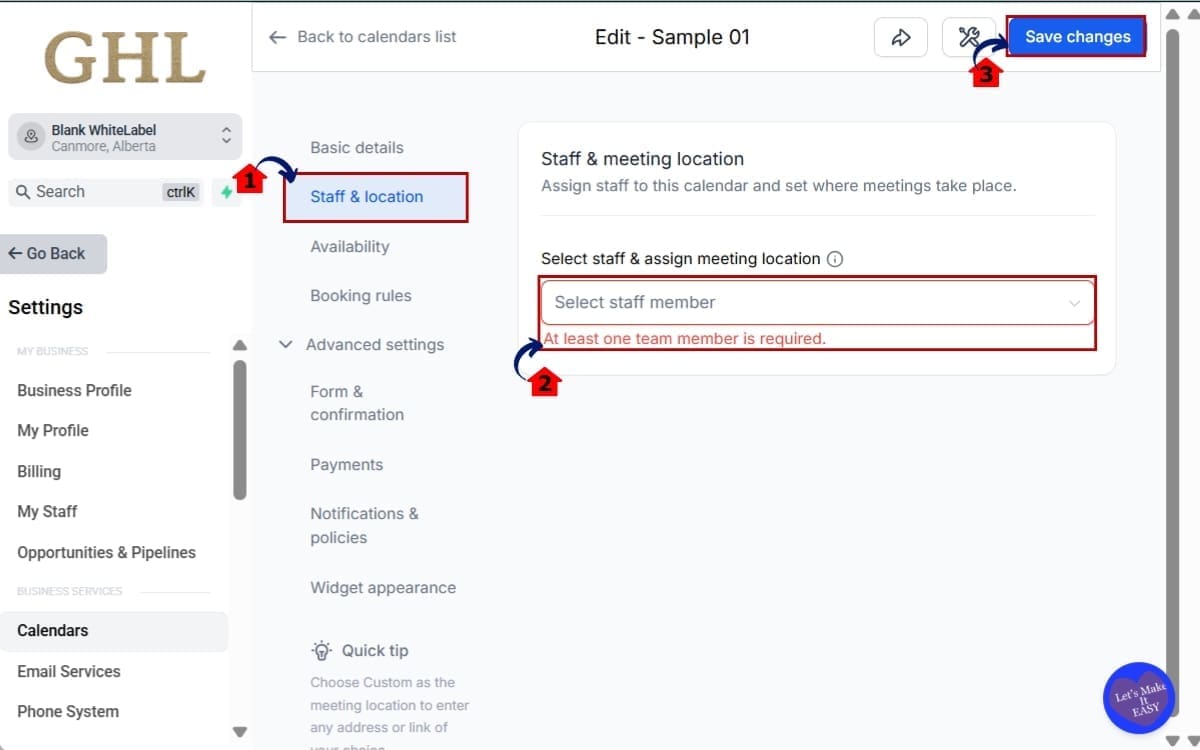
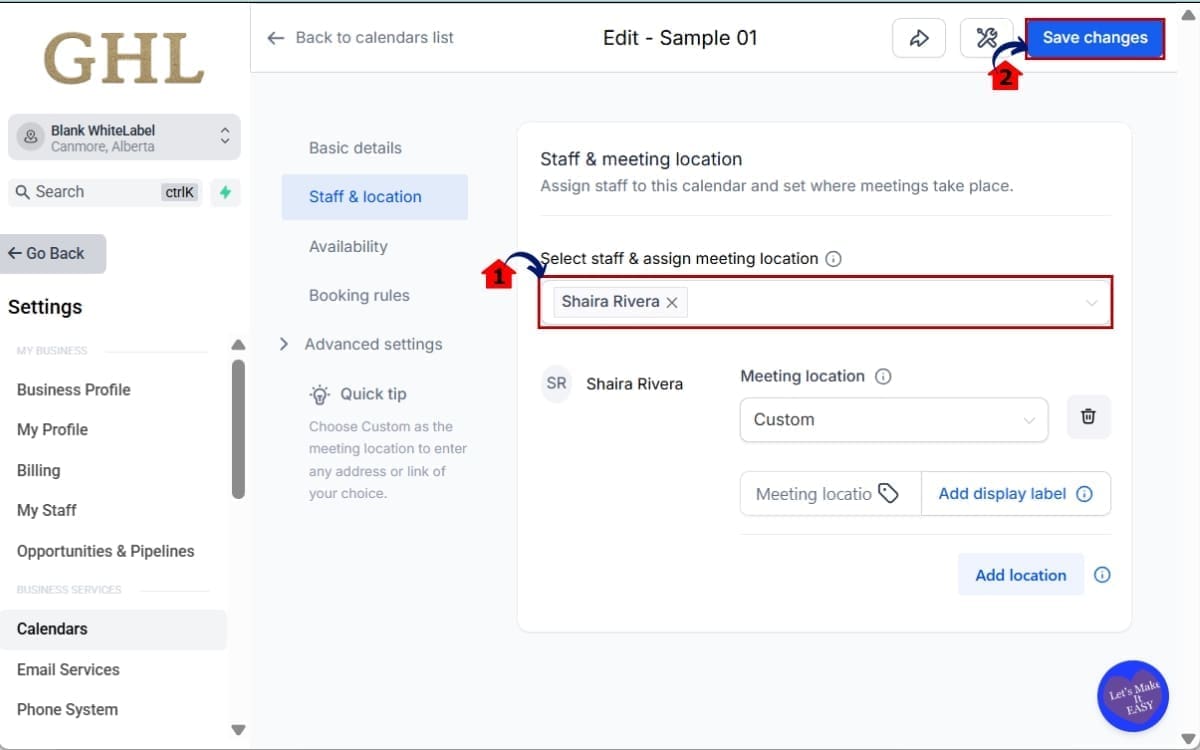
3.1 Click staff & location
- Review each section to see required fields. Required fields are typically marked clearly inside the interface.
3.2 For testing purposes, remove or leave a required field incomplete.
- Example: Remove a required team member.
3.3 Click “Save Changes.”
- This is where the updated calendar validation errors behavior activates.
Step 04 – Fix the Calendar Validation Error
- Review the highlighted field, update the required setting, and ensure all necessary information is completed. Then save the calendar again to finalize your changes.
4.1 Enter the missing required information.
- Reassign the team member.
4.2 Click “Save Changes” again.
- This time, the system should save successfully.
That’s it. The new calendar validation errors flow ensures you always know exactly why your calendar didn’t save. It reduces friction and removes the guesswork from calendar configuration.
Pro Tips to Avoid Calendar Validation Errors
Calendar validation errors are now easier to spot. But if you want to move even faster, here are a few smart habits that keep your calendar setup clean from the start. Review required fields before switching tabs.
When you edit Availability, Forms, or Team Members, quickly scan for required inputs before clicking away. This prevents stacking multiple calendar validation errors across different tabs.
Assign at least one active team member. One of the most common save issues happens when no team member is assigned. Always confirm that at least one active user is connected to the calendar before saving.
Double-check availability rules. If availability windows are incomplete or improperly configured, it can trigger validation blocks. Make sure time slots are fully defined.
Don’t rush multi-tab edits. If you update multiple tabs at once, validation may trigger in a section you edited earlier. Work methodically. Save after major changes instead of editing everything at once.
Use a quick test booking after major updates. Even though calendar validation errors now guide you properly, testing the booking link confirms that notifications, confirmations, and assignments are working correctly.
Train your VAs on the new behavior. If you have a team managing client calendars, show them how the updated validation works. This prevents unnecessary Slack messages like “Why isn’t it saving?”
Small awareness. Big time savings. Smarter handling of calendar validation errors already reduces friction. These tips make the process even tighter.
What This Means for Your Business
Calendar validation errors don’t generate revenue. But fixing friction does.
When your systems feel smooth, your team moves faster. When your team moves faster, client setups happen quicker. And when client setups happen quicker, revenue flows sooner.
That’s the real impact.
If you run an agency, you likely build multiple calendars:
- Strategy call calendars
- Sales demo calendars
- Onboarding calendars
- Client support calendars
- Paid consultation calendars
Every one of those depends on proper configuration.
Before this update, calendar validation errors could slow down deployment. You might waste five or ten minutes searching for a missing field. Multiply that across multiple calendars and multiple team members, and you’re losing real time.
Now, the system removes that friction. Your team knows instantly what’s wrong. They fix it immediately. They move on. It also improves onboarding.
When a new VA or team member edits a calendar and it won’t save, the platform now guides them clearly. That reduces training time and prevents confusion during early setup stages.
This update also protects your launch timelines. When calendars save cleanly, workflows trigger correctly. Notifications fire properly. Booking links work as expected. That reliability builds confidence in your automation systems.
Smarter calendar validation errors handling doesn’t just make editing easier. It makes your operational workflow tighter. And tight operations scale better.
Real-World Agency Use Case
Picture this, you just signed a new client and you’re setting everything up.
They need:
- A discovery call calendar
- A sales presentation calendar
- A client onboarding calendar
- A support booking calendar
That’s four separate calendars right away.
Your VA jumps in to configure them. They adjust availability, connect team members, customize form fields, and set notifications. Everything looks good.
They click “Save Changes.” Before this update, if something was missing, calendar validation errors would block the save without clearly pointing to the issue. Your VA would start clicking through tabs trying to find what went wrong.
That’s five extra minutes. Maybe ten. Multiply that across four calendars. Now multiply that across multiple clients per month. It adds up fast.
With the new calendar validation errors behavior, the moment your VA clicks Save, GHL scrolls directly to the missing field or switches to the exact tab that needs attention.
No hunting. No second-guessing. No Slack message asking, “Why isn’t it saving?” The fix takes seconds instead of minutes.
Onboarding feels cleaner. Your processes run the way they should. And your team can spend time on real strategy instead of fixing tiny setup mistakes.
Small UX improvements like this don’t look dramatic. But in agency operations, clarity compounds. And smoother systems scale better.
FAQs About Calendar Validation Errors
GHL Calendar Validation Errors Fixed Fast
Calendar validation errors used to slow you down. You’d click save. Nothing would happen. And you’d start guessing.
Now, GHL handles calendar validation errors the right way. The system automatically scrolls to the missing required field or switches tabs and highlights the issue clearly. No confusion. No silent failures.
That means:
- Faster calendar setup
- Cleaner onboarding
- Fewer internal questions
- Less troubleshooting
- More confidence when you hit Save
For agencies managing multiple client calendars, this is a serious quality-of-life upgrade. It removes friction from one of the most common setup processes inside GHL.
Small interface improvements like this don’t always look dramatic on the surface. But smoother workflows compound over time.
If you haven’t edited a calendar recently, jump in and test it. Trigger a small validation issue on purpose and watch how the system responds. Once you see it in action, you’ll appreciate the difference immediately.
Have you already noticed the new calendar validation errors behavior inside GHL? Drop a comment and let us know how it’s improved your setup process.
And check back with the team at GHL Growth Garage for more practical GoHighLevel feature guides designed to help you build faster and scale smarter.
Scale Your Business Today.
Streamline your workflow with GoHighLevel’s powerful tools.


