- Turn off the mandatory profile modal and explore email formatting, calendar sync, and event email upgrades
- Quick Summary – Community Profile Settings Overview
- What’s New – Disable the Profile Modal Prompt
- What’s Changed – Supporting Enhancements
- Why This Matters – Better Onboarding and Communication
- How to Use the Community Profile Settings Toggle
- Pro Tips – Power User Advice for Agencies
- What This Means – Bigger Picture
- Results You Can Expect
- Frequently Asked Questions About Community Profile Settings
- Wrap It Up
Turn off the mandatory profile modal and explore email formatting, calendar sync, and event email upgrades
GHL Community Profile Settings Now Customizable
Community profile settings just got a big update in GHL. You can now choose whether new members must complete their profile before joining your group.
This means you’re no longer stuck with the default. If you want people to jump right into the conversation without uploading a picture or writing a bio, you can turn off the profile modal with one setting. It’s simple, flexible, and gives you more control over how your community feels from the start.
The update also includes better formatting for post emails, calendar fixes that improve invite accuracy, and a new way to personalize group messages. If you run a membership community or use groups for events, these small tweaks will make a noticeable difference.
With the new community profile settings in GHL, you can skip the forced profile step, improve email clarity, and deliver smoother invites.
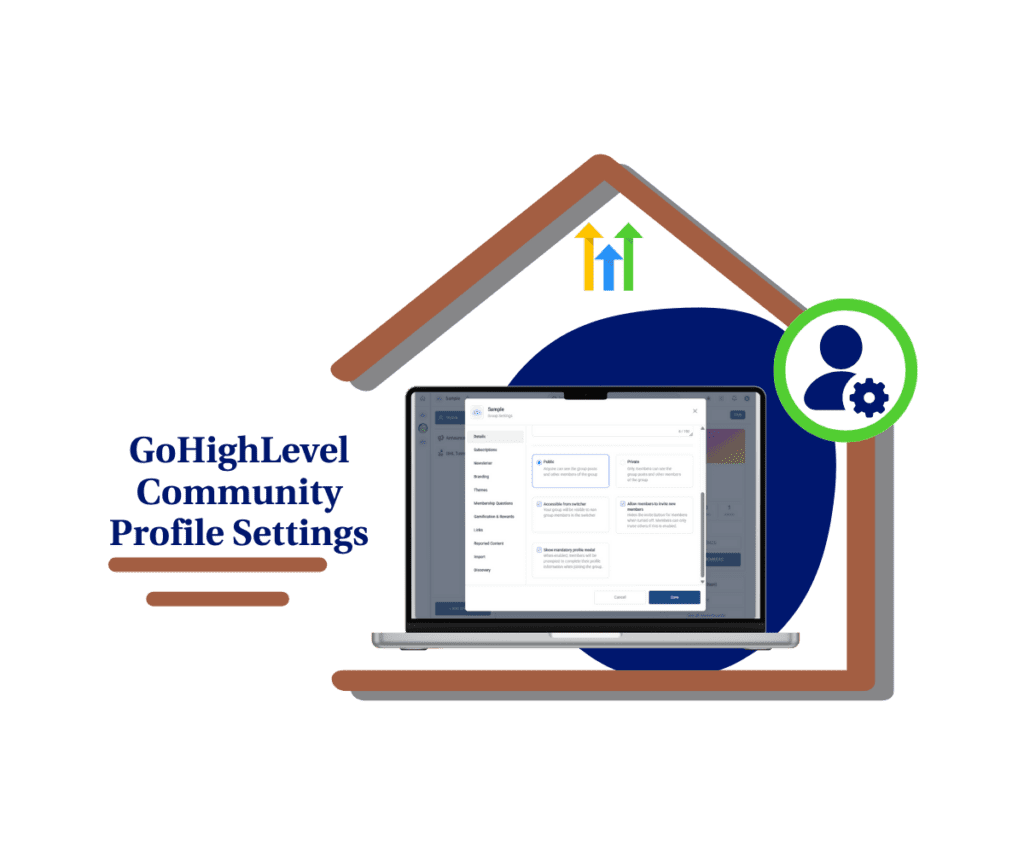
With the new community profile settings in GHL, you can now disable the mandatory profile setup modal for new members. Combine that with upgraded email formatting and more accurate calendar invites to create a smoother, faster, and more polished onboarding experience.
Quick Summary – Community Profile Settings Overview
Purpose: Give GHL users full control over how new members join a community by updating profile setup requirements.
Why It Matters: Community profile settings help reduce friction at the join stage. They let you choose between fast access or a more structured intro.
What You Get: A simple toggle to disable or enable the profile modal. New support for clean post formatting, better calendar invites, and new email variables.
Time to Complete: 2 to 3 minutes per community group.
Difficulty Level: Very Easy. Just toggle a setting inside the group settings page.
Key Outcome: A smoother member experience with faster onboarding, fewer drop-offs, and better control over how your community feels.
What’s New – Disable the Profile Modal Prompt
GHL now gives you more control over your community profile settings. Inside each group, there’s a new option called “Show mandatory profile modal.” This lets you decide whether new members must set up a profile before they join.
By default, the profile modal is on. That means new members see a pop-up asking them to upload a photo and write a short bio. Some communities want that. It adds a layer of connection and makes people feel more visible.
Automate marketing, manage leads, and grow faster with GoHighLevel.

But not every group needs it.
With this update, you can turn that off. If you want new members to enter your community right away, without any extra steps, just switch the toggle off. The community profile settings will remember your choice for each group.
This is helpful for fast-moving or free communities where speed matters. It’s also useful if your group is more casual and you don’t want to slow people down with required setup tasks.
The good news? Members can still update their profile later. This update just puts the decision in your hands.
What’s Changed – Supporting Enhancements
This update to community profile settings comes with a few extra improvements that clean up the overall experience.
First, post emails now look the way you intended. GHL will keep your formatting like line breaks, spacing, and bullet points when sending post content through email. It may seem small, but it makes your messages easier to read and more professional.
Second, event invites now create .ics files that match the correct time. This helps when your group includes people in different time zones. Fewer errors mean fewer missed events.
Third, there is a new option to include the group name automatically in event emails. It is a simple variable, but it helps your messages feel more personalized.
GHL also fixed two bugs. Private links now show properly when you open a group in GoKollab. Plus, the About section of your group is now visible to all members like it should be.
While the highlight is better control over community profile settings, these extra updates help your group feel smoother, more polished, and easier to manage.
Why This Matters – Better Onboarding and Communication
Controlling your community profile settings means you decide how people join your group. For some communities, setting up a profile helps members feel more connected. But for others, that extra step just gets in the way.
Now you can choose what fits best.
Turning off the profile modal gives new members instant access. This makes a big difference for free groups, public events, or fast signups. No delays, no friction just a clean entry into the conversation.
The changes to email formatting also matter. When your post looks right in the inbox, people are more likely to read it. Clear structure and spacing make your content easier to follow, even outside the platform.
Accurate calendar invites help reduce no-shows. If times are wrong or unclear, it reflects poorly on your group. Now, invites land with the correct time and timezone built in.
All of this adds up to a better member experience. Whether it’s the improved community profile settings or the way emails and events work, your group now feels more thoughtful, organized, and easier to trust.
How to Use the Community Profile Settings Toggle
Take control of your member experience with just a few clicks
This update is built directly into your Community Group Settings. There’s no special access or new menu to find. You just need to know where to go and what to toggle.
Here’s the step-by-step process for updating your community profile settings in GHL:
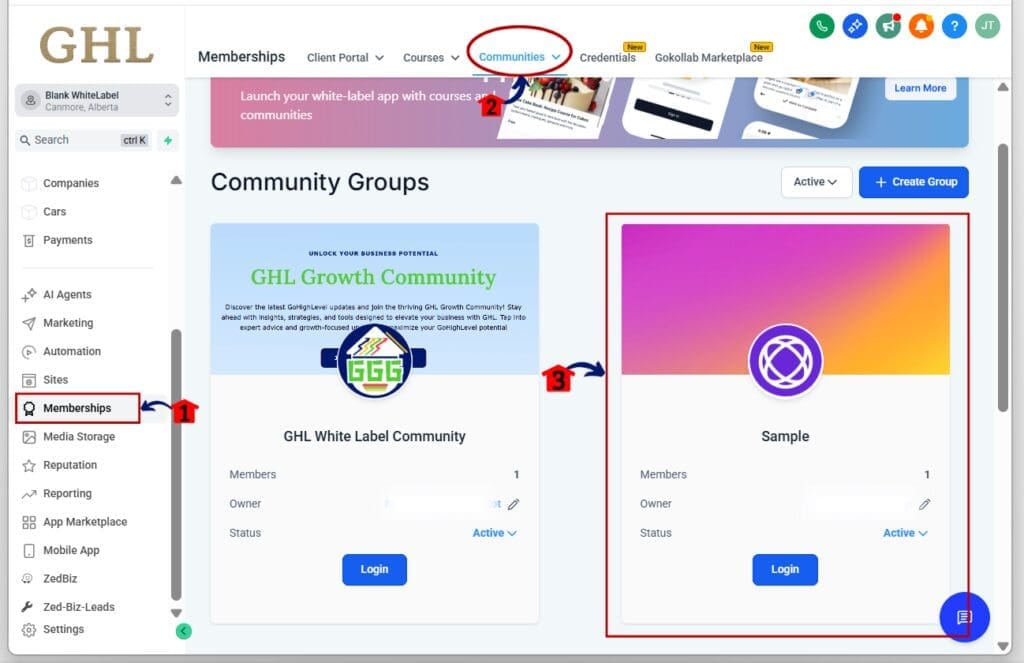
Step 01: Access the Main Left Hand Menu in GoHighLevel
- The Main Menu on the Left side of your screen has all the main areas that you work in when using GHL
1.1 Click on the Memberships Menu Item.
- Access the ‘Memberships’ section of GoHighLevel
1.2 Click on the Communities Menu
- You’ll see a list of your existing community groups.
1.3 Choose the Group You Want to Edit
- Click into the community where you want to change the profile settings.
Step 02: Open Group Settings
- Every group has a settings menu with basic controls.
2.1 Click the settings button at the top right
- This opens your Community Group settings.

2.2 Click the Details tab on the left side menu
2.3 Scroll to Find “Show Mandatory Profile Modal”
- You’ll see a toggle switch labeled exactly like this.

Step 03: Adjust the Profile Modal Toggle
- This setting controls whether members must complete a profile setup before joining.
3.1 Toggle ON = Profile setup required
- Members will be prompted to upload a profile picture and fill out their bio.
3.2 Toggle OFF = No setup required
- New members go straight into the community without seeing a setup screen.
3.3 Scroll to the bottom and click “Save”
- Your updated community profile settings are now live.

That’s it. The new community profile settings keep you in full control of how your group feels to new members without adding more steps to your workflow.
Pro Tips – Power User Advice for Agencies
Community profile settings may look like a small change, but they give agency owners a lot of room to fine-tune the member experience.
Match settings to group type
- Not every community needs the same rules. If you run a casual or free group, turn off the profile modal and let people join fast. For paid memberships or coaching programs, keeping it on might help build connection and trust early.
Test and adjust
- Community profile settings are flexible. You can try one approach, then change it later based on how people respond. If new members drop off before joining, turning off the profile modal might help.
Use automations to collect profile info
- Even with the modal turned off, you can still ask members to update their bio later. Use a workflow, email, or pinned post to remind them. You stay in control of the experience without slowing anyone down.
Keep things simple for clients
- If you’re offering white-labeled GHL communities, defaulting to easy access can make setup feel smooth and clean. Use community profile settings as a tool to remove friction from client projects.
Add it to your SOPs
- If your agency builds and manages groups for clients, make this toggle part of your setup checklist. It’s an easy win and helps create a more consistent launch process.
Small changes to community profile settings can create a smoother path for members and help agencies deliver better results with less work.
What This Means – Bigger Picture
Community profile settings give you more say in how people enter your group. That small change can have a big impact on how members feel when they join.
For some groups, forcing a profile setup helps build trust and identity. But for many, that extra step is just a delay. Now, you get to decide what works best for each group. Turning the prompt off makes it easier for people to jump in and start engaging.
The bigger picture here is control. GoHighLevel is giving you more ways to shape your community. Whether you want fast onboarding or a more personal start, community profile settings help you do it your way.
This also helps agencies and white-label users who run client communities. You can now adjust the experience based on client goals, brand tone, or audience type. No workarounds. No extra steps.
Simple updates like this matter. They reduce friction, improve first impressions, and give you tools to grow your group with confidence.
Results You Can Expect
Once you start using the updated community profile settings, you’ll likely notice a few changes right away.
First, new members can join faster. Without the profile setup step, there’s less to think about. That can lead to better conversion from invite to entry, especially for free or public groups.
Second, your emails will look cleaner. Post formatting stays in place, so what you write is what they see. This helps people actually read your updates, instead of skipping them because of a messy layout.
Third, your events will run smoother. The calendar invite fix means fewer time mix-ups, fewer missed sessions, and a better experience for everyone.
Community profile settings may seem like a small toggle, but they help you control how people step into your space. When you remove roadblocks and fix the details, the results often show up in higher engagement and fewer questions from confused users.
It’s all about reducing friction. And this update does just that.
Frequently Asked Questions About Community Profile Settings
Wrap It Up
Community profile settings now give you a simple way to control how people join your group. That one toggle can make your onboarding feel smooth or structured, depending on what your members need.
If you want fast entry with fewer steps, turn off the profile modal. If you want people to build a complete profile before they join, leave it on. The point is, now you choose.
Alongside this, GHL also improved how your posts show up in emails and made calendar invites more reliable. These small updates help your group feel more organized and easier to manage.
Take a minute to check your current community profile settings. That quick change might be all it takes to make your member experience better from the start.
Scale Your Business Today.
Streamline your workflow with GoHighLevel’s powerful tools.