- The Hidden Problem with Contact Search Automation
- Quick Summary – Contact Search Automation
- Here are this weeks HighLevel Updates
- What’s New in GHL Contact Search Automation
- What’s Changed Old Behavior in Contact Search Automation
- Why This Matters for Using Contact Search Automation
- How to Use Contact Search Automation in GHL
- Pro Tips to Avoid Errors with Contact Search Automation
- FAQ – Contact Search Automation in GHL
- What This Means for Your CRM Data Accuracy
- Stop Losing Leads with Contact Search Automation
The Hidden Problem with Contact Search Automation
GoHighLevel just introduced a smarter way to match contacts inside your workflows, making Contact Search Automation more accurate and reliable than ever. This featured GoHighLevel update expands the Find Contact action so your automations can search secondary emails and additional phone numbers, reducing duplicates and preventing missed matches in a single step.
What changed: You can now enable an option inside the Find Contact workflow action to include secondary emails and additional phone numbers when searching for an existing contact in GoHighLevel.
Who it impacts: Agencies, sales teams, SaaS users, and any business using GHL workflows to automate lead routing, opportunity creation, and CRM management.
What we’ll demonstrate: How to enable this Contact Search Automation upgrade inside your sub-accounts, update existing workflows, and prevent duplicate contact creation while improving CRM accuracy in GoHighLevel.
The latest GoHighLevel Changelog includes several other GHL feature updates that round out your daily workflow:
- Improved Documents & Contracts staff selection for precise signers
- Invoices & Estimates that open in a new tab for easier billing management
- Import from Media Storage in GoHighLevel Courses for faster content deployment
- Manus triggers and actions in GoHighLevel Workflows for AI task automation
- New templates and a Physical Therapy Clinic snapshot to launch campaigns faster
- Expanded Workflows error highlight feature that catches config issues early.
- Deskphone‑to‑deskphone calling & transfer in GoHighLevel’s phone system for smoother call handling.
- AI Builder conversational editing for If‑Else & Wait actions.
- Voice Dictation in AI Builder & Assistant to build workflows just by talking to GoHighLevel.
Keep reading for much more on all these updates and a deep dive into the Contact Search Automation!
Quick Summary – Contact Search Automation
Purpose: This update improves how GHL Contact Search Automation finds existing contacts inside workflows by allowing searches across secondary emails and additional phone numbers.
Why It Matters: Workflows that previously missed matches could create duplicate contacts, break automations, and damage reporting accuracy. This enhancement reduces those risks immediately.
What You Get: Expanded contact matching logic, fewer duplicates, stronger CRM integrity, and more reliable automation performance.
Time To Complete: Less than 5 minutes to enable per workflow, including testing.
Difficulty Level: Beginner-friendly with advanced impact for agencies running high-volume automations.
Key Outcome: Cleaner data, more predictable workflows, and a CRM system that scales without creating chaos.
Here are this weeks HighLevel Updates
Documents & Contracts: Staff selection in templates
- What it does
- Lets admins assign signature and other fillable fields to any specific staff member directly in the template instead of just Contact/Sender/Self.
- Where in GHL
- Sub‑Account → Documents & Contracts → Templates → create or edit template → add Signature/field → set “To be signed by” to a chosen staff member.
- Who benefits most
- Agencies managing docs for multiple businesses or locations.
- Brick‑and‑mortar businesses with designated signers.
- Teams with multi‑step internal approval/signing workflows.
- Impact
- Big for teams with structured approvals, improving operations and reducing confusion, though it does more for efficiency than raw revenue.
Automate marketing, manage leads, and grow faster with GoHighLevel.

Invoices & Estimates: Open in new tab
- What it does
- Lets you open an invoice or estimate in a separate browser tab from the 3‑dot menu without losing your filtered list view.
- Where in GHL
- Sub‑Account → Payments → Invoices & Estimates → 3‑dot menu on an item → “Edit in a new tab.”
- Who benefits most
- Bookkeepers and admins.
- Agencies handling billing across many clients.
- Any business doing bulk review or edits.
- Impact
- Strong quality‑of‑life upgrade for finance/admin teams that saves time but is mainly about efficiency, not new revenue.
Courses: Import from Media Storage (Labs)
- What it does
- Lets you import existing audio/video from Media Storage straight into course lessons, so you can reuse content without re‑uploads.
- Where in GHL
- Sub‑Account → Settings → Labs → enable “Courses: Import from Media Storage.”
- Then: Courses → open course → lesson → Create/Edit → choose from Media Library.
- Who benefits most
- Course creators and membership businesses.
- Agencies selling training/education.
- Anyone turning existing content into structured courses.
- Impact
- Speeds up course production and repurposing, which is huge if education is core to the model, but neutral if you do not sell trainings.
Manus triggers and actions in Workflows
- What it does
- Adds native Manus triggers (New Task, Task Stopped) and actions (Create, Get, Update, Fetch, Delete, Continue Task) to workflows, so GHL can orchestrate and react to Manus AI tasks.
- Where in GHL
- Sub‑Account → Automation → Workflows → add trigger/action → choose Manus.
- Integration: Sub‑Account → Settings → Integrations → Manus → connect via API key.
- Who benefits most
- Power users building advanced AI automations.
- Agencies productizing AI‑driven services.
- Tech‑savvy businesses wanting multi‑step AI processes tied into CRM data.
- Impact
- Huge potential for automation‑heavy setups, but requires extra tools and design, so it is high upside and high complexity rather than plug‑and‑play.
Introducing new templates
- What it does
- Adds new templates for websites, emails, forms, surveys, social posts, Facebook ads, plus a Physical Therapy Clinic snapshot, across verticals like finance, home services, coaching, medical, creative, and wellness.
- Where in GHL
- Templates: inside Sites, Emails, Forms, Surveys, Social Planner → Templates → filter by relevant category.
- Snapshot: Agency view → Accounts/Snapshots → add/import “Physical Therapy Clinic.”
- Who benefits most
- Agencies spinning up new vertical offers.
- Local businesses in the covered niches.
- Anyone that prefers starting from proven layouts instead of from scratch.
- Impact
- Excellent accelerators for speed‑to‑launch, especially for agencies, but they do not change what is possible, only how fast you can deploy it.
Workflows: Expanded error highlight feature
- What it does
- Extends error validation to 48 actions and 28 triggers and strengthens checks on If‑Else and Wait, catching misconfigurations when saving.
- Where in GHL
- Sub‑Account → Automation → Workflows → any workflow builder view; errors show as visual highlights on problematic steps when you save.
- Who benefits most
- Agencies maintaining lots of automations.
- Teams that delegate workflow building.
- Anyone who has been burned by quietly broken workflows.
- Impact
- Makes automations more reliable and reduces invisible failures, which is critical for stability even though it is mostly invisible when everything works.
Deskphone‑to‑deskphone calling & transfer
- What it does
- Enables transferring IVR‑routed calls from one deskphone to another by extension and supports extension‑to‑extension calling.
- Where in GHL
- Config: Sub‑Account → Settings → Phone / HL Phone / Twilio, where IVR and deskphones are set up.
- Usage: on the physical deskphone during calls, using transfer plus extension dialing.
- Who benefits most
- Call centers and sales floors with physical phones.
- Medical and service offices with front desk and internal staff.
- Any team using IVR heavily with internal call routing.
- Impact
- Big operational win for phone‑centric teams, but a non‑event for SMS/email‑first or softphone‑only setups.
AI Builder: Conversational editing for If‑Else & Wait
- What it does
- Lets you modify If‑Else and Wait actions conversationally, adjusting branches, conditions, timeouts, and wait types via natural language.
- Where in GHL
- Sub‑Account → Automation → Workflows → AI Builder.
- Use the AI Builder chat to request changes to existing If‑Else/Wait logic.
- Who benefits most
- Non‑technical users intimidated by complex logic.
- Agencies iterating high‑complexity workflows.
- Anyone preferring “describe the logic in English” over manual clicking.
- Impact
- Makes sophisticated workflows more accessible and faster to adjust, improving build speed and reducing errors for teams that tweak logic often.
Voice dictation in AI Builder & Assistant
- What it does
- Adds voice input so you can speak ideas or instructions into AI Builder or the AI Assistant, with transcription and multi‑language support.
- Where in GHL
- Sub‑Account → Automation → Workflows → AI Builder → mic icon in the prompt box.
- Also in AI Assistant interfaces where the mic icon appears.
- Who benefits most
- Busy owners and sales pros who think aloud.
- Agencies rapidly building workflows during calls or screen shares.
- Multilingual teams that want to use their native language in prompts.
- Impact
- Reduces friction in getting ideas into the system and favors power users building lots of automations, though it mostly boosts speed rather than capability.
What’s New in GHL Contact Search Automation
Here’s what actually changed.
The Find Contact action inside workflows has been upgraded. GHL Contact Search Automation can now search secondary emails and additional phone numbers stored inside a contact record.
Previously, it only checked the primary email and primary phone fields. That was it. If your workflow was trying to match a contact using a secondary email or alternate phone number, it would fail. Even if that data existed in the CRM.
Now, when setting up the Find Contact action, you’ll see a checkbox option that allows you to include additional emails or additional phone numbers in the search.
That means the system no longer ignores valuable contact data.
If someone fills out a form using a secondary email…
If they reply from a different number…
If they exist in your CRM with multiple contact points…
GHL Contact Search Automation can now find them correctly.
This enhancement gives workflows expanded matching logic. Instead of looking at one data field, it now checks the full contact profile when enabled.
It’s not automatic by default. You must enable the checkbox. But once you do, your workflow matching becomes significantly more reliable.
This is a small interface change with a big backend impact.
What’s Changed Old Behavior in Contact Search Automation
Before this update, GHL Contact Search Automation was limited.
When you used the Find Contact action inside a workflow, it only searched two fields:
Primary email
Primary phone
That’s it.
If a contact had additional emails stored in their record, they were ignored. If they had multiple phone numbers saved, those were ignored too.
So what happened?
Let’s say someone opted in using a secondary email address.
- Your workflow runs.
- The Find Contact action searches.
- No primary match found.
- The system assumes the contact doesn’t exist.
Now you’ve got:
- Duplicate contact records
- Split conversations
- Broken opportunity tracking
- Incorrect automation triggers
All because Contact Search Automation wasn’t checking the full contact profile.
The old behavior wasn’t broken. It was just limited.
Now, with the enhancement, you can tell the system to include secondary emails and additional phone numbers when searching. Instead of checking one field, it checks all relevant stored contact data.
The difference is simple:
Old Logic: Primary fields only
New Logic: Primary + Additional fields (when enabled)
That change alone dramatically improves matching accuracy inside workflows.
Why This Matters for Using Contact Search Automation
If you run a single funnel for a local business, this update is helpful.
If you run multiple client accounts with layered automations, this is critical.
Agencies depend on reliable Contact Search Automation. When workflows fail to match contacts correctly, the damage spreads fast.
Here’s what was happening before:
- A lead submits a form using a secondary email.
- Your workflow tries to find the contact.
- No match.
- A duplicate record gets created.
Now you’ve got two contact records for one person.
One record has conversation history.
The other triggers automations.
Your pipeline reporting splits.
Your attribution gets messy.
Multiply that by hundreds or thousands of leads across multiple sub-accounts.
That’s how CRM chaos starts.
This update improves:
- Automation reliability
- Duplicate prevention
- Pipeline accuracy
- Reporting consistency
- Client confidence
Clean data isn’t just a “nice to have.” It’s the backbone of scalable automation.
When Contact Search Automation checks all stored emails and phone numbers, your workflows behave the way they should have from the start.
For agencies running SaaS mode, high-volume funnels, or advanced lead routing, this is a stability upgrade.Less cleanup.
Fewer support tickets.
More predictable automation logic.
How to Use Contact Search Automation in GHL
Ever had a workflow create a duplicate contact and you’re left wondering what went wrong? Or worse, it doesn’t trigger because it can’t find the right email or phone number. Turning on enhanced Contact Search Automation fixes that by checking all saved emails and phone numbers in the contact record, not just the primary ones, and it only takes a minute to enable.
Here are the steps to Use Contact Search Automation inside GoHighLevel.
- Access the Automation Workflows page of GoHighLevel.
- Create a New Workflow from Scratch.
- Add the Action to Your Workflow.
- Search and Add the “Find Contact” Action to Your Workflow.
- Select Whether to Search by Phone or Email.
- Select Phone as the Contact Matching Field.
- Select email as the Contact Matching Field.
- Add Your Phone Number and Enable Include Additional Phones.
- Add Your Email and Enable Include Additional Emails.
- Save and Test the Updated Workflow Configuration.
To start, make sure you are logged in to your GoHighLevel sub-account.
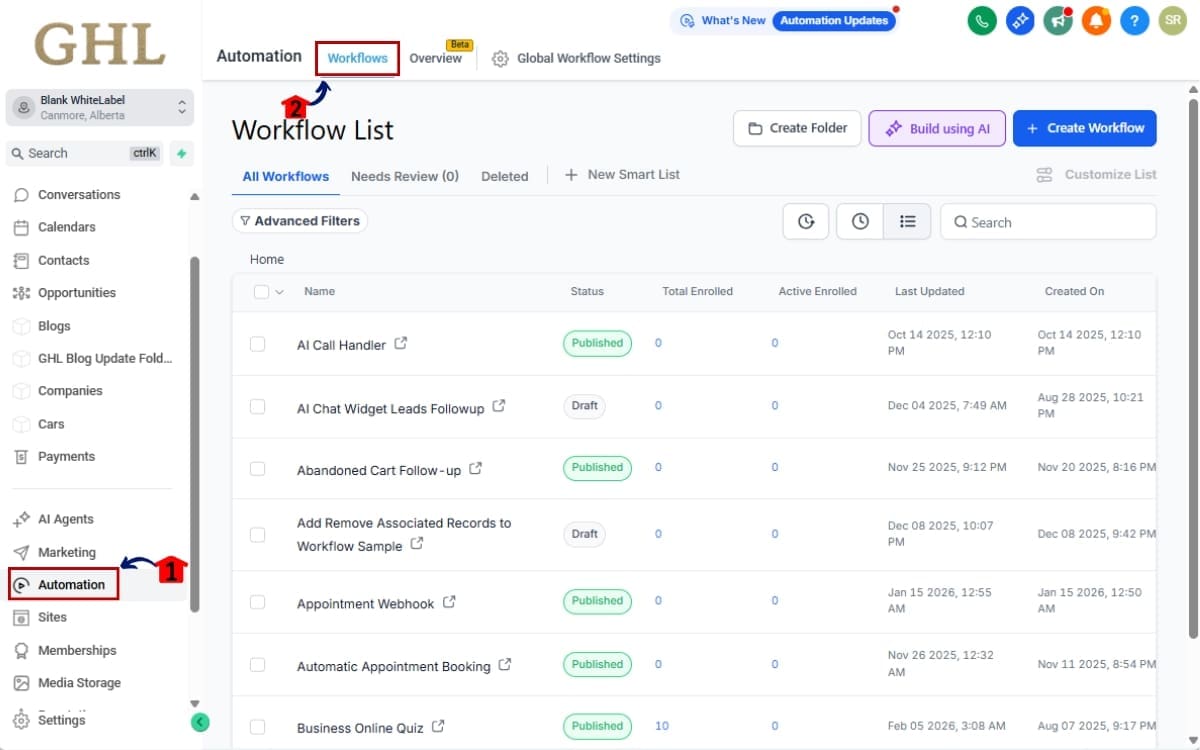
Step 1.0 – Access the Automation Workflows page of GoHighLevel
- The Main Menu on the left side of your screen contains all the core areas you use inside GHL.
1.1 Click Automation in the main menu.
- Inside the Automation section you will find Workflows, Overview, and Global Workflow Settings.
1.2 Click Workflows from the submenu to open the Workflow Builder page.
Step 2.0 – Create a New Workflow from Scratch
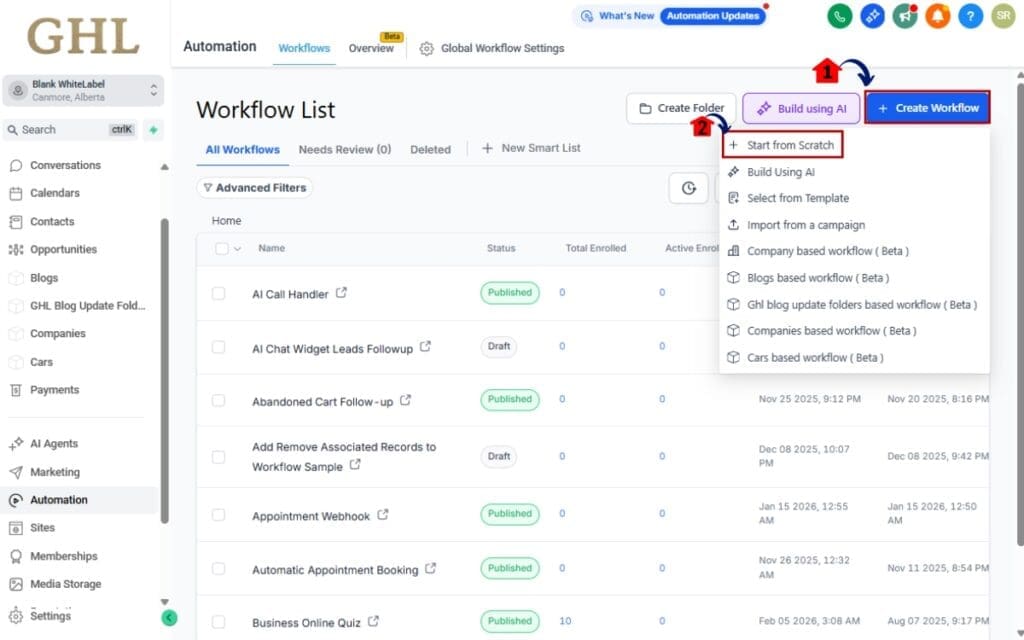
2.1 Click +Create Workflow to build a new workflow from scratch.
- You can start from a blank template or choose a pre-built recipe if it fits your use case.
Step 3.0 – Add the Action to Your Workflow
Inside your workflow, you’ll either add a new Find Contact action or adjust the one that’s already there.
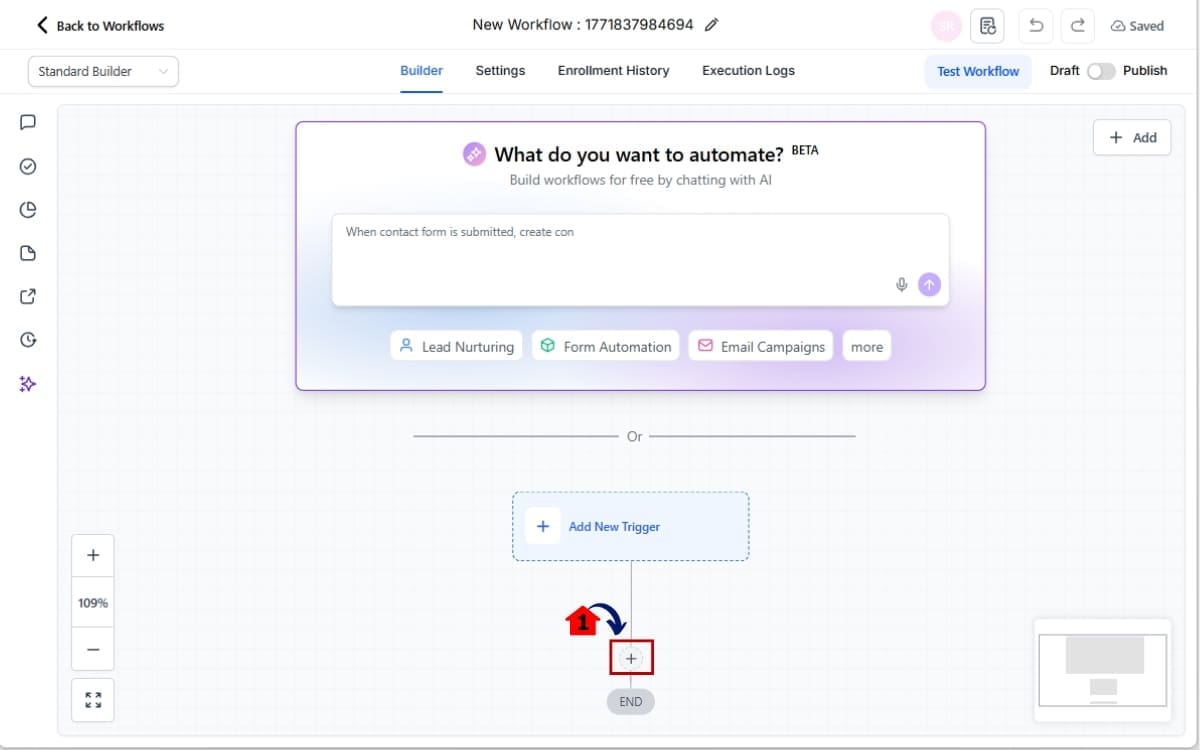
3.1 Click the + button within the workflow builder to add a new step.
- This allows you to insert a new action into your automation sequence.
Step 4.0 – Search and Add the “Find Contact” Action to Your Workflow
4.1 In the action search bar, type Find Contact and select it from the list of available actions.
- If the Find Contact action already exists in your workflow, click on it to open the settings panel and make your edits.

Step 5.0 – Select Whether to Search by Phone or Email
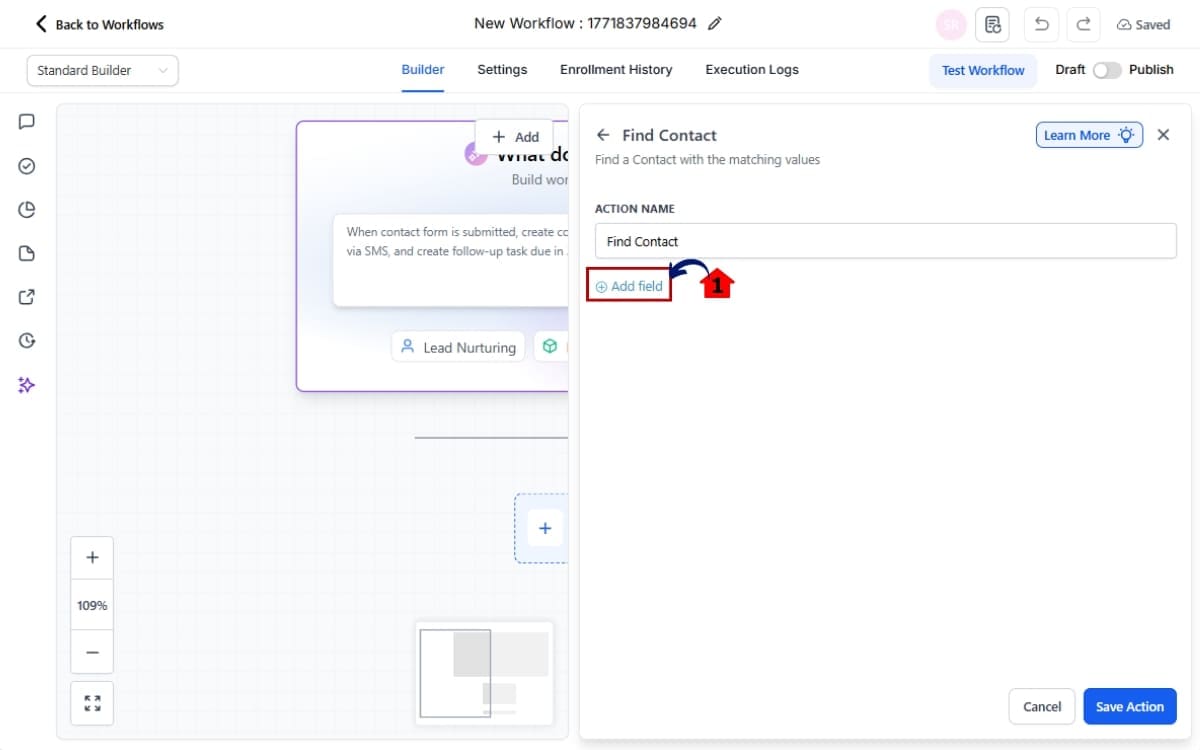
5.1 Inside the Find Contact action settings, click the add Field.
- This allows you to define which contact field the workflow will use to search.
Step 6.0 – Select Phone as the Contact Matching Field
- Go with this step if searches contacts by phone number.
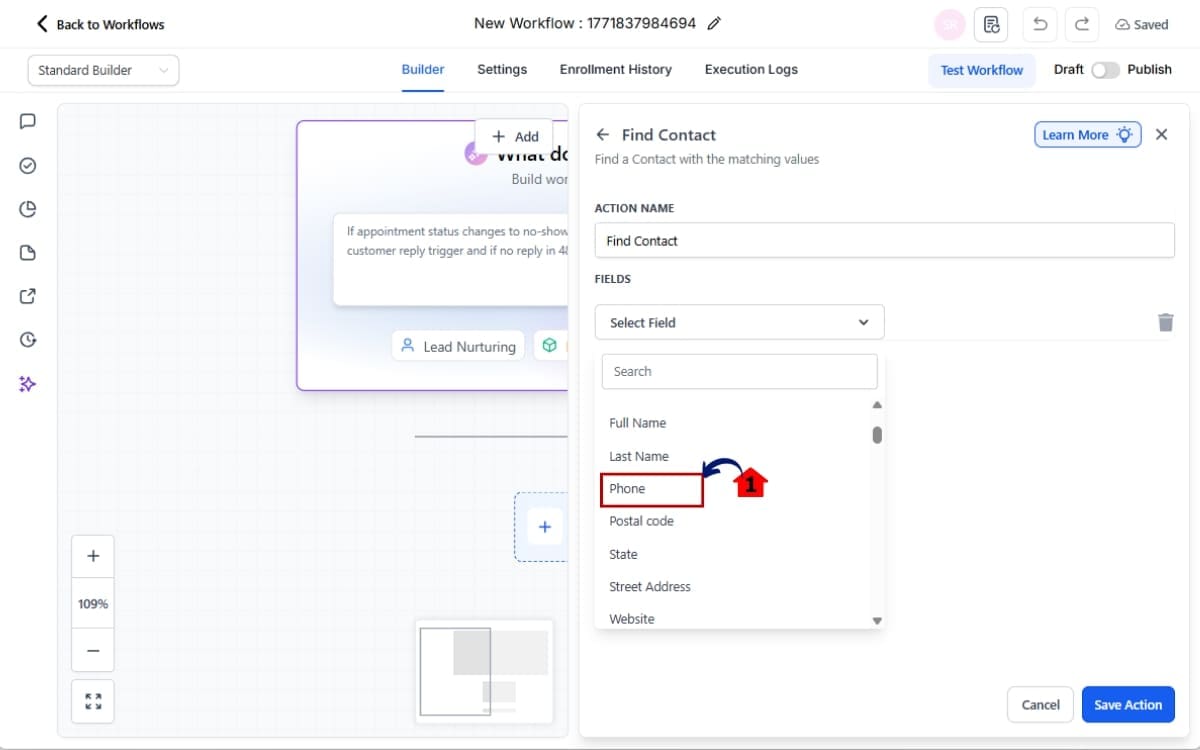
6.1 Click the phone to match the contact inside your CRM.
- This tells the workflow to search using the contact’s phone number.
Step 7.0 – Select email as the Contact Matching Field
- Go with this step if searches contacts by Email.
7.1 Click the email to match the contact inside your CRM.
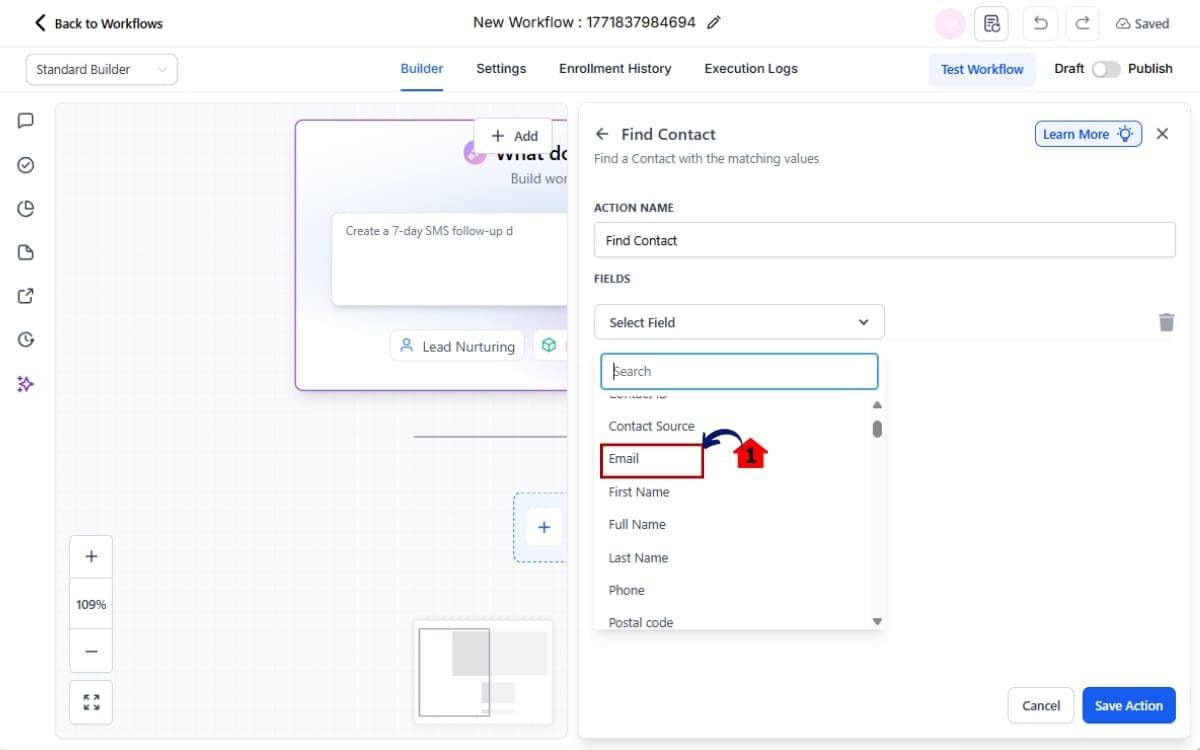
Step 8.0 – Add Your Phone Number and Enable Include Additional Phones
- Continue with this step if field is Phone.
8.1 Add your phone number to the box. 8.2 Check the box to include additional phone numbers in the lookup and save the action.
- Reduces missed matches when contacts use alternate numbers.
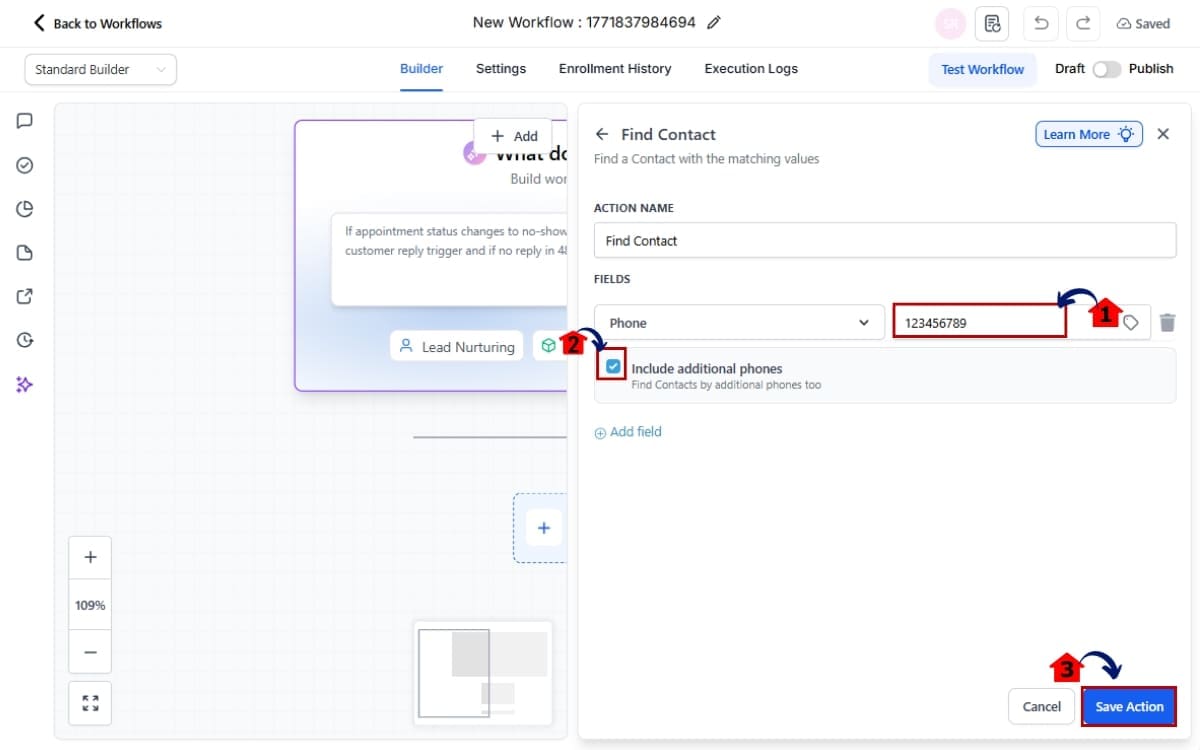
Step 9.0 – Add Your Email and Enable Include Additional Emails
- Continue with this step if field is Email.
9.1 Add your Email to the box. 9.2 Check the box to include additional phone numbers in the lookup and save the action.
- Reduces missed matches when contacts use alternate emails.
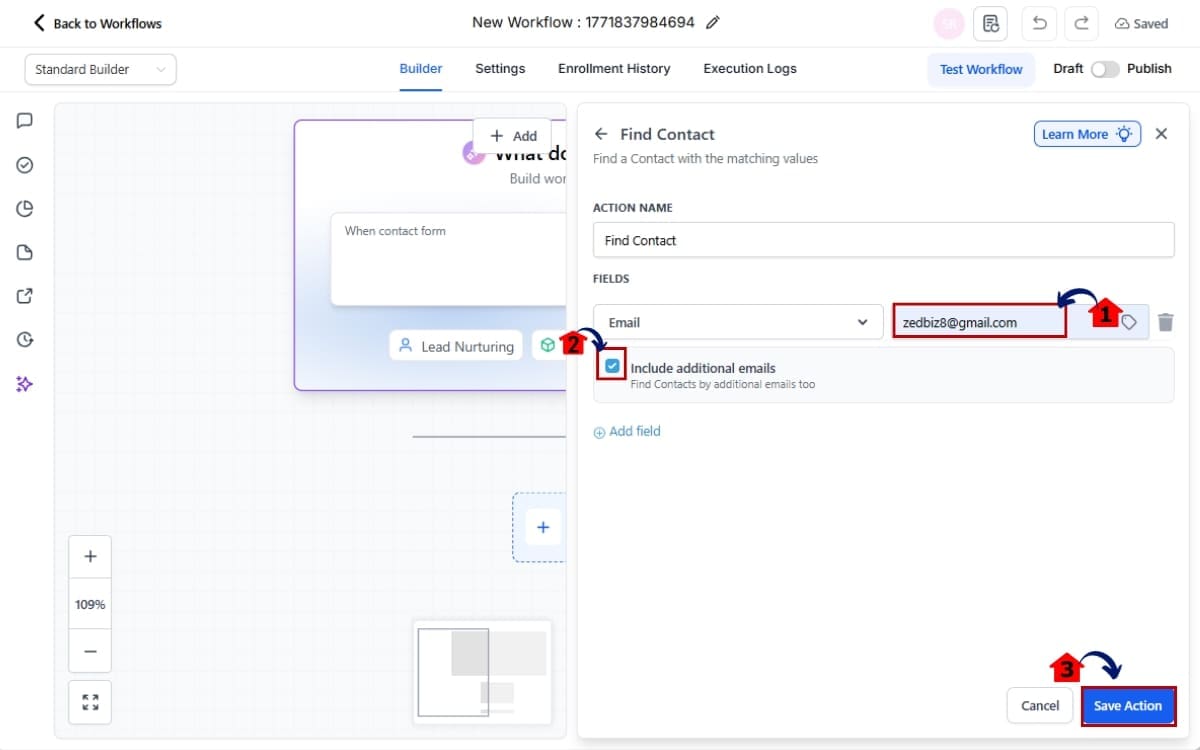
Step 10.0 – Save and Test the Updated Workflow Configuration
10.1 Click the test workflow. Run a test using a contact that has a secondary email address or phone number saved in their profile.
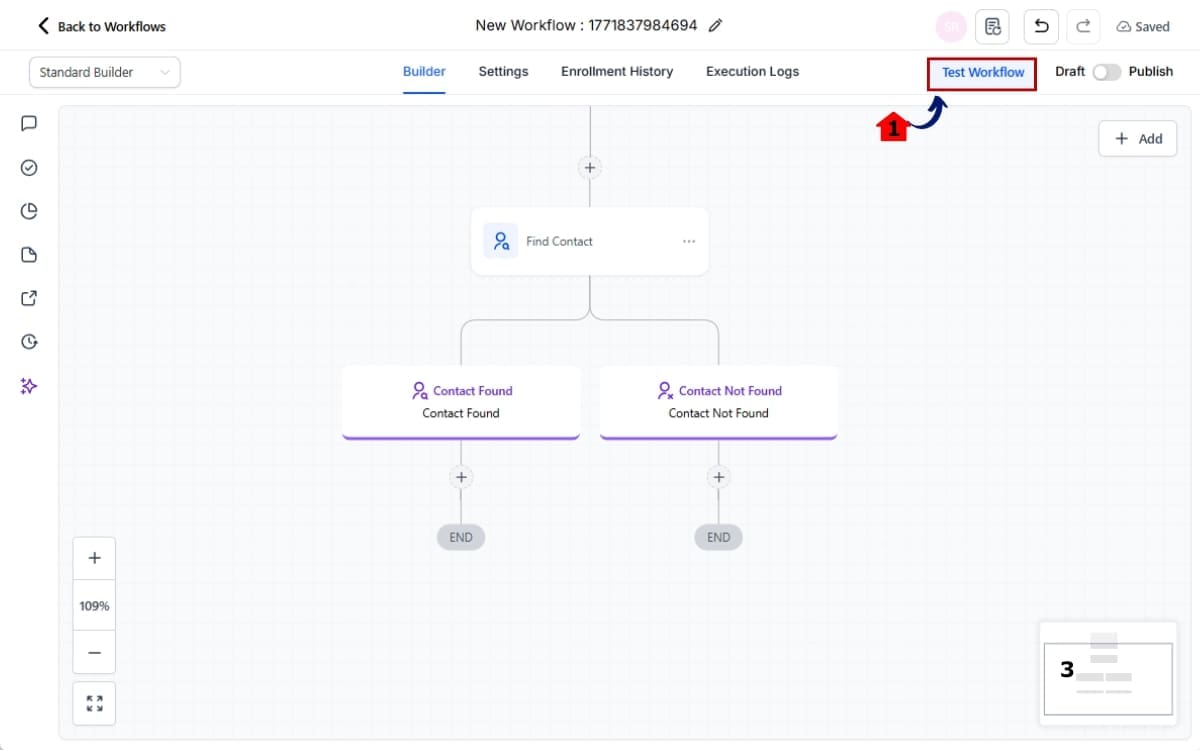
That’s it. Your Contact Search Automation is now smarter, more accurate, and far less likely to create duplicate records.
Pro Tips to Avoid Errors with Contact Search Automation
Now that you’ve enabled enhanced Contact Search Automation, let’s make sure you’re using it the right way.
Because a smarter system still needs clean inputs.
First, audit your older workflows.
If you’ve been running automations for months (or years), go back and review any workflow using the Find Contact action. Many of them were built before this enhancement existed. If the checkbox isn’t enabled, you’re still running on the old logic.
Second, standardize your data formatting.
Phone numbers should follow consistent formatting across imports and integrations. Emails should be clean and validated. If your data is messy, even upgraded Contact Search Automation can struggle.
Third, review your duplicate handling strategy.
This feature reduces duplicate creation, but it doesn’t automatically merge contacts. If multiple matches exist, you still need a clear deduplication process. Combine this upgrade with proper import settings and contact management policies.
Fourth, test before deploying at scale.
Run controlled tests using:
- Contacts with secondary emails
- Contacts with multiple phone numbers
- Contacts imported from different sources
Make sure your workflow behaves exactly how you expect.
Finally, don’t blindly enable this everywhere.
If you intentionally rely on strict primary-field matching in certain workflows, keep that logic intact. Use expanded Contact Search Automation strategically.
Clean data plus smart automation equals predictable results.
FAQ – Contact Search Automation in GHL
What This Means for Your CRM Data Accuracy
This update isn’t just about fixing one workflow action.
It’s about strengthening your entire CRM foundation.
When Contact Search Automation only checks primary fields, you’re operating with partial visibility. Your system sees part of the contact record, not the full picture.
Now, when you enable expanded matching, your workflows reference the complete contact profile.
That means:
- Fewer duplicate records
- Cleaner conversation history
- More accurate pipeline movement
- Stronger attribution tracking
- Better segmentation reliability
Over time, this compounds.
- Your reports become more trustworthy.
- Your automations become predictable.
- Your team spends less time fixing data issues.
For agencies managing multiple sub-accounts, this is huge. CRM chaos spreads fast when duplicates multiply. But when Contact Search Automation consistently finds the correct contact, you reduce fragmentation across conversations, opportunities, and campaigns.
Think of it like tightening the bolts on your automation engine.
It doesn’t look flashy from the outside.
But inside? Everything runs smoother.
This upgrade helps align your workflows with the reality of how people actually behave, using different emails, different numbers, and multiple contact points.
And that’s how a CRM should operate.
Results You Can Expect from Smarter Contact Search Automation
When you enable enhanced Contact Search Automation in GHL, the improvements show up fast.
First, you’ll see fewer duplicate contacts being created. Workflows that used to miss secondary emails or alternate phone numbers will now correctly identify existing records.
That alone reduces CRM clutter.
Second, your automations become more reliable. Instead of breaking silently, they execute exactly as designed. Contacts move through pipelines properly. Nurture sequences fire on time. Notifications reach the right people.
Third, your reporting gets cleaner.
When the same lead isn’t split across multiple contact records, your attribution improves. Your opportunity tracking makes sense. Your campaign performance data becomes trustworthy.
Fourth, your team spends less time fixing problems.
- No more digging through duplicates.
- No more manually merging contacts.
- No more explaining to clients why data looks inconsistent.
And finally, your system becomes more scalable.
High-volume funnels, SaaS reselling, multi-channel campaigns, all of it depends on solid contact matching. Smarter Contact Search Automation gives you a stronger base to grow on.
This isn’t a flashy feature.
It’s a stability upgrade.
And stability is what allows agencies to scale without chaos.
Stop Losing Leads with Contact Search Automation
Small upgrade.
Big impact.
GHL’s enhanced Contact Search Automation fixes a problem most agencies didn’t even realize was costing them leads. When workflows only checked primary fields, they missed real matches hiding inside secondary emails and additional phone numbers.
And every missed match created risk.
- Duplicate contacts.
- Broken automations.
- Split reporting.
- Messy pipelines.
Now, with one simple checkbox inside the Find Contact action, your workflows can search the full contact profile. That means better matching, cleaner data, and stronger automation reliability.
If you’re running client campaigns, SaaS mode, or high-volume funnels, this is not optional.
Go back.
Audit your workflows.
Enable expanded matching where it makes sense.
Test it properly.
Because clean CRM logic isn’t just about organization.
It’s about scale.
When Contact Search Automation works the way it should, your systems become predictable. And predictable systems are what allow agencies to grow without chaos.
That’s the real win here.
Scale Your Business Today.
Streamline your workflow with GoHighLevel’s powerful tools.