

- Build a clean folder structure for Templates and Sequences without the mess
- Quick Summary – Nested folders Overview
- What Nested Folders Are in GoHighLevel – Nested folders
- What’s New With Nested Folders – Nested folders
- Why Nested Folders Matter to Agencies – Nested folders
- How to Use Nested folders in GHL Email Templates
- Pro / Quick Tips for a Scalable Folder System – Nested folders
- What This Means for Your Business – Nested folders
- Frequently Asked Questions – Nested folders
- Next Steps With Nested folders
Build a clean folder structure for Templates and Sequences without the mess
Nested folders
Nested folders is the upgrade your GoHighLevel account has needed for a long time.
Because if you’re running more than a few clients, your folders turn into a junk drawer fast. Campaigns everywhere. Templates everywhere. Sequences everywhere. And every time you need one “simple” thing, you’re digging like you lost your keys in the couch.
Nested folders let you put folders inside folders across Campaigns, Templates, and Sequences. So instead of one flat list that grows forever, you can build a clean structure that actually makes sense.
Here’s what this looks like in real life:
- You create a folder like “Client A”
- Inside that, you create subfolders like “Lead Nurture,” “Reactivation,” and “Follow Up”
- Then you drop the right campaigns, templates, and sequences into the right place
- And the folder path shows you exactly where you are, even if you go deep (yes, this release supports more than 5 layers)
The team here at GHL Growth Garage likes this one because it’s simple, but it has a big impact. Nested folders helps you move faster, delegate easier, and keep your GoHighLevel assets organized as you scale.
Nested folders help you stop wasting time hunting for the right campaign, template, or sequence. With nested folders, your GoHighLevel account stays clean, scalable, and easy for your whole team to manage.
Quick Summary – Nested folders Overview
Purpose: This guide shows you how to use nested folders in GoHighLevel to organize Campaigns, Templates, and Sequences without clutter.
Why It Matters: Nested folders keep your assets easy to find, which cuts down build time and reduces team mistakes.
What You Get: You get a simple folder structure you can repeat for every client, plus a clear process for creating subfolders and moving assets.
Time To Complete: Most accounts can set up a solid nested folders structure in about 10 to 20 minutes.
Difficulty Level: This is beginner-friendly and requires no settings changes or tech skills.
Key Outcome: Your GoHighLevel assets stay organized as you scale, and your team can follow the same structure without confusion.
What Nested Folders Are in GoHighLevel – Nested folders
Nested folders is exactly what it sounds like: folders inside folders.
Before this update, folders were useful, but they were flat. You could organize things, sure… until you had 30+ items in one folder and it started feeling like the “Downloads” folder on your computer.
Automate marketing, manage leads, and grow faster with GoHighLevel.

Now, nested folders lets you build a real folder tree across three big asset areas in GoHighLevel:
- Campaigns
- Templates
- Sequences
So instead of this:
- Templates
- Templates (New)
- Templates (Final)
- Templates (Final Final)
- Client A Templates
- Client A Templates 2
You can do this:
- Client A
- Templates
- SMS
- Sequences
- Lead Nurture
- No Show Follow-Up
- Campaigns
- Promo Blasts
- Monthly Newsletter
- Templates
And the best part is navigation. When you’re inside a nested folder, GoHighLevel shows you the folder path so you always know where you are and how to back out without guessing.
This is a small UI change with a big “agency sanity” payoff. Nested folders make your account easier to run, easier to delegate, and way harder to mess up when you’re moving fast.
What’s New With Nested Folders – Nested folders
This update gives folders in GoHighLevel a real “structure,” not just a place to dump stuff.
Here’s what’s new (and what you’ll notice right away):
You can create subfolders inside existing folders
- So you’re no longer stuck with one folder level. You can group assets in a way that matches how you actually run campaigns for clients.
You’ll see a “New Folder” option inside a folder view
- That’s the key change. Go into a folder, click New Folder, and you’re building the next layer down.
You can move assets into the nested folder
- Campaigns, templates, and sequences can now be sorted into subfolders so your top-level view stays clean.
The folder path confirms the nesting
- This is the little detail that keeps you from getting lost. When you’re deep in subfolders, the path shows you exactly where you are in the structure.
More than 5 layers of nesting are supported
- So if you’re the type of agency that likes ultra-organized libraries (Client > Offer > Channel > Stage > Variant), GoHighLevel can handle it without cutting you off.
Bottom line: nested folders turns folder organization into something you can actually scale. You’re not “cleaning up later” anymore. You’re building a system that stays clean.
Why Nested Folders Matter to Agencies – Nested folders
If you’re a solo user with one pipeline and a couple campaigns, nested folders is “nice.”If you’re an agency managing multiple clients, offers, niches, and team members… nested folders is survival.
Here’s why nested folders matters so much once you’re juggling real volume.
Improved organization without the clutter
A flat folder list breaks down fast. You end up with one folder called “Client A” and 40 random assets inside it. Nested folders lets you group things the way your brain already works:
- By client
- By offer
- By channel (Email, SMS, Voicemail)
- By stage (Lead nurture, reactivation, onboarding)
Better navigation when you’re moving fast
- When a client asks, “Can you resend that follow-up sequence?” you shouldn’t have to dig for 10 minutes. Nested folders keeps your top level clean, and the folder path helps you jump back up levels without getting lost.
Scalable structure for big teams and big libraries
- Most agencies don’t stay small. You add more clients. You add more templates. You add more variants. Nested folders supports deep nesting (more than 5 layers), so your system can grow without falling apart.
Consistent workflow across Campaigns, Templates, and Sequences
- This is the sneaky win. You can apply the same folder logic in all three places. That means your VAs don’t have to “learn” a new organization system for each area of GoHighLevel. Same structure. Same rules. Less confusion.
Fewer mistakes, less rework
- When assets are messy, people grab the wrong thing. Wrong template. Wrong sequence. Wrong campaign. And then you get to explain to a client why their dentist leads got a follow-up meant for a gym. Nested folders reduces that risk because everything has a place.
How to Use Nested folders in GHL Email Templates
Nested folders is used anywhere GoHighLevel lets you create folders for assets. You’ll open an asset library (like Email Templates), create a main folder, then create a folder inside it, then move assets into the nested folder. The folder path confirms the structure so you always know where you are.
Here are the steps to use Nested folders in GoHighLevel using Email Templates as the example.
- Access Email Templates inside the Marketing Emails section.
- Create a folder, then create a nested folder inside it.
- Move templates and confirm the folder path.
To start make sure you are logged in to your GoHighLevel sub-account.
Step 01 – Access Email Templates inside Marketing Emails
- The Main Menu on the left side of your screen has the main areas you work in when using GHL.
1.1 Click Marketing in the main left-hand menu.
- This opens the Marketing section with the top navigation bar for different marketing tools.
1.2 Click Emails in the top navigation bar.
- This opens the Email Marketing area.
1.3 Click Templates.
- This opens the Email Templates library where you can manage your folders and templates.
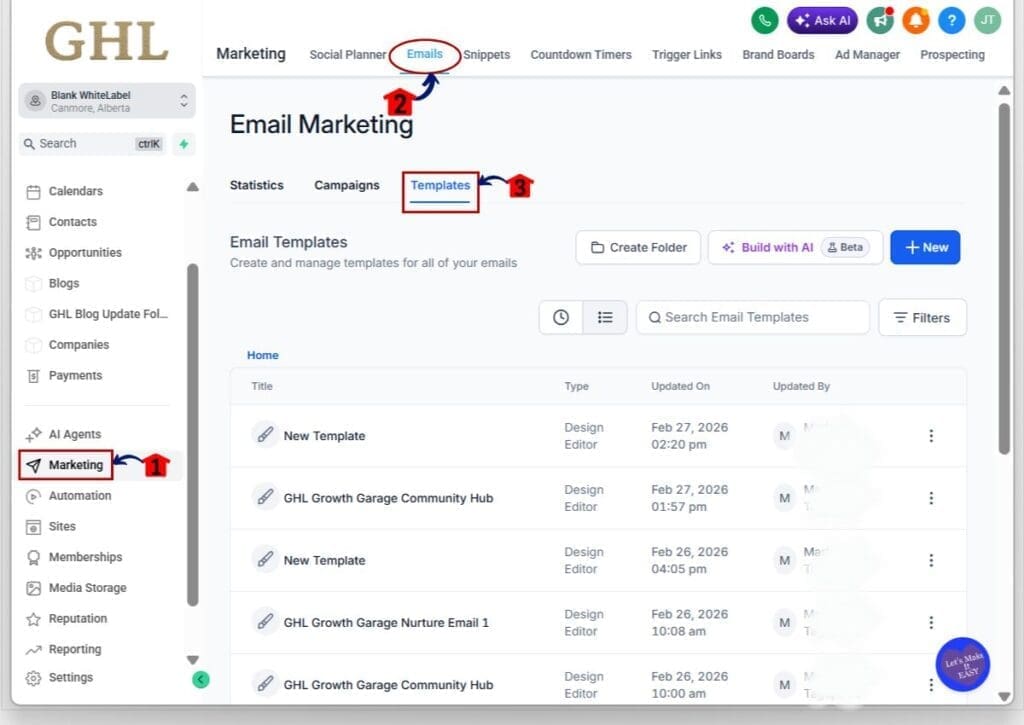
Step 02 – Create a folder, then create a nested folder inside it
2.1 Click Create Folder.
- This creates your top-level folder.
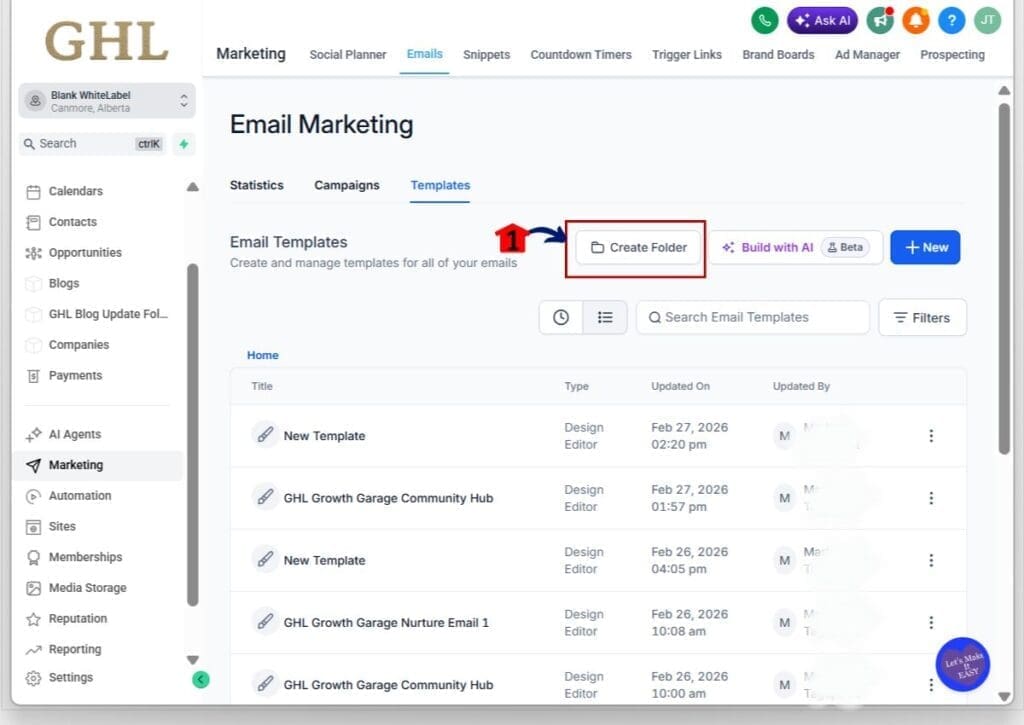
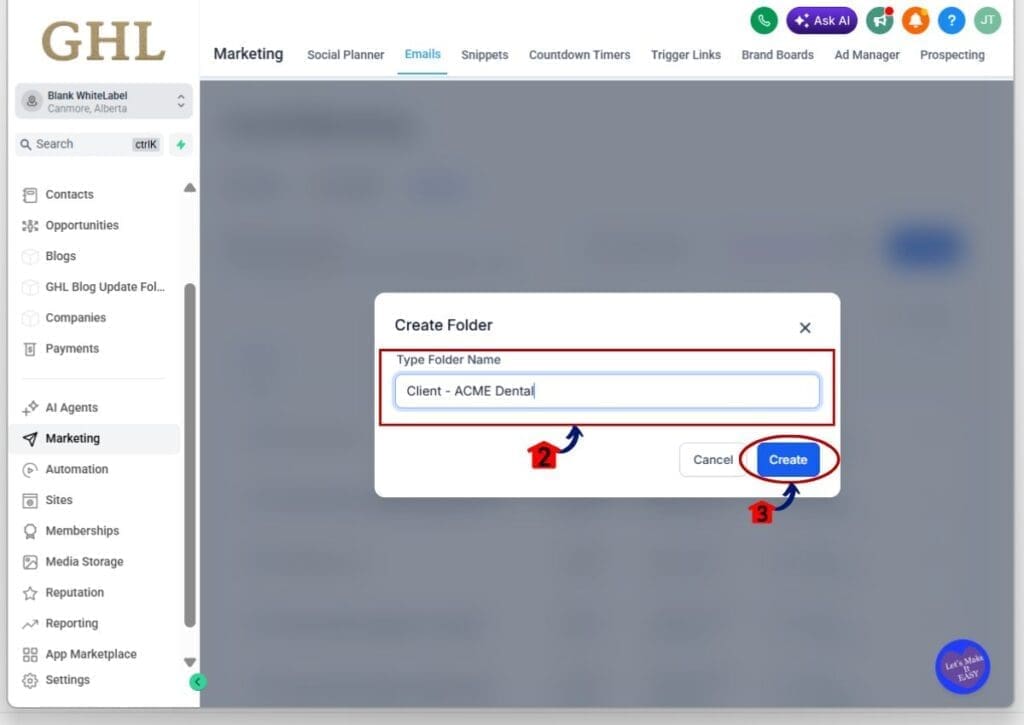
2.2 Enter a name for your new folder, then click create button.
- Use a naming format you can reuse across all clients and teams.
- Examples:
- Client – ACME Dental
- Niche – Real Estate
- Internal – Team Assets
- Examples:
2.3 Click into the folder you just created.
- You must be inside a folder to create a nested folder.
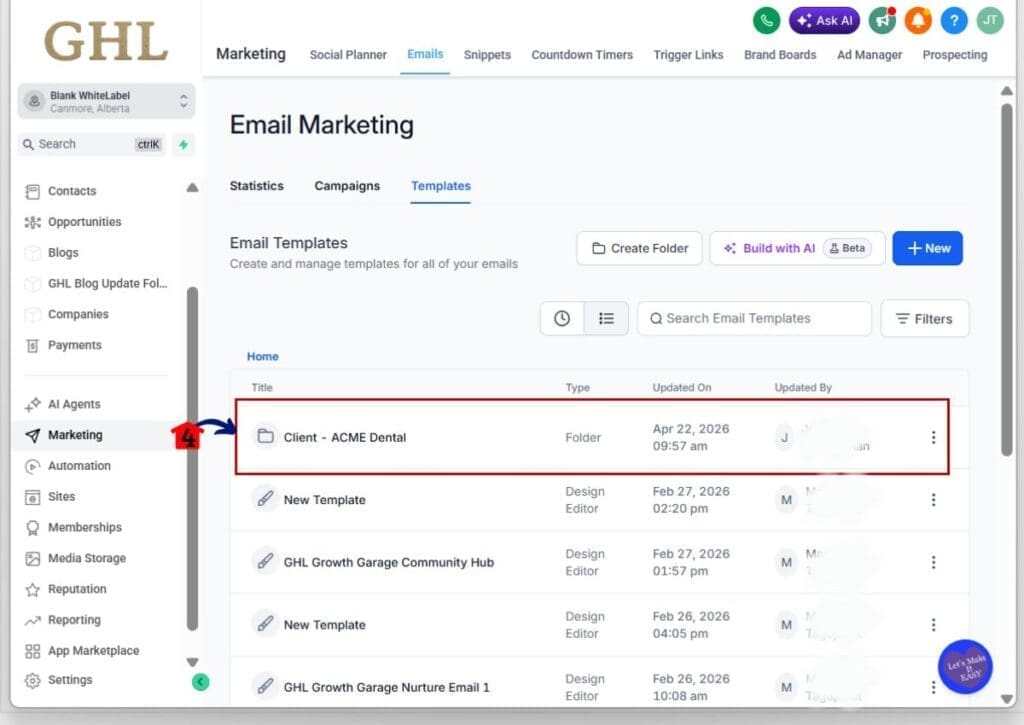
2.4 Click Create Folder again while inside the folder.
- This is the Nested folders update. You are creating a folder inside a folder.
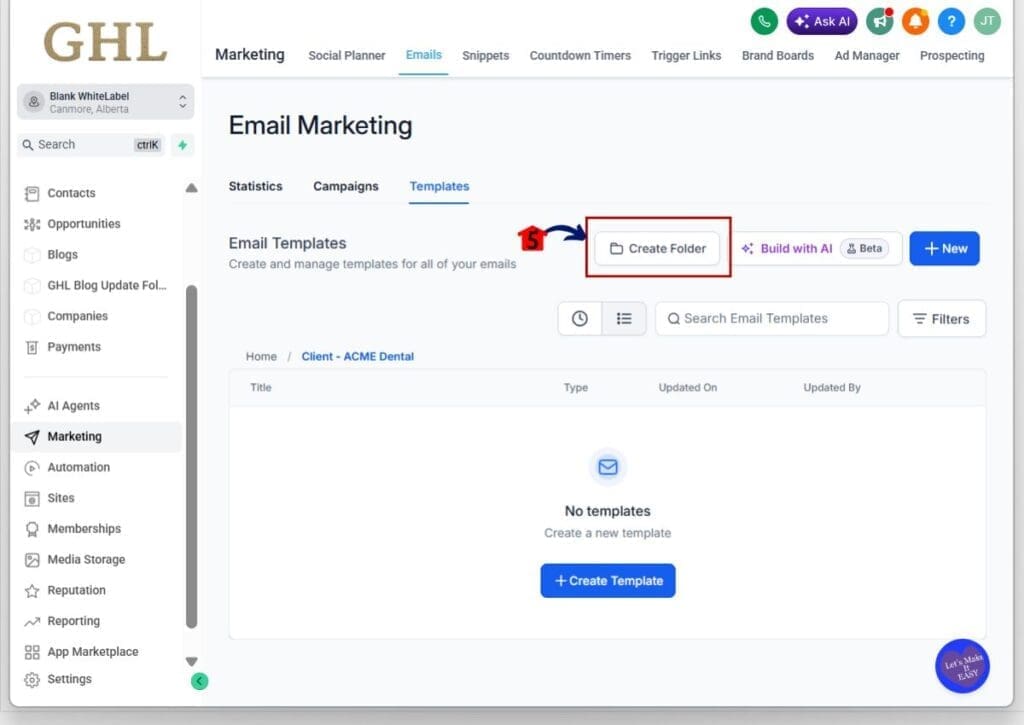
2.5 Name the nested folder, then click create button.
- Examples:
- Newsletter
- Lead Nurture
- Reactivation
- Promotions
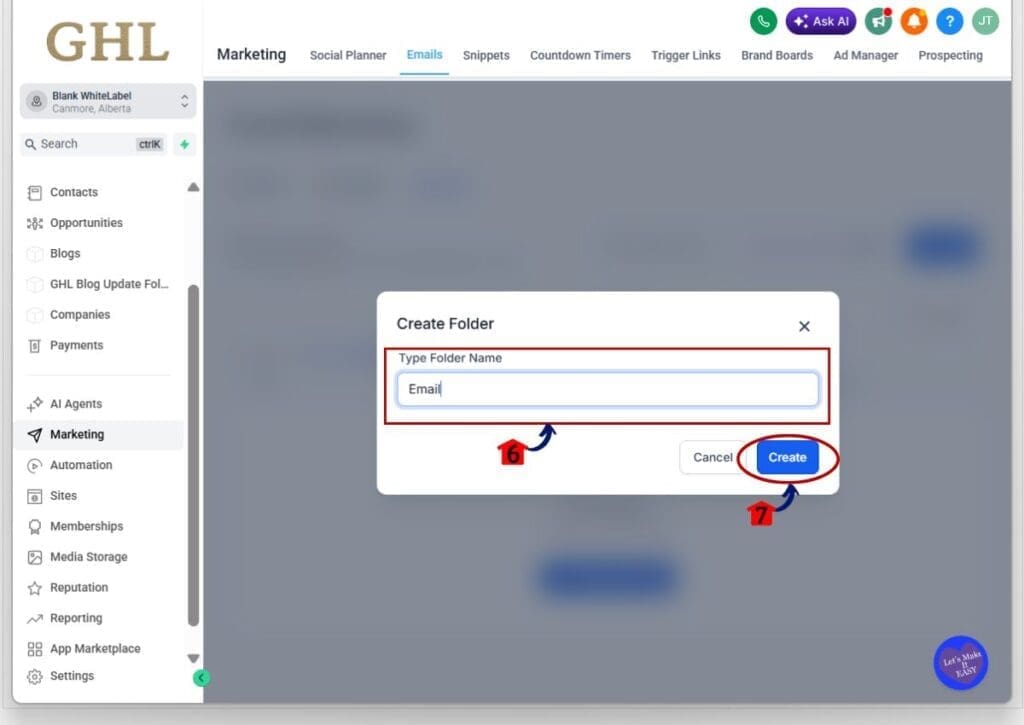
2.6 Confirm the nested structure using the folder path.
- You should see a path that shows you the folder levels you’re inside.
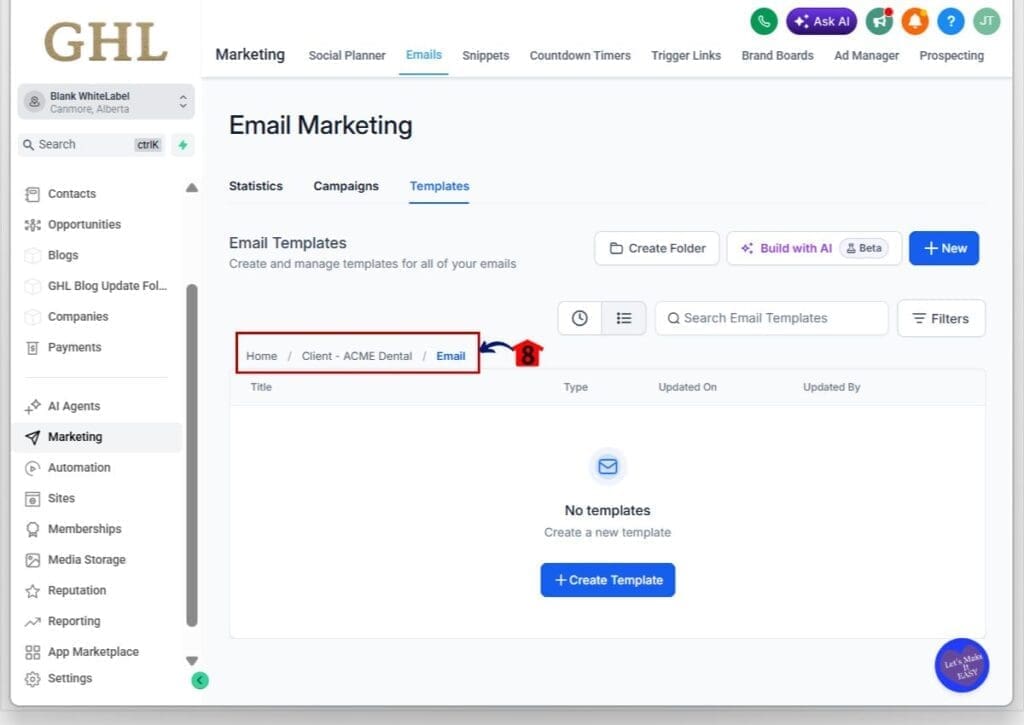
Step 03 – Move templates and confirm the folder path
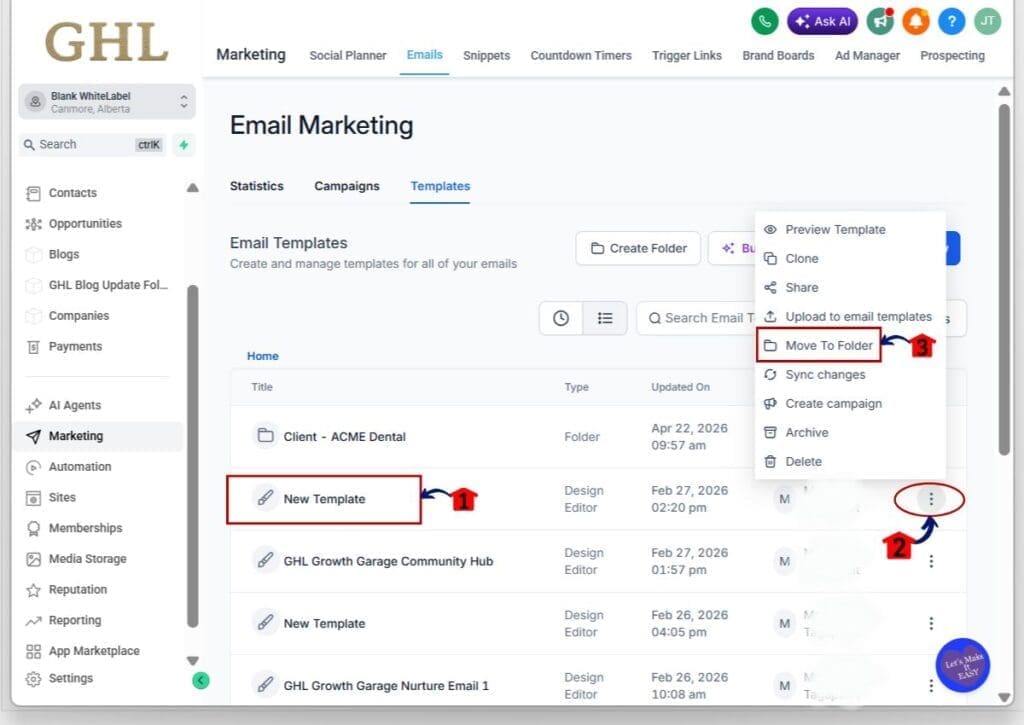
3.1 Select the template you want to organize.
- Use an existing template like “New Template” as an easy example.
3.2 Click the three-dot menu on the template row.
- This opens the actions menu for that template.
3.3 Click Move to Folder.
- This lets you choose the folder destination.
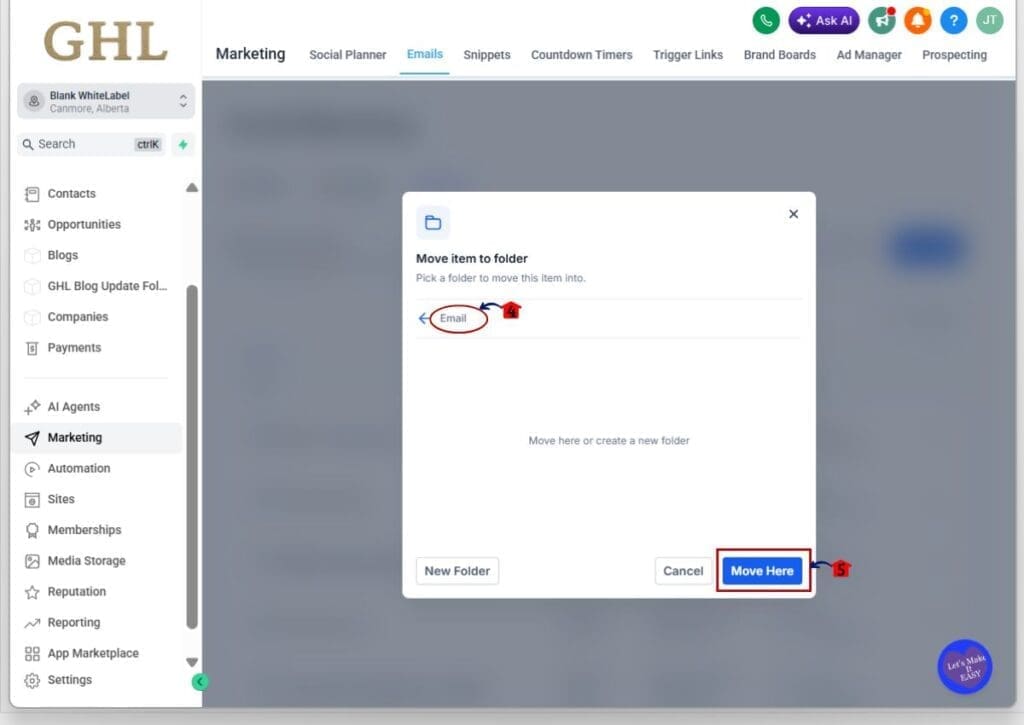
3.4 Select the nested folder as the destination and confirm by clicking Move Here Button.
- Example: Client – ACME Dental > Email
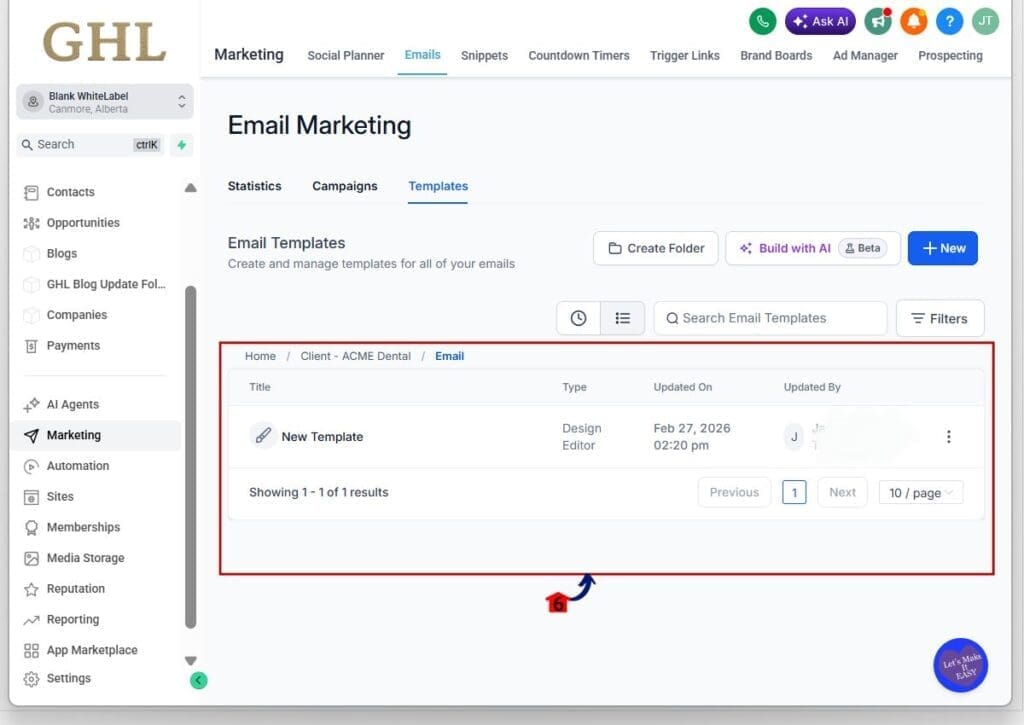
3.5 Open the nested folder and confirm the template is inside it.
- This confirms the move worked and your structure is clean.
3.6 Repeat the same folder logic in Campaigns and Sequences.
- Once your Email Templates are organized, apply the same naming and nesting style everywhere so your team always knows where to look.
Pro / Quick Tips for a Scalable Folder System – Nested folders
Nested folders work best when your whole team follows one simple structure. Pick a setup like Client > Email > Sequences, and stick with it everywhere. When the layout stays consistent, nobody wastes time hunting or guessing.
Keep it shallow at first. Two or three levels is usually enough for most agencies. Nested folders can go deeper, but if your folder map needs a training call, it’s too much.
Lastly, name folders so they’re easy to scan. Use clear labels like “Client – ACME Dental” and simple subfolders like “Email” or “Lead Nurture.” That small habit keeps nested folders clean as your GoHighLevel account grows.
What This Means for Your Business – Nested folders
Nested folders save you time in the places that usually bleed it out slowly. You stop bouncing between messy lists, searching for the right template, or opening five folders just to find one sequence. When everything has a clear home, building and updating assets in GoHighLevel gets faster.
It also makes delegation easier. If you have a VA or team member helping with campaigns, they can follow the folder structure without asking you where things are. That means fewer mistakes, fewer “which version is the right one?” messages, and less cleanup later.
Most importantly, nested folders give you a system that scales. As you add clients, offers, and more assets, your account stays organized instead of turning into a cluttered storage bin. Approve this section, and I’ll write the next section: Frequently Asked Questions.
Frequently Asked Questions – Nested folders
Next Steps With Nested folders
Nested folders fixes a real problem inside GoHighLevel: folders that get messy the moment your agency starts scaling. Now you can build a clean structure across Campaigns, Templates, and Sequences, so your assets stay organized and easy to find.
If you haven’t used it yet, start small. Set up one main client folder, add one nested folder like “Email,” and move your most-used templates first. Once that feels good, repeat the same logic everywhere else.
Have you set up your nested folders system yet? If yes, what structure are you using for clients and offers?
Scale Your Business Today.
Streamline your workflow with GoHighLevel’s powerful tools.


