- Introduction – Personal Calendar Creation Control
- Quick Summary – Personal Calendar Creation
- Here are this weeks HighLevel Updates
- Why Personal Calendar Creation Control Matters
- What Changed With Personal Calendar Creation in GHL
- How to Control Personal Calendar Creation in GHL
- Pro Tips for Managing Personal Calendar Creation
- What This Means for Agencies and Teams
- Real-World Application Scenario
- FAQ About Personal Calendar Creation
- Conclusion – Personal Calendar Creation Control in GHL
Introduction – Personal Calendar Creation Control
Before this update, Personal Calendar Creation in GHL happened automatically, whether you needed it or not.
Every time a new user was added to a subaccount, a personal calendar was instantly created for them. For basic setups, that worked fine. But for agencies running structured systems, snapshots, or predefined calendar configurations, it quickly became unnecessary clutter.
There was no choice. No toggle. No way to stop it.
If you manage multiple client accounts, that clutter adds up. Extra calendars create confusion. Booking links get generated that nobody uses. Structured round-robin setups can get messy. And if you’re building clean white-labeled systems, it breaks the flow.
GHL had automation power, but agencies didn’t have control over this part of the setup process.
GoHighLevel has now improved that experience.
Agencies can now control Personal Calendar Creation when adding new users to subaccounts.
Instead of automatic calendar creation every time, you decide whether it happens at all. The setting is managed at the Agency level through the Preloaded Example Data toggle.
What changed: GHL introduced control over automatic Personal Calendar Creation. When Preloaded Example Data is enabled, new users still receive personal calendars automatically. When disabled, no personal calendar is created. This only applies to users added after the setting is changed. Existing calendars remain untouched.
Who this is for: Agency owners managing structured subaccounts, SaaS resellers deploying snapshots, teams adding virtual assistants or admin staff, marketing agencies using predefined calendar builds, and any GHL user who wants cleaner system control.
What we’ll demonstrate: We’ll show where this setting lives inside Agency View, explain how Personal Calendar Creation now works, walk through how to toggle it on or off step by step, and show how this update keeps your subaccounts structured without affecting existing calendars.
The latest GoHighLevel Changelog includes several other GHL feature updates that round out your daily workflow:
- Version History Improvements: View & Restore Versions Across Builders
- [Compliance] Stay compliant with ACH payment on Stripe
- Canva Integration In Media Storage
- Bulk Import for Companies
- AI Builder: 52% Faster Workflow Generation
- Record IDs – Improved Visibility in Lists & Record Details
- Reselling Reporting on Agency Dashboard
- Blogs – Revamped URL Blog Importer Experience 🚀
Keep reading for much more on all these updates and a deep dive into the Personal calendar feature!
Quick Summary – Personal Calendar Creation
Purpose: This update gives agencies control over Personal Calendar Creation when adding new users in GHL, allowing you to prevent automatic personal calendars from being created.
Why It Matters: Automatic calendar creation can clutter structured subaccounts, interfere with snapshot deployments, and create unnecessary booking links for users who don’t need them.
What You Get: A simple agency-level toggle that lets you enable or disable Personal Calendar Creation for future users without affecting existing calendars.
Time to Complete: Less than 2 minutes to locate and adjust the setting inside Agency Settings.
Difficulty Level: Beginner. No technical skills required.
Key Outcome: Cleaner subaccounts, controlled onboarding, and structured calendar setups that scale without backend clutter.
Here are this weeks HighLevel Updates
Version History Improvements: View & Restore Versions Across Builders
- What it does:
Access old versions and restore them across builders. - Where in GHL:
Found in Funnels, Websites, and other builders under version history. - Impact:
Quick fixes when changes don’t go as planned. - Who it’s great for:
Agencies and users making frequent updates.
Automate marketing, manage leads, and grow faster with GoHighLevel.

[Compliance] Stay compliant with ACH payment on Stripe
- What it does:
Helps make sure your ACH payments through Stripe follow the right rules by adding compliance checks. - Where in GHL:
You’ll see this when configuring ACH payments in the Payments and Stripe settings. - Impact:
Keeps you protected from potential compliance problems and makes payments more secure. - Who this is for:
Anyone collecting ACH payments, especially agencies and SaaS businesses.
Canva Integration In Media Storage
- What it does:
Allows you to access and import Canva designs directly into GHL’s media storage. - Where in GHL:
Media Library / Storage section when uploading or selecting files. - Impact:
Speeds up content creation by removing the need to download and re-upload assets. - Who this is for:
Marketers, designers, and agencies creating visual assets for funnels, emails, and ads.
Bulk Import for Companies
- What it does:
Enables bulk uploading of company records into GHL instead of adding them one by one. - Where in GHL:
CRM under Companies section (import/upload functionality). - Impact:
Saves time and simplifies onboarding large datasets or migrating client information. - Who this is for:
Agencies, sales teams, and businesses handling large volumes of company data.
AI Builder: 52% Faster Workflow Generation
- What it does:
Improves AI workflow generation speed, cutting build time by over half. - Where in GHL:
AI Workflow Builder inside Automation > Workflows. - Impact:
Speeds up automation creation, allowing faster testing and deployment. - Who this is for:
Agencies, automation builders, and marketers creating workflows frequently.
Record IDs – Improved Visibility in Lists & Record Details
- What it does:
Makes record IDs easier to see within lists and detailed views. - Where in GHL:
CRM records, lists, and detail pages. - Impact:
Improves tracking, integrations, and debugging when working with specific records. - Who this is for:
Developers, advanced users, and teams working with integrations or data tracking.
Reselling Reporting on Agency Dashboard
- What it does:
Adds reporting insights for reselling activities directly in the agency dashboard. - Where in GHL:
Agency Dashboard under reporting/analytics sections. - Impact:
Gives better visibility into revenue and performance from resold services. - Who this is for:
Agencies running SaaS mode or reselling GHL services.
Blogs – Revamped URL Blog Importer Experience 🚀
- What it does:
Improves the blog importer tool for pulling content from URLs into GHL. - Where in GHL:
Sites > Blogs > Import via URL. - Impact:
Makes moving your blogs over quicker and a lot easier to handle. - Who this is for:
Agencies, content marketers, and businesses migrating blogs into GHL.
Why Personal Calendar Creation Control Matters
If you run an agency, small setup issues turn into big operational problems fast.
Automatic Personal Calendar Creation sounds harmless. But when every new user gets a calendar by default, your system starts filling up with booking links that were never meant to exist.
That creates noise.
And noise creates mistakes.
When your scheduling setup is structured, added personal calendars can cause confusion fast. A team member might use the wrong link. A workflow might trigger off the wrong calendar. Clients end up booking where they shouldn’t.
Now multiply that across 20, 50, or 100 subaccounts.
That’s where control becomes powerful.
With Personal Calendar Creation now optional, you decide how clean your system stays.
This update is especially valuable for:
- Agencies deploying snapshots with predefined calendar builds
- SaaS mode resellers delivering structured client systems
- Teams adding VAs, admins, or support staff who don’t need booking links
- High-volume agencies onboarding users weekly
- White-label providers who want polished backend setups
Instead of cleaning up calendar clutter after the fact, you just avoid creating the clutter altogether.
It’s a small toggle. But it protects your structure.And in agency operations, structure is everything.
What Changed With Personal Calendar Creation in GHL
Before this update, Personal Calendar Creation was automatic.
Every time you added a new user to a subaccount, GHL instantly generated a personal calendar for them. There was no setting to control it. No way to disable it. It just happened.
For simple setups, that worked.
But for agencies running structured systems, it created friction.
Now, that behavior is controlled by a single setting at the Agency level.
Here’s what changed.
Previous Behavior
- Adding a new user automatically created a personal calendar
- No toggle to disable the feature
- Calendars were generated even if the user didn’t need booking access
- Structured snapshot builds could get cluttered
There was no flexibility.
New Behavior
Personal Calendar Creation is now governed by the Preloaded Example Data setting inside Agency Settings.
Here’s how it works:
- If Preloaded Example Data is enabled, personal calendars will still be created automatically (default behavior).
- If Preloaded Example Data is disabled, new users will not receive an automatically created personal calendar.
- The setting only applies to users added after the change.
- Existing calendars remain untouched.
That last part is important.
This update does not delete anything. It does not modify existing users. It only affects future user additions.
This gives agencies controlled onboarding instead of forced automation.
You now decide whether Personal Calendar Creation happens or not. And that control happens before clutter ever starts.
How to Control Personal Calendar Creation in GHL
This setting is managed at the Agency level and determines whether personal calendars are automatically created when new users are added. Before onboarding new users, you’ll need to adjust this option based on how you want your calendar structure to function.
The steps below will show you exactly where to find this setting and how to enable or disable automatic Personal Calendar Creation. Following this process ensures your subaccounts remain clean and structured while maintaining full control over future user setup.
- Access the Settings Area in GoHighLevel.
- Navigate to Company Settings and Adjust Personal Calendar Creation Setting.
- Test the Setting in the calendar.
To start, make sure you are logged into your GoHighLevel account Access Agency View.
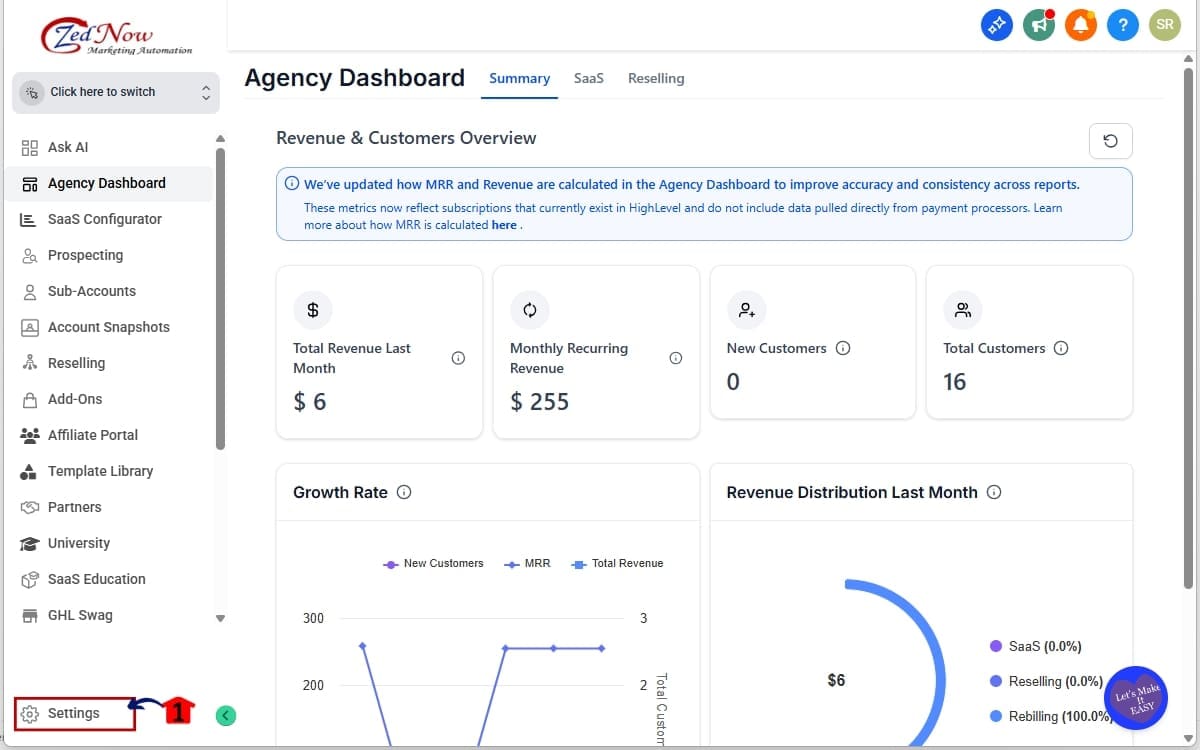
Step 1.0 – Access the Settings Area in GoHighLevel
1.1 Go to the left-hand sidebar. Scroll all the way to the bottom. Click on the gear icon ⚙️ labeled “Settings.”
- You’ll now be inside the main Agency Settings dashboard.
Step 2.0 – Navigate to Company Settings and Adjust Personal Calendar Creation Setting
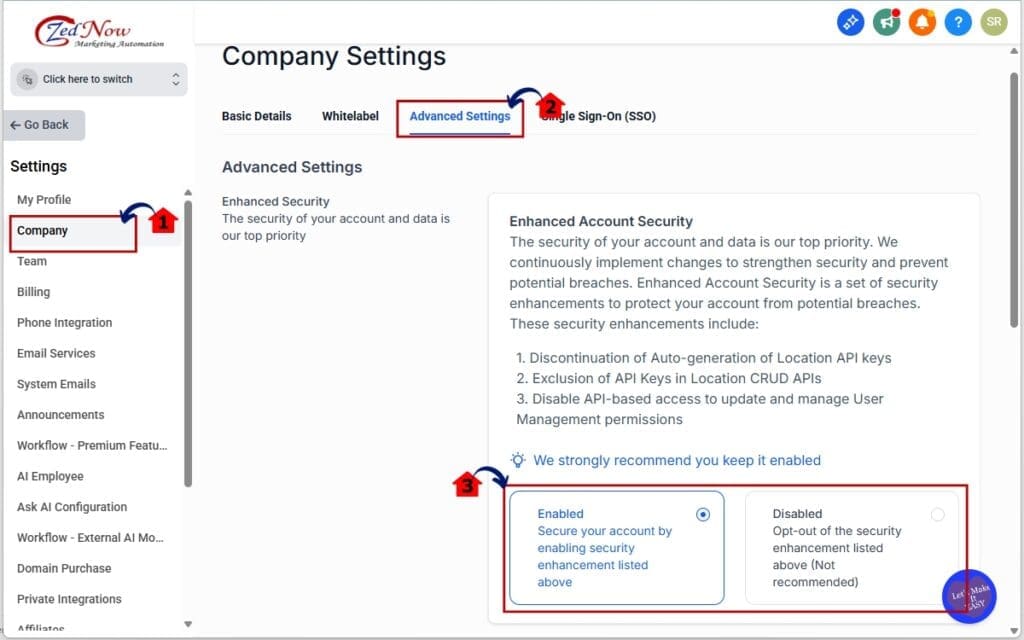
- In this step, you’ll access the Company section inside Agency Settings and locate the Advanced Settings tab where the Personal Calendar Creation control is managed.
2.1 Inside Settings, click on “Company.”
- This section contains your agency-level configuration settings.
2.2 Open the “Advanced Settings” tab.
- This is where you’ll find the Preloaded Example Data toggle that controls automatic Personal Calendar Creation.
2.3 Locate the toggle labeled “Preloaded Example Data.”
- This setting now controls Personal Calendar Creation behavior.
You have two options:
• Enabled (ON)
– New users will automatically receive a personal calendar.
– This keeps default behavior active.
• Disabled (OFF)
– New users will NOT receive a personal calendar.
– No automatic booking link will be created.
-Toggle the setting based on your agency preference.
Step 3.0 – Test the Setting in the calendar
- After changing system behavior, you should always run a quick test to confirm it’s working as expected.
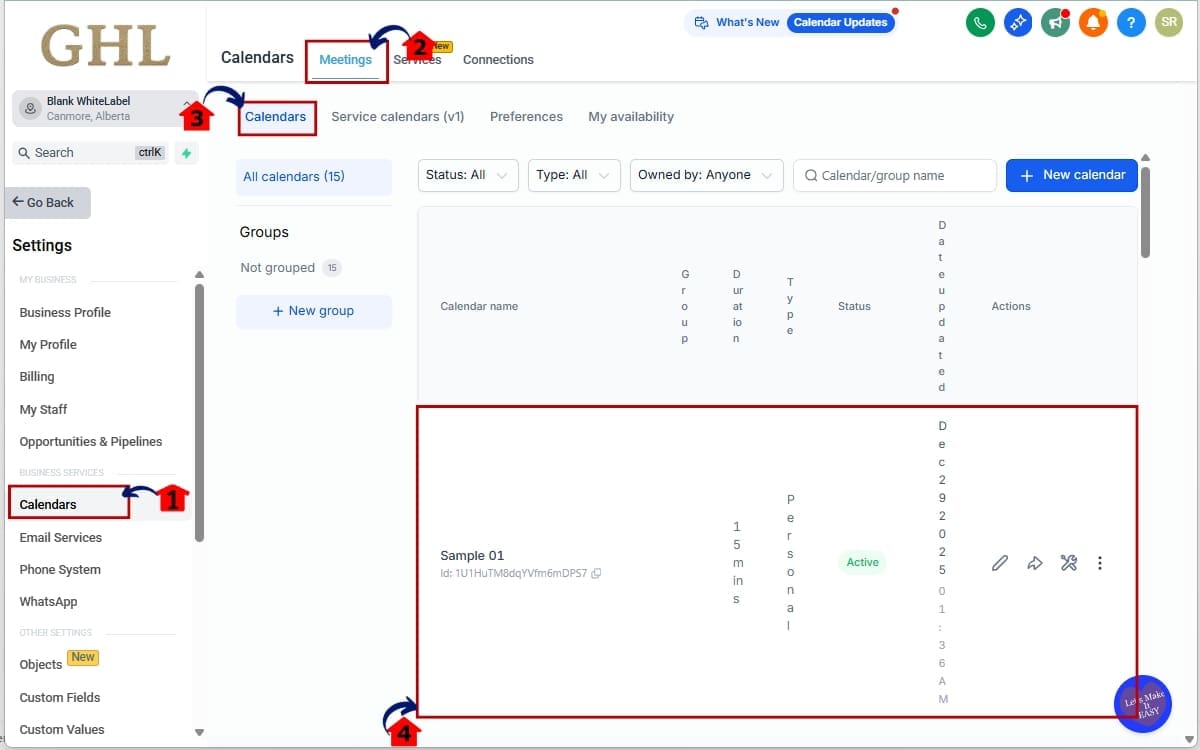
3.1 Navigate to Calendars inside the subaccount where you added the new user.
- This is where all booking and calendar configurations are managed.
3.2 Click on Meetings from the top menu.
- The Meetings section gives you access to calendar types and scheduling options.
3.3 Select Calendars.
- This area displays all existing personal and shared calendars in the subaccount.
3.4 Check whether a personal calendar was automatically created for the new user.
- If the setting was disabled correctly, no personal calendar should appear.
That’s it. One toggle. Full control over Personal Calendar Creation.
Pro Tips for Managing Personal Calendar Creation
This is where agencies either stay clean… or create chaos.
Personal Calendar Creation is simple to control. But how you use that control determines how clean your systems stay long-term.
Here’s how to use it strategically.
1. Turn It OFF Before Deploying Snapshots
If you build structured snapshots with:
- Round-robin calendars
- Team calendars
- Department-based booking flows
- Niche-specific appointment systems
Turn off Personal Calendar Creation first.
Why?
Because you don’t want random personal booking links appearing inside carefully built systems.
Build structure first.
Add users second.
2. Disable It for Non-Booking Roles
Not every user needs a booking link.
Examples:
- Virtual Assistants
- Admin staff
- Media buyers
- Account managers
- Support agents
If they don’t take appointments, they don’t need a calendar.
Automatic calendar creation for these roles just adds backend clutter.
3. SaaS Mode Agencies — Be Intentional
If you resell GHL:
Control equals professionalism.
When new client accounts are created, you want the backend to look clean and intentional. Automatic Personal Calendar Creation can make your system look messy before the client even logs in.
Control the experience.
4. Test Before Large User Onboarding
If you’re about to onboard:
- A sales team
- A setter team
- A new department
Toggle the setting and test with one user first.
Never assume system-wide settings are behaving the way you expect.
5. Remember — This Only Applies Moving Forward
This update does not:
- Delete existing calendars
- Modify old users
- Clean up past clutter
It only controls future Personal Calendar Creation.
If you already have extra calendars sitting in your account, you’ll have to remove those yourself.
6. Avoid This Common Mistake
Agencies often:
- Toggle the setting
- Forget to save
- Add a user
- Think it didn’t work
Always confirm the setting saved properly before onboarding new users.
This isn’t just about calendars. It’s about operational discipline. Clean systems scale better. Messy systems break faster.
What This Means for Agencies and Teams
This update may look small. But operationally, it’s big.
Personal Calendar Creation control gives agencies something they didn’t have before — onboarding precision.
Instead of every new user automatically generating a booking link, you now control how your backend grows.
That means cleaner subaccounts. It means fewer accidental booking links floating around. It means structured calendar builds stay structured.
For agencies managing multiple clients, this matters more than you think.
Here’s what changes at a practical level:
- You reduce backend clutter across all subaccounts.
- You prevent booking link confusion inside workflows.
- You eliminate unnecessary personal calendars for non-sales roles.
- You maintain consistent snapshot deployments.
- You protect automation logic from referencing the wrong calendar.
As you grow, little inefficiencies start adding up. Imagine onboarding 5 users per client across 40 clients. That’s 200 automatic calendars. Now imagine only 40 of those users actually needed booking access. That’s 160 unnecessary calendars you’d eventually have to clean up.
With this control, that problem disappears before it starts.
This is especially powerful for:
- Agencies running setter-closer models
- SaaS resellers offering white-labeled systems
- Teams building structured round-robin appointment flows
- High-growth agencies onboarding users weekly
You’re not just controlling a toggle. You’re controlling system integrity. And system integrity is what allows agencies to scale without chaos.
Real-World Application Scenario
Let’s make this practical.
Because theory is nice.
But real agency workflows are where Personal Calendar Creation control actually shines.
Scenario 1 – Snapshot-Based Agency
You run a niche agency.
You’ve built a structured snapshot that includes:
- A round-robin sales calendar
- A demo booking calendar
- A strategy call calendar
- Automation workflows tied to specific calendars
Everything is clean. Now you add a new user. Before this update, GHL would automatically create a personal calendar for that user. Even if your entire system was built around shared calendars.
That extra calendar:
- Creates confusion
- Can get accidentally linked in workflows
- Might get shared by mistake
- Adds unnecessary backend clutter
Now? You disable automatic Personal Calendar Creation before onboarding. You add the user. No personal calendar appears. Your structured system stays intact.
Scenario 2 – Adding a Virtual Assistant
You hire a VA to:
- Manage conversations
- Update pipelines
- Monitor workflows
- Handle admin tasks
They don’t take appointments. They don’t need booking links. Before this update, they’d still receive a personal calendar. Now you toggle the setting OFF.
You add the VA. No calendar is created. Your system stays clean.
Scenario 3 – SaaS Mode Reseller
You resell GHL as a white-labeled platform. When new users are added to client accounts, you want the backend to look intentional. Not auto-generated.
By controlling Personal Calendar Creation:
- You decide who gets booking access
- You maintain a professional backend
- You avoid unnecessary calendar cleanup later
Your clients see structure. Not automation noise.
The Bigger Picture
This isn’t about stopping a calendar.
It’s about preventing unnecessary system growth.
- Clean backend structure = easier scaling.
- Easier scaling = fewer mistakes.
- Fewer mistakes = happier clients.
That’s how small toggles create operational leverage.
FAQ About Personal Calendar Creation
Conclusion – Personal Calendar Creation Control in GHL
Personal Calendar Creation used to be automatic.
Now, it’s intentional.
That one small toggle inside Agency Settings gives you more control over how your systems grow. Instead of cleaning up unnecessary personal calendars after onboarding users, you prevent them from being created in the first place.
For structured agencies, snapshot builders, SaaS resellers, and growing teams — that matters.
You protect:
- Backend cleanliness
- Calendar structure
- Workflow accuracy
- Booking link integrity
- Long-term scalability
This update doesn’t remove power.
It gives you control over it.
If you’re running multiple subaccounts, onboarding staff regularly, or delivering white-labeled systems, go check your Preloaded Example Data setting today.
One quick review could prevent dozens of unnecessary calendars later.
The team here at GHL Growth Garage is always watching for these small operational upgrades that make a big difference in how agencies scale.
Have you adjusted your Personal Calendar Creation setting yet?
Let me know how you’re using it inside your agency setup.
Scale Your Business Today.
Streamline your workflow with GoHighLevel’s powerful tools.