

- Explore the modernized Snapshots interface with faster workflows, better data tools, and an upgraded GHL experience.
- Quick Summary – Snapshot UI Update Essentials
- What’s New – Snapshot UI update
- What’s Changed – Snapshot UI update
- Why It Matters – Snapshot UI update
- How To Use – Turning on and Navigating the Snapshot UI Update
- Pro Tips – Snapshot UI update
- Frequently Asked Questions – Snapshot UI update
- What This Means – Snapshot UI update
- Results You Can Expect – Snapshot UI update
- Snapshot UI update
Explore the modernized Snapshots interface with faster workflows, better data tools, and an upgraded GHL experience.
Snapshot UI update in GHL
The Snapshot UI update in GHL is here, and it changes how you work with templates. Every screen, tab, and action is now part of a cleaner, faster layout.
If you use Snapshots often, this new setup is a big help. It makes it easier to find what you need, push updates, and manage versions without digging through clutter. Everything’s organized, and it actually feels good to use.
The update doesn’t try to do too much. It fixes what needed fixing. No extra clicks. No guessing. Just a better way to manage your client systems.
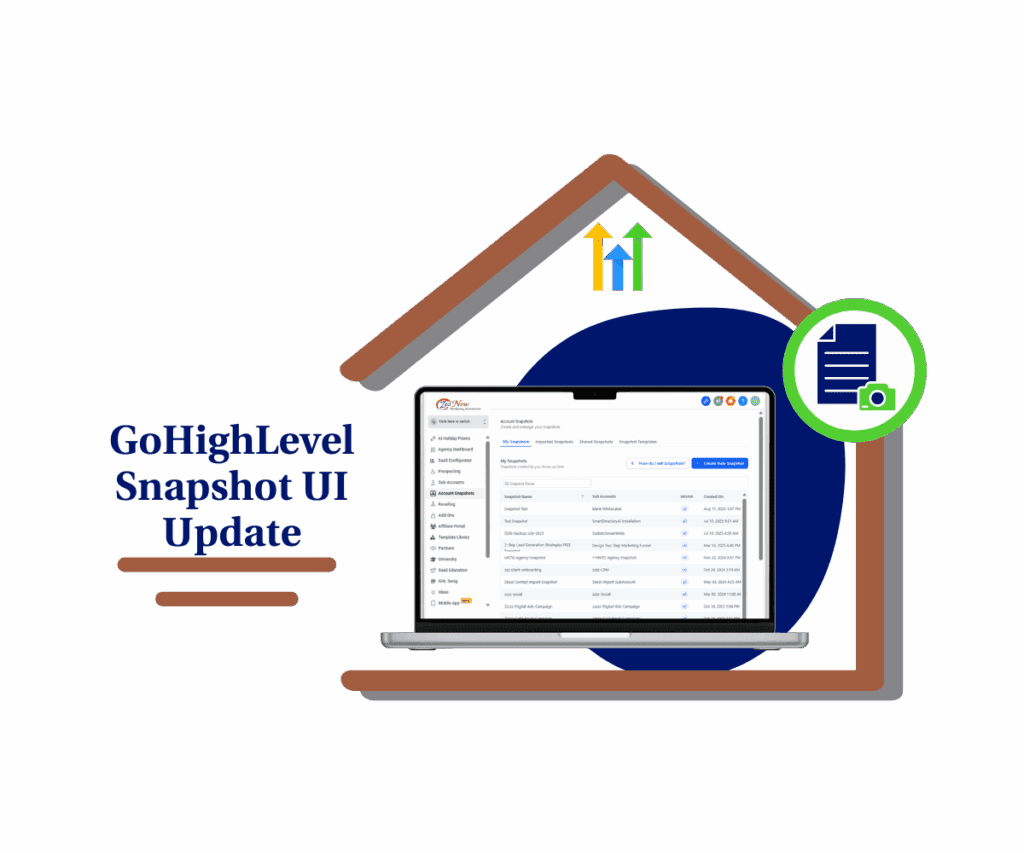
The Snapshot UI update gives GHL users a clean, simple way to manage templates. It cuts down search time, improves clarity, and keeps everything in one place.
Quick Summary – Snapshot UI Update Essentials
Purpose:The Snapshot UI update gives GHL users a cleaner and more organized way to manage, sort, and deploy snapshots across sub-accounts.
Why It Matters: It reduces confusion, speeds up navigation, and helps agencies avoid mistakes with clearer views, better filters, and a reliable history log.
What You Get: A modern layout, fast search tools, calendar filters, easier version tracking, and a consistent interface that matches the rest of the GHL platform.
Time to Complete: You can enable the new UI in less than a minute from the Labs section inside Settings.
Difficulty Level: Very easy to use. The update keeps all the familiar actions while making them simpler and more intuitive.
Key Outcome: You save time, work with more confidence, and manage snapshots with better clarity across every client account.
What’s New – Snapshot UI update
The Snapshot UI update in GHL adds a cleaner layout and tools that just make more sense. You can still do everything you could before create, push, refresh, and edit but now it’s all easier to find and faster to use.
There’s a new search bar that works well, even with long lists. You can filter Snapshots by name, date, or status. If you manage a lot of sub-accounts, this will save you time. The calendar filter helps too. You can quickly spot which Snapshots were shared or updated during a certain time.
Automate marketing, manage leads, and grow faster with GoHighLevel.

One of the most useful changes is the Snapshot history. It shows who did what and when, which helps if you’re working with a team or managing versions. No more second-guessing what happened or when something changed.
The update keeps things simple. It’s not trying to reinvent Snapshots. It just makes them easier to use.
What’s Changed – Snapshot UI update
The Snapshot UI update in GHL is a full switch to the new platform design. The old Snapshot layout is gone once you turn on the setting in Labs.
Now, everything follows GHL’s modern design system. The menus are cleaner, the tabs are organized, and the whole section matches the look and feel of the rest of the app. If you’ve been using other updated parts of GHL, Snapshots now feels like part of the same system.
Navigation is simpler. You don’t need to click around to figure out what’s where. Things are grouped in a way that makes sense. You’ll also notice that the system responds faster, especially if you’re working with a lot of Snapshot data.
This update doesn’t add more steps. It removes the noise and makes the actions you already do every day easier to complete.
Why It Matters – Snapshot UI update
The Snapshot UI update in GHL isn’t just a design change. It fixes real problems agencies deal with every day.
If you’ve ever spent too much time searching for the right Snapshot or worried about pushing the wrong version, this update helps. It gives you a clean view of what’s been created, shared, or edited. That kind of clarity cuts down on mistakes.
It also helps your team move faster. With filters, search, and calendar tools, you’re not wasting time scrolling or second-guessing. You can spot the right file, act on it, and keep moving.
For agencies that clone setups or manage a lot of accounts, every saved click matters. This update makes your workflow smoother so you can stay focused on delivery, not troubleshooting.
How To Use – Turning on and Navigating the Snapshot UI Update
This Snapshot UI update gives you a faster and more organized way to manage your templates in GoHighLevel. You don’t need any new tools or external settings. The entire update is built into your GHL system and ready to activate.
Here’s how to turn it on and start using it step by step:
Step 01: Go to Settings in Your GHL Account
- The new Snapshot UI lives in the Labs section.
1.1 Click on the “Settings” tab in the lower-left corner of your screen.
- This opens up your account-level settings area.

1.2 Select the “Labs” option in the menu.
- Labs is where new GHL features can be tested and enabled.
1.3 Toggle on the setting labeled:
- “Snapshots – Revamped UI & Version Management System”
- This activates the full UI redesign for Snapshots across your sub-accounts.

Step 02: Open the Snapshots Section
- Once enabled, the new layout becomes available immediately.
2.1 From the left-hand menu, click on the “Snapshots” section.
2.2 The new Snapshot UI will now load by default.
- You’ll see a cleaner layout, updated actions, and added tools for sorting and filtering.

Step 03: Use Filters, Calendar, and Search
- Find and manage Snapshots faster with these built-in tools.
3.1 Use the Search bar to find Snapshots by name.
- This helps when you have many templates or version types.
3.2 Filter by Shared, Imported, or Created Snapshots.
- Choose specific statuses to narrow your list.

3.3 Use the Calendar to select a custom date range.
- Quickly pull up Snapshots created in the last week, month, or quarter.

Step 04: Check the Snapshot History
- Each Snapshot now includes a detailed history.
4.1 Click into any Snapshot from the list.
- You’ll see a new “History” section showing updates, pushes, and edits.
4.2 Use this view to track changes over time.
- It’s especially useful when working in teams or managing multiple versions.

Step 05: Create, Refresh, and Push as Usual
- All core Snapshot actions still work the same.
5.1 Click the buttons at the top of the screen to create or refresh a Snapshot.
- The UI just makes everything easier to follow.

Whether you’re duplicating a setup or managing a library of templates, this UI update helps you move faster with fewer clicks.
Pro Tips – Snapshot UI update
Want to save even more time with the new Snapshot UI update in GHL? These small adjustments can make your workflow smoother and more reliable.
Use clear version naming
- Give your Snapshots simple, versioned names like “Fitness-Nurture-v1.2” or “Onboarding-Setup-v4.0.” It helps keep things sorted and easy to search later.
Apply date filters before searching
- If you’re trying to find something from last week or a few months ago, use the calendar tool first. This narrows down your list and saves you from scrolling through older files.
Check history before pushing
- Click into a Snapshot and check the History tab. Make sure you’re working with the right version before pushing it to a live account.
Pin or note high-use templates
- If there are Snapshots you use all the time, mark them in a way your team recognizes. You can keep a note or list in your shared documentation or tag them with a naming pattern.
Assign one owner for Snapshot cleanup
- If multiple team members are creating or editing Snapshots, assign someone to review them monthly. Clean up old versions and rename anything unclear. It keeps your list tidy and less stressful.
The new UI gives you better tools. A few smart habits can take them even further.
Frequently Asked Questions – Snapshot UI update
Here are a few common questions agencies may have about the new Snapshot UI update in GHL:
The new layout is different, but it doesn’t break your current setup. It just helps you manage things faster and more clearly.
What This Means – Snapshot UI update
The Snapshot UI update in GHL is more than a visual upgrade. It shows how the platform is shifting toward smoother, more consistent tools that match how agencies actually work.
If Snapshots are part of your process whether for onboarding, system cloning, or sub-account builds this update helps you scale with less friction. Everything is easier to find, faster to use, and more in line with how other GHL tools already look and feel.
It also signals that GHL is listening. A lot of agencies have asked for better organization, better tracking, and simpler ways to manage versions. This rollout checks all those boxes without making you relearn the tool from scratch.
And for teams managing dozens of templates or multiple accounts, the clarity this UI brings is a big win. It reduces guesswork and helps everyone stay on the same page.
Results You Can Expect – Snapshot UI update
Once you turn on the Snapshot UI update in GHL, you’ll notice the improvements right away. It’s not just about speed. It’s about working with less stress.
You’ll find what you need faster. With search, filters, and calendar tools, no more scrolling through endless lists or opening the wrong Snapshot.
You’ll make fewer mistakes. The new layout makes it clear what you’re working on. And the history log helps double-check your steps before pushing updates.
You’ll move faster as a team. Everyone works from the same clear view. No extra training. No confusion.
You’ll spend less time managing and more time building. When your tools make sense, you get more done with less effort.
For agencies that manage systems at scale, these changes make a real difference day in, day out.
Snapshot UI update
The Snapshot UI update in GHL fixes what used to be a clunky, outdated part of the platform. Now, it feels like it belongs.
You’re not guessing anymore. The layout is clear. The tools are easy to use. And everything you need is right in front of you. Whether you’re setting up systems for clients or managing dozens of templates, this update helps you move faster and make fewer mistakes.
It’s a smart, simple change that makes your day-to-day work a little easier. That’s what good updates should do.
Go turn it on. You’ll see the difference right away.
Scale Your Business Today.
Streamline your workflow with GoHighLevel’s powerful tools.


