- Build faster with GHL’s new drag-and-drop workflow canvas
- Quick Summary – GHL Visual Workflow Builder
- What’s New with GHL’s Visual Workflow Builder
- How It Works with Canvas, Triggers, and Actions
- Advanced Features for Complex Logic
- Organize Visually with Notes, Colors, and Auto Layout
- Build Faster with Keyboard Shortcuts and Switcher
- Why This Matters for Agencies
- How To Use the Advanced Builder in GHL
- Pro Tips for Better Builds
- FAQs About the Visual Workflow Builder
- What This Means for GHL Users
- Final Thoughts on GHL’s Visual Workflow Builder
Build faster with GHL’s new drag-and-drop workflow canvas
The new visual workflow builder in GHL is now live. It gives users a full canvas to build and organize their automations with more control. Instead of using the old step-by-step layout, this update lets users place and connect workflow steps wherever they want on an open workspace.
This change makes it easier to see how automations flow. Whether someone is designing a simple sequence or managing multiple branches, the visual view helps keep everything clear. It also makes it quicker to build, test, and update workflows without getting lost in long lists.
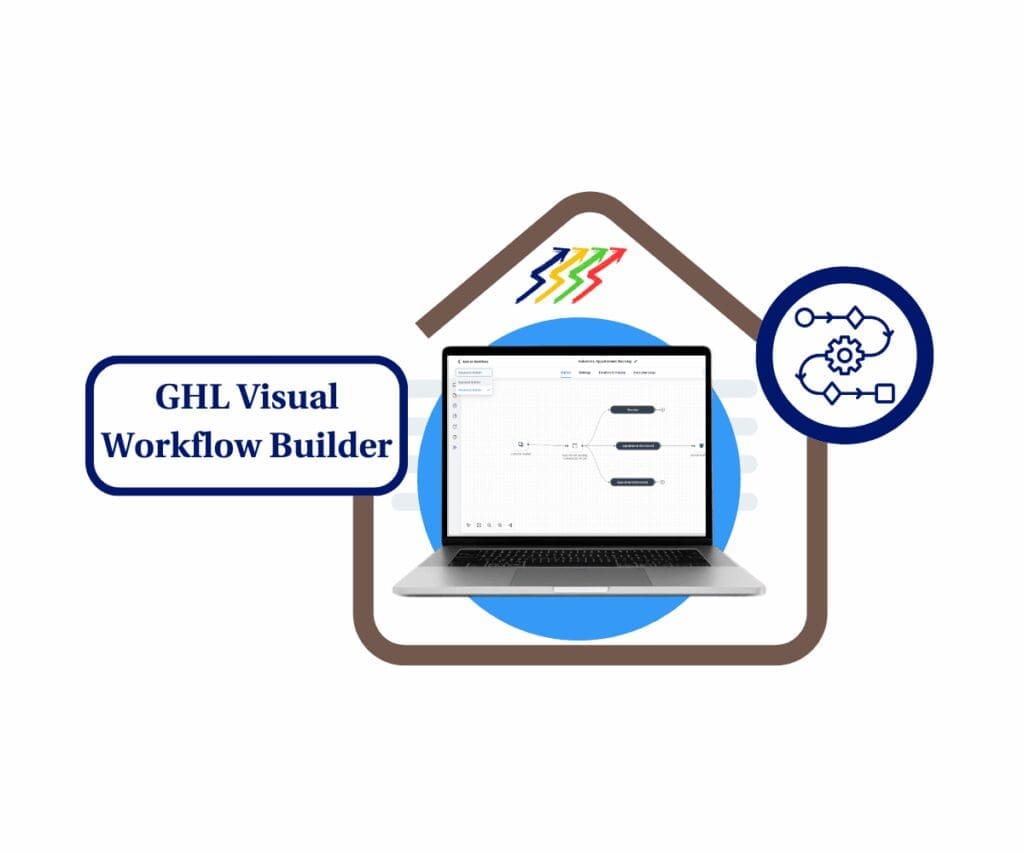
With the visual workflow builder, GHL users can drag, drop, and visually organize even the most complex automations, all on a single canvas. It’s a faster, clearer way to build and scale.
Quick Summary – GHL Visual Workflow Builder
Purpose: The visual workflow builder gives users a better way to build automations inside GHL using a simple drag and drop canvas.
Why It Matters: It replaces the old step-by-step list with a visual layout, making it easier to build, review, and update workflows.
What You Get: Tools like Go-To triggers, delinked nodes, keyboard shortcuts, sticky notes, and color coding to help manage complex logic.
Time to Complete: You can start using it in less than five minutes by switching views inside any workflow.
Difficulty Level: Easy enough for beginners and useful for pros. It works well for both small and large builds.
Key Outcome: The visual workflow builder helps users save time and keep automations clear, no matter how detailed the logic gets.
What’s New with GHL’s Visual Workflow Builder
The visual workflow builder in GHL gives users a new way to build automations. Instead of the usual step-by-step list, Advanced Builder uses an open canvas. This makes it easier to see how everything connects at a glance.
Users can now lay out their workflows in a way that feels more natural. Each step shows up as a node on the canvas, and users can move them around to fit how their logic actually works.
Automate marketing, manage leads, and grow faster with GoHighLevel.

Here are the key improvements:
- Canvas Layout: Users can drag steps anywhere on the screen. This makes it easier to map out logic without being stuck in a vertical line.
- Drag and Drop Tools: Actions and triggers can be added straight from the panel with a click or drag.
- Flexible Connections: Steps are connected by lines, so users can see how paths flow just by looking.
- Multi-Select and Move: It is now possible to grab a group of steps and move them all at once.
- Copy and Paste: Users can copy logic from one workflow and paste it into another.
This update helps users build faster and avoid mistakes. Instead of guessing where branches go, everything is right in front of them. The visual workflow builder gives a clear picture of the automation and makes edits easier at any stage.
How It Works with Canvas, Triggers, and Actions
The visual workflow builder in GHL makes automation design easier by replacing the list view with a flexible canvas. Instead of building one step at a time in a straight line, users can now lay out their logic in a way that matches how they think.
To get started, a user opens any workflow and switches to the Advanced Builder. From there, the right-hand panel shows all available triggers and actions.
There are two ways to add steps to the canvas:
- Click and Place: Choose a trigger or action and click anywhere on the canvas to add it.
- Drag and Drop: Drag the item onto the canvas and drop it in the spot where it belongs.
Each step shows up as a node. These nodes can be moved around as needed. To connect steps, users can click the plus icon or drag from the small circle on each node.
Here is what makes this useful:
- It is easier to see the full layout of a workflow.
- Steps can be moved or grouped without breaking the logic.
- Users can zoom in and out to focus on different parts.
- A minimap in the corner helps navigate the full canvas.
This new layout keeps things clear, especially for larger builds. The visual workflow builder helps users avoid confusion and gives more flexibility when designing or editing automations.
Advanced Features for Complex Logic
The visual workflow builder in GHL includes more than just a new layout. It adds features that help users handle complex logic without overcomplicating the build.
These tools give users better control:
- Go-To Triggers let a trigger skip straight to any action. This removes the need for if/else branches just to move contacts down a different path. It keeps the canvas cleaner and easier to follow.
- Delinked Nodes make it possible to run separate paths in the same workflow. Each trigger can start its own flow. These paths do not have to connect, but they all stay inside one view. This helps when managing several automations in the same space.
- Disable or Pause Steps is helpful when testing. Instead of deleting a step to stop it, users can turn it off and bring it back later if needed.
These features make it easier to build, test, and manage automations over time. For users who deal with more than just basic follow-up flows, the visual workflow builder adds the tools to stay organized and in control.
Organize Visually with Notes, Colors, and Auto Layout
The visual workflow builder in GHL gives users more than just a place to build. It also makes it easier to keep things clean and easy to follow. That matters when workflows get longer or when teams need to work together.
Users now have a few simple tools that help organize the canvas:
- Sticky Notes let users leave short messages next to any step. These can be used to explain what a section does, add reminders, or guide teammates.
- Color Coding is a quick way to group parts of a workflow. For example, a user might color one path for leads and another for follow-ups. This makes it easier to spot sections fast.
- Auto Layout straightens things out with one click. It helps fix messy builds without changing how anything works. Users can apply it to the whole canvas or just select a few steps.
These tools keep everything readable. They also help reduce mistakes when editing or handing off work to someone else. In a busy agency setting, being able to follow logic fast saves time.
Build Faster with Keyboard Shortcuts and Switcher
The visual workflow builder in GHL is designed to save time. It helps users build automations faster without clicking through long menus or jumping between screens.
Here are two tools that make the process smoother:
- Keyboard Shortcuts allow users to move around the canvas, connect steps, and make edits without using the mouse. These shortcuts cover common actions like zooming, selecting nodes, or opening settings. To see all options, users can click the keyboard icon in the top-left corner of the screen.
- Workflow Switcher makes it easier to manage more than one build at a time. It shows the ten most recent workflows and also includes a search bar. When a user clicks one, it opens in a new tab. This way, they can keep working without losing their spot.
These tools are built for speed and focus. For users who manage several workflows every day, this saves clicks and helps them stay on track. The visual workflow builder becomes even more useful when these time-saving options are part of the routine.
Why This Matters for Agencies
The visual workflow builder in GHL makes a real difference for agencies. When a team is building and managing workflows for multiple clients, staying organized is not optional. It is necessary.
This new layout helps agencies work smarter. It reduces the time spent scrolling through long builds and makes it easier to understand how everything connects.
Here’s why it helps:
- Handing off work is easier. Team members can follow the logic just by looking at the canvas. That means fewer questions and quicker updates.
- Editing is safer. Users can pause steps or test changes without breaking the rest of the workflow.
- Clients get a clearer view. When showing a workflow to a client, the canvas makes it easier to explain what each part does.
- Projects stay organized. Color coding and notes make it easier to group related steps and label key parts of the automation.
For agencies, the visual workflow builder is more than a design change. It supports better teamwork, faster builds, and cleaner results for every project.
How To Use the Advanced Builder in GHL
Using the visual workflow builder in GHL is simple. It works inside any existing workflow, so there is no need to start from scratch or create something new. Just open a workflow and switch views.
Follow these steps to get started:
Step 01 – Access the Main Menu in GoHighLevel
- The main menu on the left side of your screen includes all the main areas you work in when using GoHighLevel (GHL).
1.1 Click on the Automation menu item to access the Workflows section.
- You’ll now be in the Automation section, where you can access the Workflows tab from the top menu.
1.2 Click the Workflows tab.1.3 Click any existing workflow.

Step 02 – Open the Advanced Builder
- The user should now be inside the workflow editor.
2.1 Click the Advanced builder option after using the workflow builder drop-down.

Step 03 – Explore the Advanced Builder Tools
- The user should now be inside the Advanced builder. This is the visual workflow builder inside GoHighLevel.
3.1 Check and experiment with the workflow tools.
- This is where the user can use the keyboard shortcut tool, builder switcher tool, sticky notes, and other tools.
3.2 Check and use the navigation tools.
3.3 Experiment with the trigger and action elements.

Step 04 – Configure the Workflow Elements
- The user should still be inside the Advanced builder.
4.1 Configure each element based on the goal of the workflow.

If your workflow uses features like Go-To triggers or delinked nodes, you will need to remove those if you want to switch back to Standard Builder.
The visual workflow builder is available now in all GHL accounts. It works with the workflows users already have, so there is no extra setup needed.
Pro Tips for Better Builds
The visual workflow builder in GHL works best when users build with a clear plan. A few simple habits can help keep things organized and easier to manage over time. These tips are not just for power users. They are helpful for anyone working with automations on a regular basis.
Here are a few ways to build smarter:
- Use Clear Names for Each Step. Instead of leaving default labels, name each step based on what it does. This helps when scanning the canvas or making updates later.
- Color Code Logic Sections. Assign different colors to each part of the workflow. For example, blue for lead capture, green for nurturing, and yellow for follow-ups. It is a quick way to spot where things are.
- Add Notes Where Needed. Use sticky notes to leave reminders or explain why a step exists. This is helpful when other team members need to review or edit the workflow.
- Start With Go-To Triggers When Needed. If the workflow needs to skip the first action based on how someone enters, use a Go-To trigger. It saves time and keeps logic clean.
- Avoid Long Chains When Possible. Try to keep each section of the workflow short and focused. If it starts getting too long, break it up into smaller flows.
These habits help reduce mistakes and make it easier to scale. The visual workflow builder gives the space to build freely, and these tips help users keep that space under control.
FAQs About the Visual Workflow Builder
Here are some quick answers to common questions about using the visual workflow builder in GHL:
The visual workflow builder is built to work with what users already have. It offers more flexibility without changing how the core system runs.
What This Means for GHL Users
The visual workflow builder in GHL gives users a better way to build and manage automations. It does not change how workflows run. It just makes the process easier to understand and faster to work with.
For users who manage long workflows or build for multiple clients, the new view helps save time. Instead of clicking through a list of steps, everything shows up on one screen. That makes it easier to spot problems, test logic, and explain how things work.
The builder also supports new features like Go-To triggers and delinked paths. These tools make it easier to control how contacts move through a workflow without stacking up if/else steps.
This update is not just for advanced users. Anyone using GHL to build automations can benefit from clearer layouts, better notes, and easier testing. The visual workflow builder helps users focus more on what the automation needs to do and less on how to manage the screen.
Final Thoughts on GHL’s Visual Workflow Builder
The visual workflow builder in GHL gives users a better way to build automations. It shows the full layout, makes logic easier to follow, and gives users more tools to stay organized.
For anyone building inside GHL, this update is worth using. It helps clean up older workflows and makes new ones easier to manage. Whether the user is working solo or with a team, this view saves time and removes guesswork.
Getting started is simple. Open any workflow, switch to Advanced Builder, and start building with more clarity.
Try it on one of your go-to workflows and see the difference. You might not want to go back.
Scale Your Business Today.
Streamline your workflow with GoHighLevel’s powerful tools.