- A smoother way to duplicate actions with visual paste guides, quick reuse, and cleaner clicks
- Quick Summary – Workflow Action Shortcuts Essentials
- Workflow Action Shortcuts Just Got Smarter
- Faster Workflows with Visual Paste and Reuse
- How Workflow Action Shortcuts Used to Work
- Why Workflow Action Shortcuts Matter More Than You Think
- How to Use Workflow Action Shortcuts the Right Way
- Pro Tips to Get the Most from Workflow Action Shortcuts
- Frequently Asked Questions About Workflow Action Shortcuts
- What You Get from Better Workflow Action Shortcuts
- Small Changes, Big Time Savings
A smoother way to duplicate actions with visual paste guides, quick reuse, and cleaner clicks
Workflow Action Shortcuts Just Got Smarter
Workflow action shortcuts in GHL are now much easier to use. If you’ve ever had to copy and paste steps inside a workflow, you know it wasn’t always clear where things would land. It worked, but it could feel clunky and slow.
That’s been cleaned up.
This update adds glowing visual paste guides, so you can see exactly where an action will go before clicking. It also lets you re-paste the same action without copying it again. And the “Actions Copied” banner? It now disappears on its own after a few seconds, keeping your screen clear.
These are small touches that make a big difference when you’re building or editing workflows every day. Less guessing. Fewer clicks. Faster results.

This update makes it easier to copy and reuse workflow actions in GHL. With visual paste guides and quick re-paste options, building automations is now faster and less frustrating
Quick Summary – Workflow Action Shortcuts Essentials
Purpose: This update improves workflow action shortcuts so you can copy, paste, and reuse actions more easily in the GHL Workflow Builder.
Why It Matters: You save time and reduce mistakes when building or editing workflows, especially in larger or client-heavy accounts.
What You Get: You now get visual paste guides, quick re-paste options, and a cleaner interface that clears banners automatically.
Time To Complete: You can start using the new features right away. No setup needed.
Difficulty Level: Very easy. If you’ve used the Workflow Builder before, this will feel natural.
Key Outcome: Faster builds, better control, and a smoother experience using workflow action shortcuts inside GHL.
Workflow Action Shortcuts Just Got Smarter
Workflow action shortcuts in GHL just got a big upgrade. If you’ve ever copied and pasted steps inside a workflow, you know the process wasn’t always smooth. Sometimes it was hard to tell where things would land. Other times, you had to copy the same thing over and over again.
Now that’s easier.
Automate marketing, manage leads, and grow faster with GoHighLevel.

This update makes workflow action shortcuts more useful with three simple changes. First, you’ll see a glowing visual guide that shows where your pasted action will go. Second, you can re-paste the same action without copying it again. Third, the “Actions Copied” banner now hides itself after a few seconds so it doesn’t get in your way.
These changes might feel small at first, but they help a lot when you’re building automations daily. Better workflow action shortcuts mean fewer clicks, fewer mistakes, and faster builds.
Faster Workflows with Visual Paste and Reuse
Workflow action shortcuts are now easier to use and faster to work with. This update brings a few helpful changes that make the process more clear and less repetitive.
The first change is visual paste guides. When you copy an action, you’ll see a glowing line that shows where it can be pasted. This makes it simple to drop actions in the right spot, whether you’re in the same workflow or working in another tab.
The second improvement is a quick re-paste. After copying an action once, you can paste it again by hovering near any plus icon. You don’t have to copy it over and over. This saves time and keeps your work moving.
The last change is a cleaner screen. The “Actions Copied” message now disappears after eight seconds. It no longer blocks your view or gets in the way while you build.
Together, these changes make workflow action shortcuts feel smoother and more useful. You’ll spend less time clicking around and more time getting things done.
How Workflow Action Shortcuts Used to Work
Workflow action shortcuts were always useful, but they weren’t the easiest to work with. Before this update, the process felt rough around the edges.
You could copy an action, but when it came time to paste, there was no clear guide. You had to scroll, guess, and hope the action landed in the right spot. That made workflow action shortcuts feel slow, especially when you were building something more complex.
If you wanted to paste the same action again, you had to go back and copy it a second time. There was no easy way to reuse it.
Even small things added to the clutter. The banner that said “Actions Copied” stayed stuck on your screen until you clicked it. It didn’t break anything, but it got in the way.
Now, workflow action shortcuts are much smoother. You get visual guides, re-paste support, and a cleaner screen. It’s the same basic tool, but now it feels better to use.
Why Workflow Action Shortcuts Matter More Than You Think
Workflow action shortcuts help you move faster when building in GHL. This update makes them more useful, especially if you build or edit automations often.
Before these changes, copying and pasting actions took extra time. You had to figure out where to place them. You had to copy the same action again if you wanted to use it more than once. The small banner even stayed on your screen until you clicked it.
Now, workflow action shortcuts are cleaner and quicker to use. You can see where the action will land, reuse the same one without copying again, and keep your screen clear while working.
This makes a real difference for people who build workflows every day. Whether you’re building from scratch, using a template, or managing client accounts, better workflow action shortcuts help you focus and get more done.
They’re simple updates, but they save time and reduce clicks. If your team works across multiple sub-accounts or handles large workflows, this makes everything feel easier.
How to Use Workflow Action Shortcuts the Right Way
This update is all about ease and speed. Workflow action shortcuts are now more visual and flexible. You can paste actions exactly where you want, re-paste them without starting over, and avoid clutter on your screen.
There’s nothing new to turn on. These changes are built right into the Workflow Builder. You just need to know where to look and how to use them.
Here’s the simple, step-by-step process for using the new workflow action shortcuts in GHL:
Step 01: Access the Main Left Hand Menu in GoHighLevel
- The Main Menu on the Left side of your screen has all the main areas that you work in when using GHL
1.1 Click on the Automation Menu Item.
- Access the ‘Automation’ section of GoHighLevel
1.2 Click on the Workflows Menu
- this will open the workflows dashboard where you can access the available workflow
1.3 Click on the workflow name to open the Workflow Builder canvas or Create New Workflow.
- Choose any existing workflow you know has a long trigger name.

Step 02: Copy the Action You Want to Duplicate
- Pick any step inside the workflow that you want to copy.
2.1 Right-click the action or click the three-dot icon.
- Select “Copy Action or Copy Action From Here” from the menu options.
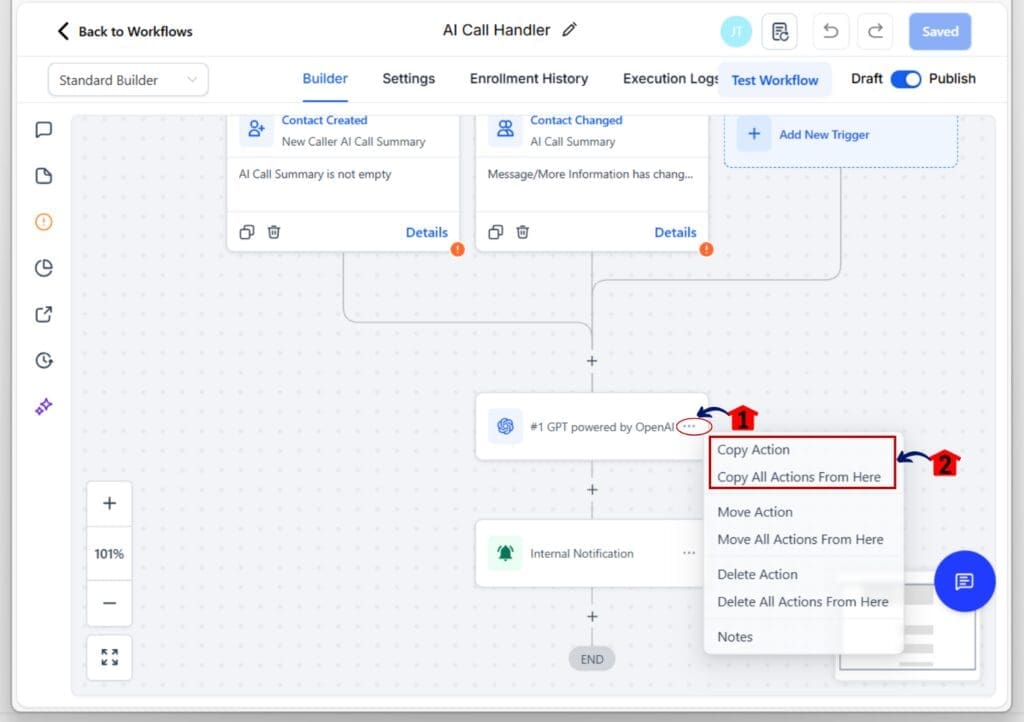
2.2 You’ll see a banner confirming the action was copied.
- You don’t need to do anything with it; it will disappear after 8 seconds.

Step 03: Paste the Action Using the New Visual Guide
- Move to the part of the workflow where you want the copied action to go.
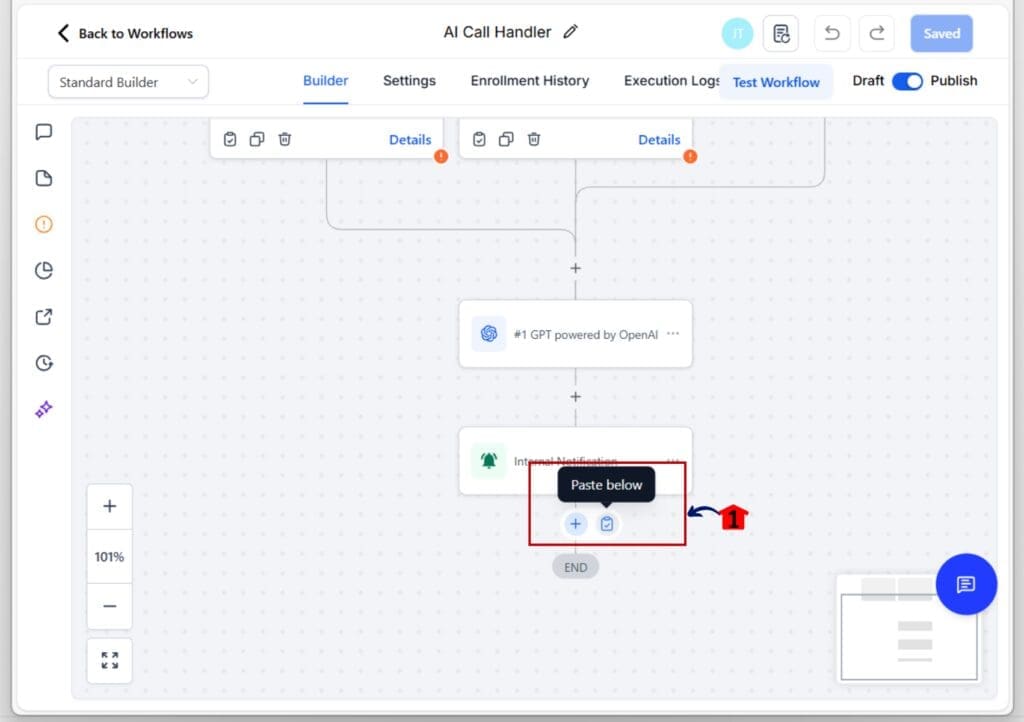
3.1 Hover near the plus icon between actions.
- A glowing guide will appear showing where the action will be placed.
3.2 Click the glowing line or the paste icon to paste.
- Your copied action will now appear exactly in that spot.
Step 04: Paste Again Without Copying Again
- Need to reuse the same step? No problem.
4.1 Go to any other plus icon and hover again.
- You’ll still see the glowing paste guide.
4.2 Click again to paste.
- You can do this as many times as needed without re-copying.

That’s it. Workflow action shortcuts now work across workflows and tabs, and they feel much easier to control. This small update makes your automation builds faster, clearer, and a whole lot of smoother.
Pro Tips to Get the Most from Workflow Action Shortcuts
Workflow action shortcuts are already a time-saver, but a few simple tips can help you work even faster. These small habits make a difference when you’re building workflows every day.
Work in multiple tabs.
- Open different workflows in separate tabs. You can copy an action from one tab and paste it into another using the visual paste guide. It works smoothly and helps you avoid switching back and forth.
Create a base workflow to copy from.
- Build a simple workflow that holds the actions you use most often. This might include things like wait steps, internal notifications, or tagging actions. When you need them, just copy and paste from that base. Workflow action shortcuts make this easy.
Watch for the glowing line.
- The glowing paste guide appears when you hover near a plus icon. It shows you where the action will land. If you don’t see it, move your mouse slightly until it shows up.
Use with snapshots and custom values.
- When you’re setting up client accounts from snapshots, workflow action shortcuts help you paste common steps quickly. Add in custom values and you can build faster without needing to start from scratch.
These are small tips, but they help you make the most of workflow action shortcuts. The more you use them, the smoother your builds will feel.
Frequently Asked Questions About Workflow Action Shortcuts
Workflow action shortcuts are easy to use once you get the hang of them, but a few questions still come up. Here’s what you need to know.
These answers should help you get comfortable with workflow action shortcuts. They’re simple once you start using them, and they make your workflow builds quicker and cleaner.
What You Get from Better Workflow Action Shortcuts
Once you start using the updated workflow action shortcuts, you’ll notice a few key changes right away.
Your builds move faster. You can copy and paste steps without repeating the same actions over and over. That means fewer clicks and less time spent setting things up.
The visual paste guide makes it easier to place things exactly where you want. No more trial and error or second guessing. You see the spot, click, and keep going.
You’ll also have a cleaner screen. The “Actions Copied” banner disappears after a few seconds, so nothing blocks your view while you work.
These small changes help reduce mistakes and give you a smoother build process. If you manage client accounts, work across tabs, or build complex workflows, the benefits will add fast.
Workflow action shortcuts now do what they were always meant to do: help you work faster with less hassle.
Small Changes, Big Time Savings
Workflow action shortcuts have always been in GHL, but they haven’t always been easy to use. This update fixes that.
Now you can copy actions, see exactly where they’ll land, and paste them again without starting over. Workflow action shortcuts are faster, cleaner, and easier to control. The glowing guide shows where to click. The copied banner disappears on its own. You get more done with fewer steps.
If you build automations often, these changes matter. You’ll save time, avoid mistakes, and spend less effort clicking around. The tools are the same, but now the experience is better.
Workflow action shortcuts are finally doing what they should help you build faster and cleaner without slowing you down.
Scale Your Business Today.
Streamline your workflow with GoHighLevel’s powerful tools.