- Google Lead Sync Is Finally Here
- Quick Summary – Google Lead Sync Essentials
- What’s New: Seamless Google Lead Ads Integration
- What Changed: No More Zapier or Manual Imports
- Why This Matters: Lead Speed = Deal Speed
- How to Use Google Lead Sync in GHL
- Pro Tips for Better Lead Flow
- FAQ: Common Questions About Google Lead Sync
- Final Thoughts: This Is a Big Win for Agencies
Google Lead Sync Is Finally Here
If you’ve been duct-taping your lead flow from Google Lead Sync into GHL using Zapier or CSV uploads… you can stop now.
After tons of user requests, GoHighLevel just rolled out Google Lead Sync. It’s simple, it’s fast, and it plugs Google Lead Sync straight from your Google forms into your CRM, with automations kicking off right away. Zero patchwork required.
If you’re juggling multiple clients or pushing serious ad spend, this update’s a lifesaver. You can finally plug Google Ads straight into GoHighLevel and watch leads flow in without lifting a finger.
This post will walk you through what’s included, what changed, how to set it up, and why it matters for your lead generation and automation workflows.

With Google lead sync, agencies can now automatically capture Google Ads leads into GHL, map form fields to the CRM, and launch workflows instantly, no Zapier or third-party tools needed.
Quick Summary – Google Lead Sync Essentials
Purpose:This new feature connects Google Ads to GoHighLevel, letting you automatically sync leads and instantly trigger workflows without third-party tools.
Why It Matters: Manual imports, broken zaps, and missed leads are now a thing of the past. You’ll capture leads faster and follow up while they’re still hot.
What You Get: Seamless integration with Google Lead Forms, automatic contact creation in your CRM, and instant automation via the new “Google Lead Form Submitted” trigger.
Time To Complete: Initial setup takes under 10 minutes, with most of the work done through a guided Marketplace connection and a few quick field mappings.
Difficulty Level: Beginner-friendly. If you’ve set up any integration before, you’ll breeze through this one. No coding or complex workflows required.
Key Outcome: You’ll convert more leads by responding faster and eliminating sync errors, boosting your ROI on Google Ads without adding complexity.
What’s New: Seamless Google Lead Ads Integration
For the first time, GoHighLevel now offers native integration with Google Lead Ads, making it effortless to funnel leads from your ad campaigns straight into the CRM.
Here’s what just got unlocked:
Automate marketing, manage leads, and grow faster with GoHighLevel.

You can now connect your Google Ads account directly to a sub-account in GHL, see all your active lead forms, and choose which campaigns to sync. Once connected, leads flow in automatically the moment a user submits a form on Google, no need to wait, no delay, no manual uploads.
You can also trigger automations the second a lead is captured. This means follow-ups can go out within seconds of form submission, drastically improving conversion rates for both cold and retargeted ad campaigns.
And yes, GHL didn’t stop at basic sync. This feature supports:
- Linking multiple ad accounts under one Google login
- Viewing all your lead forms in one place
- Mapping Google form fields to CRM fields
- Triggering workflows with precision filters for ad account or form
It’s everything you need to turn your ad spend into actual conversations, without patching together third-party tools or building another Zap.
What Changed: No More Zapier or Manual Imports
Before this update, syncing Google Ads leads into GoHighLevel was… let’s just say, messy.
Agencies had to rely on patchwork setups using tools like Zapier, third-party webhook solutions, or even manual CSV exports. It worked, but barely. Delays, data mismatches, and missed leads were a constant risk. And if you ran multiple client ad accounts? Good luck keeping it all straight.
Now, all of that is gone.
With native Google Lead Sync built directly into GHL, you no longer need external tools to bridge the gap between lead form submissions and your CRM. As soon as a lead hits submit on a Google form, GHL catches that data, creates a contact, and kicks off your automations, just like it does with Facebook Lead Ads or native GHL forms.
This isn’t just about convenience, it’s about control. You get cleaner data, faster responses, and no chance of broken zaps killing your funnel.
It’s simple, streamlined, and finally built right inside the platform.
Why This Matters: Lead Speed = Deal Speed
In lead generation, seconds matter.
The faster you respond, the more likely you are to convert. With the new Google Lead Sync, agencies can now eliminate the lag between a lead submitting a form and your system responding. No delays. No middlemen. No lost opportunities.
Instead of waiting for Zapier to fire (or dealing with broken integrations), your GHL workflows can now trigger instantly, as soon as a Google lead is captured. That means automated emails, texts, pipeline updates, and task creation can all happen in real-time.
And for agencies managing multiple clients or campaigns, this also means:
- Centralized lead management across all sub-accounts
- Consistent CRM contact records, without duplicates
- Full visibility into campaign performance with lead attribution
This isn’t just a quality-of-life update, it’s a revenue multiplier. The faster you follow up, the more deals you close. Google Lead Sync makes that speed automatic.
How to Use Google Lead Sync in GHL
If you’ve been manually pushing Google Ads leads into GoHighLevel, this update changes everything. Now, you can sync leads instantly, trigger automations, and centralize client campaigns, all from inside GHL. Here’s how to set up the Google Lead Ads integration in just a few quick steps.
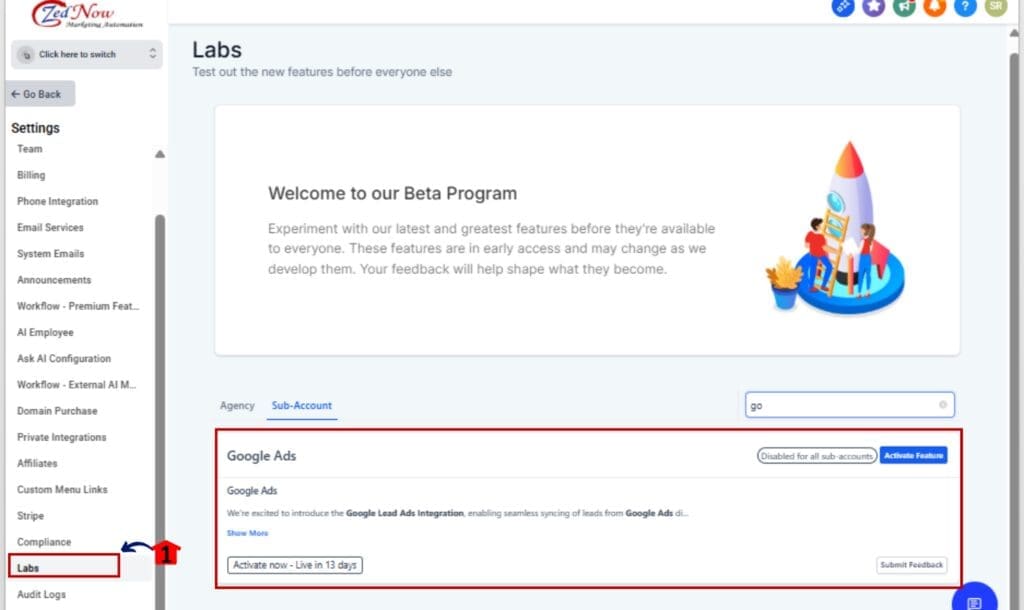
Step 01 – Enable Google Lead Ads in Labs
1.1 From your Agency View, go to the Labs section.
1.2 Locate Google Lead Ads Integration and toggle it ON.
1.3 This unlocks the feature platform-wide for all sub-accounts.
Step 02 – Open the Client’s Sub-Account
2.1 Navigate to the Sub-Account where you want to connect Google Ads.
2.2 Go to Settings > Integrations.
2.3 Search for Google Ads and click Manage to launch the app in Marketplace view.

Step 03 – Install the Google Ads App
3.1 Click Install in the Marketplace.
3.2 Log in with the Gmail account linked to the Google Ads account you want to sync.
3.3 Accept the necessary permissions when prompted.

Step 04 – Select the Ad Account and View Lead Forms
4.1 After login, choose the specific Google Ads account to connect.
4.2 GHL will pull in all active lead forms from the selected account.

Step 05 – Create a Workflow with the Lead Form Trigger
5.1 Go to Automation > Workflows.
5.2 Click +Create Workflow or open an existing one.
5.3 Add the trigger “Google Lead Form Submitted.”
5.4 Use filters to target by specific ad account or form.

Step 06 – Save and Activate Your Sync
6.1 Save the workflow and run a test submission.
6.2 Watch as leads instantly flow into GHL, ready for automated follow-up.

That’s it. You’ve now got a direct pipeline from Google Ads into GoHighLevel, fast, clean, and 100% automated.
Pro Tips for Better Lead Flow
Once Google Lead Sync is active, it’s not just about getting the leads, it’s about getting them organized, qualified, and followed up with. These tips will help you turn a raw sync into a conversion machine.
1. Use Consistent Naming for Lead Forms
Inside Google Ads, name your Google Lead Sync forms clearly based on the campaign or offer. This makes it easier to filter inside GHL workflows and track performance later.
2. Create a Dedicated Google Ads Pipeline Stage
In your CRM pipelines, create a stage just for “Google Lead Form Submissions.” This gives your team immediate visibility into where those Google Lead Sync are coming from and how they’re progressing.
3. Build Specific Workflows for Each Campaign
Don’t use a one-size-fits-all workflow. Use the workflow trigger filters (ad account and form) to route Google Lead Sync into tailored automations, follow-up emails, calls, nurture sequences, or assigned tasks.
4. Double Check Your Field Mappings
Before you flip on live traffic, verify your form field mappings. If the “phone” field isn’t connected correctly, your workflows won’t fire as expected.
5. Use Tags to Track Lead Source
Inside the workflow, add a tag like “source: google lead ad” or “campaign: fall promo” to help segment and report on these Google Lead Sync down the line.
6. Test Before You Scale
Run a live test of each form before launching a full campaign. Submit the form yourself and confirm the contact is created, tagged, and triggering automations.
FAQ: Common Questions About Google Lead Sync
Final Thoughts: This Is a Big Win for Agencies
Google Lead Sync is more than just a convenience, it’s a strategic upgrade for any agency running ad campaigns.
You’re no longer stuck piecing together your lead flow with fragile automations and third-party tools. Now, GHL users can sync Google Ads leads directly into the CRM, assign tags, fire off instant workflows, and route those Google Lead Sync exactly where they need to go, within seconds.
That means:
- No more missed leads
- No more follow-up delays
- No more headaches managing Google Lead Sync sources
It’s clean, fast, and built for scale. Whether you’re managing 1 client or 100, this update saves time, improves accuracy, and makes your agency look sharp.
So if you haven’t turned this on yet, do it. Hook up your first ad account, build your Google Lead Sync capture workflow, and see just how powerful instant sync really is.
Scale Your Business Today.
Streamline your workflow with GoHighLevel’s powerful tools.