

- PDF Submission Documents Make GHL Submissions Easier
- Quick Summary – PDF Submission Documents
- Here are this week's HighLevel Updates 🚀
- What Are PDF Submission Documents in GoHighLevel?
- Why PDF Submission Documents Matter for GHL Users
- How to Enable PDF Submission Documents in GHL
- PDF Submission Documents Stay Organized in GHL
- Pro Tips for PDF Submission Documents in GHL
- What PDF Submission Documents Mean for Your Business
- PDF Submission Documents FAQs
- Conclusion – PDF Submission Documents
PDF Submission Documents Make GHL Submissions Easier
PDF Submission Documents just made collecting responses in GoHighLevel a whole lot more useful. You can now automatically turn new Form, Survey, and Quiz submissions into clean, printable PDFs without manually creating and organizing each document.
GHL Forms, Surveys, and Quizzes already make it easy to collect information from leads and customers. But there’s always been another step if you wanted a printable document containing that submission.
Maybe you’re collecting client intake information. Maybe you need application records. Or maybe your team wants an easy-to-read copy of a completed questionnaire or quiz attached to the contact.
That’s where the new Generate Submission Document setting comes in.
Turn the setting on for a Form, Survey, or Quiz, and GHL automatically creates a PDF for every new submission. The PDF Submission Documents include the questions and submitted responses, along with details such as the submission date, time, and contact information.
Better yet, GHL automatically associates the PDF with the person who submitted it. The document is stored inside the contact’s Documents area and organized into the appropriate Forms, Surveys, or Quizzes folder.
PDF Submission Documents give GHL users a faster way to turn incoming responses into organized, printable records. You can collect the information, create the document, and keep it connected to the right contact without adding another manual task to your process.
For agencies handling client intake, applications, assessments, questionnaires, or other important submissions, that’s a useful improvement. You get a cleaner record-keeping process while GHL handles the repetitive document creation in the background.
The latest GoHighLevel Changelog includes several other GHL feature updates that round out your daily workflow:
- Wait Action Enhancement: TikTok DM Replies
- India Recurring Mandate Support for Affiliate Indian Signup Pages
- Housecall Pro – More Workflow Actions & Triggers
- Email Services Dashboard for Agencies
- Email Sequences Now Available in Beta Labs
- Group Your Contacts by Source in Dashboards & Reporting
- MMLite Adoption Banner in Conversations
Keep reading for much more on all these updates and a deep dive into the PDF Submission Documents feature!

Quick Summary – PDF Submission Documents
Purpose: PDF Submission Documents automatically turn new GoHighLevel Form, Survey, and Quiz responses into organized PDF records.
Why It Matters: You can cut out the manual work of creating, naming, and attaching submission documents to the right contact.
What You Get: Each generated PDF includes the submitted questions and responses, along with submission details such as the date, time, and contact information.
Time To Complete: You can enable Generate Submission Document and run a test submission in just a few minutes.
Difficulty Level: Beginner-friendly. There are no workflows or complicated automations to build. Simply enable the setting on the Form, Survey, or Quiz where you need it.
Key Outcome: New submissions can become printable PDF Submission Documents that are automatically associated with the submitting contact and organized inside the appropriate Documents folder.
Here are this week’s HighLevel Updates 🚀
Wait Action Enhancement: TikTok DM Replies
What’s New:
Instead of continuing after a fixed delay, your workflow can pause until someone replies to your TikTok DM.
Where in GHL:
Found in Automation → Workflows using the Wait action after sending a TikTok DM.
Automate marketing, manage leads, and grow faster with GoHighLevel.

Impact:
Your automation responds when someone actually joins the conversation, rather than after a timer runs out.
Recommended For:
Anyone using TikTok DMs to start conversations with potential customers.
India Recurring Mandate Support for Affiliate Indian Signup Pages
What’s New:
Supports recurring payment mandates for Indian affiliates, helping subscriptions comply with local banking requirements.
Where in GHL:
Available on Affiliate Program signup pages for users in India.
Impact:
Creates a smoother signup experience while reducing payment failures for recurring subscriptions.
Recommended For:
Agencies, SaaS businesses, and affiliate programs onboarding customers in India.
Housecall Pro – More Workflow Actions & Triggers
What’s New:
Adds new workflow triggers and actions for the Housecall Pro integration, giving you more ways to automate field service processes.
Where in GHL:
Inside Automation → Workflows when using the Housecall Pro integration.
Impact:
Expands automation possibilities between HighLevel and Housecall Pro, reducing manual work and improving operational efficiency.
Recommended For:
Home service businesses, field service companies, and agencies managing Housecall Pro clients.
Email Services Dashboard for Agencies
What’s New:
Introduces a centralized dashboard where agencies can monitor email services across their accounts.
Where in GHL:
Found in the Agency View under the new Email Services Dashboard.
Impact:
Makes it easier to monitor email health, identify issues, and manage deliverability from one place.
Recommended For:
Agency owners, support teams, and admins managing multiple client email services.
Email Sequences Now Available in Beta Labs
What’s New:
Introduces Email Sequences as a Beta Labs feature, providing another way to create structured email follow-up campaigns.
Where in GHL:
Enable it from Settings → Labs, then access Email Sequences after activation.
Impact:
Cuts down the time spent checking different areas just to see how your email services are performing.
Recommended For:
Marketers, agencies, coaches, and businesses running nurture campaigns or onboarding emails.
Group Your Contacts by Source in Dashboards & Reporting
What’s New:
Lets you organize contact reports based on where your leads originated.
Where in GHL:
Available within Dashboards & Reporting when viewing contact analytics.
Impact:
Makes it easier to compare lead sources and identify which marketing channels are producing the best results.
Recommended For:
Marketing teams, agency owners, and businesses tracking campaign performance across multiple lead sources.
MMLite Adoption Banner in Conversations
What’s New:
Displays a helpful banner inside Conversations to encourage users to adopt the new MMLite messaging experience.
Where in GHL:
Appears within the Conversations module for eligible accounts.
Impact:
Helps users discover and transition to MMLite while highlighting its benefits directly inside the messaging interface.
Recommended For:
Current HighLevel users exploring the latest messaging experience and teams preparing to migrate to MMLite.
What Are PDF Submission Documents in GoHighLevel?
PDF Submission Documents are automatically generated PDF copies of responses submitted through your GoHighLevel Forms, Surveys, and Quizzes.
The feature is controlled through the new Generate Submission Document setting. Turn it on for a specific Form, Survey, or Quiz, and GHL will create a formatted PDF each time someone makes a new submission.
The PDF isn’t just a basic confirmation page. It creates a useful record containing the questions and the answers provided by the person completing the submission.
GHL also captures submission details, including the date and time of the submission and the contact information connected to it. This gives your team a document they can open and review without digging back through the original submission.
Once generated, PDF Submission Documents are automatically associated with the submitting contact. GHL organizes them inside the contact’s Documents section based on where they came from:
Forms are stored under Contacts → Documents → Forms.
Surveys are stored under Contacts → Documents → Surveys.
Quizzes are stored under Contacts → Documents → Quizzes.
You also control this feature individually. Turning PDF generation on for one Form doesn’t mean every Form, Survey, and Quiz in your account suddenly starts creating documents.
There’s one important limitation to remember. PDF Submission Documents are only generated for new submissions received after you enable the setting. Existing submissions won’t automatically be converted into PDFs.
That makes this a feature worth switching on before you launch a Form, Survey, or Quiz when you know you’ll want a printable record of every response.
Why PDF Submission Documents Matter for GHL Users
PDF Submission Documents remove a small but repetitive job from your team’s plate. Instead of collecting a response and then manually turning that information into a document, GHL can handle the document creation for you.
That becomes especially useful when Forms, Surveys, and Quizzes are part of your everyday client processes.
Think about a marketing agency using a Form to onboard every new client. A service business might use a Survey to collect detailed customer information. Another business could use a Quiz to qualify leads or record assessment results.
In each case, the submission is valuable. But having a clean PDF copy makes that information easier for your team to review, download, print, and keep with the contact record.
PDF Submission Documents also help with organization. Because GHL automatically associates each generated PDF with the submitting contact, your team doesn’t have to download a file, rename it, find the correct contact, and upload it again.
That can make a big difference when you’re managing submissions across multiple clients.
For agencies, there’s another practical benefit. You can build a more consistent process for clients without giving their staff another manual task to remember. Enable the feature on the right Forms, Surveys, or Quizzes, and the document creation happens automatically with every new submission.
The result is simple: less document admin, more consistent records, and faster access to the information your team actually needs.
PDF Submission Documents won’t change how you collect responses. They make what happens after someone clicks submit a whole lot easier.
How to Enable PDF Submission Documents in GHL
PDF Submission Documents are easy to set up because GHL handles the PDF creation and storage once you enable the feature. You don’t need to build a workflow or manually create a document after every response.
The Generate Submission Document setting is controlled individually for each Form, Survey, or Quiz. That means you can decide exactly which submissions need a printable PDF and which ones don’t.
- Open Your Form, Survey, or Quiz.
- Open the Submission Settings.
- Turn On PDF Submission Documents.
- Create a New Submission.
- Open the Contact Record.
To start, make sure you are logged in to your GoHighLevel sub-account.
Step 01 – Open Your Form, Survey, or Quiz
- Start by opening the GHL area where the Form, Survey, or Quiz you want to update is located.
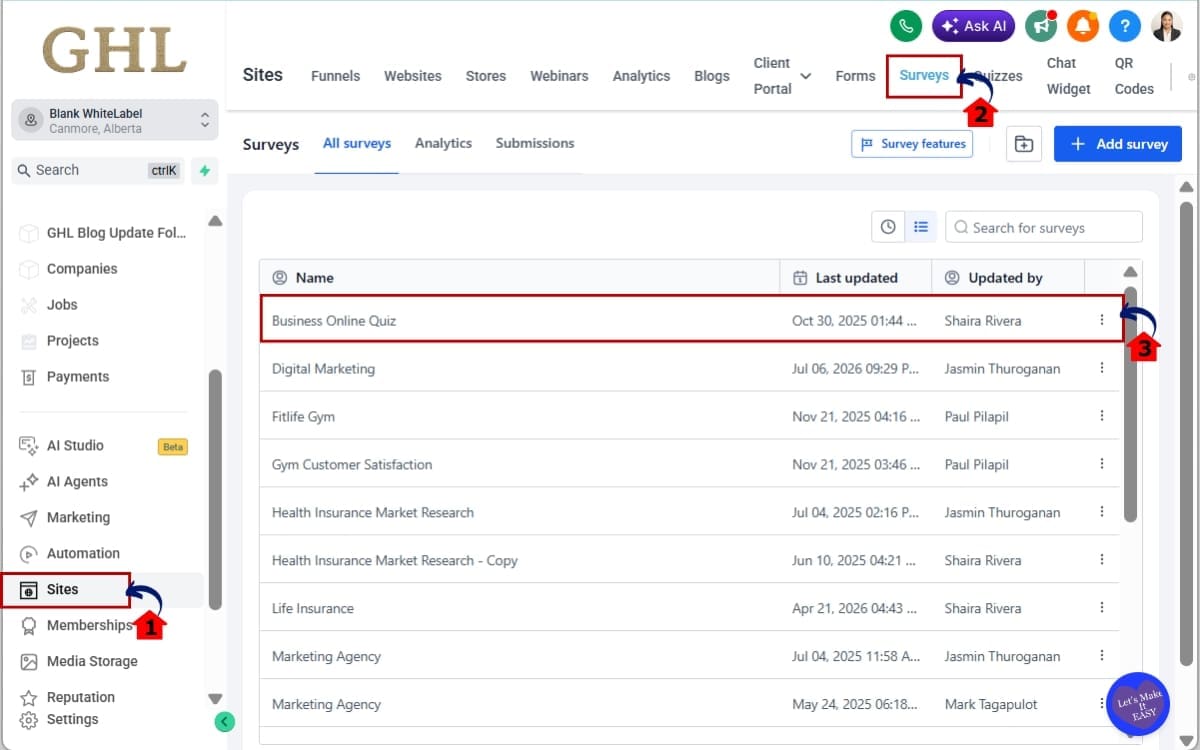
1.1 Go to the main menu on the left side of your GHL dashboard. Click “Sites.”
- The Sites area is where you can access the tools for building and managing your Forms, Surveys, and Quizzes.
1.2 Open the Forms, Surveys, or Quizzes section, depending on the type of submission you want to use. In this example, we’ll use Surveys.
- Choose the section that matches what you’re working with. The setup is available for all three submission types.
1.3 Find and open the specific Survey you want to update.
- Select the Survey where you want new responses to automatically generate PDF Submission Documents.
Step 02 – Open the Submission Settings
- Now that you have your Form, Survey, or Quiz open, head into its settings to find the option that controls PDF creation.
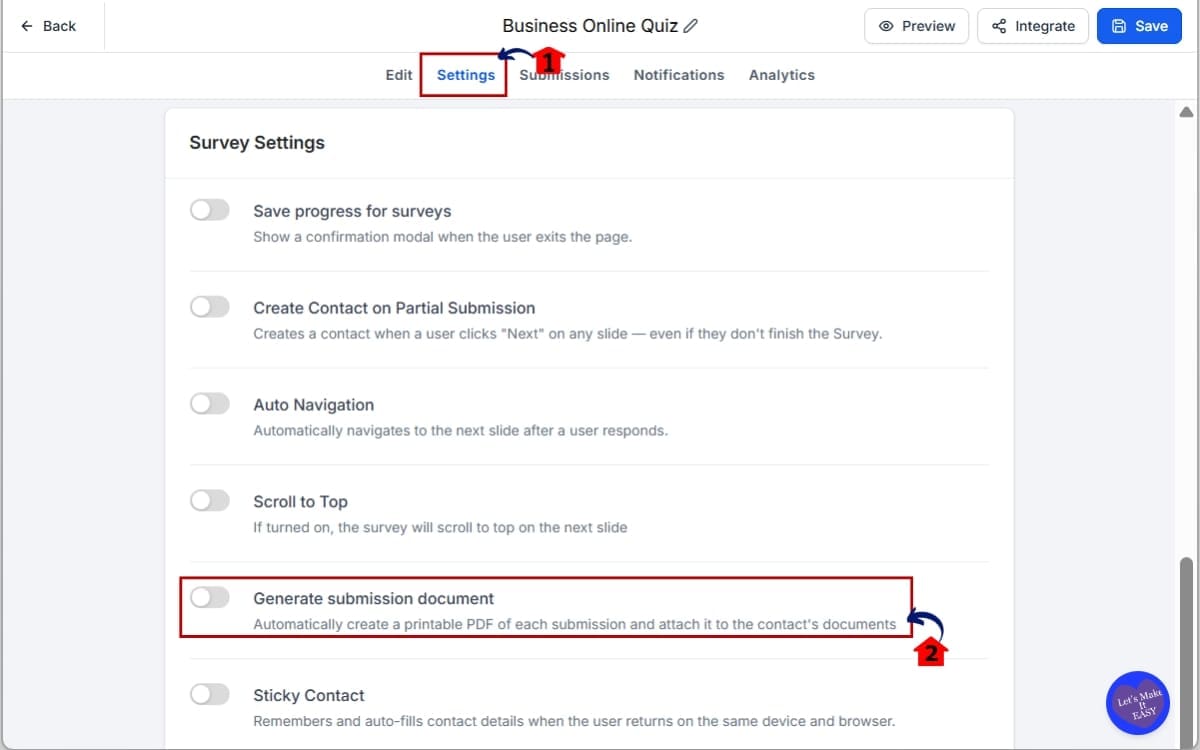
2.1 Open the Settings panel for your selected Form, Survey, or Quiz.
- This is where you’ll find the options that control how your selected Form, Survey, or Quiz handles new submissions.
2.2 Find the “Generate submission document” setting.
- This is the setting that tells GHL whether it should create a PDF document when a new response comes in.
Step 03 – Turn On PDF Submission Documents
- Now you’re ready to switch on automatic PDF creation for the Form, Survey, or Quiz you selected.
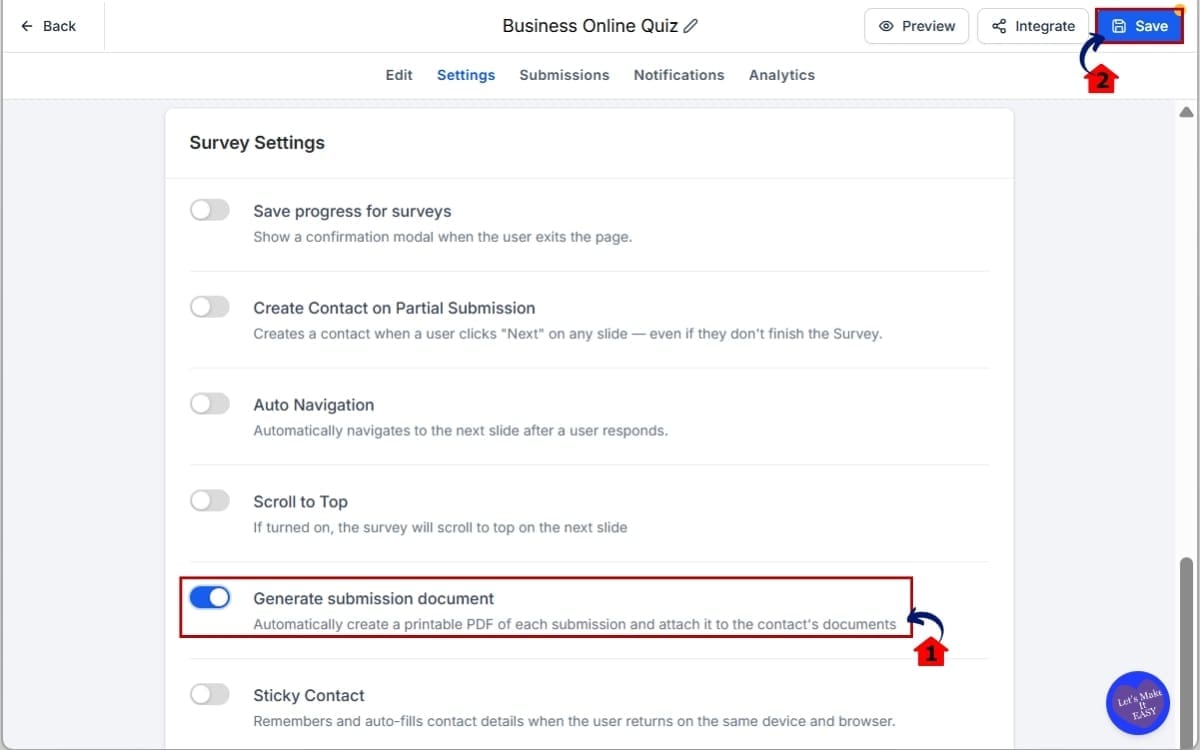
3.1 Turn the “Generate submission document” toggle ON.
- Once enabled, GHL will automatically create a PDF Submission Document whenever a new response is submitted.
3.2 Save or publish your changes if prompted by the editor.
- This makes sure your updated setting is applied before you start collecting new submissions.
Repeat these steps for any other Forms, Surveys, or Quizzes where you want automatic PDFs. Remember, this setting works individually. Turning it on for one Form, Survey, or Quiz doesn’t automatically enable it for the others.
Step 04 – Create a New Submission
- Open or preview the Form, Survey, or Quiz where you enabled the setting.
4.1 Complete a test submission. Submit the response as a new submission.
- GHL will automatically generate the PDF document for that submission.
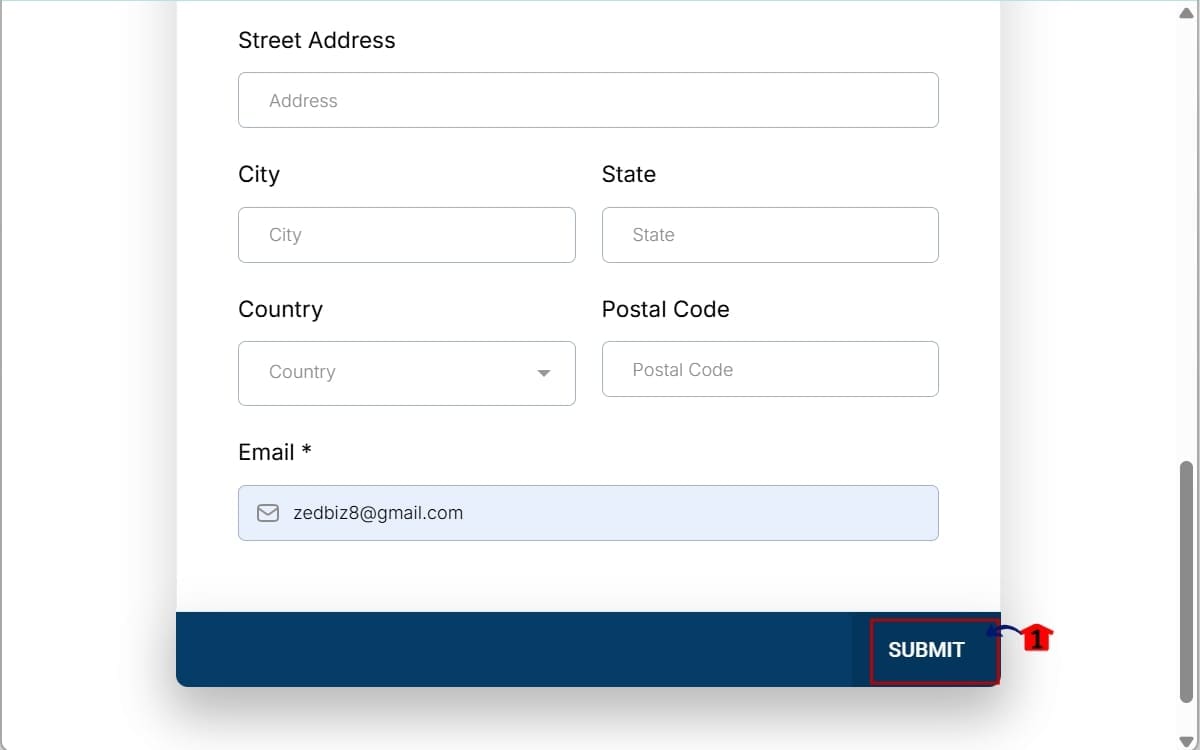
This is worth testing before you send the Form, Survey, or Quiz to your leads or customers. It gives you a chance to confirm that PDF generation is enabled and that the resulting document contains the information you expect.
Step 05 – Open the Contact Record
- Once a new submission has generated a PDF, head to the contact record to find the saved document.
5.1 Click “Contacts” from the main left-hand menu.
- This opens your contact list, where you can find the person who completed the Form, Survey, or Quiz.
5.2 Search for the contact who completed the Form, Survey, or Quiz.
- Use the contact’s name or details to quickly pull up the correct record.
5.3 Open the “Documents” section for that contact.
- This is where you can access the PDF Submission Document GHL created from their response.
5.4 Access the PDF Submission Document GHL created from their response.
- You can see and open the PDF here.
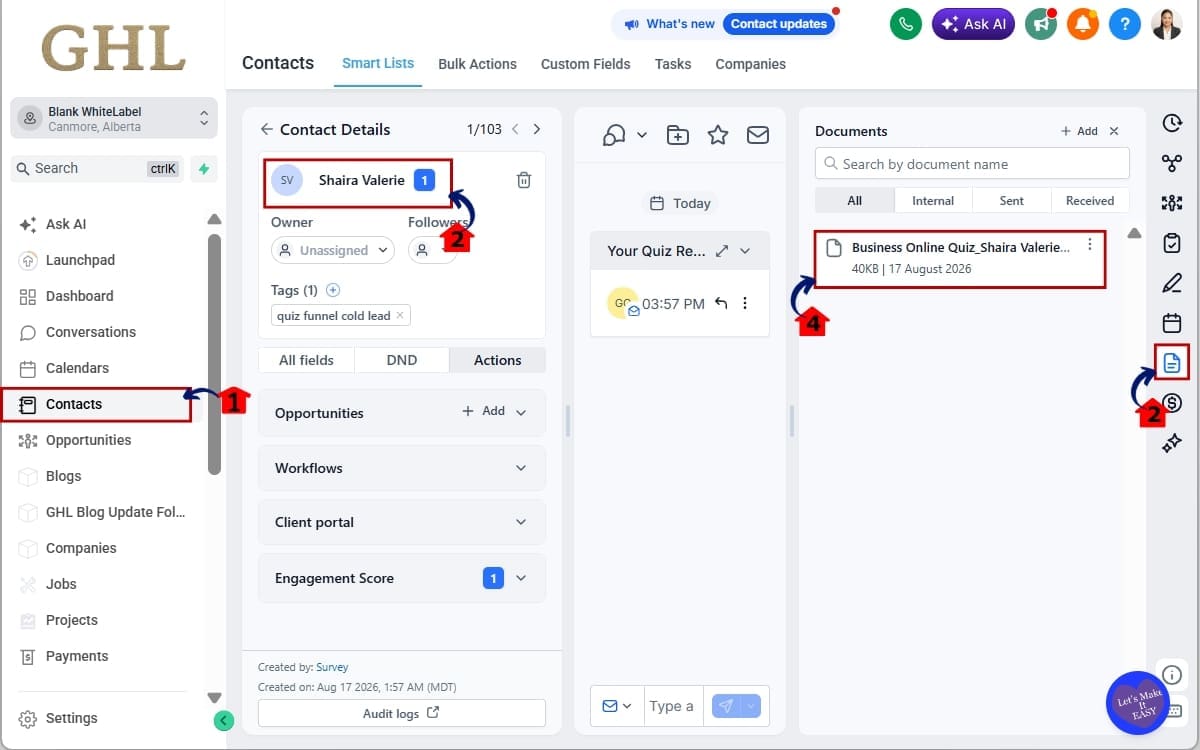
That’s it. Once Generate Submission Document is enabled, GHL handles the repetitive part for every new submission. The response becomes a PDF and is automatically associated with the submitting contact.
One important point: existing submissions aren’t affected. PDF Submission Documents are only created for new submissions received after you turn the setting on.
PDF Submission Documents Stay Organized in GHL
PDF Submission Documents don’t just save you from creating files manually. GHL also gives each generated document a consistent filename and automatically organizes it based on the type of submission.
For Forms and Surveys, generated documents use this naming format:
[FormName][ContactName][YYYY-MM-DD_HHMM]
For Quizzes, GHL uses:
Result_[FormName][ContactName][YYYY-MM-DD_HHMM]
That means the filename can show you which Form or Survey was completed, who submitted it, and when the submission happened. Quiz documents also include “Result” at the beginning, making them easier to recognize.
GHL handles the folder organization automatically as well.
Form documents are stored under Contacts → Documents → Forms.
Survey documents are stored under Contacts → Documents → Surveys.
Quiz documents are stored under Contacts → Documents → Quizzes.
This organization becomes more useful as your submission volume grows. Instead of ending up with a pile of randomly named PDFs, your team gets a predictable system for finding the right document inside each contact record.
For agencies, that can make PDF Submission Documents especially useful for repeatable processes like onboarding, applications, assessments, and client questionnaires. Your team doesn’t need to come up with its own naming system or remember where each new submission should be stored.
GHL handles the naming, contact association, and organization automatically. Your team just needs to know where to look.
Pro Tips for PDF Submission Documents in GHL
PDF Submission Documents are simple to switch on, but a little planning will help you get more value from them. You don’t need a PDF for every response you collect, so focus on submissions your team may actually need to review, download, print, or keep with the contact.
Start by enabling the setting before launching an important Form, Survey, or Quiz. GHL only generates PDF Submission Documents for new responses after the setting is turned on. Your existing submissions won’t automatically be converted.
It’s worth doing a quick test before you put the Form, Survey, or Quiz in front of customers. Submit it once yourself and take a look at the PDF GHL creates.
Spend a few seconds naming things properly before you start. GHL uses the Form, Survey, or Quiz name in the PDF filename, so a descriptive name can save some head-scratching later.
For agencies, think about where a permanent submission record actually helps. Client onboarding, applications, assessments, detailed questionnaires, and qualification forms are all good places to consider using the feature.
One more thing: be careful with sensitive information. HighLevel’s existing documentation advises users not to store sensitive information as documents under Contacts. It also states that documents stored under contacts can have a public URL that may be viewed by someone who has access to that URL, although those URLs aren’t searchable through search engines such as Google or Bing.
The goal isn’t to generate more files just because you can. Use PDF Submission Documents where they make your process cleaner, faster, and easier for your team to manage.
What PDF Submission Documents Mean for Your Business
PDF Submission Documents can make a real difference when your business collects the same type of information over and over again. It’s one less manual step between receiving a submission and having a usable document stored in your CRM.
Take client onboarding as an example.
An agency could create a GoHighLevel Form that collects everything needed to start a new project. The client completes the Form, and GHL captures their answers as usual. With Generate Submission Document enabled, GHL also creates the PDF and associates it with that client’s contact record.
Now your team has a printable copy of the submission without someone having to create it, name it, download it, and upload it to the correct contact.
The same idea can work with Surveys and Quizzes. A business could collect detailed customer feedback through a Survey or use a Quiz for an assessment. Each new response can become an organized PDF Submission Document that the team can access from the contact record.
If you’re running a bunch of client accounts, this is the kind of update you’ll appreciate over time. Doing something once for five minutes is no big deal. Doing it 200 times? That gets old fast.
This update removes that repetitive work.
You still control which Forms, Surveys, and Quizzes generate PDFs. But when keeping a printable submission record is part of the process, GHL can now handle that job automatically.
That means less document admin, more consistent records, and a cleaner process for your team and your clients.
PDF Submission Documents FAQs
Conclusion – PDF Submission Documents
PDF Submission Documents give GoHighLevel users a simple way to turn new Form, Survey, and Quiz responses into organized, printable records without adding another manual task to the process.
Once you enable Generate Submission Document, GHL does the heavy lifting. Each new submission can automatically become a PDF containing the questions, responses, contact information, and submission details.
Once the PDF is created, GHL puts it with the right contact and sorts it into the matching Forms, Surveys, or Quizzes folder.
For agencies, that can mean fewer repetitive admin tasks and a more consistent way to handle important submissions across client accounts.
Just remember to switch the feature on before you need it. Existing submissions won’t generate PDF Submission Documents after the fact, so it’s worth enabling and testing the setting before launching an important Form, Survey, or Quiz.
The team here at GHL Growth Garage likes updates like this because they don’t make your processes more complicated. They take a job you may already be doing manually and let GoHighLevel handle it automatically.
Try Generate Submission Document on one of your important Forms, Surveys, or Quizzes and run a test response. A few minutes of setup could save your team a whole lot of document admin down the road.
Have you started using PDF Submission Documents in GoHighLevel yet? What kind of submissions will you use them for?
Scale Your Business Today.
Streamline your workflow with GoHighLevel’s powerful tools.


