- Master workflow navigation and editing with powerful keyboard commands inside the Standard Builder.
- Quick Summary – Keyboard Shortcuts Essentials
- What’s New – Keyboard Shortcuts Inside Workflows
- Why Keyboard Shortcuts Matter for GHL Users
- Shortcut Categories Breakdown for Keyboard Shortcuts
- How to Use Keyboard Shortcuts in GoHighLevel
- Additional Instructions On How To Use Shortcut
- What Keyboard Shortcuts Mean for Your Business
- Frequently Asked Questions About Keyboard Shortcuts in GoHighLevel
- Conclusion – Build Faster with Keyboard Shortcuts
Master workflow navigation and editing with powerful keyboard commands inside the Standard Builder.
Keyboard Shortcuts inside GoHighLevel just made workflow building faster than ever. If you build automations every day, you know how much time gets lost clicking, dragging, and zooming. These new Keyboard Shortcuts inside the Standard Builder remove that friction. You can now move nodes, copy actions, zoom in, navigate between steps, and save your workflow without touching your mouse.
This update is built for speed. Whether you manage one account or twenty sub-accounts, faster navigation means faster builds. The shortcuts work on selected nodes, downstream actions, or the full builder view. Once you learn them, you will not want to go back. Less clicking. More building. Smarter automation inside GoHighLevel.

These Keyboard Shortcuts inside GoHighLevel’s Standard Builder help you build, edit, and navigate workflows faster. Less clicking. More building. Smarter automation.
Quick Summary – Keyboard Shortcuts Essentials
Purpose:
This update introduces keyboard shortcuts inside the GoHighLevel Standard Workflow Builder to help users build, edit, and navigate automations faster.
Why It Matters:
Keyboard Shortcuts reduce repetitive clicking, speed up workflow edits, and improve efficiency for agencies managing multiple automations.
What You Get:
Full shortcut controls for editing nodes, navigating workflows, zooming views, managing panels, and saving instantly inside GHL.
Time to Complete:
Less than 10 minutes to learn the core shortcuts and begin using them in live workflows.
Difficulty Level:
Beginner-friendly, but powerful enough for advanced automation builders.
Key Outcome:
Faster workflow creation, cleaner automation management, and more productive time inside GoHighLevel.
What’s New – Keyboard Shortcuts Inside Workflows
GoHighLevel has added Keyboard Shortcuts directly inside the Standard Workflow Builder. This update allows you to build, edit, and move through automations faster without relying on your mouse.
Shortcuts are grouped into five clear categories:
Automate marketing, manage leads, and grow faster with GoHighLevel.

- Essential
- Edit
- View
- Navigation
- Tools
Each shortcut works based on context. Some require you to select a node first. Others apply to everything downstream from that node. A few control the entire builder view, like zoom and fit screen.
Here’s what this really means:
- You can copy and paste workflow steps instantly.
- You can move full automation sequences in seconds.
- You can zoom in and out without dragging sliders.
- You can open trigger and action panels from the keyboard.
- You can save your workflow with one quick command.
For users who build large workflows, these Keyboard Shortcuts remove friction. And friction is what slows automation down.
Why Keyboard Shortcuts Matter for GHL Users
If you build workflows often, you know the pain. Click. Drag. Scroll. Zoom. Repeat. It adds up fast. These Keyboard Shortcuts remove that extra work and help you move faster inside GoHighLevel.
Here’s why this matters:
- You reduce repetitive clicking.
- You edit large automations in seconds.
- You duplicate workflow sections faster.
- You navigate complex maps with ease.
- You save time on every single build.
For agencies, speed equals profit. When you manage multiple client accounts, even small time savings compound. Ten minutes saved per workflow turns into hours saved each week.
For VAs and team members, this makes training easier. Instead of learning mouse-heavy navigation, they can use simple commands to move around the builder.
For power users, this is a serious upgrade. Large nurture campaigns, onboarding flows, and sales pipelines are now easier to control.
Less friction means more output.
And in automation, output is everything.
Shortcut Categories Breakdown for Keyboard Shortcuts
The new Keyboard Shortcuts inside the GoHighLevel Standard Builder are organized into five simple categories. Each one serves a different purpose when building or editing workflows.
Edit Shortcuts – Move and Copy Faster
These shortcuts help you duplicate or restructure automations quickly.
- Move Selected Node(s) — ⌘ + X / Ctrl + X
- Copy Selected Node(s) — ⌘ + C / Ctrl + C
- Paste Node(s) — ⌘ + V / Ctrl + V
- Copy All Actions From Selected Node Onward — ⌘ + Shift + C / Ctrl + Shift + C
- Move All Actions From Selected Node Onward — ⌘ + Shift + X / Ctrl + Shift + X
This is powerful for cloning nurture sequences or shifting entire workflow paths.
View Shortcuts – Control Your Workspace
When workflows get large, visibility matters.
- Zoom In — +
- Zoom Out — –
- Zoom to 100% — 0
- Fit View — 1
These help you adjust your view instantly without dragging sliders.
Navigation Shortcuts – Move Between Nodes
This is where speed really improves.
- Select All Nodes — ⌘ + A / Ctrl + A
- Select All Actions — ⌘ + Shift + A / Ctrl + Shift + A
- Select All Triggers — ⌘ + ⌥ + A / Ctrl + Alt + A
- Move to Next Node — ↓
- Move to Previous Node — ↑
- Move to Right Sibling Node — →
- Move to Left Sibling Node — ←
- Select Upstream Nodes — Shift + ↑
- Select Downstream Nodes — Shift + ↓
Large workflows become easier to manage with these.
Tools Shortcuts – Manage Workflow Actions
These commands help you clean up and control the builder.
- Delete Selected Node(s) — Del
- Delete All Actions From Selected Node Onward — ⌘ + Del / Ctrl + Del
- Open Trigger Panel — Shift + Tab
- Open Action Panel — Tab
- Save Workflow — ⌘ + S / Ctrl + S
Saving with a shortcut alone can prevent costly mistakes.
Some Keyboard Shortcuts only work after selecting a node. Others affect everything downstream. Understanding this makes a big difference.
How to Use Keyboard Shortcuts in GoHighLevel
How to Use Keyboard Shortcuts in GoHighLevel
Using Keyboard Shortcuts inside the Standard Workflow Builder is simple. You are not changing any system settings. You are simply accessing a workflow and using keyboard commands while building. These shortcuts help you copy, move, navigate, zoom, and save without using your mouse. Here are the steps to start using Keyboard Shortcuts inside GoHighLevel.
- Access the Automation section
- Open the Workflows page
- Open a Workflow in the Standard Builder
- Select a Trigger or Action node
- Apply Keyboard Shortcuts
To start make sure you are logged in to your GoHighLevel sub-account.
Step 01 – Access the Main Left Hand Menu in GoHighLevel
The Main Menu on the left side of your screen contains all the primary sections you work in.
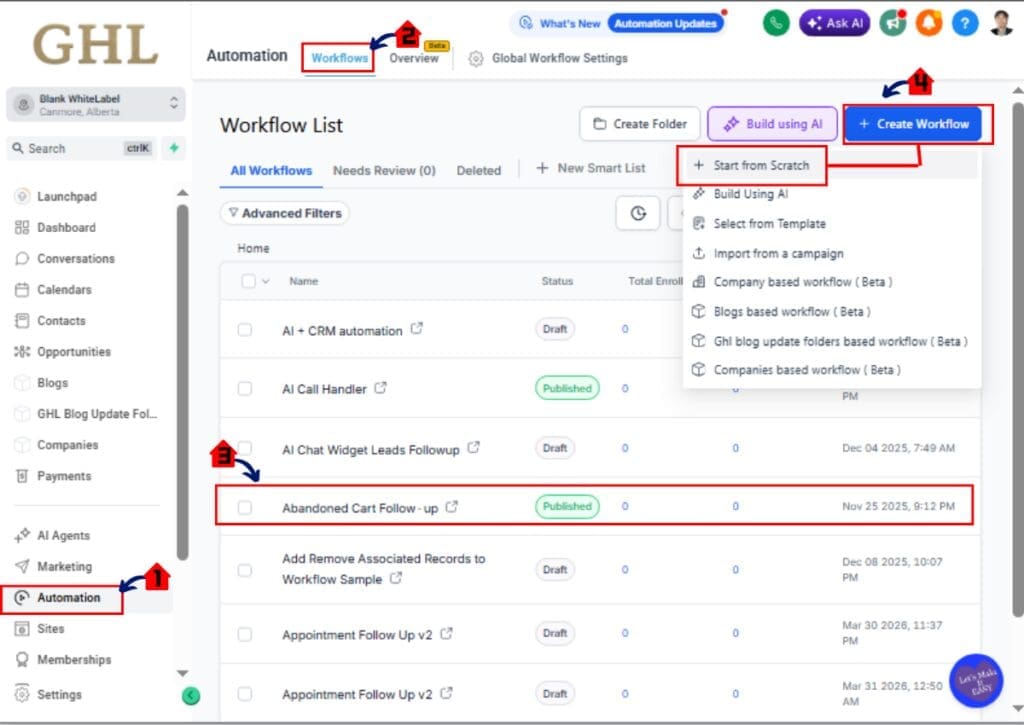
1.1 Click on “Automation”
- This is where all your workflows live.
1.2 Click on “Workflows”
- You will now see your workflow list.
1.3 Click on an existing workflow
or
1.4 Click “Create Workflow” to build a new one
- Make sure you are using the Standard Builder view.
You are now inside the workflow canvas.
Step 02 – Select a Node Before Using Edit Shortcuts
- Some Keyboard Shortcuts only work when a node is selected.
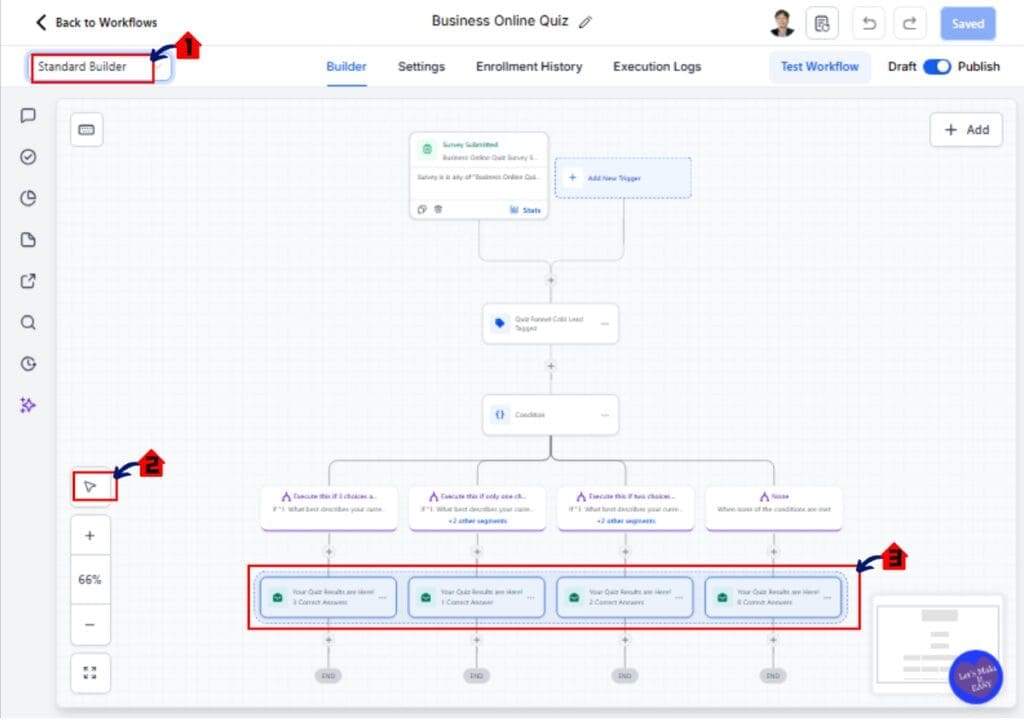
2.1 Choose Standard Builder
- Choose Standard Builder if your using advance builder
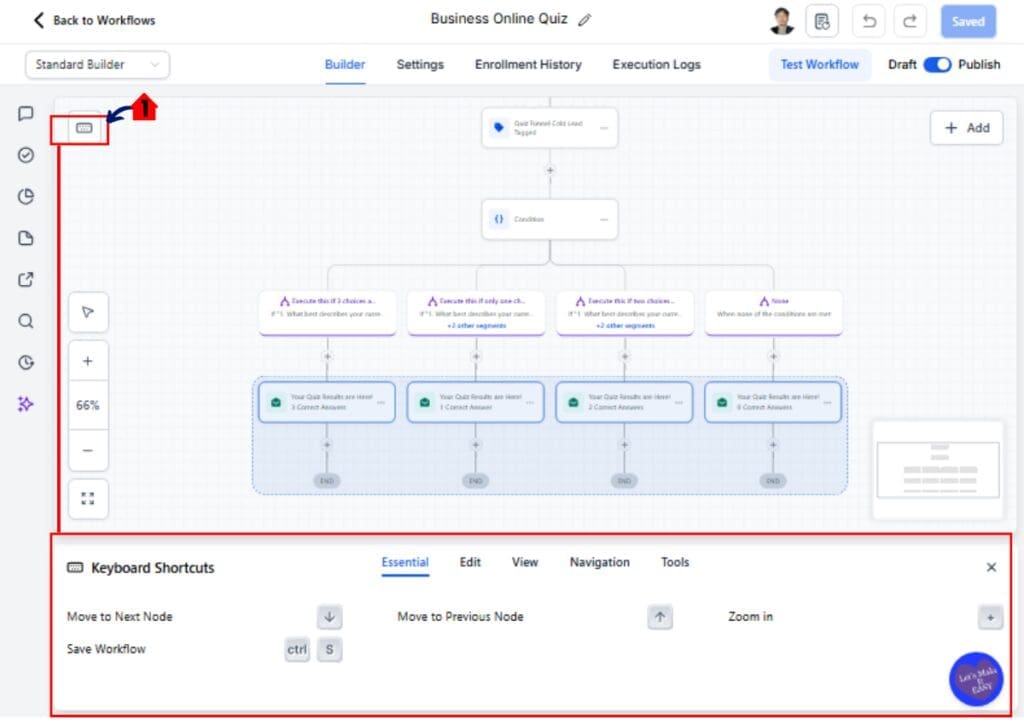
2.2 Click the Arrow Icon
Click the Arrow on the lower Left Part on the Workflow Builder
2.3 Highlight Any Action or Trigger
- Using the arrow Highlight any action or Trigger, if nothing is selected, edit shortcuts will not activate.
Step 03 – Use Edit Keyboard Shortcuts
3.1 Open the Keyboard Shorcut
- Once a node is selected, you can:
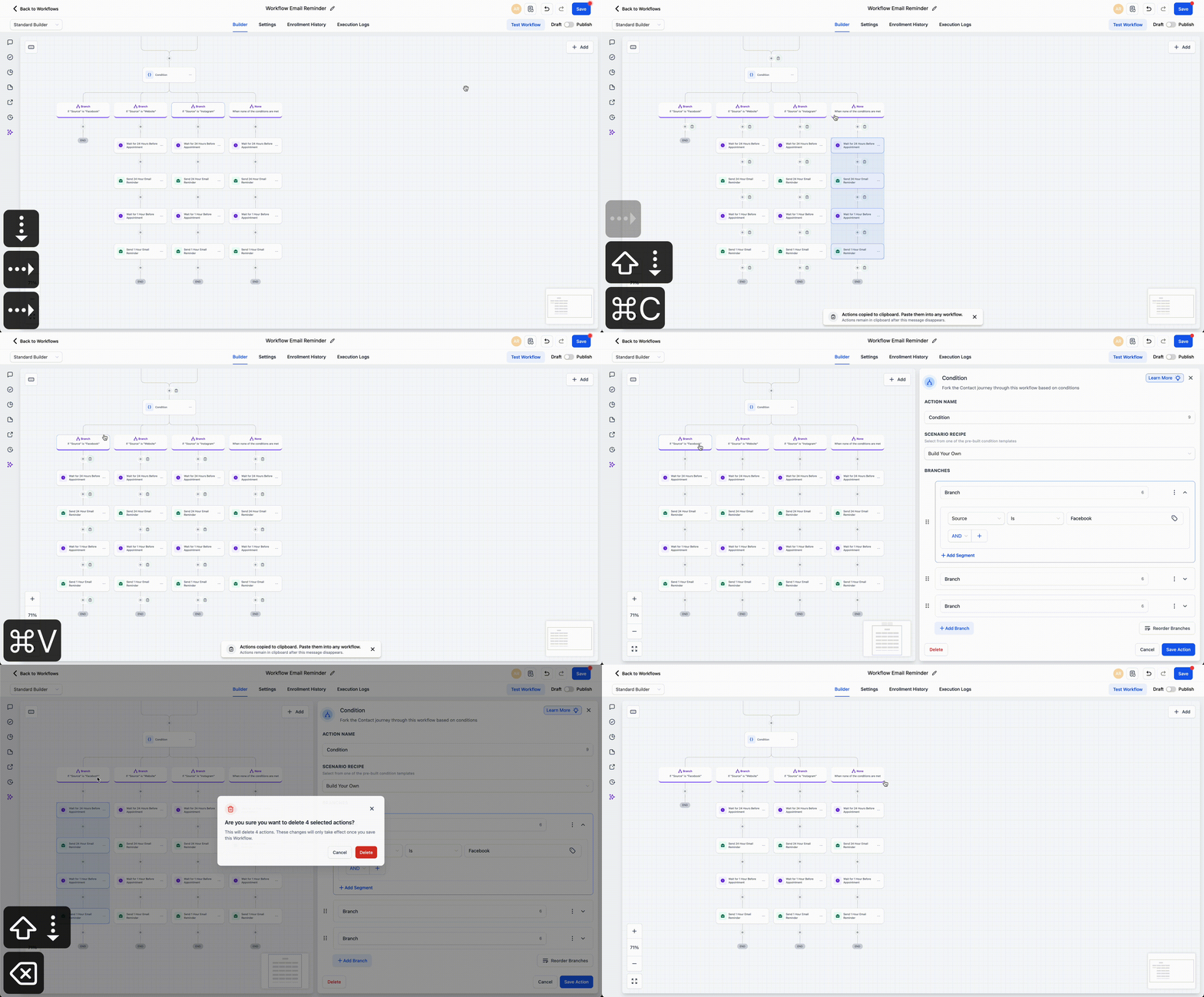
- Press Ctrl + C (Windows) or ⌘ + C (Mac) to copy
- Press Ctrl + V or ⌘ + V to paste
- Press Ctrl + X or ⌘ + X to move
- Press Ctrl + Shift + C or ⌘ + Shift + C to copy downstream actions
- Press Ctrl + Shift + X or ⌘ + Shift + X to move downstream actions
This is useful when duplicating full automation paths.
Additional Instructions On How To Use Shortcut
Use Navigation Keyboard Shortcuts
To move through your workflow faster:
- Use Arrow Down to move to the next node
- Use Arrow Up to move to the previous node
- Use Arrow Right to move to sibling nodes
- Use Shift + Arrow Up to select upstream nodes
- Use Shift + Arrow Down to select downstream nodes
This helps when editing large workflows.
Control Your View with Zoom Shortcuts
When workflows get large, use view controls:
- Press + to zoom in
- Press – to zoom out
- Press 0 to reset to 100%
- Press 1 to fit the full workflow on screen
This eliminates manual zoom dragging.
Use Tool Shortcuts
You can manage your builder panels quickly:
- Press Delete to remove a selected node
- Press Ctrl + Delete or ⌘ + Delete to remove downstream actions
- Press Tab to open the Action panel
- Press Shift + Tab to open the Trigger panel
- Press Ctrl + S or ⌘ + S to save your workflow
Saving frequently is smart practice.
Continue Building Without Clicking
Now you can:
- Copy automation paths
- Rearrange sequences
- Navigate between triggers
- Zoom instantly
- Save with one command
These Keyboard Shortcuts reduce friction and improve workflow speed inside GoHighLevel.
Pro Tips – Using Keyboard Shortcuts Like a Power User
Now that you understand the basics, here’s how to really use these Keyboard Shortcuts to your advantage inside GoHighLevel.
1. Always Select First
Many edit shortcuts require a selected node.
- If nothing is selected, nothing happens.
- Click once. Then apply your shortcut.
- Look for the highlight before pressing commands.
This prevents confusion.
2. Duplicate Entire Automation Sections Fast
Instead of rebuilding nurture paths:
- Select the first node in a sequence.
- Use Copy All Actions From Selected Node Onward.
- Paste into another workflow.
You just cloned a full automation path in seconds.
This is powerful for:
- Onboarding sequences
- Sales pipelines
- Appointment reminders
- Client campaign templates
3. Use Zoom Shortcuts on Large Workflows
When workflows get messy:
- Press 1 to fit everything on screen.
- Press 0 to reset zoom.
- Use + and – to adjust quickly.
Stop dragging the zoom slider. That wastes time.
4. Be Careful With Downstream Delete
Delete All Actions From Selected Node Onward is powerful.
But dangerous.
Before using it:
- Confirm you selected the correct node.
- Save your workflow first.
- Then delete.
One wrong click can wipe half a campaign.
5. Save Often
Use:
- ⌘ + S (Mac)
- Ctrl + S (Windows)
Make it a habit.
Muscle memory saves workflows.
6. Train Your Team on These Shortcuts
If you run an agency:
- Teach your VAs these commands.
- Standardize build procedures.
- Reduce onboarding time.
Faster builds mean higher margins.
These Keyboard Shortcuts are not just convenience features.
They are speed multipliers.
What Keyboard Shortcuts Mean for Your Business
These Keyboard Shortcuts are not just small upgrades. They change how fast you can build inside GoHighLevel.
Speed in automation equals leverage.
Here’s what that means in real terms:
- You build client workflows faster.
- You duplicate proven automation systems in minutes.
- You clean up messy campaigns quickly.
- You reduce time spent dragging and zooming.
- You improve workflow accuracy.
For agencies, this compounds fast.
If you build:
- 5 workflows per week
- Save 10–15 minutes per workflow
- That’s over an hour saved weekly
Over a year, that becomes serious time.
For SaaS mode users, this improves product delivery speed. Faster setup means happier clients.
For marketers, this means:
- Faster testing
- Faster editing
- Faster optimization
And when automation moves faster, revenue follows.
These Keyboard Shortcuts turn workflow building from a slow process into a streamlined system.
Real-Time Application of Keyboard Shortcuts in Marketing Automation
The real power of these Keyboard Shortcuts shows up when you are building live client systems inside GoHighLevel.
This is where speed turns into revenue.
Scenario 1 – Rebuilding a Client Onboarding Workflow
You just signed a new client.
Instead of rebuilding everything:
- Open a proven workflow.
- Select the first node.
- Copy all downstream actions.
- Paste into a new workflow.
- Adjust client-specific details.
What used to take 45 minutes now takes 10.
That is leverage.
Scenario 2 – Fixing a Broken Automation Fast
A trigger is not firing correctly.
Instead of scrolling and dragging:
- Use arrow navigation to move between nodes.
- Select upstream or downstream nodes quickly.
- Open panels with Tab.
- Save instantly after changes.
You troubleshoot faster. Clients stay happy.
Scenario 3 – Scaling Across Sub-Accounts
If you manage multiple sub-accounts:
- Duplicate automation structures quickly.
- Reorganize sequences without dragging.
- Clean up workflows in seconds.
Small speed gains across 10 accounts become massive time savings.
Scenario 4 – Optimizing Large Nurture Campaigns
Large nurture workflows can get messy.
With view shortcuts:
- Fit full workflow on screen.
- Zoom in to refine sections.
- Move between sibling nodes fast.
You see the full system clearly.
Clarity improves performance.
These Keyboard Shortcuts are not flashy.
But they remove friction.
And in automation, removing friction increases output.
Frequently Asked Questions About Keyboard Shortcuts in GoHighLevel
Conclusion – Build Faster with Keyboard Shortcuts
The new Keyboard Shortcuts inside GoHighLevel’s Standard Builder are simple. But the impact is big.
You can now:
- Move faster through workflows
- Copy and paste automation paths instantly
- Navigate large campaigns with ease
- Zoom and adjust your workspace quickly
- Save with one command
Less clicking. More building.
For agencies, this means higher margins.
For marketers, this means faster optimization.
For SaaS users, this means quicker deployment.
Small improvements inside your workflow builder create massive gains over time. And when automation gets faster, everything else follows.
Start using these Keyboard Shortcuts today. Test them in your next workflow. Build muscle memory. Train your team.
Have you tried them yet?
What shortcut are you using the most?
Check back to the GHL Growth Garage blog for more GoHighLevel feature guides designed to help you scale smarter.
Scale Your Business Today.
Streamline your workflow with GoHighLevel’s powerful tools.