- Control response length, tone, and detail with Conversation AI Settings in GoHighLevel to improve engagement and fine-tune your AI reply style.
- Quick Summary – Conversation AI Settings Overview
- What’s New in Conversation AI Settings
- What Changed in Conversation AI Settings Behavior
- Why Conversation AI Settings Matter for Agencies
- How to Configure Conversation AI Settings in GHL
- Pro Tips for Using Conversation AI Settings
- What Conversation AI Settings Mean for Your Automation Strategy
- Lead Engagement Impact of Conversation AI Settings
- Frequently Asked Questions About Conversation AI Settings
- Smarter AI Starts with Better Conversation AI Settings
Control response length, tone, and detail with Conversation AI Settings in GoHighLevel to improve engagement and fine-tune your AI reply style.
Conversation AI Settings Explained
Conversation AI Settings in GHL let you control how long and detailed your AI bot replies are. Instead of hoping your bot says the right amount, you now choose the depth. Short. Balanced. Or detailed. It’s your call.
Before this update, response length mostly depended on your custom prompt. Sometimes, the bot nailed it. Other times, it sent a five-paragraph essay to a cold lead. Not ideal.
With Conversation AI Settings, you can guide how your AI responds in Auto-Pilot mode without rebuilding your prompts. That means more predictable replies, better engagement, and fewer awkward conversations.
You can choose between Concise, Balanced, or Detailed responses depending on your business needs. Whether you’re booking appointments, qualifying leads, or answering support questions, the response style now matches the moment.
Small setting. Big difference.
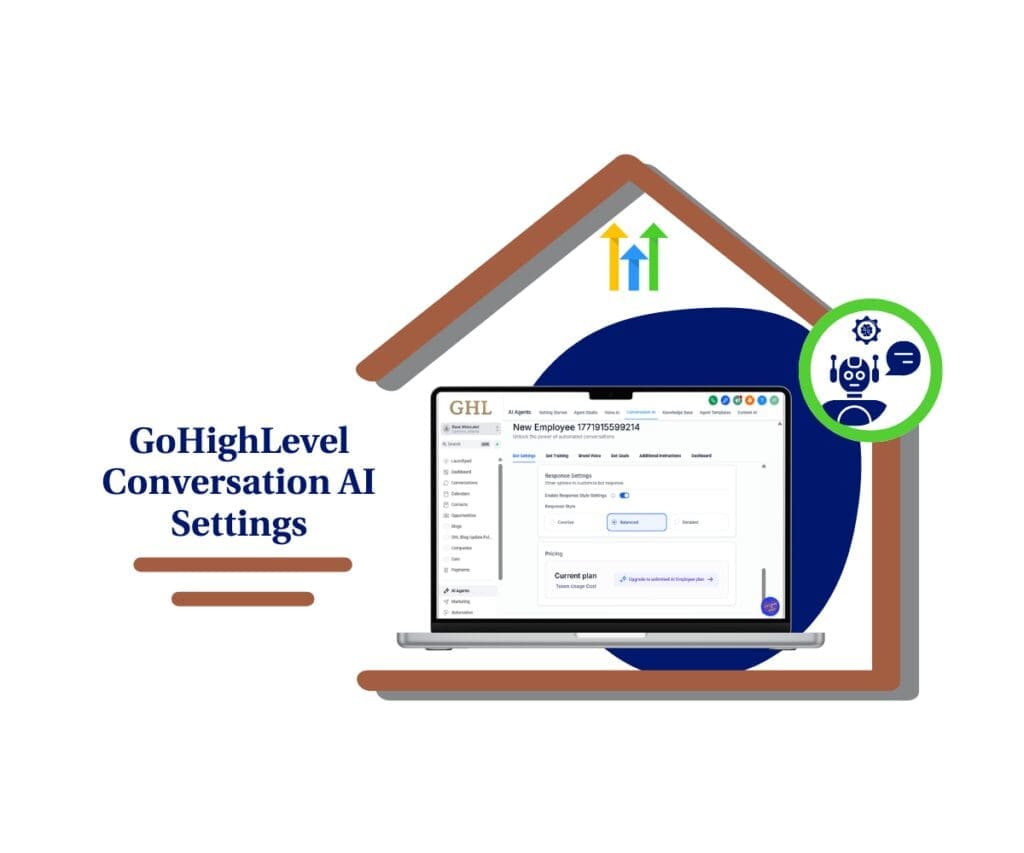
Conversation AI Settings give you direct control over how your AI bot responds. Adjust response length, improve clarity, and create more natural conversations without rewriting your prompts.
Quick Summary – Conversation AI Settings Overview
Purpose: This update introduces Conversation AI Settings, allowing you to control how long and detailed your AI bot replies are inside GHL.
Why It Matters: Different conversations require different depth. Short replies increase early engagement, while detailed replies build trust in consultative industries.
What You Get: Three response styles Concise, Balanced, and Detailed applied at the bot level to guide AI reply length in Auto-Pilot mode.
Time to Complete: Setup takes less than five minutes per bot once you are inside the Conversation AI area.
Difficulty Level: Beginner-friendly. No coding or advanced prompt engineering is required.
Key Outcome: More natural conversations, improved lead engagement, and scalable AI control without constantly rewriting prompts.
What’s New in Conversation AI Settings
The big update? You now have a built-in response style control inside Conversation AI Settings.
Instead of relying only on prompt wording, you can toggle Response Style Settings directly in the bot configuration. This setting applies at the bot level and influences how the AI structures its replies in Auto-Pilot mode.
Automate marketing, manage leads, and grow faster with GoHighLevel.

You get three options:
- Concise – Short, crisp replies around 30 words.
- Balanced – Moderate detail around 80 words.
- Detailed – More comprehensive replies up to about 200 words.
This isn’t a strict word cap. It’s a guiding instruction. The AI will aim to stay within the selected depth, but it can adjust slightly depending on context.
If you turn the feature OFF, nothing changes. Your bot behaves exactly as it did before.
Why does this matter? Studies show that faster, shorter responses can increase engagement rates by up to 20% in early-stage conversations. But longer replies can build trust in consultative industries. Now you control that balance.
Cleaner control. Less guesswork.
What Changed in Conversation AI Settings Behavior
Before this update, response length depended almost entirely on your custom prompt.
If you wanted shorter replies, you had to force it with instructions like “respond in under 50 words.” If you wanted depth, you had to guide the tone manually and structure. It worked… but it wasn’t always consistent.
Now, Conversation AI Settings add a system-level guardrail.
Instead of rewriting prompts, you select the response style once at the bot level. The AI uses that setting as a guiding instruction when generating replies in Auto-Pilot mode. That means a more predictable output across conversations.
Important: If you stack multiple length instructions inside your custom prompt, those may override or conflict with the selected style. Clean prompts work best.
Moreover, if you turn Conversation AI Settings OFF? Nothing changes. Your bot continues responding exactly as it did before.
Think of it like this: your prompt is the strategy. Conversation AI Settings are the boundaries. Together, they shape smarter responses.
Why Conversation AI Settings Matter for Agencies
If you run an agency, this isn’t just a “excellent feature.” It’s control at scale.
Different industries need different conversation depth. A roofing company booking estimates doesn’t need a 200-word explanation. A legal firm answering consultation questions probably does.
Conversation AI Settings let you match response length to intent.
Short replies work best in early-stage lead capture. In fact, research shows that responding within five minutes can increase conversion rates by up to 8x. Long, over-detailed responses at that stage can slow momentum.
But once a lead is qualified? More detail builds trust.
This update also reduces prompt micromanagement. Instead of rewriting instructions for every sub-account, you adjust the response style once at the bot level.
That’s huge for SaaS resellers.
It means cleaner automation across multiple clients. More consistency. Less tweaking. Fewer “Why did the bot say that?” messages.
Also, here’s the real win: you align AI behavior with brand voice without rebuilding your system.
That’s operational leverage.
How to Configure Conversation AI Settings in GHL
Adjusting Conversation AI Settings is done directly inside the Conversation AI area of your sub-account. You are not rebuilding your bot. You are enabling a setting that controls how detailed your AI replies will be during Auto-Pilot conversations.
Here are the steps to configure Conversation AI Settings inside GoHighLevel.
- Access the AI Agents page
- Open Bot Settings
- Enable Response Style Settings
- Select Your Preferred Response Style
To start make sure you are logged in to your GoHighLevel sub-account.
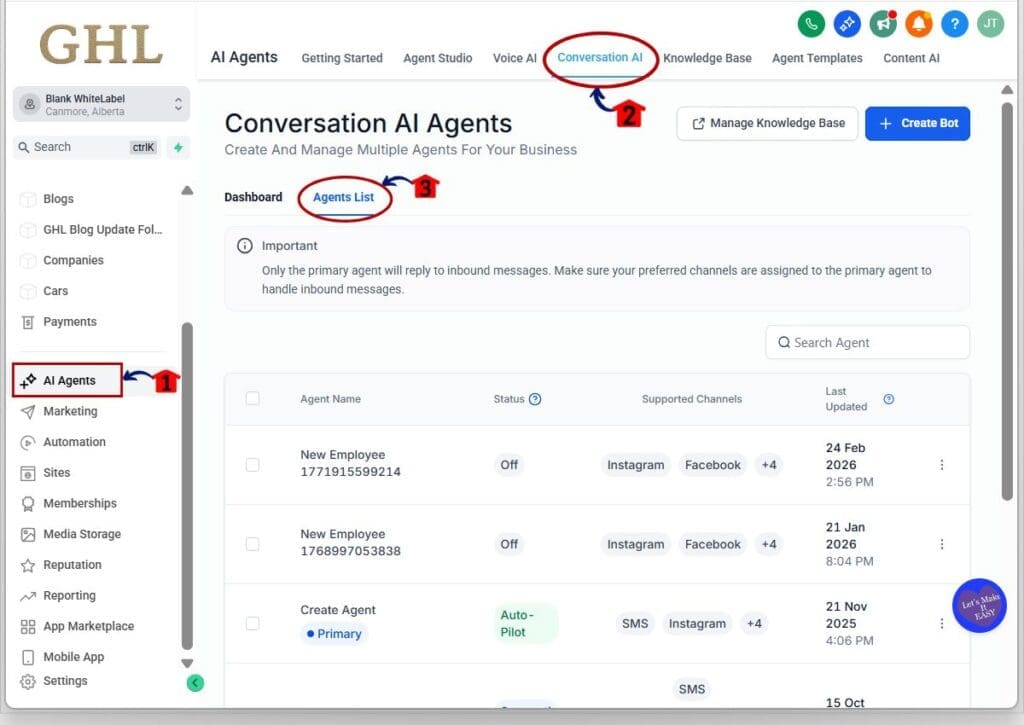
Step 1.0 – Access the AI Agents page of GoHighLevel
- The Main Menu on the left side of your screen contains all the main areas you work in when using GHL.
1.1 Click AI Agents main menu item.
- Inside the AI Agents section you will find the Getting Started, Agent Studio, Voice AI, Conversation AI and more.
1.2 Click Conversation AI in the top navigation menu.
- The Conversation AI page will load showing two tab Dashboard, and Agent List
1.3 Click Agent List menu tab
- The Agent List menu tab will load showing your existing AI Bots and configuration options.
Step 2.0 – Open the Bot Settings section
2.1 Select the AI Bot you want to configure.
- The Bot configuration panel will open.
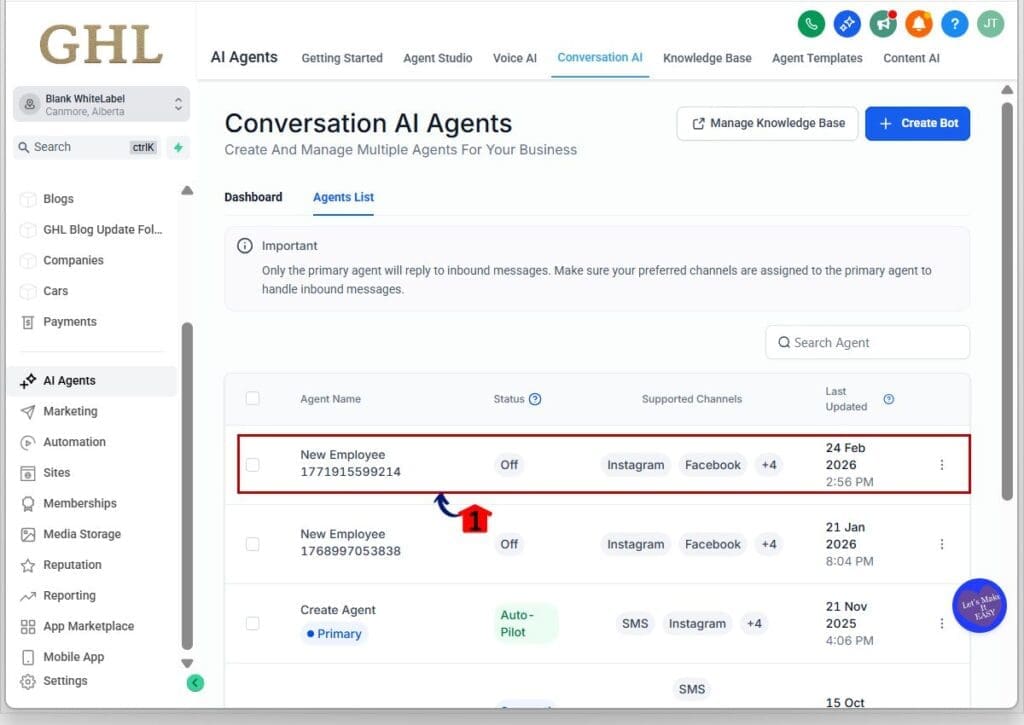
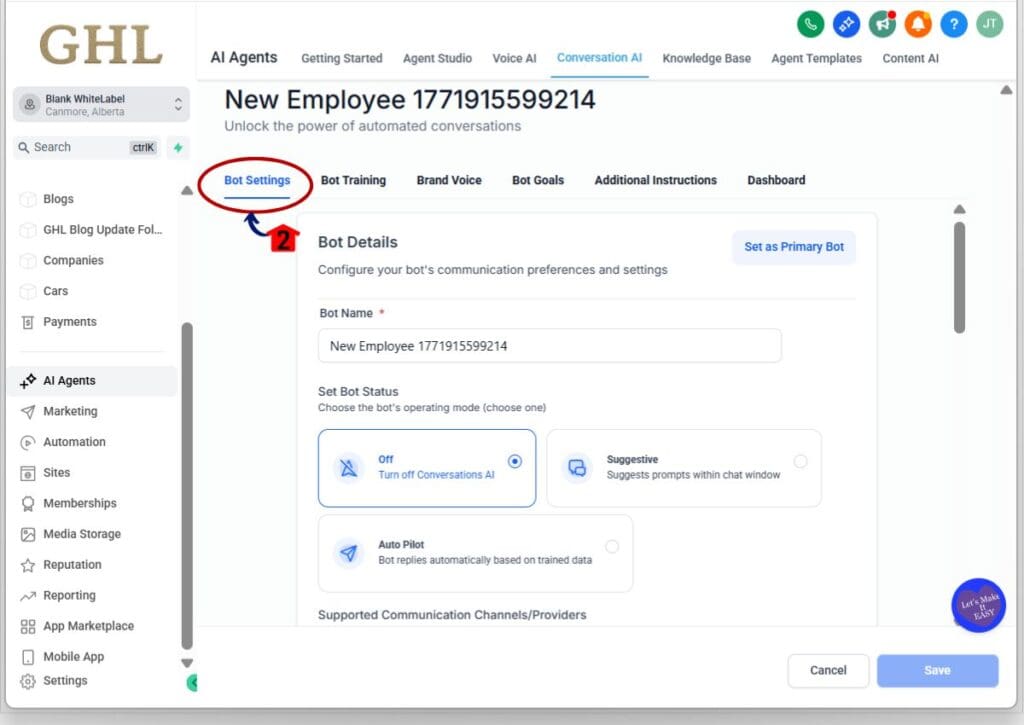
2.2 Click Bot Settings tab.
- This loads the settings panel for the selected bot.
Step 3.0 – Enable Response Style Settings
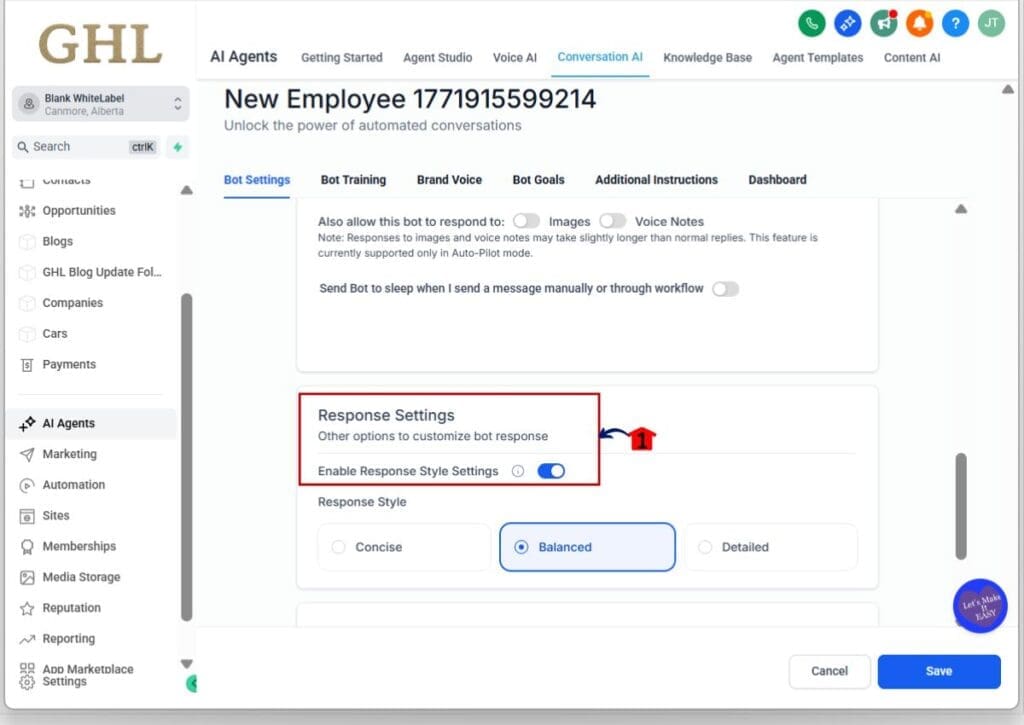
3.1 Scroll down to the Response Settings section.
- This section controls how your AI structures replies.
3.2 Toggle ON Response Style Settings.
- Once enabled, additional response style options will appear.
Step 4.0 – Select Your Preferred Response Style
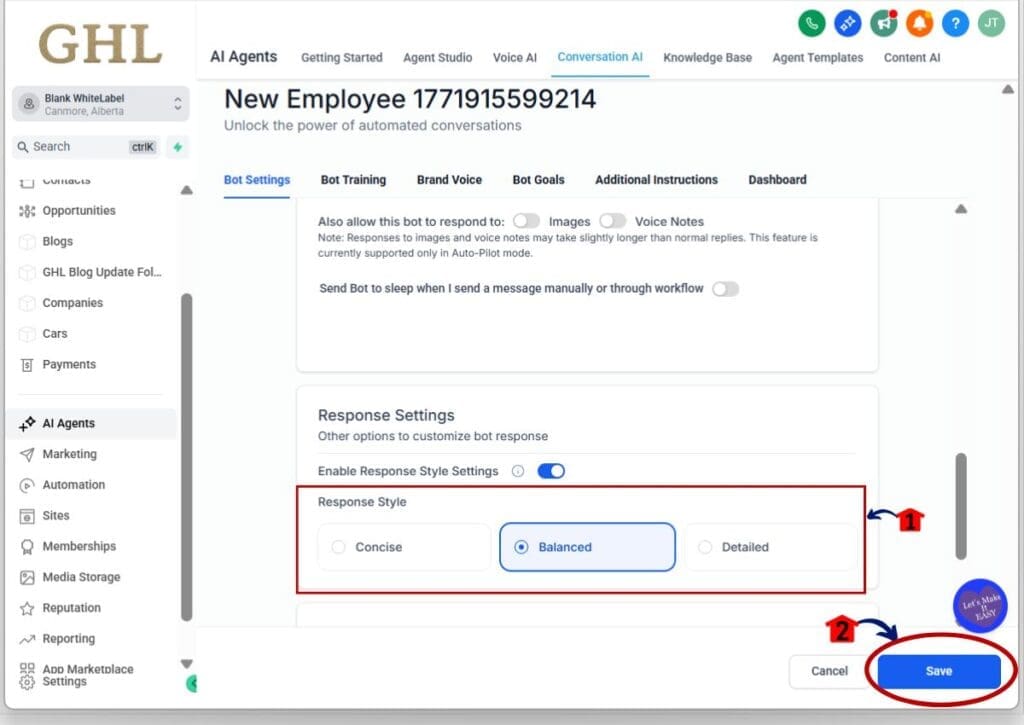
4.1 Choose one of the available options:
- Concise – Short replies around 30 words.
- Balanced – Moderate detail around 80 words.
- Detailed – More comprehensive replies up to about 200 words.
4.2 Selecting an option activates it immediately in the interface.
4.3 Click the Save button.
- Your selected Conversation AI Settings will now guide AI replies in Auto-Pilot mode.
Important Notes
- Response Style is a guiding instruction, not a strict word limit.
- Avoid adding conflicting length instructions inside your custom prompt.
- If the feature is turned OFF, your bot will behave exactly as it did before.
- Test internally before deploying to live leads.
Pro Tips for Using Conversation AI Settings
Turning on Conversation AI Settings is simple. Using them strategically? That’s where agencies win.
Start with this rule: match response depth to intent.
Use Concise for early-stage lead capture. When someone asks, “How much?” or “Are you open?” they don’t want a novel. Short replies keep momentum high and reduce drop-off.
Use Balanced as your default. For most service businesses, this gives enough clarity without overwhelming the lead. It feels human. Natural. Not robotic.
Use Detailed for consultative industries. Legal. Medical. Coaching. Financial services. When trust matters, longer explanations can increase perceived authority and confidence.
Next tip: don’t fight the system. If you enable Conversation AI Settings, remove hard word-count rules from your custom prompt. Mixed instructions create inconsistent replies.
Finally, test real scenarios. Run cold lead messages. Pricing questions. Objections. See how the bot responds. Adjust once. Then scale across sub-accounts.Smart operators don’t just turn features on. They tune them.
What Conversation AI Settings Mean for Your Automation Strategy
This update isn’t just about response length. It’s about control.
Before Conversation AI Settings, fine-tuning AI replies meant editing prompts over and over. One tweak for shorter answers. Another tweak for more detail. It worked, but it wasn’t scalable.
Now you separate strategy from structure.
Your prompt defines personality, tone, and rules. Conversation AI Settings define depth. That separation makes automation cleaner and easier to manage across multiple bots.
For agencies running SaaS Mode, this is leverage.
Instead of rebuilding systems for every client, you adjust response style based on industry. Roofing gets Concise. Coaching gets Detailed. Most businesses run Balanced. Same framework. Different depth.
It also strengthens trust in Auto-Pilot mode. When replies feel intentional and consistent, clients stop worrying about “what the bot might say.”
That’s maturity in AI deployment.
- Less tinkering.
- More predictability.
- Better automation confidence.
Lead Engagement Impact of Conversation AI Settings
When you configure Conversation AI Settings properly, the difference shows up fast.
First, conversations feel more natural. Your bot stops over-explaining simple questions. It also stops giving one-line answers when more clarity is needed. That balance improves user experience immediately.
Second, engagement improves. Shorter replies in early-stage conversations reduce friction. Leads respond faster when they don’t feel overwhelmed. On the flip side, detailed responses in consultative moments increase trust and perceived expertise.
Third, automation becomes more consistent. Instead of unpredictable message length, you get structured depth aligned with your intent. That consistency builds confidence in Auto-Pilot mode.
You’ll also spend less time rewriting prompts. Once Conversation AI Settings are dialed in, you rarely need to touch the length logic again.
The result?
- Cleaner conversations.
- Better lead flow.
- Stronger AI performance without extra work.
So that’s what scalable automation is supposed to look like.
Frequently Asked Questions About Conversation AI Settings
Smarter AI Starts with Better Conversation AI Settings
Conversation AI Settings give you control where it matters most inside the conversation.
You’re no longer guessing how long your bot should respond. You’re choosing the depth. Concise for speed. Balanced for clarity. Detailed for trust-building moments. That’s control without complexity.
For agencies, this is leverage.
Instead of rewriting prompts across multiple sub-accounts, you adjust response style at the bot level. That means more predictable automation, better engagement, and fewer awkward AI replies.
It’s a small configuration change.
But small configuration changes the compound.
Review your existing bots. Turn on Conversation AI Settings. Test real scenarios. Tune once. Then scale with confidence.
Because smarter automation doesn’t happen by accident.It happens by design.
Scale Your Business Today.
Streamline your workflow with GoHighLevel’s powerful tools.