- Introduction: Why Pausing Workflow Steps Matters
- Quick Summary – Workflow Debugging Essentials
- What’s New: Enable/Disable Toggle Inside Advanced Builder
- What’s Changed: No More Deleting Steps for Testing
- Why It Matters: Safer Workflow Debugging, Faster Iteration
- How To Use – Step-by-Step Setup Workflow debugging
- Pro Tips: Best Practices for Disabling Nodes
- FAQ: Common Questions About Paused Workflow Actions
- Results You Can Expect: Smarter Testing, No Breakage
- Conclusion: Final Thoughts + Call to Action
Introduction: Why Pausing Workflow Steps Matters
Let’s face it, workflows debugging in GoHighLevel used to feel like walking a tightrope with no safety net. You’d build out an automation, hit a snag, and suddenly the only way to “pause” a step was to delete it or disconnect it. That’s not just risky, it’s messy, time-consuming, and borderline reckless if you’re running live campaigns.
That’s where this new update in the GHL Advanced Builder changes the game. Now, you can pause any step inside a workflow with a single toggle—no deleting, no disconnecting, and absolutely no stress.
This is more than a quality-of-life improvement. It’s a workflow debugging tool that puts you in full control of your automation logic. Whether you’re isolating a failed path, testing conditional logic, or iterating new versions, pausing steps keeps everything clean, safe, and fast.
If workflow debugging has ever made you anxious to touch your own automations, this one-click enable/disable feature is about to be your new best friend.

Temporarily disabling workflow steps gives you complete control over automation testing without breaking logic. This new GHL feature makes workflow debugging safer, faster, and frustration-free.
Quick Summary – Workflow Debugging Essentials
Purpose: To help you test workflows without breaking your logic or deleting steps.
Why It Matters: You can isolate and debug workflow paths with a simple toggle, saving time and reducing risk.
What You Get: A new Enable/Disable switch for each node in Advanced Builder workflows.
Time to Complete: Less than 2 minutes per step, real-time workflow editing.
Difficulty Level: Easy (no technical skills required).
Key Outcome: Confident testing, faster iteration, and fewer workflow errors, without rebuilding anything.
What’s New: Enable/Disable Toggle Inside Advanced Builder
GoHighLevel just dropped a simple but powerful upgrade inside the Advanced Workflow Builder: a toggle to enable or disable any individual action step.
Here’s what’s new:
Automate marketing, manage leads, and grow faster with GoHighLevel.

When you’re working inside the Advanced Builder, just hover over any action or condition step. You’ll see a new Enable/Disable switch appear, flip it off, and that step is dimmed and skipped when the workflow runs.
No more re-wiring steps. No more deleting and praying you remember how it was connected. Just click the switch, and that node becomes invisible to the workflow engine until you toggle it back on.
You’ll only find this feature in the Advanced Builder. It’s made to help you fine-tune complex workflows without breaking things apart.
Quick recap of what you get:
- Disable any workflow step on demand
- Disabled steps are visibly dimmed in the builder
- Those steps are fully skipped when the automation runs
- Re-enable with one click, no need to reconnect logic
What’s Changed: No More Deleting Steps for Testing
Before this update, testing a workflow in GoHighLevel meant either running it live or hacking it apart just to isolate a problem. Want to skip a step temporarily? You had two choices, delete it or yank it out of the flow. Both risky. Both annoying. Both completely avoidable… now.
Thanks to the new pause/disable toggle, you no longer have to break your own workflow just to test it.
This change fixes a long-standing pain point. Every agency builder knows the stress of deleting a step “just for now” and then either forgetting what it did or scrambling to reconnect the logic later. Worse, if you’re collaborating with a team, this kind of disruption creates confusion and lost productivity.
Now, you can toggle steps off without touching any paths or connections. Want to test what happens if a certain email doesn’t go out? Disable it. Need to see how the workflow performs without a wait step? Disable it. Trying to bypass a Go-To action? You get the idea.
This small feature could be the difference between smooth testing and a broken workflow.
Why It Matters: Safer Workflow Debugging, Faster Iteration
Every agency hits that point in a project where the workflow gets complex. Multiple paths, conditional logic, Go-To steps, maybe even some delinked nodes, things can spiral fast. And if something doesn’t work? You’re stuck guessing which step broke the flow.
That’s why this new disable feature matters.
Now you can temporarily turn off steps in your workflow without deleting them, which makes it way easier to test things without messing up your setup.
Need to iterate quickly? Disable a step, test a different version, then toggle it back on. It’s that easy.
It also means safer collaboration. If your team is reviewing a workflow or troubleshooting with a client, you can flag steps for review by disabling them without touching the structure. It’s like having a built-in safety net for your automations.
For agencies scaling complex logic flows, this new feature removes friction and risk from the build process, so you can work faster and smarter.
How To Use – Step-by-Step Setup Workflow debugging
If you’ve avoided testing workflows because removing steps felt risky, this update changes that. You can now switch steps off temporarily and bring them back without redoing anything.
Step 01 – Open the Advanced Workflow Builder
1.1 From your GHL account, go to Automations.
1.2 Click on the workflow you want to edit (Advanced Builder only).
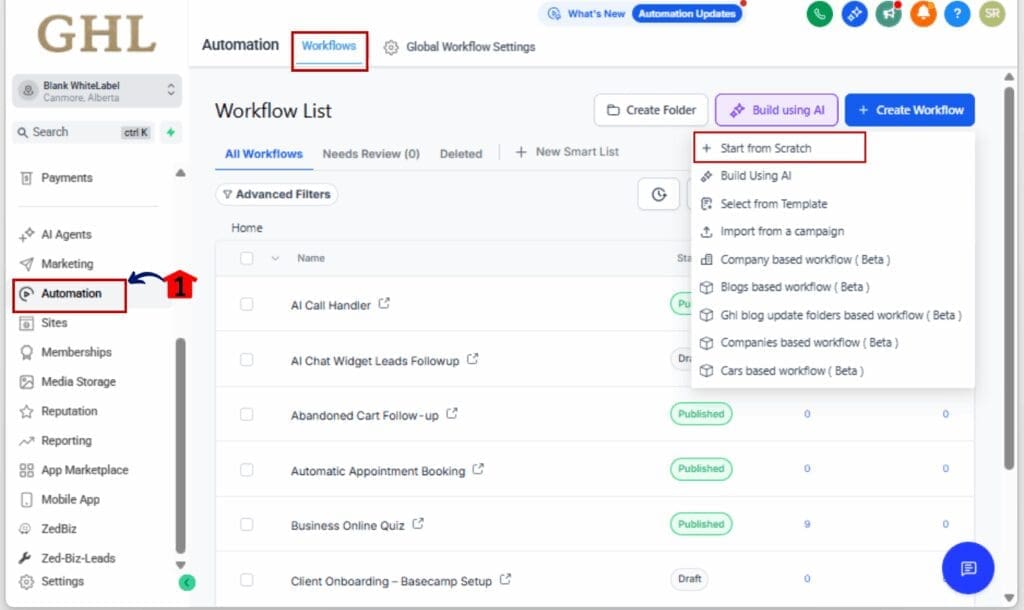
Step 02 – Find the Action Node You Want to Pause
2.1 Hover over the specific action or condition node.
2.2 Check the top-right of the step, it’s where the on/off switch shows up.

Step 03 – Disable the Node
3.1 Click the toggle switch to disable the step.
3.2 The node will dim visually and be skipped during execution.

Step 04 – (Optional) Use the Right-Click Menu
4.1 Just right-click on a node.
4.2 Then pick “Enable/Disable” from the options that appear.

Step 05 – Re-enable Anytime
5.1 When you’re ready, hover over the disabled node again.
5.2 Click the toggle to enable it. Your logic path is preserved, no reconnecting needed.

Step 06 – Save and Test Your Workflow
6.1 Save your workflow and run a test.
6.2 Confirm that disabled nodes are skipped and active paths work as expected.

Pro Tips: Best Practices for Disabling Nodes
Toggling off workflow actions is simple, but using it strategically? That’s where the real gains are. Here are several ways to make the most of this new feature and keep your GHL automations running like a well-oiled machine.
Label Disabled Steps Clearly
When you disable a node, add a visual cue to its label. For example, rename it to [DISABLED] – SMS Reminder. This helps you and your team avoid confusion during builds or audits.
Use for Version Testing (A/B Style)
Want to try different follow-up sequences without cloning the whole workflow? Disable one branch and activate another. This makes it easy to toggle between versions during QA or campaign reviews.
Temporarily Pause Time-Based Actions
Working on a time-sensitive nurture sequence? You can disable a Wait or Delay step to skip ahead and test the next phase without waiting hours or days.
Pair with Go-To or Delinked Nodes
When testing conditional paths, disable secondary branches or delinked steps. This lets you control exactly which route a contact will follow during a test run.
Snapshot Your Workflow Before Major Testing
If you’re about to disable multiple nodes, take a quick Snapshot. That way, you have a clean rollback point if things get messy.
Quick Toggle for Client Approvals
Building for clients? Disable pending steps until copy or design is approved. Then turn them back on with one click when you’re ready to go live.
FAQ: Common Questions About Paused Workflow Actions
Results You Can Expect: Smarter Testing, No Breakage
The new pause feature in GHL’s Advanced Builder gives you a better way to build, test, and launch your Workflow Debugging without the usual hassle.
Here’s what you can expect after implementing this feature:
1. Faster Testing Cycles
No more cloning Workflow Debugging or deleting and rebuilding steps. Just toggle off what you don’t need and test what you do. You can move faster from idea to launch without disrupting live logic.
2. More Confident Launches
When you test smaller parts of your Workflow Debugging one at a time, it’s easier to catch mistakes early, especially in builds with lots of conditions or timing involved.
3. Reduced Workflow Debugging Breakage
Every builder’s nightmare? Breaking a working automation by removing one node. That risk is gone. You can test safely without losing progress or having to reconnect everything manually.
4. Easier Collaboration
Whether you’re building for a client or working with a team, disabled steps are a great way to mark “work in progress” or “pending approval” stages. It keeps the whole flow visible but non-functional until you’re ready.
5. Cleaner Workflow Debugging Over Time
Because you can pause instead of delete, your builds stay intact, even during major iterations. That means fewer misfires, cleaner versioning, and a more professional experience overall.
Conclusion: Final Thoughts + Call to Action
The new enable/disable toggle inside GHL’s Advanced Builder is one of those deceptively simple features that ends up being a game-changer.
Instead of breaking Workflow Debugging or rebuilding logic every time you want to run a test, you now have a one-click way to pause and resume actions exactly when you need to. That means smarter testing, faster launches, and cleaner collaboration, all without sacrificing control or structure.
If you’ve ever wished for a “safe mode” when building automations, this is it. So go ahead, open up your Workflow Debugging, try toggling off a few steps, and see how much easier Workflow Debugging and iteration becomes.
Ready to test smarter, not harder?
Log into your GHL account and start using pause-enabled nodes in your next Workflow Debugging. Your future self (and your clients) will thank you.
Scale Your Business Today.
Streamline your workflow with GoHighLevel’s powerful tools.