- Use smart filters by channel and status to instantly locate the right review request and take action faster.
- Quick Summary – Review Request Search Essentials
- The Old Pain: Why Review Request Search Was Needed
- What’s New: Review Request Search for Contact Lookups
- What’s New: Channel Filters for Review Request Search
- What’s New: Status Filters for Review Request Search
- Behind-the-Scenes Improvements for Review Request Search
- Why This Matters: Review Request Search for Agency Ops
- How To Use Review Request Search in GHL
- Pro / Quick Tips: Review Request Search Shortcuts
- Frequently Asked Questions about Review Request Search
- Common Issues + Fixes: Review Request Search Troubleshooting
- Results You Can Expect: Review Request Search in Daily Use
- Review Request Search Makes Reputation Work Faster
Use smart filters by channel and status to instantly locate the right review request and take action faster.
Review Request Search for Faster Lookups
If you manage a busy GoHighLevel account, you know the pain: a client asks about a review request, your team tries to find it, and suddenly you’re clicking through pages like it’s 2012. That’s exactly what this update fixes.
GoHighLevel just upgraded the Reputation Review Request page with Review Request Search and smart filters, so you can find the exact request you need without endless scrolling. Review Request Search lets you search by contact name, email, or phone number, and the results update instantly as you type.
On top of that, you can filter requests by channel (WhatsApp, Email, Phone) and by status (Failed, Undelivered, Sent, Opened, and more). That means you’re not just “finding” a request. You’re narrowing it down to the right channel and the right state so you can take action with confidence.
For agencies and high-volume sub-accounts, this is a real operational win. It saves time, reduces mistakes, and makes it way easier to troubleshoot delivery problems or stop follow-ups for the wrong person.
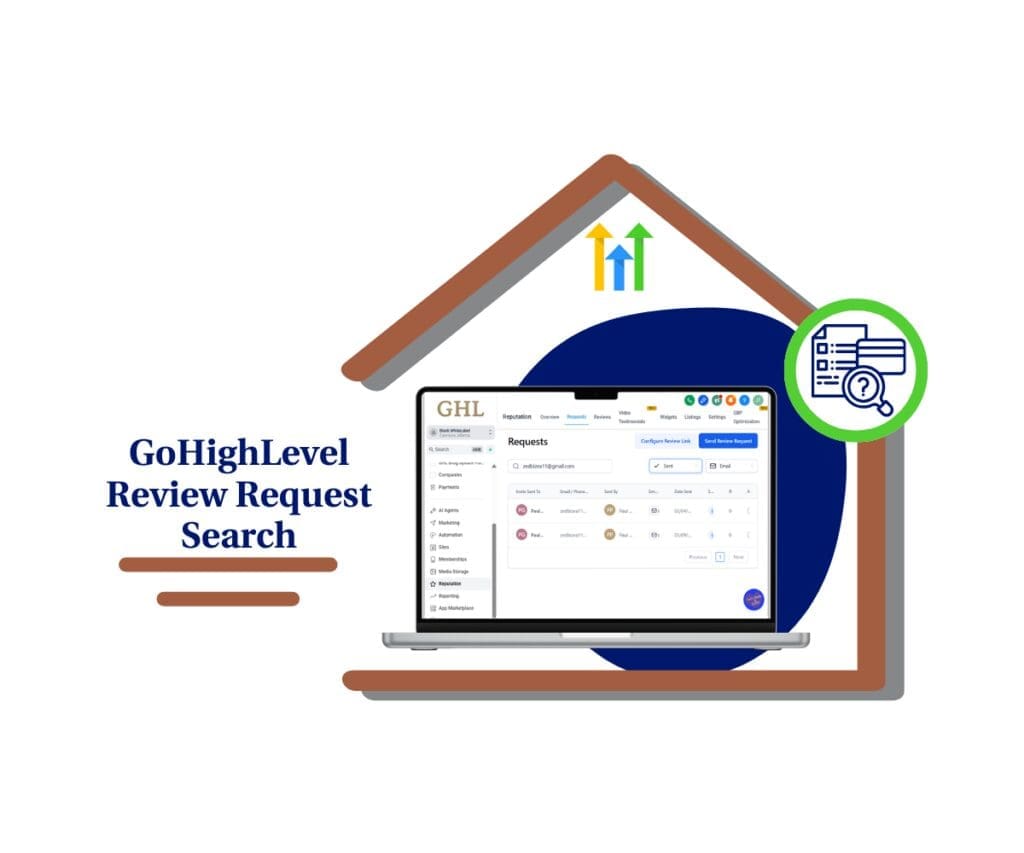
Review Request Search helps you locate the exact request you need in seconds, then filter by channel and status to take action quickly. That means less time hunting and more control over follow-ups across high-volume accounts.
Quick Summary – Review Request Search Essentials
Purpose: This guide shows you how to use Review Request Search on the Review Requests page in GHL Reputation so you can find any request fast and act without guessing.
Why It Matters: When you’re managing high-volume reputation workflows, scrolling and paging wastes time and increases mistakes. Search and filters turn lookups into a quick, reliable workflow.
What You Get: You’ll learn how to search by contact name, email, or phone number, then narrow results using Channel and Status filters to pinpoint the exact request you need.
Time To Complete: Most teams can learn and apply this workflow in about 5–10 minutes, then use it daily without extra training.
Difficulty Level: Easy because it’s a simple search-and-filter workflow built right into the existing Review Requests page.
Key Outcome: You can locate the right review request in seconds, confirm the channel and status, and take action faster with more accuracy.
The Old Pain: Why Review Request Search Was Needed
Before this update, the Review Request page worked fine… until volume increased. If you only sent a few requests each week, scrolling wasn’t a big deal. But for agencies managing multiple clients or high-volume accounts, finding one specific request quickly turned into a slow, repetitive task.
The biggest issue was time-to-find. You had to click through pages and visually scan rows to locate the right contact, which got messy fast when names were similar or duplicated. That extra friction also increased the odds of taking action on the wrong request, like canceling follow-ups for the wrong person.
Automate marketing, manage leads, and grow faster with GoHighLevel.

Troubleshooting was just as painful. When a client said “they didn’t get the request,” you couldn’t instantly isolate by channel or status; you had to hunt manually to figure out if it was WhatsApp vs email, or if it failed, went undelivered, or was opened. That’s exactly the kind of daily workflow drag this update removes.
What’s New: Review Request Search for Contact Lookups
The biggest change is the new search bar at the top of the Review Request page in GoHighLevel Reputation. Instead of scrolling and guessing which page a request is on, you can now type and narrow the list instantly.
Review Request Search supports three high-signal fields: Contact Name, Email, and Phone Number. That matters because names aren’t always unique, but email and phone usually are. So if you’re dealing with duplicates, similar names, or shared inbox workflows, you can jump straight to the exact request tied to the right contact record.
Search is also case-insensitive and updates dynamically as you type, without reloading the page. That means you can quickly try a name, switch to an email, or paste a phone number and see results immediately. It’s built for speed, especially when you’re in the middle of a client call or cleaning up follow-ups.
What’s New: Channel Filters for Review Request Search
Along with the new search bar, GoHighLevel added Channel filters on the Review Request page so you can instantly narrow requests by how they were sent. Instead of scanning mixed results, you can filter the list down to just WhatsApp, Email, or Phone in one click.
This matters because “missing” requests usually aren’t truly missing. They’re often sitting in a different channel than you expected. With Channel filters, your team can quickly confirm the delivery path, spot patterns (like one channel underperforming), and avoid wasting time checking the wrong request type.
The best part is how clean it feels with Review Request Search. You can search a contact by email or phone, then apply a Channel filter to isolate the exact request entry you need. Results update instantly, so it’s fast enough to use while you’re live with a client or handling support tickets.
What’s New: Status Filters for Review Request Search
GoHighLevel also added Status filters on the Review Request page, so you can instantly sort requests by what happened after they were sent. Instead of guessing or scanning a long list, you can filter to the exact state you care about, like Failed, Undelivered, Sent, Opened, and other supported statuses.
This is huge for agencies because status is what tells you the story. If a client says “nobody got the request,” you can filter to Failed or Undelivered and troubleshoot only the problem entries. If they say “people saw it but didn’t leave a review,” you can filter to Sent or Opened and make smarter follow-up decisions without touching everything else.
Paired with Review Request Search, these filters turn the page into a fast control panel. Search the contact by email or phone, filter by status, and you’ll land on the right request in seconds ready to take action like stopping follow-ups or confirming what actually happened.
Behind-the-Scenes Improvements for Review Request Search
This update isn’t just new buttons. GoHighLevel also improved how the Review Request page behaves once you start searching and filtering, so it stays fast and predictable while you work.
First, search is case-insensitive, which means you don’t have to type things “perfectly” to get a match. Second, results update dynamically without a page reload, so you can type, filter, adjust, and refine in real time without losing your place or waiting for the screen to refresh.
Finally, pagination now stays synced with whatever you’re viewing. When you apply Review Request Search or filters, the pages reflect the filtered results (not the full list), so you’re not jumping between mismatched pages and wondering why the numbers don’t line up.
Why This Matters: Review Request Search for Agency Ops
For agencies, reputation management isn’t a “sometimes” task. It’s daily operations. And when you’re running multiple sub-accounts, the difference between a 10-second lookup and a 3-minute hunt adds up fast.
With Review Request Search and filters, your team can instantly confirm whether a request exists, how it was sent, and what happened after it went out. That makes client communication cleaner because you can answer questions with confidence instead of guessing, digging, or asking someone to “check again.”
It also gives you more control over follow-ups. Once you find the exact request tied to the right contact, you can take action quickly like stopping follow-ups when a customer already responded, or isolating Failed and Undelivered requests to troubleshoot before they become a bigger issue.
How To Use Review Request Search in GHL
Review Request Search is handled directly inside Reputation on the Review Requests page in your GHL sub-account. You’re not changing how review requests work. You’re simply using the new search bar and Channel/Status filters to find the exact request faster and take action without losing time in the list.
Here are the steps to find any review request fast and take action with confidence.
- Open Review Requests in Reputation
- Use Review Request Search to find the contact
- Filter by Channel (WhatsApp, Email, Phone)
- Filter by Status (Failed, Undelivered, Sent, Opened, etc.)
- Combine Review Request Search + filters for pinpoint accuracy
To start, make sure you are logged in to your GoHighLevel sub-account.
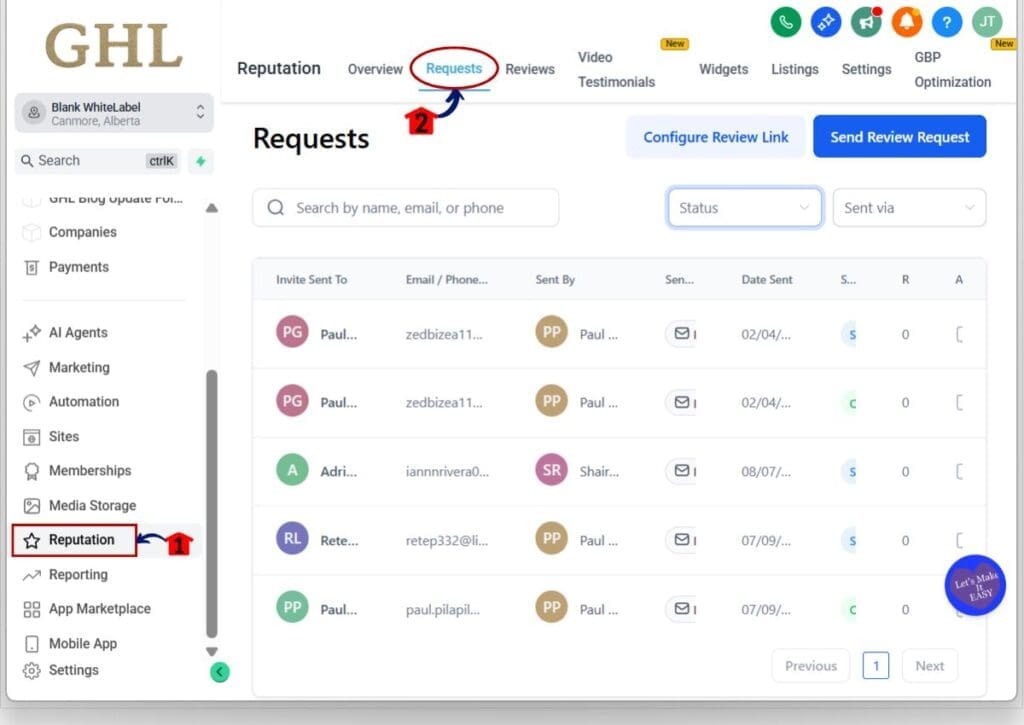
Step 01 – Open Review Requests in Reputation
- The Main Menu on the left side of your screen has the main areas you work in when using GHL.
1.1 Click Reputation in the main menu.
- This opens the Reputation area where review tools live.
1.2 Click Review Requests.
- This opens the Review Request page where all sent requests are listed.
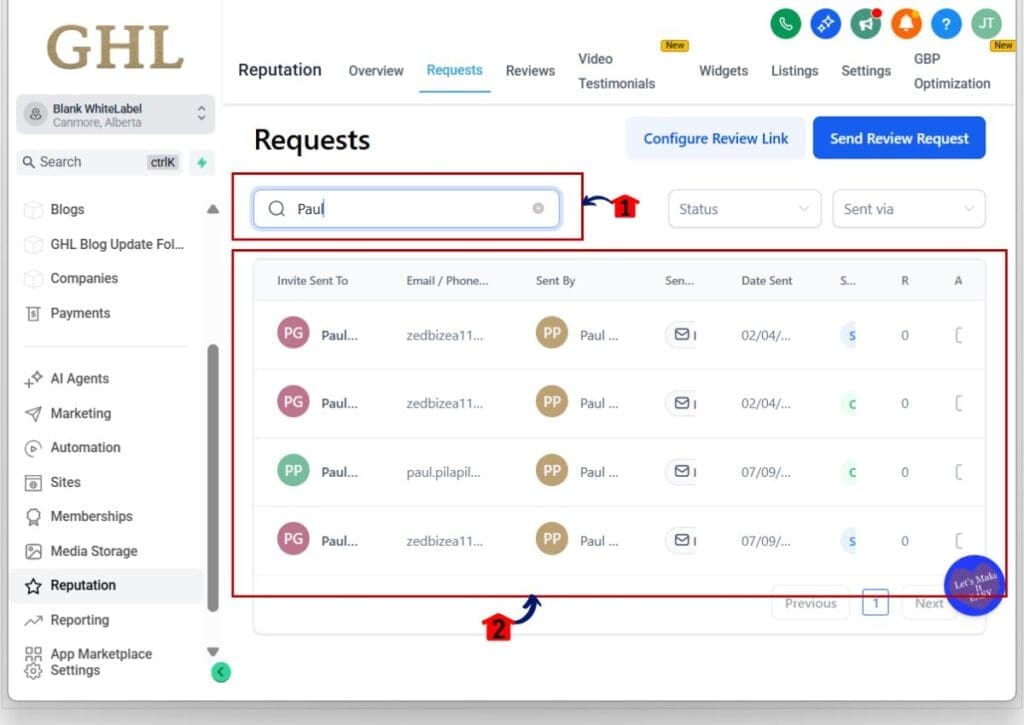
Step 02 – Use Review Request Search to find the contact
- The search bar is the fastest way to reduce the list instantly.
2.1 Click the search bar at the top of the Review Request page.
2.2 Search using one of the supported fields.
- Contact Name when you only have a name.
- Email when you want the cleanest match.
- Phone Number when email is missing or inconsistent.
2.3 Watch results update as you type.
- Tip: Search is case-insensitive, so you don’t need exact capitalization.
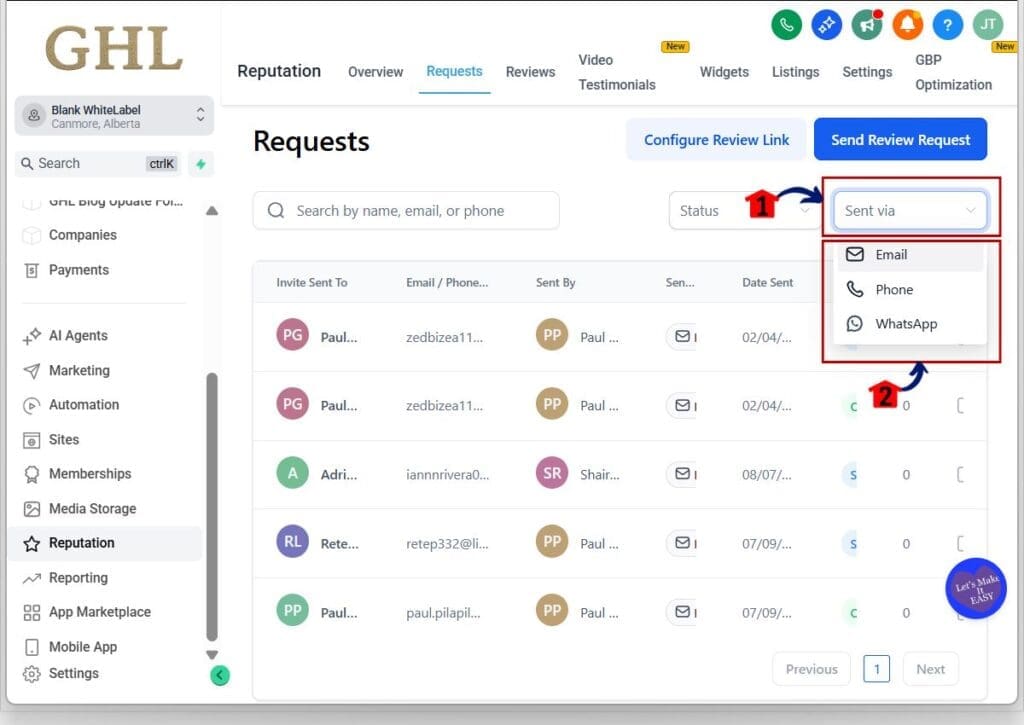
Step 03 – Filter by Channel (WhatsApp, Email, Phone)
- Channel filters help you confirm how the request was sent.
3.1 Find and click the Channel filter on the page.
3.2 Select the channel you want to isolate: WhatsApp, Email, or Phone.
3.3 Review the updated list.
- Tip: If a client says “they didn’t get it,” start by filtering the channel you actually used.
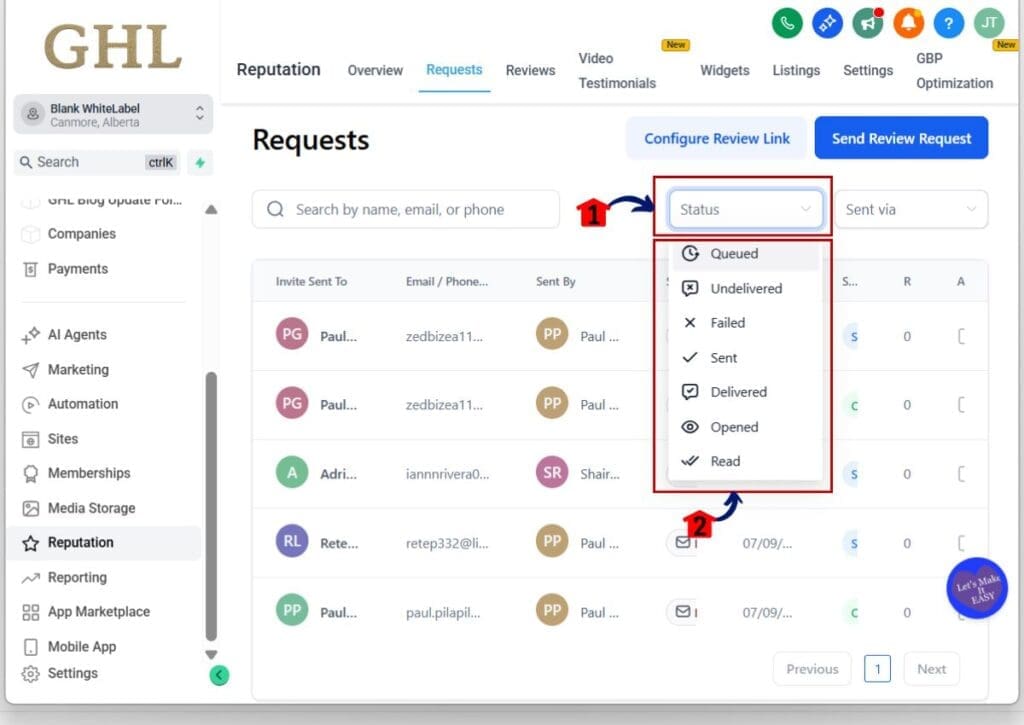
Step 04 – Filter by Status (Failed, Undelivered, Sent, Opened, etc.)
- Status filters help you instantly focus on what happened.
4.1 Find and click the Status filter on the page.
4.2 Select the status you need, such as Failed, Undelivered, Sent, Opened, and other supported states.
4.3 Review the updated list of requests.
- Tip: Use Failed and Undelivered for troubleshooting, and Opened to confirm engagement.
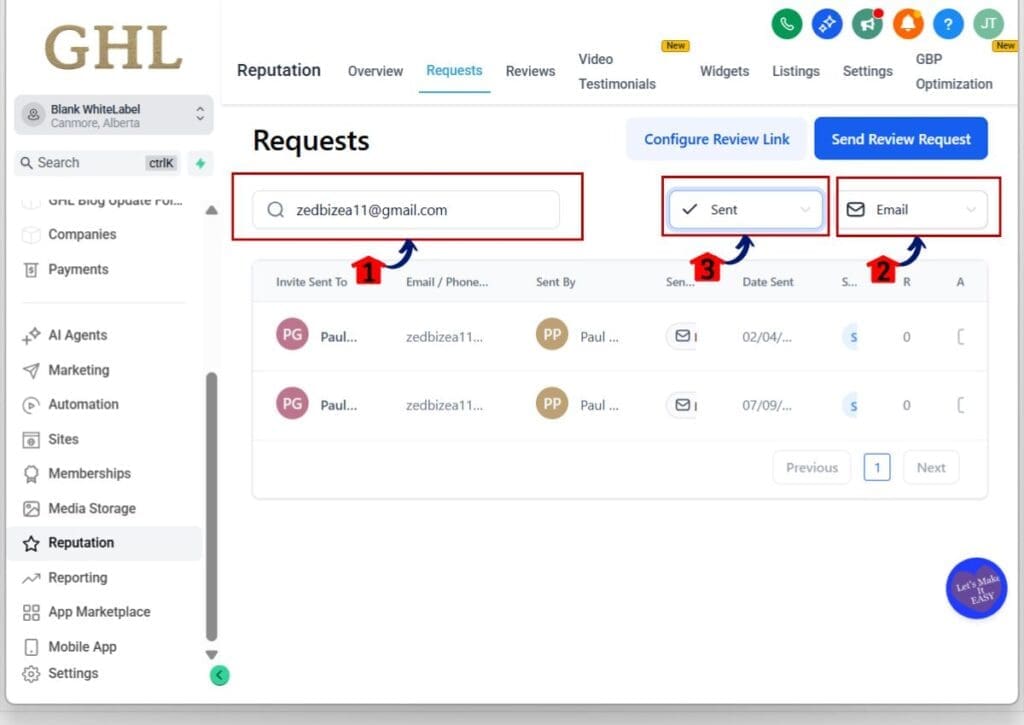
Step 05 – Combine Review Request Search + filters for pinpoint accuracy
- This is where you find the exact request in seconds.
5.1 Search by Email or Phone to lock onto the correct contact.
5.2 Set Channel to match the send method (WhatsApp, Email, or Phone).
5.3 Set Status to match your goal.
- Example: Email search + Channel = WhatsApp + Status = Undelivered to isolate a WhatsApp delivery issue for one contact.
Pro / Quick Tips: Review Request Search Shortcuts
Start with email whenever you can. Email is usually unique, so Review Request Search finds the right request faster than searching by name, especially in high-volume accounts.
For troubleshooting, filter first, then search. Set Status to Failed or Undelivered and Channel to WhatsApp or Email, then search by phone or email. This isolates the exact problem request in seconds.
After every lookup, clear your search and reset filters. Leftover filters are the #1 reason requests “seem missing,” and a clean reset keeps your next search accurate.
Frequently Asked Questions about Review Request Search
Common Issues + Fixes: Review Request Search Troubleshooting
If you can’t find a request you know exists, it’s almost always filters. Clear the search bar, reset Channel and Status back to All, then search again using email or phone (they’re more exact than names). After you find the contact, re-apply Channel or Status only if you still need to narrow it.
If your results suddenly look “too small,” that’s the filters doing their job. Remove one filter at a time (Status first, then Channel) until the list expands, then re-apply only the filter you actually need for the task you’re doing.
If pagination feels different, it’s because it now follows your filtered list, not the full list. Think of it as “pages of the results you filtered to.” To get the full list pagination back, clear search and reset filters.
Results You Can Expect: Review Request Search in Daily Use
You’ll notice the win immediately: finding a single review request goes from minutes to seconds. Instead of scrolling and clicking through pages, you can search the contact and narrow results instantly, which keeps your team moving faster during client calls and support requests.
You’ll also troubleshoot smarter. With Channel and Status filters, you can quickly isolate what went wrong (or confirm nothing did), then report back to the client with clear answers. That reduces back-and-forth, keeps reputation workflows clean, and helps you spot repeat issues sooner.
Most importantly, you’ll make fewer mistakes. When it’s easier to pinpoint the exact request, it’s easier to take the right action like stopping follow-ups for the correct contact without second-guessing or reopening multiple entries.
Review Request Search Makes Reputation Work Faster
This update is simple, but it fixes a real daily headache. Review Request Search turns the Review Requests page into a fast lookup tool instead of a scrolling task, so you can find the right request by name, email, or phone in seconds.
Once you add Channel and Status filters, you’re not just finding requests; you’re diagnosing them. That means faster answers for clients, quicker follow-up control for your team, and fewer mistakes in high-volume accounts.
If you haven’t already, add this to your team’s reputation SOP: search by email or phone first, then filter by channel and status only when you need to troubleshoot. It’s the fastest way to stay accurate and keep review operations clean.
Scale Your Business Today.
Streamline your workflow with GoHighLevel’s powerful tools.