- Find the right standard or custom field faster inside GHL workflow trigger filters, without digging through long dropdown lists.
- Quick Summary – Workflow Field Search Essentials
- What Changed in Workflow Field Search?
- Before and After: Workflow Field Search
- Why Workflow Field Search Matters
- How to Use Workflow Field Search
- Quick Tips for Workflow Field Search
- What Workflow Field Search Means for Business
- Frequently Asked Questions About Workflow Field Search
- Conclusion
Find the right standard or custom field faster inside GHL workflow trigger filters, without digging through long dropdown lists.
Workflow Field Search Just Got Faster
Workflow field search is now faster and easier to use inside GoHighLevel workflow trigger filters.
If you’ve ever built a workflow and had to scroll through a long field list, you know how annoying that gets. It’s not a huge problem, but it slows you down. And when you’re building automations for several clients, those small delays start to stack up.
GoHighLevel now shows the best field match at the top when you search inside a workflow trigger filter. That works for both standard fields and custom fields. It means less digging, fewer wrong clicks, and a cleaner way to build workflows without fighting the dropdown.

The improved workflow field search helps GHL users find the right standard or custom field faster inside workflow trigger filters. That means less scrolling, fewer wrong-field mistakes, and quicker automation setup.
Quick Summary – Workflow Field Search Essentials
Purpose: This update improves workflow field search inside GoHighLevel trigger filters so users can find standard and custom fields faster.
Why It Matters: It reduces the time spent scrolling through long field dropdowns, especially in accounts with many custom fields.
What You Get: GoHighLevel now ranks the best field match at the top of the search results when using workflow trigger filters.
Time To Complete: Most users can test this update in less than two minutes by opening a workflow trigger filter and searching for a field.
Difficulty Level: This is beginner-friendly because there are no settings to enable and no complex setup steps.
Key Outcome: Agencies, VAs, and marketers can build cleaner workflow filters with fewer wrong-field mistakes and less wasted time.
What Changed in Workflow Field Search?
GoHighLevel improved how workflow field search works inside workflow trigger filters.
Before this update, you could search for a field and still have to scan the list to find the right one. Sometimes the best match was not at the top. That was a small pain, but it made workflow setup slower than it needed to be.
Automate marketing, manage leads, and grow faster with GoHighLevel.

Now, when you search in the Field dropdown, GoHighLevel ranks the best match higher in the results. This works for standard fields and custom fields, so you can find the right option faster.
The search results still appear in one list under the Search Results header. When you clear the search, the dropdown goes back to the normal Standard Fields and Custom Fields sections.
Nothing complicated here. Just a cleaner search experience that helps you get to the right field without wasting time.
Before and After: Workflow Field Search
Before this update, workflow field search could feel a bit clunky.
You might type in the field name, see a list of results, and still have to look through several options before finding the right one. That was worse in accounts with a lot of custom fields. More fields meant more scrolling, more checking, and more chances to pick the wrong one.
Now, the best match shows at the top of the search results.
That means if you search for a field like “Lead Source” or “Appointment Date,” the closest match should be easier to spot right away. Standard fields and custom fields are still shown in the same search result list while you are searching.
The big change is simple. GoHighLevel now helps you find the right field faster instead of making you hunt for it.
Why Workflow Field Search Matters
Workflow field search matters because small delays inside GHL can slow down the whole build.
If you only build one workflow, scrolling through a few extra fields may not feel like a big deal. But when you manage several client accounts, those little delays stack up. Extra clicks, wrong fields, and second guesses can turn a simple task into a time drain.
This update helps you move faster. You search for the field, check the best match at the top, and keep building. It is a small improvement, but for agency owners, VAs, and marketers using custom fields every day, it makes workflow setup feel cleaner and easier.
How to Use Workflow Field Search
Workflow field search is easy to use once you know where to find it. For this How-To, we’ll open the Workflows area inside GoHighLevel, create a new workflow, add a trigger, and search for a field inside the trigger filter.
This is useful when you want to find standard fields or custom fields faster. Instead of scrolling through a long dropdown, you can search for the field and choose the best match from the top of the results.
Here are the steps we will follow:
- Access the Workflows area in GoHighLevel.
- Add a New Trigger and Select the Contact Changed Trigger.
- Add Filters to the Trigger and Use Workflow Field Search and Save.
To start, make sure you are logged in to your GoHighLevel sub-account.
Step 01 – Access the Workflows Area in GoHighLevel
- The main menu on the left side of your screen has the core areas you work in when using GoHighLevel.
1.1 Click Automation in the left menu.
- This opens the Automation area inside GHL.
1.2 Click Workflows from the top Automation navigation.
- This opens the Workflows list, where you can view and manage your workflow automations.
1.3 Click Create workflow.
- This opens the workflow creation menu.
1.4 Click Start from Scratch.
- This lets you build a new workflow without using a template.

Step 02 – Add a New Trigger and Select the Contact Changed Trigger
- This is where you begin setting up the rule that starts the workflow.
2.1 Click Add new trigger.
- This opens the trigger selection panel.

2.2 Find the Contact Changed trigger.
- You may see it under Recent triggers or inside the Contact trigger section.
2.3 Click Contact changed.
- This opens the trigger settings panel for Contact Changed.

Step 03 – Add Filters to the Trigger and Use Workflow Field Search and Save
- Filters help control when the workflow should run. This is where you choose the contact field that GHL should watch.
3.1 Click Add filters.
- This opens the filter options for the Contact Changed trigger.
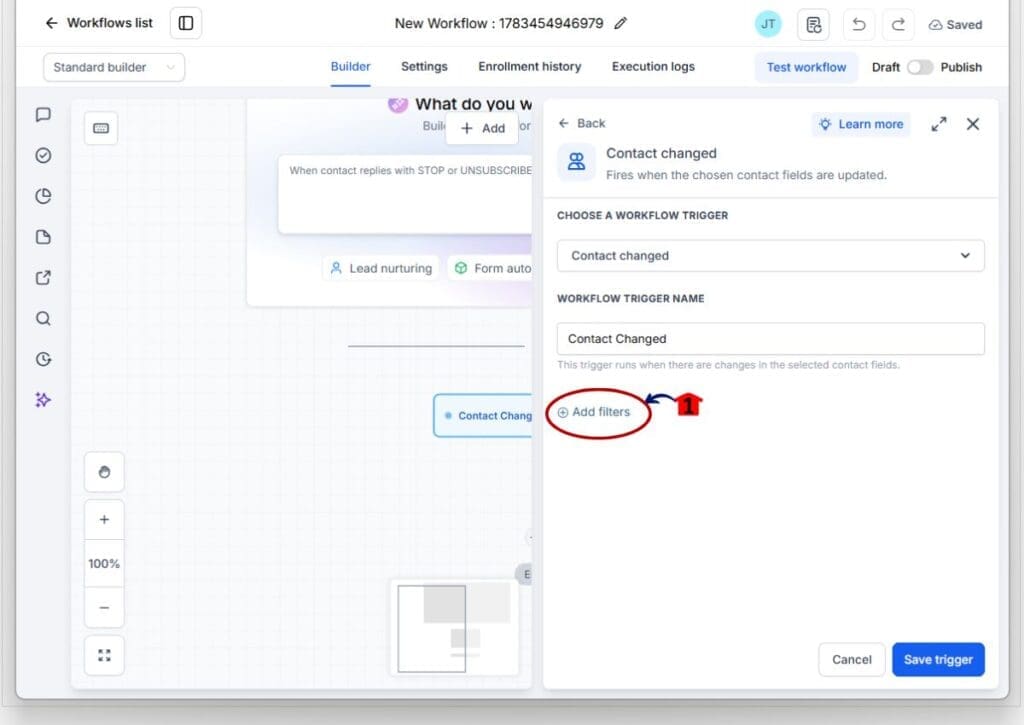
3.2 Click the Field dropdown.
- This opens the list of available fields.
3.3 Type the field name you want to find.
- Use the clearest part of the field name, such as Email, Lead Source, Appointment Date, or Service Type.
3.4 Review the Search Result list.
- All matching fields will appear under the Search Result header.
3.5 Choose the best field match from the results.
- The best match should now appear at the top, whether it is a standard field or a custom field.

3.6 Click Save trigger.
- This saves the trigger and applies the filter to your workflow.

Once saved, your workflow trigger will use the field you selected. The improved workflow field search makes this process faster, cleaner, and easier to repeat across client accounts.
Quick Tips for Workflow Field Search
Workflow field search works best when your field names are clear. If your custom fields have vague names like “Source 1” or “Client Info,” your team may still need to double-check before choosing the right one. Clear names make the search much easier.
Try to use simple field names that match how your team thinks. For example, “Lead Source,” “Service Type,” “Appointment Date,” or “Client Status” are easier to search and understand. This is especially helpful when you manage several client accounts with different custom fields.
Also, avoid creating several fields with almost the same name. That can make search results harder to read. A little cleanup now can save your team a lot of clicking later. Good field names make GHL workflows easier to build, test, and manage.
What Workflow Field Search Means for Business
Workflow field search may seem like a small update, but it helps with a real problem. When your team can find the right field faster, they can build automations with less friction.
This matters most for agencies and teams that manage several sub-accounts. A client account may have custom fields for lead source, service type, location, budget, or appointment status. If those fields are hard to find, workflow setup gets slower and mistakes become more likely.
With better field ranking, your team can move through workflow builds with more confidence. That means faster client onboarding, cleaner automation updates, and less time spent hunting through dropdowns. It’s not flashy, but it helps the work get done right.
Frequently Asked Questions About Workflow Field Search
Conclusion
Workflow field search is a small update, but it fixes a real daily annoyance inside GoHighLevel.
You can now search inside workflow trigger filters and see the best field match at the top. That makes it faster to find standard fields and custom fields without digging through long dropdown lists.
For agencies, VAs, and marketers, this means cleaner workflow builds and fewer wrong-field mistakes. It also makes workflow setup easier to repeat across client accounts.
Try it the next time you build or edit a workflow trigger filter in GHL. Have you noticed the improved workflow field search yet?
Scale Your Business Today.
Streamline your workflow with GoHighLevel’s powerful tools.