

- Resize Sidebars, Expand Actions, and Take Full Control of Your Workflow Editing Experience
- Quick Summary – Workflow Builder Workspace at a Glance
- Why the Workflow Builder Workspace Matters
- How to Use the Workflow Builder Workspace Controls in GoHighLevel
- What This Means for Your Business
- Frequently Asked Questions About the Workflow Builder Workspace
- Conclusion: Take Full Control of Your Workflow Builder Workspace
Resize Sidebars, Expand Actions, and Take Full Control of Your Workflow Editing Experience
Want to improve your Workflow Builder Workspace in GoHighLevel? This new update gives you more control, more space, and a better way to build automations without feeling cramped. The Workflow Builder Workspace is where you create and manage your triggers, actions, emails, SMS messages, forms, and automation logic inside GHL. If you build workflows often, you know how important screen space is.
Before this update, actions and triggers opened in a fixed side panel that could feel narrow, especially when editing long emails or detailed settings. Now, GoHighLevel lets you resize the sidebar and expand actions or triggers into full screen mode. That means you can adjust your workspace based on your screen size and the type of work you are doing. Here at GHL Growth Garage, we love updates that make daily automation work faster and easier. And this Workflow Builder Workspace improvement does exactly that.

The new Workflow Builder Workspace controls give you more room to build, edit, and refine automations inside GoHighLevel. Resize panels, expand actions to full screen, and work faster without feeling cramped.
Quick Summary – Workflow Builder Workspace at a Glance
Purpose
This update improves the Workflow Builder Workspace in GoHighLevel by giving you more control over how you view and edit your automations. You can now resize sidebars and expand actions to full screen for better editing flexibility.
Why It Matters
You spend a lot of time inside the Workflow Builder. A cramped layout slows you down. These new workspace controls remove friction and make workflow editing faster and easier.
What You Get
You get adjustable sidebar width, full screen editing for actions and triggers, and a more flexible workflow layout that adapts to your screen size and workflow complexity.
Time To Complete
You can start using these features immediately. It takes less than one minute to resize the sidebar or expand an action.
Difficulty Level
Beginner friendly. No setup required. No settings to enable.
Key Outcome
You work faster inside your Workflow Builder Workspace, reduce editing mistakes, and improve your daily efficiency in GHL.
Why the Workflow Builder Workspace Matters
The Workflow Builder Workspace is where you spend most of your time inside GoHighLevel. If that space feels tight, your work slows down.
This update removes that friction.
Automate marketing, manage leads, and grow faster with GoHighLevel.

When you resize the sidebar, you control how much detail you see. If you are editing a short SMS, you may not need much space. But if you are building a long email sequence, you need room to work.
The new full screen option makes a big difference. Instead of editing inside a narrow panel, you can focus on one action at a time. That means fewer mistakes and less scrolling.
This matters most for:
• Agency owners building complex automations
• Virtual assistants managing client workflows
• Marketers creating long nurture campaigns
• Teams working on smaller screens or laptops
Small layout improvements create big time savings. When your Workflow Builder Workspace feels organized, you build faster and think more clearly.
And when you build faster, you serve clients better.
How to Use the Workflow Builder Workspace Controls in GoHighLevel
The new Workflow Builder Workspace controls allow you to adjust how you view and edit your workflows. You are not changing any automation logic. You are simply adjusting the layout so you can work more comfortably inside the Workflow Builder.
In this section, you will access the Workflows Page, open a workflow inside the Workflow Builder Workspace, resize the sidebar, and expand actions to full screen.
Here are the steps to adjust your Workflow Builder Workspace inside GoHighLevel:
- Access the Workflows Page
- Open a Workflow inside the Workflow Builder Workspace
- Resize the Action or Trigger Sidebar
- Expand an Action or Trigger to Full Screen
To start make sure you are logged in to your GoHighLevel sub-account.
Step 1.0 – Access the Workflows Page of GoHighLevel
The Main Menu on the Left side of your screen has all the main areas that you work in when using GHL.
1.1 Click Automation main menu item.
- Inside the Automation section you will find Workflows, Overview, and Global Workflow Settings.
1.2 Click Workflows in the top menu if the Workflow List Page is not already open.
- The Workflows Page shows all your workflows.
- You can organize them in folders or create a new workflow from this page.
1.3 Choose Workflow to check this Update
- Choose any existing workflow to test out this update

Step 02 – Open a Workflow inside the Workflow Builder Workspace
2.1 Open the Workflow.
- This opens the Workflow Builder Workspace Page.
- You will see your triggers and actions displayed in the visual workflow canvas.
2.1 Click on any Trigger or Action inside the workflow canvas.
- The configuration Section opens on the right side of the screen.
- This Section contains all the settings for that Trigger or Action.

2.3 Move your mouse to the left edge of the configuration panel.
- Your cursor will change to indicate it can be dragged.
2.4 Click and drag the panel left or right.
- Drag right to make the panel wider.
- Drag left to reduce its width.
2.5 Release your mouse when the panel reaches your desired size.
- The Workflow Builder Workspace immediately adjusts.
- Your workflow canvas becomes larger or smaller depending on your adjustment.
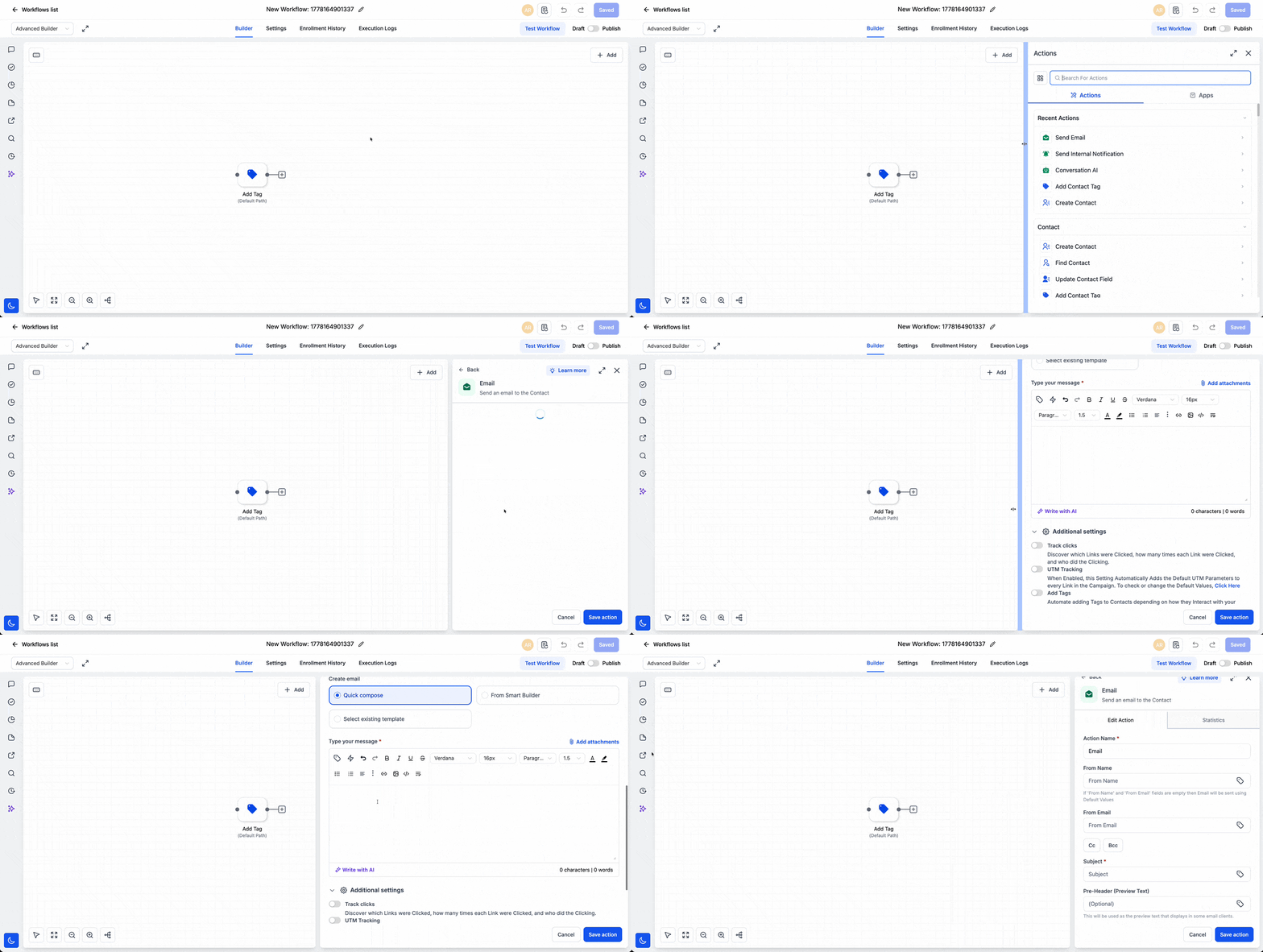
2.6 Click on a detailed Action such as Send Email.
- The configuration Section opens on the right side.
2.7 Locate the Full Screen or Expand icon inside the Action window.
2.8 Click the Expand icon.’
- The Action opens in Full Screen mode.
- The narrow sidebar view is removed.
- You now have more editing space.

This completes the layout adjustment process. You can resize or expand any Action or Trigger at any time inside your Workflow Builder Workspace.
Pro / Quick Tips for Workflow Builder Workspace
How to Get the Most from Your Workflow Builder Workspace
The new Workflow Builder Workspace controls are simple. But when you use them the right way, they can save you serious time.
Here are practical ways to work smarter inside GoHighLevel.
Use Full Screen for Long Emails
If you build nurture sequences, always expand the Send Email action.
Full screen mode makes it easier to see formatting, links, and personalization tags.
You reduce mistakes because you are not editing in a narrow panel.
Resize for Quick Edits
If you are only adjusting timing, tags, or simple settings, shrink the panel.
This gives you a larger view of the workflow map.
It helps you see conditions and branches more clearly.
Adjust Based on Screen Size
Laptop users benefit the most from resizing.
On smaller screens, the default layout can feel tight.
Resize once and your Workflow Builder Workspace becomes easier to manage.
Avoid Constant Opening and Closing
Instead of closing actions to see the canvas, resize the panel instead.
This keeps your focus and speeds up workflow building.
Use Expand Mode for Complex Actions
Some actions have many fields, dropdowns, and toggles.
Full screen mode prevents missed settings.
What This Means for Your Business
Why the Workflow Builder Workspace Improves Efficiency
The Workflow Builder Workspace update may look small. But it changes how you work every day inside GoHighLevel.
When you build workflows faster, you serve clients faster.
If you run an agency, your team likely spends hours inside the workflow editor. Every extra click, scroll, or layout issue slows things down. Resizing panels and expanding actions removes that friction.
This leads to:
• Faster automation builds
• Fewer editing mistakes
• Cleaner workflow reviews
• Less back-and-forth with team members
If you manage multiple sub-accounts, this matters even more. A smoother Workflow Builder Workspace means you can move between accounts without feeling cramped or frustrated.
For VAs and junior team members, this also reduces confusion. A larger editing view makes it easier to understand what they are working on.
Small usability upgrades create real operational gains. Over weeks and months, that time saved adds up.
And in an agency model, saved time equals higher margins.
Real-Time Application in Marketing Workflows
Using the Workflow Builder Workspace in Real Scenarios
The new Workflow Builder Workspace controls become powerful when you apply them in real marketing automations.
Think about a client nurture campaign.
You may have:
• A trigger
• Multiple emails
• Wait steps
• Conditional branches
• SMS follow-ups
• Tag updates
When this workflow grows, screen space becomes important.
If you are editing a long welcome email, expand it to full screen. You can clearly see your subject line, body content, links, and personalization fields.
If you are reviewing logic, resize the sidebar smaller. This gives you a wider view of the workflow canvas. You can quickly spot broken branches or missing connections.
For onboarding workflows, this makes setup faster. For lead follow-up systems, it makes troubleshooting easier.
If a client says, “My email didn’t send,” you can:
• Open the workflow
• Expand the action
• Review the settings clearly
• Confirm timing and conditions
The Workflow Builder Workspace now adapts to how you work, instead of forcing you into one layout.
That flexibility saves time during both building and troubleshooting.
Frequently Asked Questions About the Workflow Builder Workspace
Conclusion: Take Full Control of Your Workflow Builder Workspace
The new Workflow Builder Workspace controls inside GoHighLevel may seem like a small update. But they make a big difference in how you build and manage automations.
You can now resize the action and trigger sidebar to match your screen and workflow needs. You can expand actions into full screen mode when you need more room to edit emails, forms, or detailed settings.
This gives you:
• More flexibility
• Better visibility
• Faster workflow editing
• Fewer layout frustrations
If you build automations often, this update will improve your daily experience inside GHL.
Here at GHL Growth Garage, we always look for features that help agencies move faster. This one removes friction from one of the most used areas in the platform.
Now it’s your turn.
Open a workflow. Resize the sidebar. Expand an action. Test the difference.
Have you tried the new Workflow Builder Workspace controls yet? Let me know how it improves your workflow builds.
Scale Your Business Today.
Streamline your workflow with GoHighLevel’s powerful tools.


