

- A cleaner GoHighLevel setup for domains, logos, and portal settings
- Quick Summary – Course Settings UI Essentials
- What’s New: What the refreshed Course settings UI adds
- What Changed: What feels different vs the old experience
- Why This Matters: Real wins for agencies + course sellers
- How to Enable the New Course Settings UI in GoHighLevel (Labs)
- Pro / Quick Tips: Make the rollout smooth
- What This Means for Your White-Labeled Client Experience
- Frequently Asked Questions about New Course Settings UI in GoHighLevel (Labs)
- Try it, then tighten your setup process
A cleaner GoHighLevel setup for domains, logos, and portal settings
Course settings UI that doesn’t waste time
Course settings UI work should not feel like a scavenger hunt. GoHighLevel just rolled out a refreshed Courses Settings UI in Labs, and it’s built to make everyday setup tasks quicker and easier to get right.
If you manage courses for clients, you know the pain. You jump between custom domains, branding uploads, and portal settings, and one tiny mistake can slow everything down. This update focuses on a cleaner layout, faster loading, and better form checks so you spend less time fixing issues.
In this guide from GHL Growth Garage, I’ll break down what’s new, what changed, and why it matters for agencies. Then I’ll show you the one thing you need to do to start using it: enable the new Course settings UI in Labs.

The new Course settings UI helps you move faster and make fewer setup mistakes. Once enabled in Labs, you’ll handle domains, branding, and portal settings in a cleaner, more reliable flow.
Quick Summary – Course Settings UI Essentials
Purpose: This guide shows what changed in the refreshed Course settings UI and how to enable it in GoHighLevel Labs.
Why It Matters: The new layout is easier to navigate, loads faster, and helps you avoid common setup errors.
What You Get: You’ll understand the key UI improvements, what feels different, and how this impacts course setup work.
Time To Complete: Most users can enable it in about 2 to 5 minutes.
Difficulty Level: Easy since it is a simple Labs toggle.
Key Outcome: You can turn on the refreshed Course settings UI and confirm it is active in your Courses area.
What’s New: What the refreshed Course settings UI adds
The refreshed Course settings UI in GoHighLevel is built to make settings feel more modern and more consistent. It’s not a “new feature” you have to learn from scratch. It’s the same course settings, just easier to work with.
Here’s what’s new inside this update. You’ll see a redesigned layout, smoother custom domain setup, and built-in image cropping for your brand logo and favicon. Pages also load faster, and the forms do a better job of warning you before something breaks.
Automate marketing, manage leads, and grow faster with GoHighLevel.

You’ll also notice clearer navigation feedback when you jump into Client Portal settings. That matters because fewer clicks get wasted, and you spend less time guessing if you’re in the right place.
What Changed: What feels different vs the old experience
The refreshed Course settings UI in GoHighLevel is mainly about speed and clarity. You spend less time hunting for the right setting and more time finishing the job.
The biggest change you’ll notice is flow. Custom domain setup feels more guided, so it’s easier to follow the steps without second-guessing. Uploading brand assets also feels smoother because you can crop your logo and favicon right inside the settings instead of editing files elsewhere and re-uploading over and over.
Forms are also stricter in a good way. Better validations mean GHL catches common mistakes earlier, so you don’t get stuck wondering why something did not save. And when you jump into Client Portal settings, the navigation feedback is clearer, so it’s easier to tell where you are.
Why This Matters: Real wins for agencies + course sellers
The refreshed Course settings UI in GoHighLevel is not just a visual change. It removes a lot of the little friction points that slow you down when you’re building, launching, or maintaining a course.
For agencies, that means fewer setup delays. When domain setup is clearer, forms validate better, and pages load faster, you spend less time troubleshooting and more time shipping. That also means fewer “Hey, it’s not working” messages from clients after you hand off access.
For course sellers, it means fewer mistakes and a cleaner brand experience. Your logo and favicon matter, even if they feel small. When branding is easier to set up correctly, your course portal looks more polished and consistent, which helps trust.
If you’re scaling and your team touches settings often, this is also easier to delegate. A cleaner settings flow makes it simpler for a VA or team member to follow your process without breaking something.
How to Enable the New Course Settings UI in GoHighLevel (Labs)
This is a Labs toggle. You are not changing course content, and you are not rebuilding anything. You are simply turning on the refreshed Course settings UI so the new settings experience becomes available in your Courses area.
Here are the steps to set it up:
- Access the Settings area in GoHighLevel.
- Open Labs in Settings .
- Find and Turn on the New Course Settings UI feature.
- Confirm the Course settings UI refresh is active.
To start make sure you are logged in to your GoHighLevel sub-account.
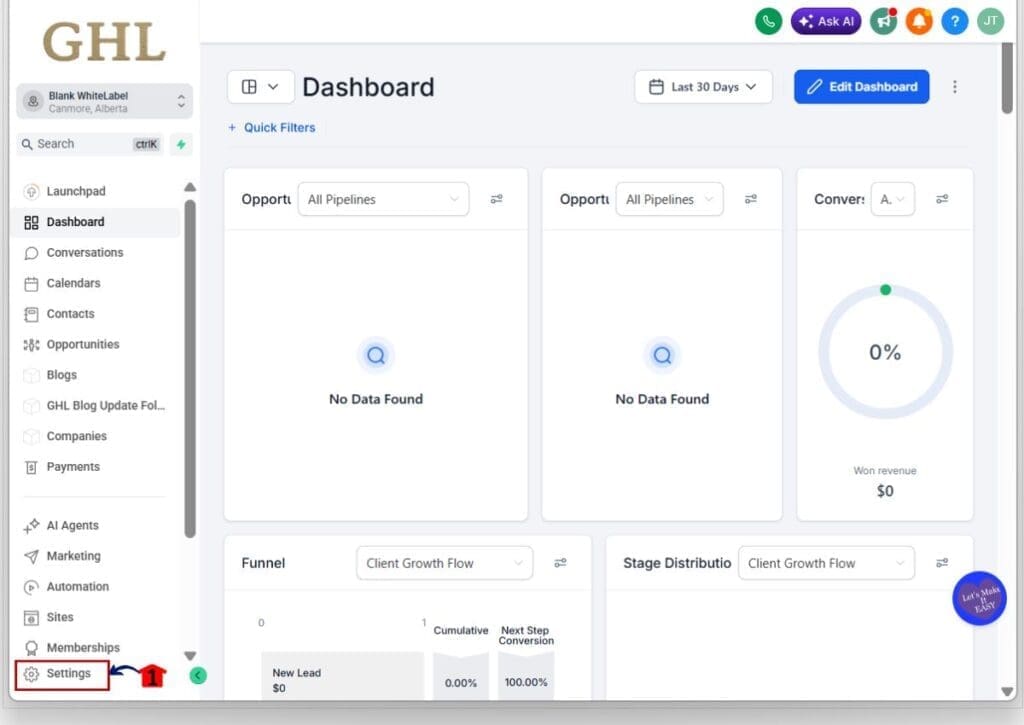
Step 01 – Access the Settings area in GoHighLevel
- Go to the bottom of the Main Menu on the left-hand sidebar.
1.1 Click the Settings gear icon ⚙️.
- This opens the Settings dashboard.
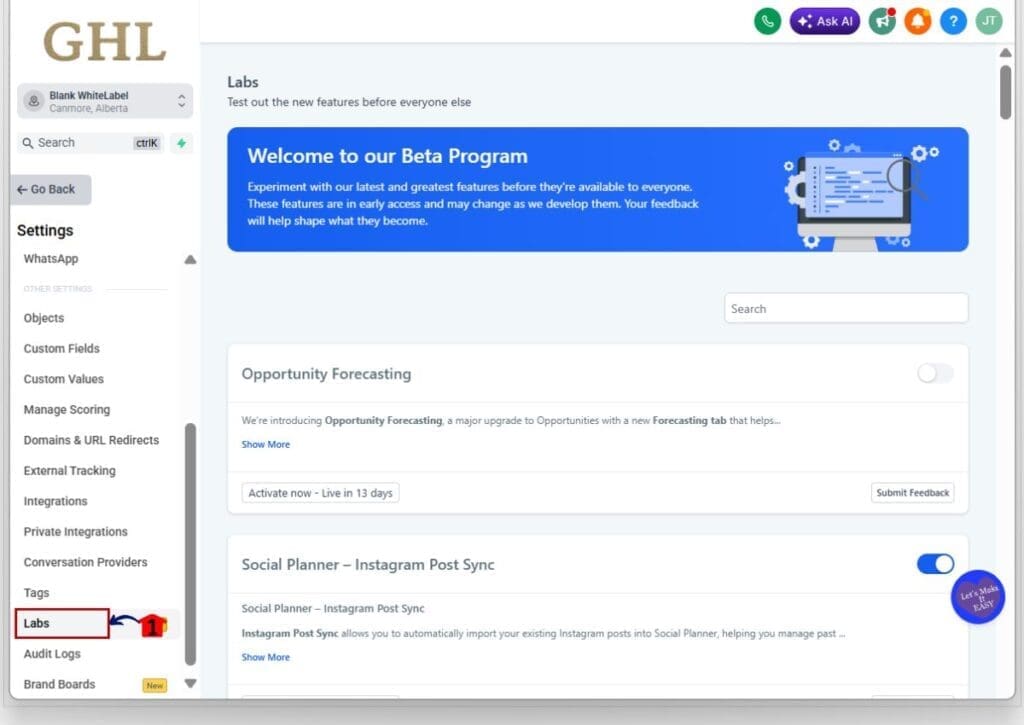
Step 02 – Open Labs in Settings
2.1 Inside Settings scroll toward the bottom of the menu.
2.2 Click Labs.
- This opens the Labs feature list.
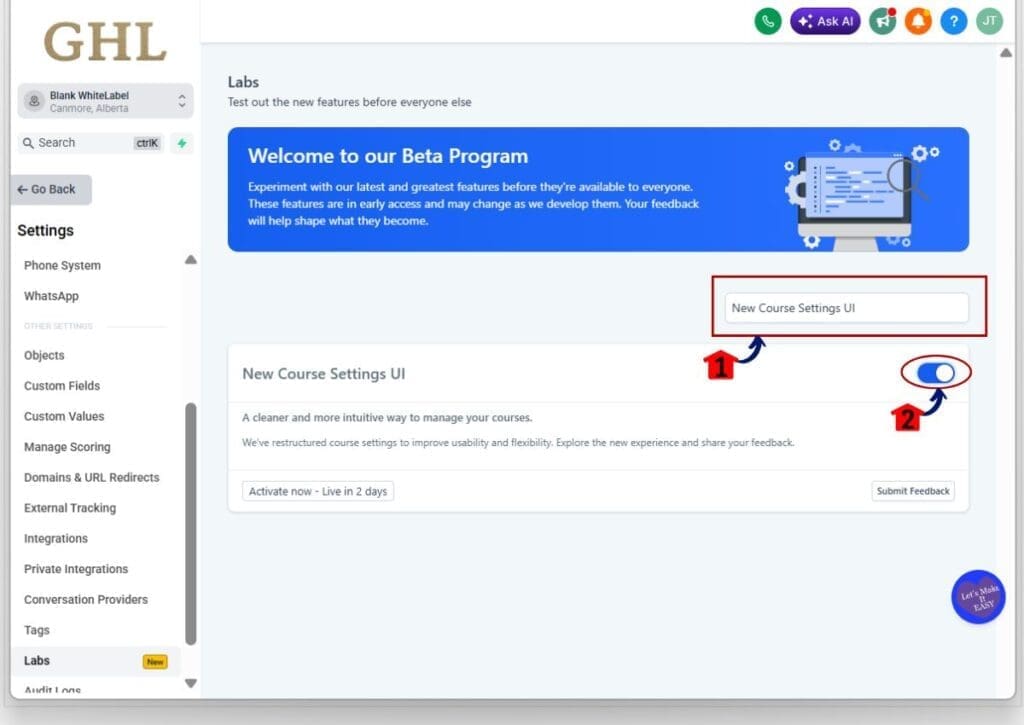
Step 03 – Find and Turn on the New Course Settings UI feature
- This is the specific toggle for the refreshed Course settings UI.
3.1 Look for New Course Settings UI in the list.
- If there is a search bar, type New Course Settings UI to find it faster.
3.2 Toggle New Course Settings UI to ON.
- Refresh the page if the UI does not update right away.
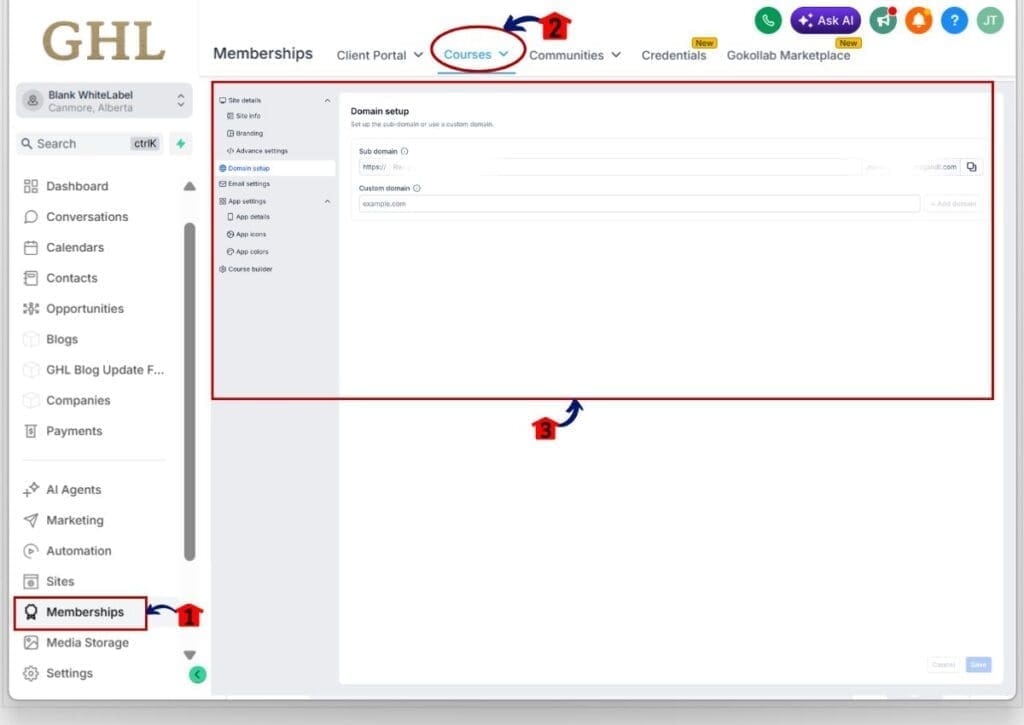
Step 04 – Confirm the Course settings UI refresh is active
- This makes sure you are seeing the new experience.
4.1 Go to Membership Menu on the left-hand sidebar.
4.2 Click on the Courses menu tab.
4.3 Confirm the layout looks refreshed and more modern.
- If you still see the old layout, refresh again or toggle OFF and ON one more time.
Pro / Quick Tips: Make the rollout smooth
The refreshed Course settings UI is easy to enable, but the real win is using it without creating extra cleanup work later. These quick tips will help you roll it out faster, especially if you manage multiple client accounts.
First, prep your brand assets before you touch settings. Have a clean logo file ready (PNG usually works best), and make sure your favicon is actually readable when it’s tiny. A lot of favicons look fine at full size, then turn into a blurry dot in the browser tab. The new cropping tool helps, but it can’t fix a low-quality image.
Next, get ahead of domain setup. If you plan to use a custom domain for the course area, make sure you or your client has access to DNS first. Most “domain issues” are not GoHighLevel problems. They are “I can’t find the login” problems. Also, keep a simple checklist for your team so everyone sets domains the same way every time.
Finally, take the validations seriously. If the form blocks you from saving, it’s usually protecting you from a bad setting. Slow down and check the field formatting, required fields, and spelling. If you’re an agency, enable this in one internal or test account first, then roll it out across clients once your team knows where everything lives.
What This Means for Your White-Labeled Client Experience
A clean settings experience does more than make you feel better while clicking around. It changes how your clients see your platform. When the Course settings UI is faster, clearer, and more guided, your white-labeled setup feels more premium and more “put together.”
For agencies, this lowers friction during handoff. Clients often judge the whole system based on what they see in settings. If settings feel messy or confusing, they assume the rest is too. With a more modern layout, better navigation feedback, and fewer confusing form errors, clients are less likely to get lost and message your team for help.
It also improves brand consistency. The logo and favicon steps are small, but they show up everywhere your clients and their students look. When those assets are easier to crop and dial in, you get fewer “why does our logo look weird?” moments after launch.
Bottom line: fewer support pings, fewer setup mistakes, and a smoother client experience that helps you keep accounts longer.
Frequently Asked Questions about New Course Settings UI in GoHighLevel (Labs)
Try it, then tighten your setup process
The refreshed Course settings UI in GoHighLevel is one of those updates that makes daily work feel lighter. It loads faster, the layout is easier to follow, and the improved validations help prevent small mistakes that turn into big time-wasters later.
If you run an agency, this is worth testing because it can cut down on setup time and reduce client confusion during handoff. If you sell courses, it helps you keep branding and settings cleaner without the usual back-and-forth.
Flip it on in Labs, click through your usual course setup flow, and take note of what feels better or what still feels clunky. Then use that to update your internal checklist so your team stays consistent.
Have you enabled the new Course settings UI yet? What’s the first thing you noticed after the switch?
Scale Your Business Today.
Streamline your workflow with GoHighLevel’s powerful tools.


