- Introduction – GHL Custom Object Notes Overview
- Quick Summary – Custom Object Notes
- Here are this weeks HighLevel Updates
- What’s New – Add Note Action for Custom Object
- Why This Matters – Automation + Record Visibility
- How to Use Custom Object Notes in GHL Workflows
- Pro Tips – Smart Ways to Use Custom Object Notes
- What This Means for Your Business
- Real-World Application – Consulting Team Example
- FAQs – Custom Object Notes in GHL
- Conclusion – Turn Automation Into Documentation
Introduction – GHL Custom Object Notes Overview
Custom object notes in GHL used to require more manual effort than they should’ve.
If you’ve ever built systems around Custom Objects in GoHighLevel, you know the real work wasn’t triggering automation. It was logging updates.
Milestones had to be documented manually. Status changes needed context added by hand. Project notes required someone to open the record and type it in.
Every. Single. Time. It worked. But it didn’t always feel automated.
And when you’re managing projects, installs, onboarding flows, or internal operations, “it works” isn’t the standard.
It has to be documented. It has to be visible. It has to update itself without someone remembering to do it.
Custom object notes now fix that gap at the automation level. Workflows in GHL can officially add notes directly to Custom Object records. Automatically.
That means when a milestone is completed, a status changes, or a trigger fires, the record updates itself with context.
No switching tabs. No relying on team members to log activity. No missing history.
Your system documents the work while your team does the work.
For agencies running structured processes inside GHL, this removes one more manual step that used to slow things down.
Less typing. Less forgetting. More system integrity.
The latest GoHighLevel Changelog includes several other GHL feature updates that round out your daily workflow:
- New QR Code Styling Options: Shapes, Borders, and Rim Text
- Collapse & Resize Pipeline Stages in Kanban View
- Notes just got smarter for the contacts page!
- New Asana actions in workflows – Find Project and Find section
- Email AI + Knowledge Base Integration 🚀
- Dialer: Auto-minimize, Pin & Drag
- Schema Markup Using AI
Keep reading for much more on all these updates and a deep dive into the Notes feature!
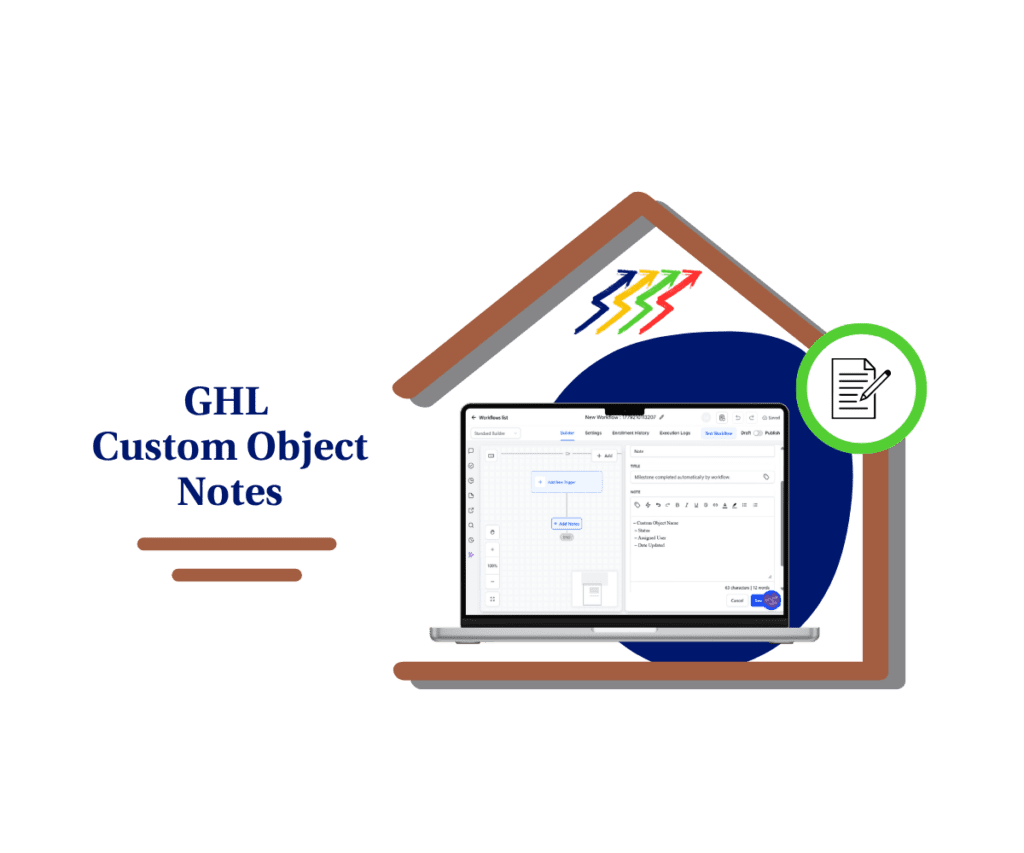
Quick Summary – Custom Object Notes
Purpose: This update allows you to automatically create Custom object notes inside GHL workflows so your system can document milestones, status changes, and key updates without manual entry.
Why It Matters: Automated documentation increases visibility, accountability, and system reliability. Instead of relying on team members to log activity, your workflow handles it for you.
What You Get: The ability to attach structured notes directly to Custom Object records whenever a workflow trigger runs. This creates clean timelines and stronger operational clarity.
Time to Complete: Setup typically takes 5–10 minutes inside an existing Custom Object workflow.
Difficulty Level: Beginner to intermediate. If you can build a workflow in GHL, you can implement this feature easily.
Key Outcome: A self-documenting automation system where your Custom Object records automatically track meaningful progress and milestones.
Here are this weeks HighLevel Updates
New QR Code Styling Options: Shapes, Borders, and Rim Text
What it does:
Lets you stop using boring QR codes. You can now tweak the shape, style the border, and add text around the edge.
Where in GHL:
Accessible via Sites → QR Codes and within QR tools embedded in Funnel and Website builders.
Automate marketing, manage leads, and grow faster with GoHighLevel.

Impact:
Improves visual presentation and brand alignment while increasing scan appeal.
Best suited for:
Agencies that care about branding, small businesses running local promotions, online stores, and teams pushing QR campaigns.
Collapse & Resize Pipeline Stages in Kanban View
What it does:
Lets you hide pipeline stages you’re not actively using and adjust column widths so your board fits the way you work.
Where in GHL:
Inside Opportunities when you’re viewing your pipeline in Kanban mode.
Impact:
No more dragging your screen forever just to find the deals that matter.
Best suited for:
Owners running multi-stage pipelines, reps working deals every day, and anyone fed up with a messy board.
Notes Just Got Smarter for the Contacts Page
What it does:
Upgrades the notes area so it’s easier to write, review, and keep things organized inside a contact record.
Where in GHL:
Found directly within each contact’s profile under Notes.
Impact:
Makes it simpler to see what’s been discussed and who added what — without digging through clutter.
Best suited for:
Teams collaborating on accounts and businesses that document every client touchpoint.
New Asana Actions in Workflows – Find Project & Find Section
What it does:
Lets your workflow check what already exists in Asana before adding anything new.
Where in GHL:
Go to Workflows, add an action, and choose the Asana integration.
Impact:
No more duplicate projects. No more messy task boards. Just cleaner automation.
Best suited for:
Operations teams and agencies that rely on Asana to manage client delivery.
Email AI + Knowledge Base Integration
- What it does:
Allows Email AI to reference your Knowledge Base for smarter, more accurate responses. - Where in GHL:
Found in Conversations → Email composer with AI enabled and Knowledge Base settings under AI configuration. - Impact:
Smarter email suggestions that understand your business and help you reply quicker. - Best suited for:
Support teams, agencies managing inboxes, and businesses scaling communication with AI.
Dialer: Auto-Minimize, Pin & Drag
- What it does:
Lets you auto-minimize the dialer during calls, pin it in place, and drag it anywhere on screen. - Where in GHL:
Found in Conversations → Dialer. - Impact:
Cleaner workspace and easier multitasking during sales or support calls. - Best suited for:
Sales teams, outbound callers, appointment setters, and agencies making daily calls.
Schema Markup Using AI
- What it does:
Generates structured schema markup automatically using AI for SEO enhancement. - Where in GHL:
Found in Sites → Website or Funnel settings within AI or SEO sections. - Impact:
Improves search visibility without manual coding. - This works well for:
Teams building websites that need stronger search visibility, from agencies to small local businesses.
What’s New – Add Note Action for Custom Object
Custom object notes were not always connected to automation the way they should’ve been.
Before this update, workflows could trigger actions tied to contacts, opportunities, and other system areas. But when it came to Custom Objects, documentation still relied on manual input in many cases.
Now that’s changed. When a workflow is built using a Custom Object trigger, the Add Note action can attach directly to that Custom Object record.
That means:
- A Project record can log when a milestone is completed.
- A Case record can document when status changes.
- An Installation record can record when a task is finished.
Automatically. The Add Note action now works inside Custom Object workflows the same way it works elsewhere in GHL. The difference is where the note gets saved. Instead of attaching to a contact, it attaches directly to the Custom Object record itself.
So when your workflow runs for that object, the Custom object notes appear right inside the object’s activity history.
No extra clicks. No manual updates. No disconnected documentation.
One important note. At this stage, support for note titles or color coding is not yet available for Custom Objects. That functionality will be added once native support is introduced inside the Custom Object system.
But the core functionality is here. Automated notes tied directly to the records your team works in every day.
Why This Matters – Automation + Record Visibility
Automation is only powerful if it leaves a clear trail. That’s where Custom object notes change the game.
When your workflows update records but don’t document why, your team is left guessing. They see the status change. They see the milestone complete. But they don’t see the context behind it. And context matters.
Especially when:
- You have VAs updating records
- You have setters handing off to closers
- You have project managers reviewing delivery
- You are auditing fulfillment for clients
Without documented history, your system looks automated on the surface but feels manual underneath. Custom object notes fix that visibility gap.
Now when a workflow fires, it can leave a timestamped record directly inside the Custom Object. That means anyone opening that Project, Case, or Service record can see exactly what happened and when.
It creates:
- Consistency.
- Accountability.
- Clarity.
Instead of asking, “Who updated this?” or “When did this milestone complete?” the answer is already inside the record.
It also reduces human error. People forget to log notes. Automation doesn’t.
For agencies building repeatable systems in GHL, this is about system integrity. When everything is automated and documented, your backend becomes reliable. That reliability is what allows you to scale.
Because once your records are self-documenting, your team can focus on execution instead of admin cleanup.
How to Use Custom Object Notes in GHL Workflows
In this section, you will set up automatic note logging inside a Custom Object workflow. You will open or create a workflow tied to a Custom Object trigger, add the Add Note action, configure the note content, and publish the workflow.
This process works when your trigger is based on a Custom Object event such as a status change, record creation, field update, or milestone completion. Once configured, your workflow will automatically add notes directly to the Custom Object record. Follow the steps below to implement it correctly.
- Access the Workflows Area in GoHighLevel.
- Add the Add Note Action in Workflow.
- Configure the Custom Object Notes Content.
- Save and Publish the Workflow.
To start make sure you are logged in to your GoHighLevel sub-account.
Step 01 – Access the Workflows Area in GoHighLevel
- The Workflows area is where you build automation using triggers and actions inside GHL.
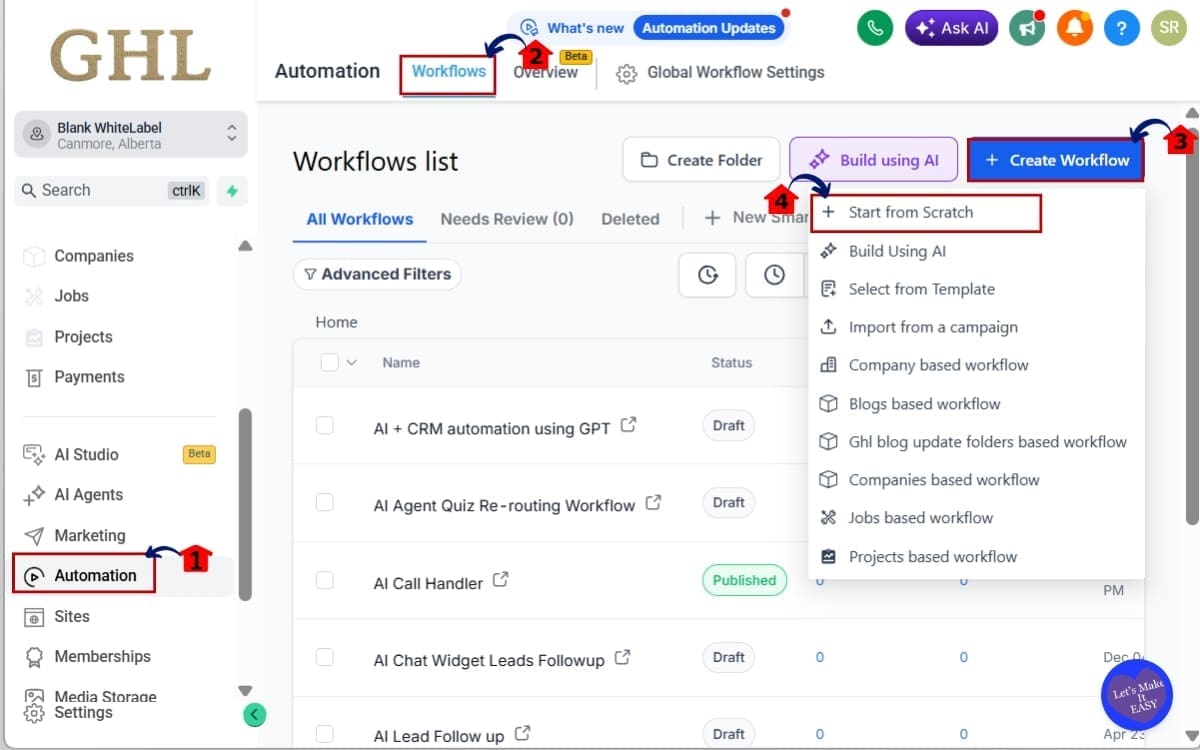
1.1 Click on “Automation” in the left-hand menu.
- This opens the automation dashboard where all workflow triggers and actions are managed.
1.2 Click on “Workflows.”
- This displays your full list of existing workflows inside the sub-account.
1.3 Click “Create Workflow” to build a new one.
- This allows you to start building a new automation from scratch or from a template.
1.4 Click “Start from scratch.”
- This creates a blank workflow so you can manually configure your Custom Object trigger and actions.
Step 02 – Add the Add Note Action in Workflow
- You will now add the action that automatically creates a note on the Custom Object record.
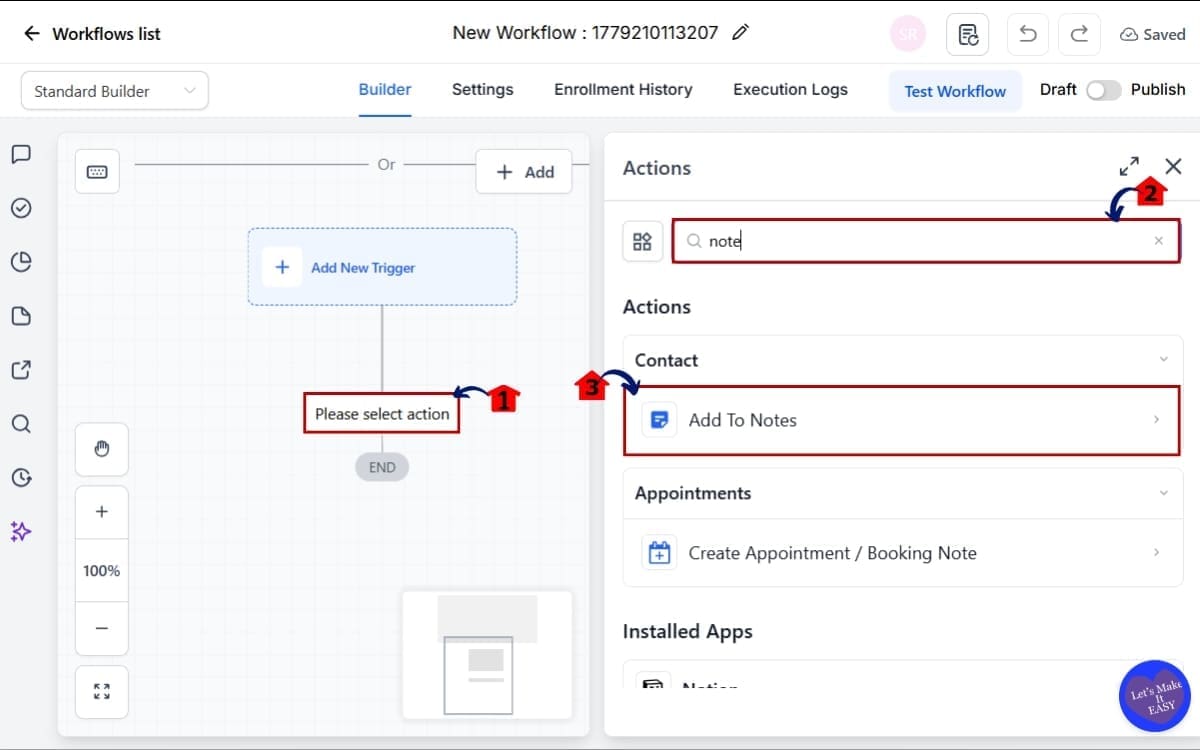
2.1 Click the “+” icon below your trigger to add an action.
- This opens the action selection panel for your workflow.
2.2 In the action list, search for “Add Note.”
- This helps you quickly locate the correct action inside the workflow builder.
2.3 Select “Add Note.”
- Because this workflow is triggered by a Custom Object event, the note will automatically attach to the related Custom Object record.
Step 03 – Configure the Custom Object Notes Content
- You will now define what information gets written into the Custom Object note when the workflow runs.
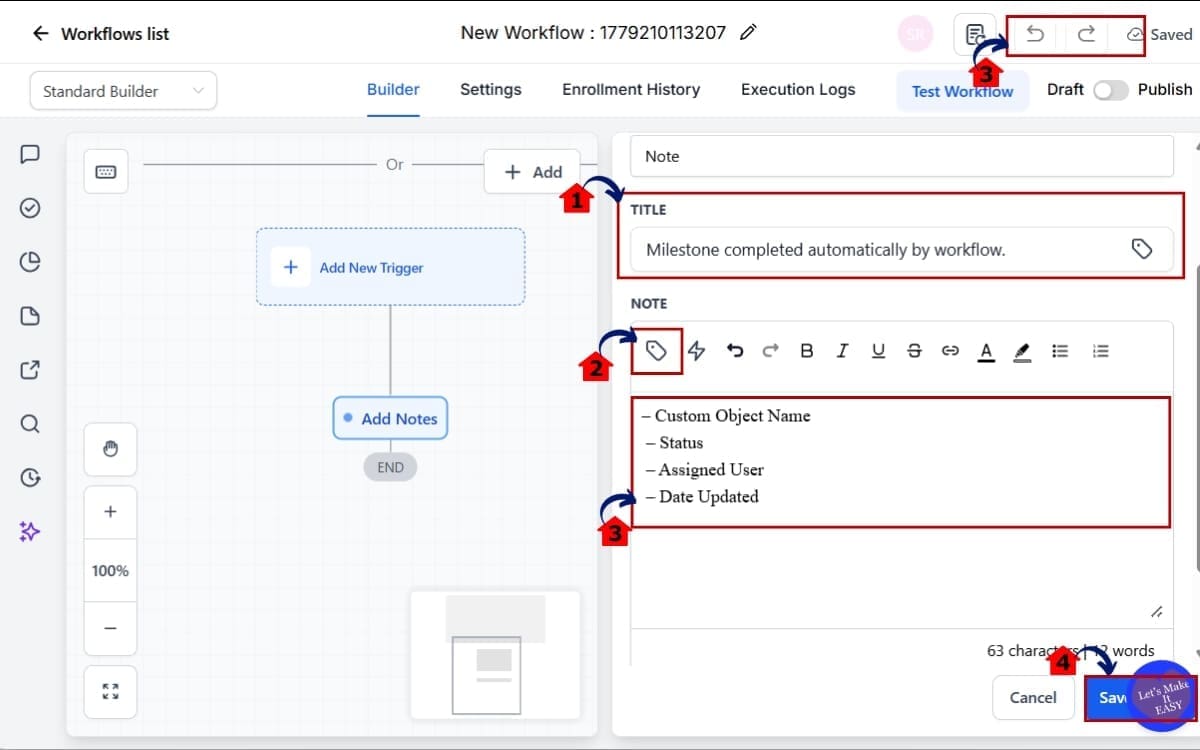
3.1 Enter the note text inside the content box.
- Write a clear and structured message that explains what happened. Example: “Milestone completed automatically by workflow.”
3.2 Insert dynamic fields where needed.
- This allows the note to include real-time data from the Custom Object record.
3.3 Add relevant fields such as:
- Custom Object Name
- Status
- Assigned User
- Date Updated
Using dynamic values makes your notes more detailed and easier to audit later.
3.4 Click “Save.”
- This confirms the note configuration inside the workflow action.
Step 04 – Save and Publish the Workflow
- You will now activate the workflow so it can begin creating Custom Object notes automatically.
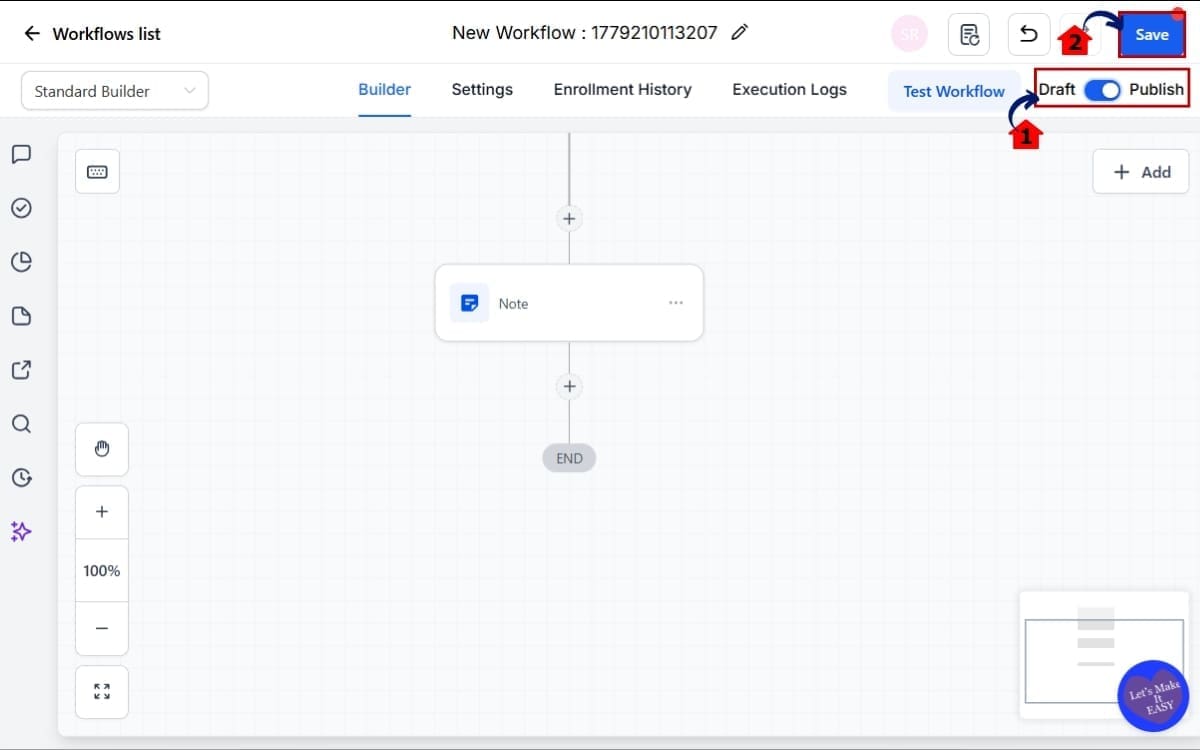
4.1 Click “Save” in the top right corner.
- This stores your workflow changes and ensures your Add Note action is properly configured.
4.2 Click “Publish” to activate the workflow.
- Publishing turns the workflow live so it runs when the trigger conditions are met.
That’s it. You’ve just turned your Custom Object into a self-logging record.
Pro Tips – Smart Ways to Use Custom Object Notes
Most people will use Custom object notes for simple logging. That’s fine.
But if you want to build a tight, scalable backend inside GHL, you can use this feature much smarter.
Here’s how:
- Use Structured Note Formatting
- Don’t just dump text into the note field.
- Create a simple internal format your team recognizes.
Example:
- Status: {{custom object status}}
- Completed By: {{assigned user}}
- Date: {{date}}
- Triggered By: Workflow Automation
Now every note follows the same structure. That makes your records clean and easy to scan.
Trigger Notes on Status Changes
Instead of adding notes randomly, tie them to meaningful movement.
Examples:
- When status changes to “Completed”
- When status changes to “In Progress”
- When an approval field is marked “Yes”
This keeps your Custom object notes tied to real progress, not noise.
Pair Notes with Internal Notifications
Want to take it further? After the Add Note action, add:
- Internal notification to staff
- Slack webhook
- Task creation
Now your system doesn’t just log the update. It tells your team about it.
Use Dynamic Fields for Audit Trails
If you’re managing multiple users inside one sub-account, dynamic fields are powerful. Add:
- Assigned User
- Updated By
- Custom Field Values
- Object ID
Now your Custom object notes become mini audit logs.
Keep It Clean
Big mistake? Over-automating notes.
If every tiny update creates a note, your timeline becomes cluttered fast. Only log:
- Major status changes
- Milestones
- Approvals
- Client-facing deliverables
Less noise. More signal. Think of Custom object notes as permanent documentation. Use them like you would write a clean internal logbook, not a scratchpad.
What This Means for Your Business
This isn’t just a “nice to have” update. Custom object notes directly affect how clean, reliable, and scalable your backend systems are inside GHL.
If you run an agency, this matters more than you think.
Because once you start building systems around Custom Objects, you’re no longer just managing contacts.
You’re managing:
- Client onboarding projects
- Service delivery milestones
- Installations
- Internal task flows
- Case management
- Custom fulfillment processes
And when those processes grow, visibility becomes everything. Without documented updates, you rely on:
- Memory.
- Slack messages.
- Random comments.
- Or someone “remembering” to log it later.
That doesn’t scale. Custom object notes turn your workflows into documentation engines.
Now when:
- A milestone is completed
- A field changes
- A project moves to the next phase
- A VA finishes a deliverable
Your system records it automatically. That means:
- Better team handoffs.
- Cleaner client audits.
- Easier performance reviews.
- Stronger white-label systems.
If you’re building SaaS Mode systems, this also increases perceived value. Your clients log into their portal and see:
- A clear history.
- Structured updates.
- Professional documentation.
It makes your backend feel intentional. Not thrown together. And if you ever need to troubleshoot or review a process?
Your Custom object notes give you a timeline of exactly what happened. That’s not just automation. That’s operational clarity.
Real-World Application – Consulting Team Example
Let’s make this practical. Imagine a consulting agency that uses a Custom Object called “Project.”
Each Project moves through stages like:
- Discovery
- Strategy
- Implementation
- Completed
Previously, when a milestone was completed, a team member had to:
- Open the Project record.
- Click Add Note.
- Type what happened.
- Save it.
Not hard. But not automated either. Now here’s how Custom object notes change that.
Scenario: When the Project status changes to “Strategy Completed,” a workflow triggers.
That workflow:
- Updates internal fields
- Sends a Slack notification
- And adds a structured note directly to the Project record
Example Automated Note:
- Strategy Phase Completed
- Completed By: {{Assigned User}}
- Date: {{System Date}}
- Next Step: Move to Implementation
Now anyone opening that Project sees a clean, time-stamped record of progress. No one had to remember to write it. No one had to double-check Slack. No one had to ask, “Did we finish this?” The record tells the story.
Another Example – Installation Company
Custom Object: Installation
Trigger: Installation Status changes to “Completed.”
Workflow fires → Custom object notes added:
- Installation Completed
- Technician: {{Assigned Staff}}
- Completion Date: {{Date}}
- QA Required: Yes
Now operations can review the timeline instantly. No spreadsheets. No guessing. No follow-up messages.
The system documents itself. This is where automation moves from “triggering tasks” to “building a documented operational system.”
FAQs – Custom Object Notes in GHL
Conclusion – Turn Automation Into Documentation
Custom object notes might look like a small update. They’re not. They close a gap between automation and accountability inside GHL.
Before this, your workflows could move records forward. Now they can document why they moved forward.
That’s a big difference. When your system logs milestones automatically, your team doesn’t rely on memory. Your records don’t rely on manual updates. And your backend stops feeling patched together.
It starts feeling intentional. If you’re running structured delivery inside GoHighLevel, this is one of those features that quietly improves everything:
Cleaner project tracking. Better team handoffs. Stronger audit trails. More professional client-facing systems.
Here’s the kicker — this isn’t some big technical lift. You jump into your Custom object notes workflow, drop in the Add Note step, hit publish, run a quick test… and you’re good. Whole thing takes maybe five minutes.
Now your system works and documents at the same time. That’s how you build scalable infrastructure inside GHL.
Have you started using Custom object notes in your workflows yet?
If not, go test it inside one of your active processes and see how much cleaner your records feel. And check back to the GHL Growth Garage blog for more GoHighLevel feature guides that help you tighten up your backend systems and scale with confidence.
Scale Your Business Today.
Streamline your workflow with GoHighLevel’s powerful tools.