

- See the new designs for sites, funnels, posts, and ads, plus a Hair Salon snapshot.
- Quick Summary – September Template Update at a Glance
- Sites and Funnels in the September Template Update
- Social Posts in the September Template Update
- Ads in the September Template Update
- Hair Salon Snapshot in the September Template Update
- How to Use the September Template Update in GoHighLevel
- Quick Tips for the September Template Update
- What This Means for Your Business
- September Template Update Frequently Asked Questions
- September Template Update: Your Next Step
See the new designs for sites, funnels, posts, and ads, plus a Hair Salon snapshot.
September Template Update at a Glance
The September template update gives you more designs for client work in GoHighLevel, so you don’t have to start from scratch. The September 28, 2026 release includes 24 templates and one Hair Salon snapshot. The new designs cover sites, funnels, social posts, and ads.
You’ll find the Pro Development website, a Locksmith funnel, and eight social templates. There are also 14 ad templates for Facebook, Google, and LinkedIn. For agency teams, that means more options when a client needs a new page, post, or ad. Choose a design that fits the project, then change the text and images to match the brand.
This guide breaks down the September template update by type, so you can find what fits your next project. We’ll cover the new designs, the Hair Salon snapshot, and how to use the templates in GHL. You’ll also find checks to make before use and answers to common questions.

The September template update gives you ready-made designs for client sites, funnels, posts, and ads. You can edit them to match each brand instead of starting from scratch.
Quick Summary – September Template Update at a Glance
Purpose: This September template update adds new ready-made designs for websites, funnels, social posts, and ads inside GoHighLevel.
Why It Matters: The update gives agencies and businesses more starting points for client work without building every design from scratch.
What You Get: The release includes 24 new templates across websites, funnels, social media, Facebook ads, Google ads, and LinkedIn ads, plus one Hair Salon snapshot.
Time To Complete: You can review and add a template in a few minutes, then spend more time adjusting the copy, images, branding, and links to fit the project.
Difficulty Level: Beginner-friendly. The template process is simple once you know where to find the Template Library and how to open the builder.
Key Outcome: You get a faster way to start new client projects while still keeping control over the final design, message, and branding.
Sites and Funnels in the September Template Update
The September template update adds a Pro Development website and a Locksmith funnel to GoHighLevel. The website sits in the Business, Coaching & Consulting category. For a coach or consultant who needs a site, this gives you a new design to review against the client’s goals.
The Locksmith funnel appears in the Other category. Working on a site project for a locksmith? This is the funnel addition to check. Look at how the design fits the client’s services and the action they want visitors to take. You’ll still need to shape the content around the business, rather than use the sample text as it stands.
Automate marketing, manage leads, and grow faster with GoHighLevel.

The announcement doesn’t list the pages or features included in either template, so check those details before planning your build. Both designs are customizable. You can use them as a starting point, then change the text, images, and brand details to suit the client. Choose based on what the project needs, not just how the preview looks.
Social Posts in the September Template Update
The September template update adds eight social templates to GoHighLevel. Creative and Real Estate each get two designs. Travel & Hospitality and Others also get two each. For teams that manage posts for several clients, these additions give you more designs to work with.
The preview links show Copywriter, Property Inspection Services, Vacation Cabin Rentals, and Clinical Research Center. These are four named examples, not the full set of eight templates. The announcement lists the total for each category but doesn’t name every design. Use these previews to get a first look at the release.
Start with a design that fits a post you already need to create. For a client who rents cabins, the Vacation Cabin Rentals template is one to review. Then change the text and images to suit the brand and message. You don’t need to use the whole set. Pick what fits the client’s work, and check the final post before you share it.
Ads in the September Template Update
The September template update adds 14 ad templates to GHL. Facebook gets two: Professional Business Coach and Executive Event Marketing. These cover business coaching and agency work. You can use either as a starting point, then change the text and images to fit your client’s brand.
Google gets five new designs. Cosmetic Skin Clinic and Car Rental Agency cover skin care and car hire. Campground, Caterer, and Home Staging round out the set. These give you options for clients in travel, food, and real estate. Start with the design that fits the service your client wants to promote.
LinkedIn gets seven templates. Creative Arts Studio and Dance Company are the two Creative additions. Finance gets Accounting Support Specialist and Financial Remediation Services. CRM Software is the new Marketing Agency template. Family Practice Physician and Physiotherapy Practice join Medical. These are new ad designs, not new platform connections. Before using one, check that the text, images, and offer match your client’s business.
Hair Salon Snapshot in the September Template Update
The September template update also adds a new Hair Salon snapshot in the Beauty & Fashion category. It gives agencies another ready-made starting point for salon clients who want a more complete setup inside GHL.
The preview is listed as “Hair Salon – Enhanced Snapshot.” The release does not explain which workflows, forms, calendars, campaigns, or other assets are included, so it’s best to review the snapshot before you build a client offer around it.
If you work with salons, this is the part of the update worth checking first. Open the snapshot, see what is included, and decide what needs to be changed for the client’s services, brand, and booking process. HighLevel supports account setups and white-label use for agencies, which makes this kind of snapshot useful as a starting point rather than a finished client system.
How to Use the September Template Update in GoHighLevel
The September template update gives you more ready-made designs to work with inside GHL. For this walkthrough, we’ll use a website template as the example so you can see the full process from opening the Websites area to publishing your design.
Each screenshot below matches a new step. That keeps the guide simple and makes it easier to follow inside GoHighLevel.
Here are the steps we will follow:
- Open the Websites area.
- Start From a Template.
- Find a template.
- Preview and choose the template.
- Customize and publish the website.
To start, make sure you are logged in to the correct GoHighLevel sub-account.
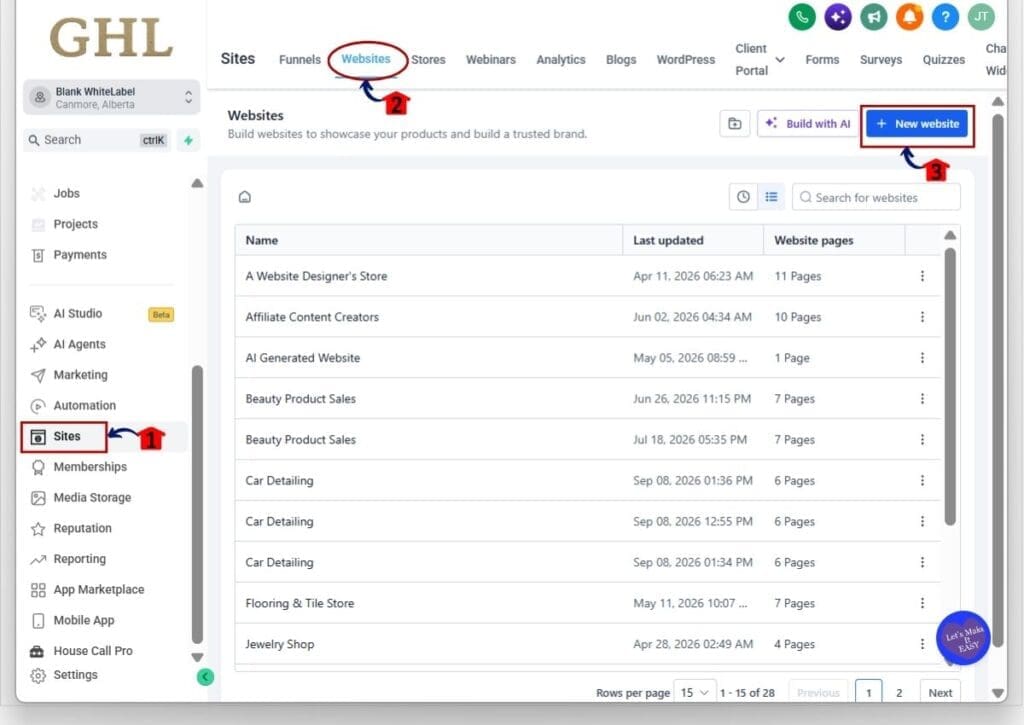
Step 01 – Open the Websites Area
- The main menu on the left side of your screen includes the main areas you use in GoHighLevel.
1.1 Click Sites.
- This opens the Sites area in your GHL sub-account.
1.2 Click Websites in the top menu.
- The Websites section will open.
- You will see the websites already saved inside the sub-account.
1.3 Click New website.
- This opens the Create new website window.
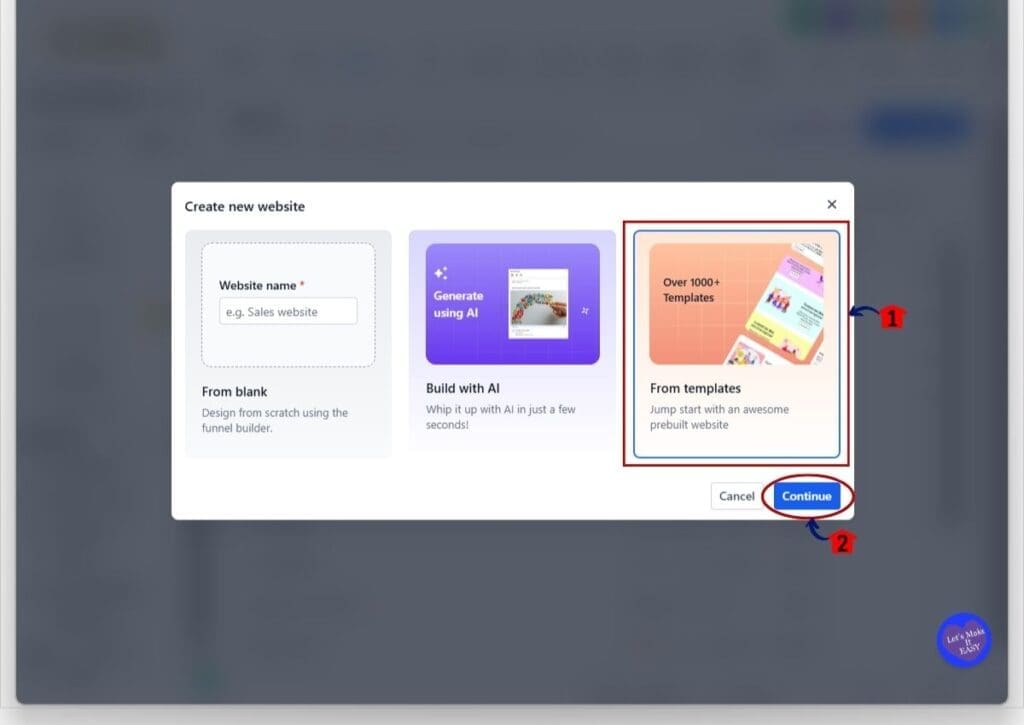
Step 02 – Start From a Template
- GoHighLevel gives you a few ways to create a website.
2.1 Click From templates.
- This selects the ready-made template option.
2.2 Click Continue.
- The Template Library will open.
- You can now browse the available website templates.
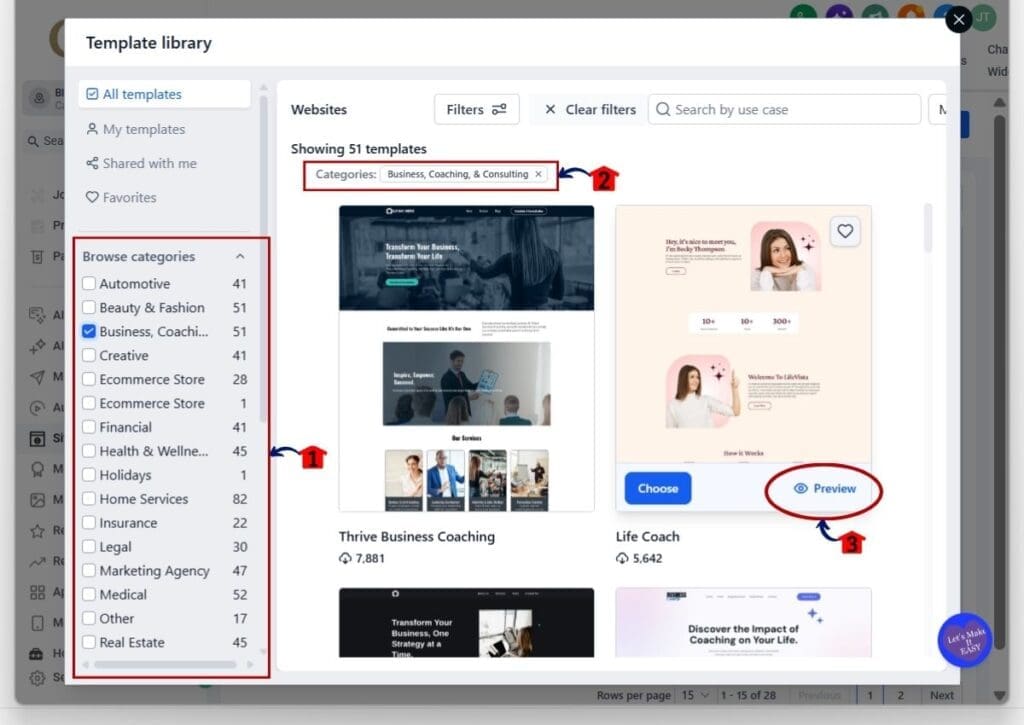
Step 03 – Find a Template
- The Template Library includes filters and categories to help narrow down your choices.
3.1 Review the Browse categories section on the left.
- You will see categories such as Automotive, Beauty & Fashion, Business, Coaching & Consulting, Creative, Marketing Agency, Medical, Real Estate, and more.
3.2 Select Business, Coaching & Consulting.
- GHL filters the library to show templates in that category.
- The selected category will also appear above the template results.
3.3 Click Preview on the template you want to review.
- This opens the full template preview.
- You can check the design before adding it to your account.
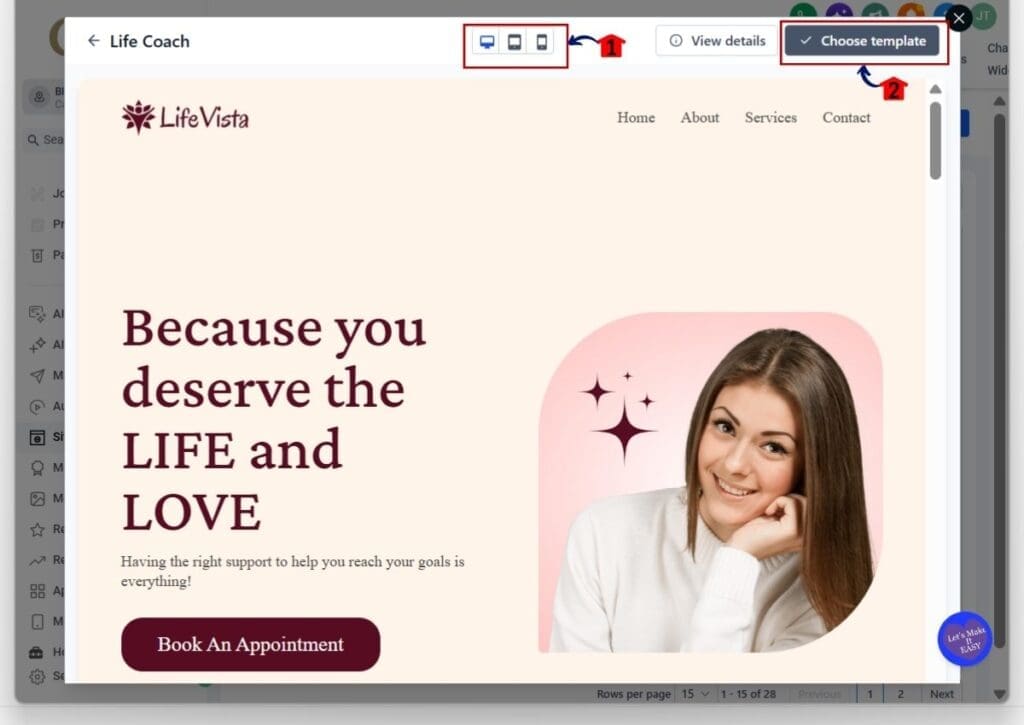
Step 04 – Preview and Choose the Template
- The preview screen lets you check how the website looks before you start editing it.
4.1 Use the desktop, tablet, and mobile icons at the top.
- These let you preview the template on different screen sizes.
- Check the layout before choosing the design.
4.2 Click Choose template when you are happy with the design.
- GHL will add the template to your account.
- The website will then open inside the builder.
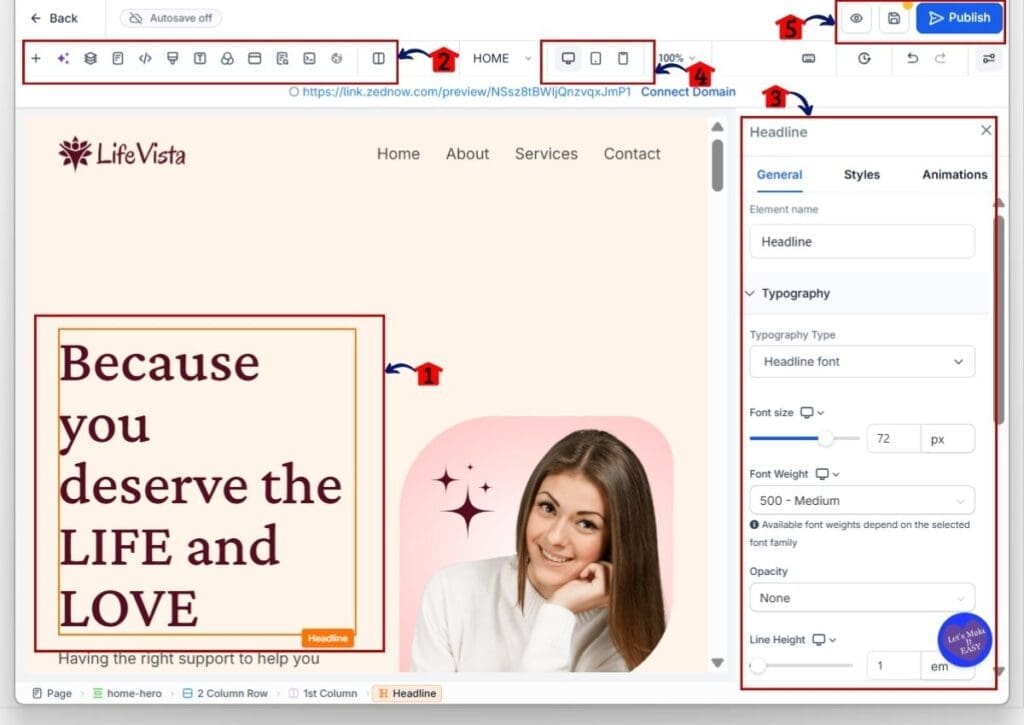
Step 05 – Customize and Publish the Website
- Once the template opens in the builder, you can update the design and content to fit the business.
5.1 Click the text, image, button, or section you want to edit.
- The selected element will become active inside the builder.
- In this example, the headline is selected.
5.2 Use the tools across the top of the builder.
- These tools help you add and manage different page elements.
5.3 Use the settings panel on the right.
- This panel changes based on the element you select.
- You can adjust options such as text, typography, styles, spacing, and animations.
5.4 Use the desktop, tablet, and mobile view options.
- Check how the website looks on different devices while you work.
5.5 Review the website and click Publish when you are ready.
- Check the copy, images, buttons, links, forms, and layout before publishing.
- Make sure the site fits the client or business you are building for.
Once the website is added, the template gives you the structure, but the final result still needs your input. Update the branding, copy, images, links, and offer so the site fits the client or business you are building for.
Quick Tips for the September Template Update
The September template update gives you a strong starting point, but the template still needs to fit the client. Don’t just swap the logo and call it done. Check the copy, images, offer, and calls to action so the final result feels like it was built for that business.
If you are using a website or funnel template, review the mobile version before you publish. Small layout issues are easy to miss on the desktop. Also test every button, form, and link so you know the page works as expected.
For social and ad templates, keep the message simple and make sure the design matches the campaign goal. A good template can save time, but the real value comes from how well you adapt it to the client’s brand and audience.
What This Means for Your Business
The September template update gives agencies and small businesses more ways to start a project without building every design from scratch. That can save time when you need to launch a site, funnel, social post, or ad for a client.
The bigger benefit is flexibility. You can choose a template that fits the industry, then shape it around the client’s offer, brand, and goals. For agencies, that can make it easier to handle more projects without adding more design work to every job.
These templates work best as a starting point, not a finished product. Use the structure, then improve the message, visuals, and calls to action. That is where the September template update can help most. It gives you a faster way to get moving while still leaving room to make the final result your own.
September Template Update Frequently Asked Questions
September Template Update: Your Next Step
The September template update gives you more ways to start client projects without building everything from scratch. With new options for websites, funnels, social posts, and ads, GHL users now have more designs to work from across several industries.
The main thing is to treat each template as a starting point. Review the layout, update the copy, change the visuals, and make sure the final version fits the client’s brand and offer. The Hair Salon snapshot also gives agencies another option to review for beauty and salon clients.
Pick one template that matches a project you are already working on and test it inside your sub-account. It is a simple way to see whether this release can save you time on your next build.
Scale Your Business Today.
Streamline your workflow with GoHighLevel’s powerful tools.


