- Stop switching to Facebook. Build colorful text-only posts with native backgrounds right inside GoHighLevel’s Social Planner.
- Quick Summary – Facebook Background Posts Essentials
- WHAT’S NEW IN SOCIAL PLANNER
- BACKGROUND PICKER INSIDE THE COMPOSER
- REAL-TIME FACEBOOK-STYLE PREVIEW
- SMART VALIDATION AND AUTO-HANDLING
- WHY THIS MATTERS TO YOU
- How to Use Facebook Background Posts in GoHighLevel
- PRO / QUICK TIPS
- WHAT THIS MEANS FOR YOUR BUSINESS
- FREQUENTLY ASKED QUESTIONS
- Simple posts, better visibility, fewer posting mistakes.
Stop switching to Facebook. Build colorful text-only posts with native backgrounds right inside GoHighLevel’s Social Planner.
Facebook Background Posts in Social Planner
Facebook background posts are now built into GHL Social Planner, and it fixes a common headache. If you have ever opened Facebook just to make one of those colorful text-only posts, you can stop doing that.
Social Planner already lets you create, schedule, and publish posts from one place. Now it also includes Facebook’s native background post style inside the same composer you already use, with a live preview while you write.
One quick rule to know: backgrounds only work on text-only Facebook posts. If you add an image or video, GHL turns the background option off automatically so you do not publish something that looks wrong.

With Facebook background posts in GHL, you can turn quick text ideas into colorful, native-style posts without jumping into Facebook. That means faster publishing, cleaner team workflows, and better visibility in busy feeds.
Quick Summary – Facebook Background Posts Essentials
Purpose: This guide shows you how to create Facebook background posts inside GHL Social Planner so you can publish or schedule them without using Facebook directly.
Why It Matters: Facebook background posts help text-only updates stand out in busy feeds, and GHL now handles the rules automatically so you avoid posting mistakes.
What You Get: You get a clear process for finding the Text Background option, choosing a preset, writing your caption with a live preview, and scheduling the post the right way.
Time To Complete: Most users can create and schedule a background post in about 3 to 5 minutes once they have their Facebook Page selected.
Difficulty Level: Easy because it uses the same Social Planner composer you already know, and the background option appears only when it is compatible.
Key Outcome: You will post more consistently, get better visibility for simple updates, and reduce errors caused by adding media to a background post.
WHAT’S NEW IN SOCIAL PLANNER
This update brings Facebook background posts into the Social Planner composer, so you can create the same native-style text posts you would normally make inside Facebook. You write a text-only post, pick a background preset, and see it styled in real time.
You can publish instantly or schedule it like any other post. It is also fully built into the existing composer, so your team does not have to learn a new workflow or jump between tools.
Automate marketing, manage leads, and grow faster with GoHighLevel.

The biggest win is speed with fewer mistakes. The background option only shows when Facebook is selected, and if you add media, GHL automatically disables the background so you stay compatible with what Facebook allows.
BACKGROUND PICKER INSIDE THE COMPOSER
Facebook background posts are easiest to build when the picker is right where you are writing, and that’s exactly what GHL added. When you select Facebook as the platform, you will see a Text Background option appear inside the post composer. No extra screens. No guessing.
Click Text Background, and you will get a set of background presets to choose from. Scroll through, click one, and it applies right away. You can also preview how it looks as you type, so you are not stuck imagining what it will become after you publish.
If you do not see Text Background, check two things first. Make sure Facebook is selected, and make sure your post is text-only. The moment you add an image or video, the background option turns off automatically.
REAL-TIME FACEBOOK-STYLE PREVIEW
Facebook background posts look great when the text, size, and spacing feel “native.” That’s why GHL now shows a Facebook-style preview right inside the composer. What you see while you write is meant to match what your audience will see in the Facebook feed.
When you switch backgrounds, the preview updates right away. When you edit your caption, the style updates too. This makes it easy to try a few options fast, then stick with the one that is easiest to read.
You will also notice the font size can change as your text gets longer. That is normal. The preview auto-adjusts the text so it stays readable on the background, which helps you avoid posts that look cramped or hard to scan.
SMART VALIDATION AND AUTO-HANDLING
Facebook background posts only work when the post is text-only, so GHL keeps things simple and enforces the rules for you. You do not have to remember platform limits because the composer reacts based on what you add.
Here is how it behaves:
- Backgrounds work only for text-only Facebook posts.
- If you add an image or video, the background option is disabled automatically.
- If you edit a scheduled post and add media, the selected background is removed so the post stays compatible.
If a background “disappears,” it is usually because media was added at some point. The system is not being buggy. It is protecting you from publishing a post that Facebook will not treat as a background-style text post.
WHY THIS MATTERS TO YOU
Facebook background posts are a fast way to get attention without making a graphic. They stand out in the feed, they are easy to read, and they are perfect when you need to post something quick but still want it to look polished.
This matters even more if you manage multiple accounts. When your team can create and schedule these posts inside GHL, you cut out extra steps. That means fewer delays, fewer missed posts, and less back-and-forth like “who has Facebook access” or “can you post this for me.”
It also lowers mistakes. Since GHL only allows backgrounds on text-only posts, you are less likely to schedule something that breaks later. The rules are handled for you, so you can focus on the message, not the platform quirks.
How to Use Facebook Background Posts in GoHighLevel
Facebook background posts are created inside the Social Planner post composer in GoHighLevel, right after you click New Post and select Facebook as your platform. You will go to Marketing, open Social Planner, create a new post, choose your Facebook Page, turn on a text background, write your caption, then publish now or schedule it.
Here are the steps to create and schedule Facebook background posts in GHL.
- Open Social Planner.
- Create a new post.
- Select your Facebook Page.
- Choose a background and write your post.
- Publish now or schedule it.
To start make sure you are logged in to your GoHighLevel sub-account.
Step 01 – Open Social Planner
- The Main Menu on the left side of your screen has all the main areas that you work in when using GHL.
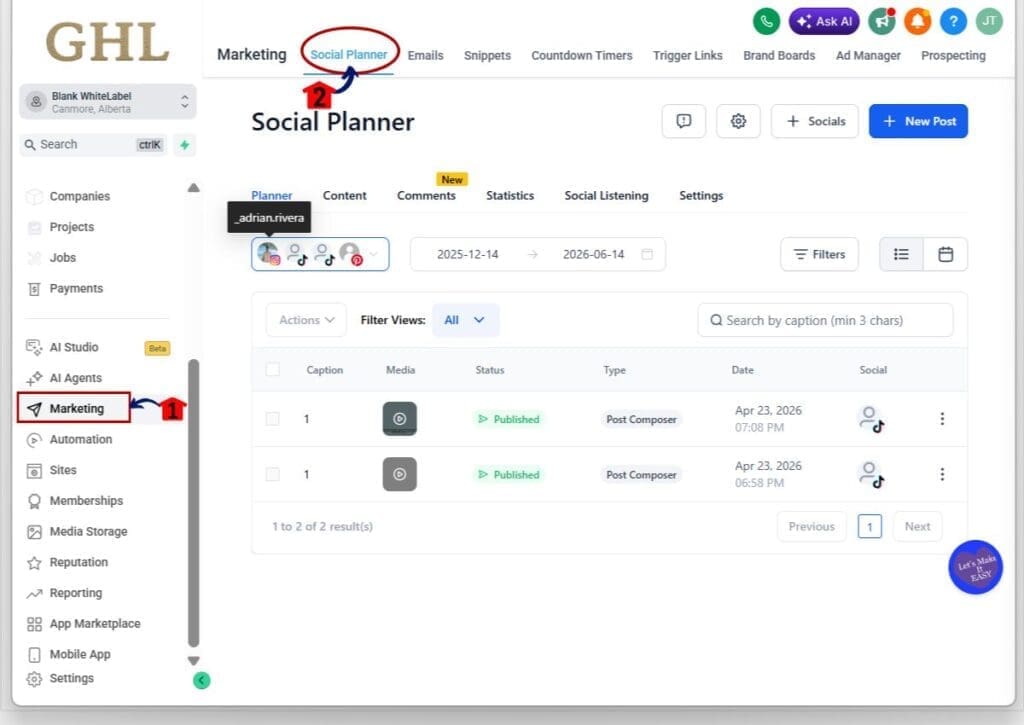
1.1 Click Marketing in the left-hand menu.
- This opens the Marketing section.
1.2 Click Social Planner in the top menu.
- This opens the Social Planner dashboard where you create and schedule posts.
Step 02 – Create a new post
2.1 In the top-right corner, click New Post.
- This opens the New Social Post composer.
2.2 Click Create New Post.
- This starts a new post in the composer.

Step 03 – Select your Facebook Page
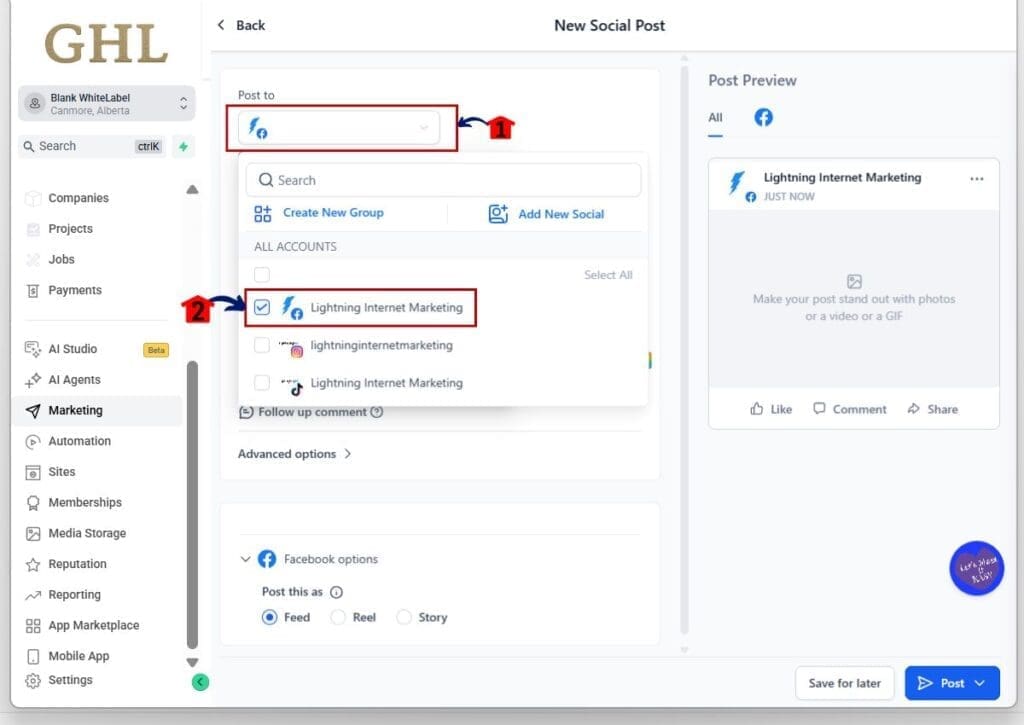
3.1 In the composer, click the Post to dropdown.
- This opens the account selector.
3.2 Check the box next to your Facebook Page.
- This selects where the post will publish.
3.3 Confirm only the correct Facebook Page is selected.
- This prevents posting to the wrong brand or client account.
Step 04 – Choose a background and write your post
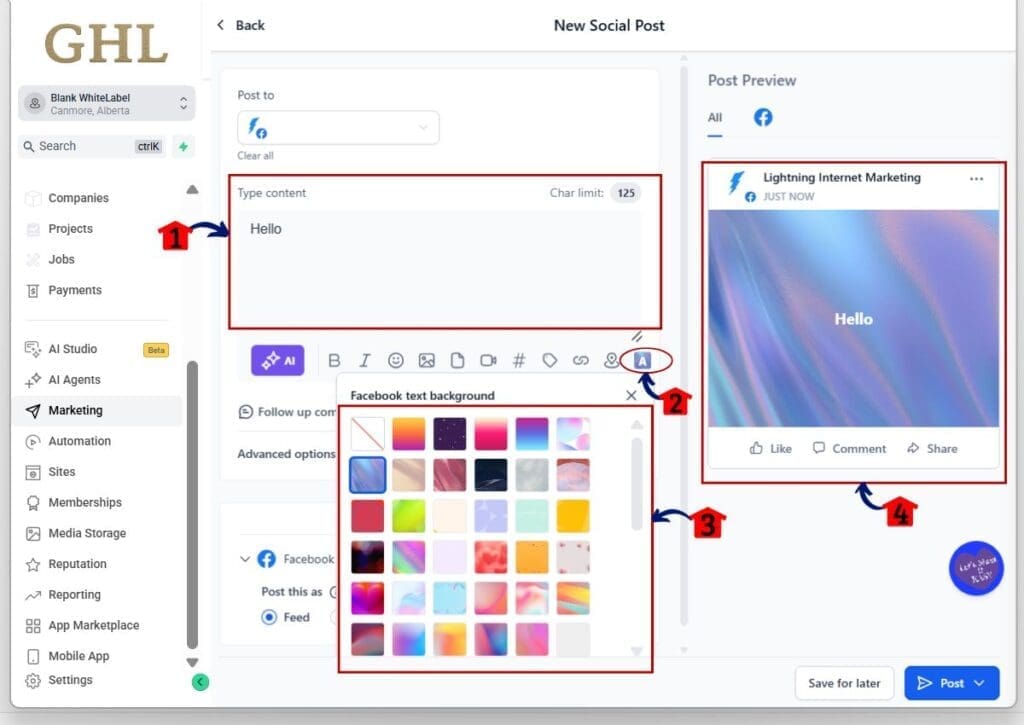
4.1 In the Type content box, enter your text.
- This is the caption for your Facebook background post.
4.2 Click the Text Background option.
- This opens the Facebook text background picker.
4.3 Choose a background preset from the grid.
- This applies the background instantly.
4.4 Look at the Post Preview panel on the right.
- This shows how the post will look on Facebook.
- Important note: If you add an image or video, the background option will turn off automatically because backgrounds only work for text-only Facebook posts.
Step 05 – Publish now or schedule the post
5.1 Review the preview one last time.
- This helps you confirm the background and text look right.
5.2 Click Post to publish immediately, or use the dropdown beside it to schedule.
- This lets you choose between instant publishing and scheduling.
5.3 If scheduling, select the date and time, then confirm.
- This saves the post to publish later at the exact time you want.

PRO / QUICK TIPS
Facebook background posts work best when you treat them like quick, clean signposts. Use them for short updates, simple offers, and strong hooks that people can read in one glance. If you try to turn it into a full paragraph, the text will shrink and the post will lose its punch.
Keep a simple posting rhythm for clients. Mix 2 to 3 background posts per week with your normal media posts. Background posts are great for announcements, reminders, and quick value tips. Save images and videos for proof, demos, and anything that needs visuals.
A few practical tips that will save you time:
- Write the caption first, then pick the background that makes it easiest to read.
- If the font gets too small, cut the caption by 20 to 30 percent and re-check the preview.
- Do not attach media on these. The moment you add an image or video, the background option turns off.
- If you are batching content for multiple clients, double-check the selected Facebook Page before you post or schedule.
WHAT THIS MEANS FOR YOUR BUSINESS
Facebook background posts give you a simple way to post more often without making more graphics. For most agencies, that is the real win. You can keep clients active on Facebook even on weeks when design work is backed up or content is still being approved.
Here is a practical agency workflow that fits this update well. A VA drafts 10 to 15 short text posts per client. A manager reviews them quickly inside GHL Social Planner. Then you schedule them in batches. Background posts become the filler that keeps the calendar full, while your image and video posts carry the heavier campaigns.
For local businesses, this is an easy way to stay visible in the feed. You can use background posts for simple things like hours, quick promos, limited-time reminders, and community notes. They are also great for short tips that build trust over time. The key is consistency, not perfection.
FREQUENTLY ASKED QUESTIONS
Simple posts, better visibility, fewer posting mistakes.
Facebook background posts are now part of GHL Social Planner, and that makes posting faster and cleaner. You can write a text-only post, pick a native background, preview it live, then publish or schedule it without jumping into Facebook.
If you manage clients, this is an easy way to keep their content calendar full without relying on design work for every single post. Just remember the main rule: keep it text-only. If you add an image or video, the background will turn off automatically.
Try scheduling five Facebook background posts this week and watch what happens to reach and comments. Where do you think you will use this most, client promos, reminders, or quick tips?
Scale Your Business Today.
Streamline your workflow with GoHighLevel’s powerful tools.