- Custom Field Sorting for Smarter Pipelines
- Quick Summary – Custom Field Sorting Essentials
- Here are this weeks HighLevel Updates
- What’s New with Custom Field Sorting
- Why Custom Field Sorting Improves Pipeline Control
- How to Use Custom Field Sorting in Opportunities
- Pro Tips to Maximize Custom Field Sorting
- What Custom Field Sorting Means for Your Business
- Real-World Use Cases for Custom Field Sorting
- Custom Field Sorting FAQs
- Smarter Pipelines with Custom Field Sorting
Custom Field Sorting for Smarter Pipelines
Custom Field Sorting inside Opportunities worked. But it was limited. You could sort by default fields. You could reorder manually. And that was about it.
There wasn’t much flexibility. You couldn’t prioritize deals based on your own scoring system. You couldn’t instantly rank opportunities by internal priority. And custom data you carefully built into your CRM? It just sat there. It worked. But it wasn’t strategic.
Agencies managing multiple pipelines felt it most. Sales managers wanted to sort by deal value. Closers wanted to prioritize by projected close date. Ops teams wanted to organize by service tier or internal ranking fields.
But instead, they were stuck dragging cards around manually. Manual sorting slowed pipeline reviews. Important deals got buried. Teams relied on memory instead of structure. And custom fields, the very data built to improve clarity, couldn’t be used to organize opportunities.
The pipeline showed deals. But it didn’t adapt to how your business thinks. GoHighLevel has now removed that limitation.
Instead of being locked into default sorting, you can now use Custom Field Sorting to organize Opportunities using your own data. You can sort by numbers, monetary values, dropdown selections, radio fields, phone fields, and date fields. Ascending or descending. Across all pipelines and views.
No more manual reshuffling. No more guessing which deal matters most. No more ignoring the data you already built into your CRM.
What changed: You’re no longer stuck sorting Opportunities by default fields. You can now use your own custom fields — whether that’s text, dropdowns, numbers, money values, phone numbers, or dates. Pick the field, choose ascending or descending, and your pipeline reorganizes instantly across all views.
Who this is for: Agency owners managing multiple sales reps. Sales managers prioritizing revenue opportunities. VAs organizing pipelines. Marketers tracking service tiers. And any GHL user who built custom fields and actually wants to use them.
What we’ll demonstrate: In this breakdown, we’ll explain what Custom Field Sorting unlocks, why it changes pipeline visibility, show you exactly how to activate and apply it inside Opportunities, and share practical strategies to turn your pipeline into a true revenue control center.
The latest GoHighLevel Changelog includes several other GHL feature updates that round out your daily workflow:
- New QR Code Styling Options: Shapes, Borders, and Rim Text
- Collapse & Resize Pipeline Stages in Kanban View
- Notes just got smarter for the contacts page!
- New Asana actions in workflows – Find Project and Find section
- Email AI + Knowledge Base Integration 🚀
- Dialer: Auto-minimize, Pin & Drag
- Schema Markup Using AI
Keep reading for much more on all these updates and a deep dive into the Image Layout feature!

Quick Summary – Custom Field Sorting Essentials
Purpose:
This guide explains how Custom Field Sorting works inside GoHighLevel Opportunities and how to use it to prioritize deals based on your own custom CRM data.
Why It Matters:
Custom Field Sorting removes manual pipeline organization and allows your team to focus on the highest-value or most urgent opportunities instantly.
What You Get:
You gain structured control over how deals appear in your pipeline, improved visibility during sales meetings, and faster decision-making without changing automations or stages.
Time To Complete:
It takes less than 2 minutes to apply Custom Field Sorting inside Opportunities once your custom fields are set up.
Difficulty Level:
Beginner-friendly. If you can access Opportunities and click the Sort dropdown, you can use this feature.
Key Outcome:
A smarter, cleaner pipeline that surfaces revenue-driving opportunities first and reduces wasted time manually reorganizing deal cards.
Here are this weeks HighLevel Updates
New QR Code Styling Options: Shapes, Borders, and Rim Text
What it does:
Lets you stop using boring QR codes. You can now tweak the shape, style the border, and add text around the edge.
Where in GHL:
Accessible via Sites → QR Codes and within QR tools embedded in Funnel and Website builders.
Automate marketing, manage leads, and grow faster with GoHighLevel.

Impact:
Improves visual presentation and brand alignment while increasing scan appeal.
Best suited for:
Agencies that care about branding, small businesses running local promotions, online stores, and teams pushing QR campaigns.
Collapse & Resize Pipeline Stages in Kanban View
What it does:
Lets you hide pipeline stages you’re not actively using and adjust column widths so your board fits the way you work.
Where in GHL:
Inside Opportunities when you’re viewing your pipeline in Kanban mode.
Impact:
No more dragging your screen forever just to find the deals that matter.
Best suited for:
Owners running multi-stage pipelines, reps working deals every day, and anyone fed up with a messy board.
Notes Just Got Smarter for the Contacts Page
What it does:
Upgrades the notes area so it’s easier to write, review, and keep things organized inside a contact record.
Where in GHL:
Found directly within each contact’s profile under Notes.
Impact:
Makes it simpler to see what’s been discussed and who added what — without digging through clutter.
Best suited for:
Teams collaborating on accounts and businesses that document every client touchpoint.
New Asana Actions in Workflows – Find Project & Find Section
What it does:
Lets your workflow check what already exists in Asana before adding anything new.
Where in GHL:
Go to Workflows, add an action, and choose the Asana integration.
Impact:
No more duplicate projects. No more messy task boards. Just cleaner automation.
Best suited for:
Operations teams and agencies that rely on Asana to manage client delivery.
Email AI + Knowledge Base Integration
- What it does:
Allows Email AI to reference your Knowledge Base for smarter, more accurate responses. - Where in GHL:
Found in Conversations → Email composer with AI enabled and Knowledge Base settings under AI configuration. - Impact:
Smarter email suggestions that understand your business and help you reply quicker. - Best suited for:
Support teams, agencies managing inboxes, and businesses scaling communication with AI.
Dialer: Auto-Minimize, Pin & Drag
- What it does:
Lets you auto-minimize the dialer during calls, pin it in place, and drag it anywhere on screen. - Where in GHL:
Found in Conversations → Dialer. - Impact:
Cleaner workspace and easier multitasking during sales or support calls. - Best suited for:
Sales teams, outbound callers, appointment setters, and agencies making daily calls.
Schema Markup Using AI
- What it does:
Generates structured schema markup automatically using AI for SEO enhancement. - Where in GHL:
Found in Sites → Website or Funnel settings within AI or SEO sections. - Impact:
Improves search visibility without manual coding. - This works well for:
Teams building websites that need stronger search visibility, from agencies to small local businesses.
What’s New with Custom Field Sorting
This update is simple on the surface. But powerful in execution.
You can now sort Opportunities using Custom Field Sorting directly inside your pipeline view. That means the custom data you’ve already created can now control how deals are organized.
No extra setup. No complicated configuration. Just choose your field and sort.
Here’s exactly what’s now supported:
- Single Line Text
- Multi Line Text
- Dropdown (Single Select)
- Radio Select
- Number
- Monetary
- Phone
- Date
That’s a big deal. Because these are the field types agencies actually use to structure pipeline logic. Deal value. Close date. Service tier. Lead score. Internal priority ranking. Client category. You name it.
And it works with your existing sort functionality.
You can:
- Choose ascending order
- Choose descending order
- Switch between fields instantly
- Apply it across all pipelines
- Use it inside different saved views
When you select a custom field, Opportunities reorder immediately. No refresh required. No delay. The pipeline updates in real time.
Before this update, custom fields were great for storing information. Now they actively control visibility.
That changes how teams review pipelines. It moves custom fields from passive data… to active decision tools.
Why Custom Field Sorting Improves Pipeline Control
Before Custom Field Sorting, your pipeline looked organized. But it wasn’t intelligent.
You could move cards. You could filter views. You could manually drag deals around.
But you couldn’t instantly rank opportunities based on the data that actually drives revenue. That’s the difference now.
Custom Field Sorting turns your pipeline from a visual board… into a prioritization engine.
Think about how agencies really operate. You don’t prioritize deals randomly. You prioritize based on value. On urgency. On internal ranking systems.
Now you can reflect that directly inside your Opportunities view.
For example:
If you sort by a Monetary custom field in descending order, your highest value deals rise to the top.
If you sort by Close Date in ascending order, your most urgent opportunities surface first.
If you created a dropdown field for Service Tier, you can instantly group Premium clients above Basic ones.
That changes sales meetings. Instead of scanning the pipeline trying to “remember” which deal matters most, your pipeline shows you. That changes daily workflow.
Instead of manually dragging cards every morning, you click one field and your priorities reorganize themselves. And that changes management oversight.
Sales managers can review pipelines based on:
- Revenue potential
- Lead scoring
- Internal priority codes
- Campaign source
- Service category
Without touching a single card. Custom Field Sorting removes friction. It reduces guesswork. It gives clarity. And clarity leads to better decisions.
How to Use Custom Field Sorting in Opportunities
Custom Field Sorting is easy to activate. You don’t need to rebuild pipelines. You don’t need to edit automations. You just access the sort option inside Opportunities and choose your custom field.
In this walkthrough, we’ll show you exactly where to click, how to apply sorting, and how to use it strategically in a real pipeline scenario.
- Access the Opportunities Main Left Hand Menu in GoHighLevel.
- Open the Sort Function and Select a Custom Field.
- Apply Strategic Sorting Scenarios.
- Switch Between Sorting Views.
To start make sure you are logged in to your GoHighLevel sub-account.
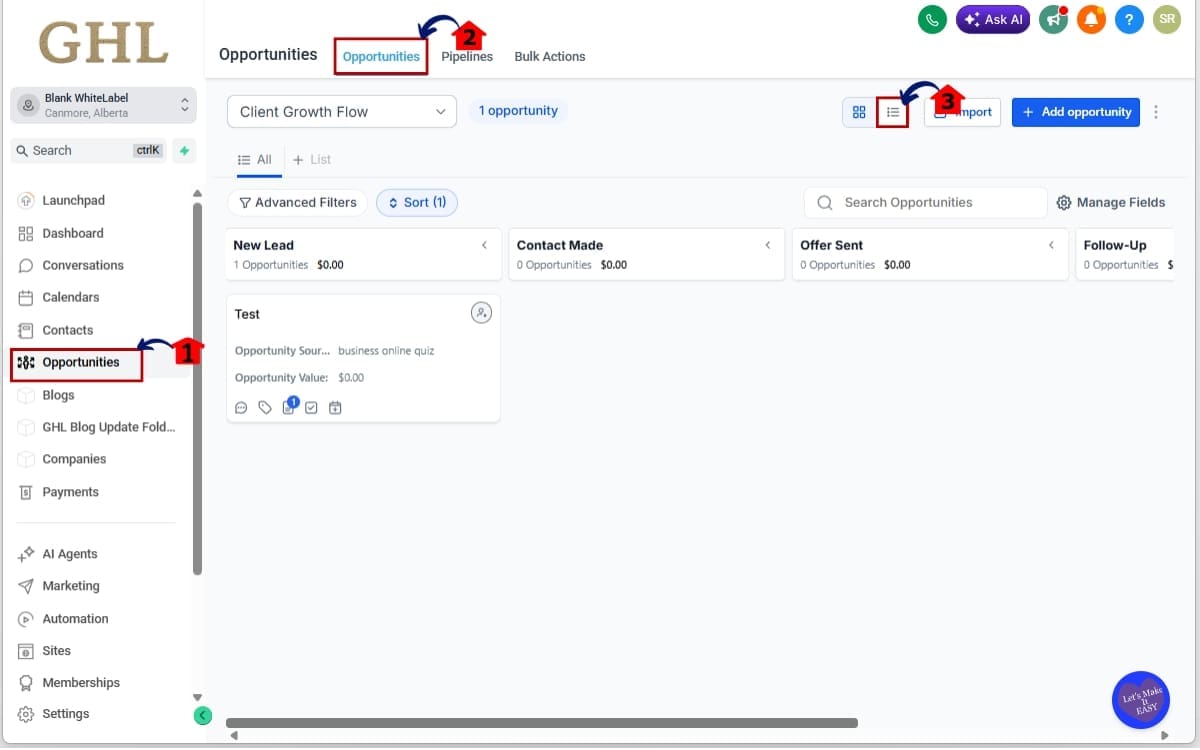
Step 01 – Access the Opportunities Main Left Hand Menu in GoHighLevel
- The Main Menu on the left side of your screen has all the main areas you work in when using GHL.
1.1 Click on the “Opportunities” menu item.
- You’ll now be inside the Opportunities section where all your pipelines live.
1.2 Click “Opportunities” at the menu above.
- Select the “opportunities” above the menu.
1.3 Select the Pipeline you want to manage from the dropdown at the top.
- Make sure you are viewing the correct pipeline before applying sorting.
Step 02 – Open the Sort Function and Select a Custom Field
- Select the Sort option to quickly reorder Opportunities based on your chosen custom field.
2.1 Locate the “Sort” option in the Opportunities view (top area of the pipeline board or list view).
- Use the Sort dropdown to quickly reorder Opportunities based on any supported custom field.
2.2 Click the “Sort” dropdown.
- You will now see available sorting options, including supported Custom Fields.
2.3 Scroll through the available fields and choose your desired Custom Field.
- Only supported field types will appear (Number, Monetary, Date, Dropdown, etc.).

Step 03 – Apply Strategic Sorting Scenarios
- Now let’s make this practical.
3.1 Sort by Close Date (Date Field)
- Select your projected close date field
- Choose Ascending order
This surfaces deals that need attention soon. Great for urgency-driven follow-up.

Step 04 – Switch Between Sorting Views
- This makes pipeline reviews flexible and dynamic.
4.1 You can change sorting anytime by reopening the Sort dropdown.
- You are no longer locked into one default order.

Custom Field Sorting gives you live control over how your pipeline behaves.
Pro Tips to Maximize Custom Field Sorting
Custom Field Sorting is powerful on its own. But if you structure your custom fields strategically, it becomes a serious control system for your sales process.
Here’s how to make the most of it.
Create a Priority Score Field
If you don’t already have one, create a Number custom field called something like:
- Deal Priority
- Revenue Rank
- Sales Score
Don’t overthink it. Set up a quick 1–10 priority score. Sort descending. Boom — your pipeline now shows you what deserves attention before anything else.
Use Monetary Fields for Executive Reviews
When leadership reviews pipelines, they don’t care about card order. They care about revenue.
Sorting by a Monetary custom field in descending order gives instant clarity on:
- Highest value deals
- Revenue concentration
- Risk exposure
That turns pipeline reviews into strategic meetings instead of guesswork sessions.
Use Date Fields for Daily Focus
If your team struggles with follow-up timing, sort by a custom Close Date or Follow-Up Date field in ascending order. Now the most urgent deals surface automatically. No reminders needed.
Keep Dropdown Fields Clean
If you use dropdown custom fields like:
- Service Tier
- Client Type
- Campaign Type
Make sure the naming order makes sense.
For example:
- Premium
- Standard
- Basic
Instead of random naming that breaks logical grouping. Sorting follows the internal order structure.
Don’t Overbuild Custom Fields
Just because you can sort by many fields doesn’t mean you should. Too many custom fields create clutter. Build fields with intention.
Every custom field should support:
- Visibility
- Reporting
- Automation
- Sorting logic
If it doesn’t serve one of those, reconsider it.
Combine Sorting with Pipeline Stages
Sorting doesn’t replace stages. It enhances them. You still move deals through stages. But inside each stage, Custom Field Sorting helps you see which deals matter most.
That’s where the real leverage happens.
When structured properly, Custom Field Sorting doesn’t just organize your pipeline. It operationalizes it.
What Custom Field Sorting Means for Your Business
Custom Field Sorting isn’t just about cleaner pipelines. It’s about better decisions.
When your Opportunities are organized based on revenue, urgency, or internal scoring, your team focuses on the right deals first.
That changes performance. Instead of reacting to whatever card is closest, your sales reps work from structured priority. High-value deals rise to the top. Urgent opportunities surface automatically. Premium service tiers stay visible.
And that reduces lost revenue. Think about weekly sales meetings.
Without structure, managers ask: “What should we focus on?”
With Custom Field Sorting, the pipeline answers that question immediately.
Sort by:
- Highest deal value
- Closest close date
- Highest priority score
- Premium client tier
Now everyone sees the same priorities. That improves alignment. It also improves forecasting.
When you sort by Close Date, you get a clear view of what revenue is expected soon. When you sort by Monetary value, you see how much risk is sitting in one or two large deals.
No spreadsheets required. For agencies managing multiple sales reps, this creates consistency. For VAs organizing pipelines, this saves time. For founders reviewing performance, this provides instant clarity.
Custom Field Sorting turns your pipeline into a control dashboard.
Less manual organizing. Less confusion. More strategic visibility.
Real-World Use Cases for Custom Field Sorting
Custom Field Sorting isn’t theory. It’s operational leverage.
Here’s how real agencies and teams can use it inside GoHighLevel.
Agency Prioritizing High-Ticket Clients
If your retainers range from a grand to ten grand a month, track that projected value in a monetary field. Flip the sort so the biggest deals sit at the top.
Now your highest-paying opportunities always appear first. Your team naturally focuses on revenue-driving deals without even thinking about it.
VA Managing Appointment Pipelines
A virtual assistant managing multiple pipelines can sort by:
- Follow-Up Date (Date field)
- Priority Level (Dropdown field)
Sorting by Follow-Up Date in ascending order ensures no urgent lead slips through. No extra spreadsheet needed.
Sales Manager Running Weekly Reviews
During pipeline meetings, managers can quickly switch sorting to:
- Close Date → to see what’s expected this week
- Deal Value → to evaluate revenue concentration
- Lead Score → to check qualification quality
Instead of manually scanning cards, the structure answers the question instantly.
Multi-Service Agency Sorting by Service Type
If you offer:
- SEO
- Paid Ads
- Website Builds
You can create a dropdown custom field called “Service Type.” Sorting by that field lets you group similar deals together. This helps resource planning and forecasting.
Enterprise Agency Using Internal Ranking Codes
Some agencies score opportunities using internal numeric codes.
For example:
- 10 = Ready to close
- 7 = Strong opportunity
- 5 = Warm
- 3 = Early stage
Sorting by that Number field in descending order instantly shows which deals deserve attention. That’s operational clarity.
Founder Doing Quick Revenue Health Checks
Before a big strategy meeting, sort by Monetary value.
Now you instantly see:
- How many large deals are active
- Whether revenue is concentrated
- If small deals are dominating the pipeline
That insight usually requires reports. Now it takes one click. Custom Field Sorting doesn’t just organize data. It changes behavior. And better behavior drives better results.
Custom Field Sorting FAQs
Smarter Pipelines with Custom Field Sorting
Custom Field Sorting might look like a small update. It’s not. It shifts your pipeline from manual organization to structured prioritization.
Instead of dragging cards around, guessing what matters, or relying on memory during sales meetings, you now have a one-click way to surface the deals that drive revenue.
Sort by:
- Highest deal value
- Closest close date
- Internal priority score
- Service tier
- Lead score
Your pipeline becomes clearer. Your team becomes aligned. Your decisions become faster.
This update doesn’t change your automation. It doesn’t change your stages. It changes visibility. And visibility drives focus.
When your Opportunities are organized around real business data, your team naturally works on the right deals first.
Less friction. Less manual sorting. More control. Custom Field Sorting turns your pipeline into a working revenue board instead of just a visual list of deals.
If you haven’t tested it yet, jump into Opportunities right now and try sorting by one of your key custom fields. You’ll immediately see how much clarity it adds.
The team here at GHL Growth Garage loves these kinds of updates. Simple feature. Real operational impact.
Have you started using Custom Field Sorting in your pipeline yet? Let us know how you’re applying it inside your agency.
Scale Your Business Today.
Streamline your workflow with GoHighLevel’s powerful tools.