- Opportunity Appointment Booking Inside GHL Just Improved
- Quick Summary – Opportunity Appointment
- Here are this weeks HighLevel Updates
- What’s New in Opportunity Appointment Booking
- What’s Changed from the Previous Booking Experience
- Why Opportunity Appointment Booking Matters for Users
- How to Use Opportunity Appointment Booking in GHL
- Pro Tips for Opportunity Appointment Booking
- What This Means for Your Business
- Real-World Workflow Using Opportunity Appointment
- FAQs About Opportunity Appointment Booking
- Final Thoughts on Opportunity Appointment Booking
Opportunity Appointment Booking Inside GHL Just Improved
Opportunity Appointment Booking inside GHL was functional. But it was limited.
You could book a meeting from an opportunity. You could update it. But the experience felt stripped down.
It didn’t match the full calendar scheduling flow you get inside Meetings, Services, or Rentals. It worked. But it wasn’t built for modern, full-feature scheduling inside your pipeline.
Agencies managing active pipelines felt it most. Sales reps had to work inside Opportunities daily, yet the booking interface didn’t match the rest of the platform. Editing appointments meant dealing with a basic screen that lacked the complete scheduling experience.
Reschedules took longer than they should. Switching between booking types felt inconsistent. And the workflow didn’t feel unified. GHL has now fixed that limitation.
Opportunity Appointment Booking now uses the same modern appointment modal found across Calendars. Meetings, Services, and Rentals all follow the same structured flow — directly inside Opportunities.
No more limited interface. No more disconnected booking experience. No more jumping around the platform.
What changed: Inside Opportunities, clicking Book or Update Appointment now opens the full-feature appointment modal. If an appointment already exists, it loads with pre-filled details ready for editing. The experience is consistent across scheduling types, and everything stays tied directly to the opportunity record.
Who this is for: Agency owners managing pipeline stages. Sales reps booking discovery calls. Appointment setters handling reschedules. Virtual assistants updating deals. And any GHL user who wants a cleaner, more consistent CRM scheduling workflow.
What we’ll demonstrate: In this breakdown, we’ll walk through what’s new in Opportunity Appointment Booking, explain why it matters for pipeline efficiency, show you exactly how to use the new appointment modal, and share practical workflow tips to help your team move faster inside Opportunities.
The latest GoHighLevel Changelog includes several other GHL feature updates that round out your daily workflow:
- New QR Code Styling Options: Shapes, Borders, and Rim Text
- Collapse & Resize Pipeline Stages in Kanban View
- Notes just got smarter for the contacts page!
- New Asana actions in workflows – Find Project and Find section
- Email AI + Knowledge Base Integration 🚀
- Dialer: Auto-minimize, Pin & Drag
- Schema Markup Using AI
Keep reading for much more on all these updates and a deep dive into the Appointment booked feature!
Quick Summary – Opportunity Appointment
Purpose: This update upgrades Opportunity Appointment Booking inside GHL by bringing the full calendar scheduling modal directly into the pipeline view.
Why It Matters: It removes friction between Opportunities and Calendars, making booking and updating appointments faster and more consistent.
What You Get: A unified appointment modal, pre-filled editing for existing bookings, support for Meetings, Services, and Rentals, and improved automation compatibility.
Time to Implement: Immediate. No additional setup is required if your calendars are already configured.
Difficulty Level: Easy. If you can open an opportunity, you can use the new booking modal.
Key Outcome: Cleaner pipeline management, faster reschedules, stronger automation triggers, and better CRM accuracy.
Here are this weeks HighLevel Updates
New QR Code Styling Options: Shapes, Borders, and Rim Text
What it does:
Lets you stop using boring QR codes. You can now tweak the shape, style the border, and add text around the edge.
Where in GHL:
Accessible via Sites → QR Codes and within QR tools embedded in Funnel and Website builders.
Automate marketing, manage leads, and grow faster with GoHighLevel.

Impact:
Improves visual presentation and brand alignment while increasing scan appeal.
Best suited for:
Agencies that care about branding, small businesses running local promotions, online stores, and teams pushing QR campaigns.
Collapse & Resize Pipeline Stages in Kanban View
What it does:
Lets you hide pipeline stages you’re not actively using and adjust column widths so your board fits the way you work.
Where in GHL:
Inside Opportunities when you’re viewing your pipeline in Kanban mode.
Impact:
No more dragging your screen forever just to find the deals that matter.
Best suited for:
Owners running multi-stage pipelines, reps working deals every day, and anyone fed up with a messy board.
Notes Just Got Smarter for the Contacts Page
What it does:
Upgrades the notes area so it’s easier to write, review, and keep things organized inside a contact record.
Where in GHL:
Found directly within each contact’s profile under Notes.
Impact:
Makes it simpler to see what’s been discussed and who added what — without digging through clutter.
Best suited for:
Teams collaborating on accounts and businesses that document every client touchpoint.
New Asana Actions in Workflows – Find Project & Find Section
What it does:
Lets your workflow check what already exists in Asana before adding anything new.
Where in GHL:
Go to Workflows, add an action, and choose the Asana integration.
Impact:
No more duplicate projects. No more messy task boards. Just cleaner automation.
Best suited for:
Operations teams and agencies that rely on Asana to manage client delivery.
Email AI + Knowledge Base Integration
- What it does:
Allows Email AI to reference your Knowledge Base for smarter, more accurate responses. - Where in GHL:
Found in Conversations → Email composer with AI enabled and Knowledge Base settings under AI configuration. - Impact:
Smarter email suggestions that understand your business and help you reply quicker. - Best suited for:
Support teams, agencies managing inboxes, and businesses scaling communication with AI.
Dialer: Auto-Minimize, Pin & Drag
- What it does:
Lets you auto-minimize the dialer during calls, pin it in place, and drag it anywhere on screen. - Where in GHL:
Found in Conversations → Dialer. - Impact:
Cleaner workspace and easier multitasking during sales or support calls. - Best suited for:
Sales teams, outbound callers, appointment setters, and agencies making daily calls.
Schema Markup Using AI
- What it does:
Generates structured schema markup automatically using AI for SEO enhancement. - Where in GHL:
Found in Sites → Website or Funnel settings within AI or SEO sections. - Impact:
Improves search visibility without manual coding. - This works well for:
Teams building websites that need stronger search visibility, from agencies to small local businesses.
What’s New in Opportunity Appointment Booking
The Opportunity Appointment Booking experience inside GHL has been upgraded to use the new unified appointment modal.
Previously, booking or updating an appointment from within an opportunity used a limited interface designed mainly for basic meeting scheduling. It worked, but it didn’t reflect the full functionality available in the Calendars section.
With this update, Opportunities now use the same full-featured scheduling modal found across:
- Meetings
- Services
- Rentals
This creates a consistent experience across the platform.
Here’s what’s new:
- A modern appointment booking and editing modal inside Opportunities
- Full calendar functionality when creating new appointments
- Pre-filled appointment details when editing existing bookings
- Support for multiple scheduling types (Meeting, Service, Rental)
- A unified user experience aligned with the main Calendars section
Already have an appointment linked to the deal? Click Update Appointment and everything loads up automatically. You can adjust the time, make changes, or remove it entirely, all without leaving the opportunity.
Each opportunity is currently associated with one appointment. That appointment can be updated as needed. Support for multiple appointments per opportunity is planned for a future enhancement.
This update brings full scheduling capability directly into the pipeline workflow, eliminating inconsistencies between Opportunities and Calendars.
What’s Changed from the Previous Booking Experience
Before this update, booking an appointment inside an opportunity used a simplified interface. It allowed basic scheduling, but it did not match the full functionality available in the main Calendars section.
The experience felt separate from the rest of the platform.
Here’s what has changed:
- The old limited booking interface has been replaced
- The new unified appointment modal is now used inside Opportunities
- Scheduling now mirrors the same flow used in Meetings, Services, and Rentals
- Editing an existing appointment now loads pre-filled data inside the full modal
- The overall design is cleaner and more consistent
Before this, anything beyond basic booking meant jumping over to the Calendars tab. Now you can handle it all right inside the opportunity.
This update removes friction between pipeline management and calendar scheduling. The booking process is no longer a “lite” version inside Opportunities.
It is the full experience.
The result is better consistency across the platform and fewer workflow interruptions for sales teams and agencies managing active pipelines.
Why Opportunity Appointment Booking Matters for Users
This update improves how scheduling works inside your pipeline.
Opportunities and Calendars are now fully aligned. That means fewer clicks, fewer workflow breaks, and fewer mistakes when booking or updating appointments.
Here’s why this matters:
- Scheduling happens directly inside the opportunity record
- No need to switch between Opportunities and Calendars
- Rescheduling is faster with pre-filled appointment data
- The experience is consistent across all booking types
- Sales reps can stay focused inside the pipeline
For agencies managing multiple pipelines, this creates better operational flow. Sales teams can book calls, update appointments, and move deals forward without leaving the opportunity screen.
If you run services, this clears up the guesswork. Booking a consult, charging for a service, or reserving a rental now all follows the same steps.
This update also improves clarity. Appointment data stays directly tied to the opportunity, reducing the risk of disconnected bookings or missed updates.
Who benefits most:
- Agency owners managing active sales pipelines
- Sales reps booking discovery or strategy calls
- Appointment setters handling reschedules
- Virtual assistants updating opportunities daily
- Service businesses using multiple calendar types
By unifying Opportunity Appointment Booking with the main calendar experience, GHL removes friction from one of the most common daily tasks inside the CRM.
The result is a smoother, faster scheduling workflow inside Opportunities.
How to Use Opportunity Appointment Booking in GHL
The Opportunity Appointment Booking feature is managed directly within the Opportunities section of your GHL account. From the opportunity record, you can schedule, modify, or remove appointments using the updated booking modal. This ensures your scheduling and pipeline remain aligned.
In the steps below, you’ll learn how to access Opportunities, book a new appointment, update or delete an existing booking, and apply this feature within a real sales workflow.
- Access the Opportunities Section in GoHighLevel.
- Book a New Appointment from an Opportunity.
- Fill out appointment details in opportunities.
- Delete an Appointment (If Needed).
To start, make sure you are logged in to your GoHighLevel sub-account.
Step 01 – Access the Opportunities Section in GoHighLevel
- The Opportunities section is where your pipelines live.
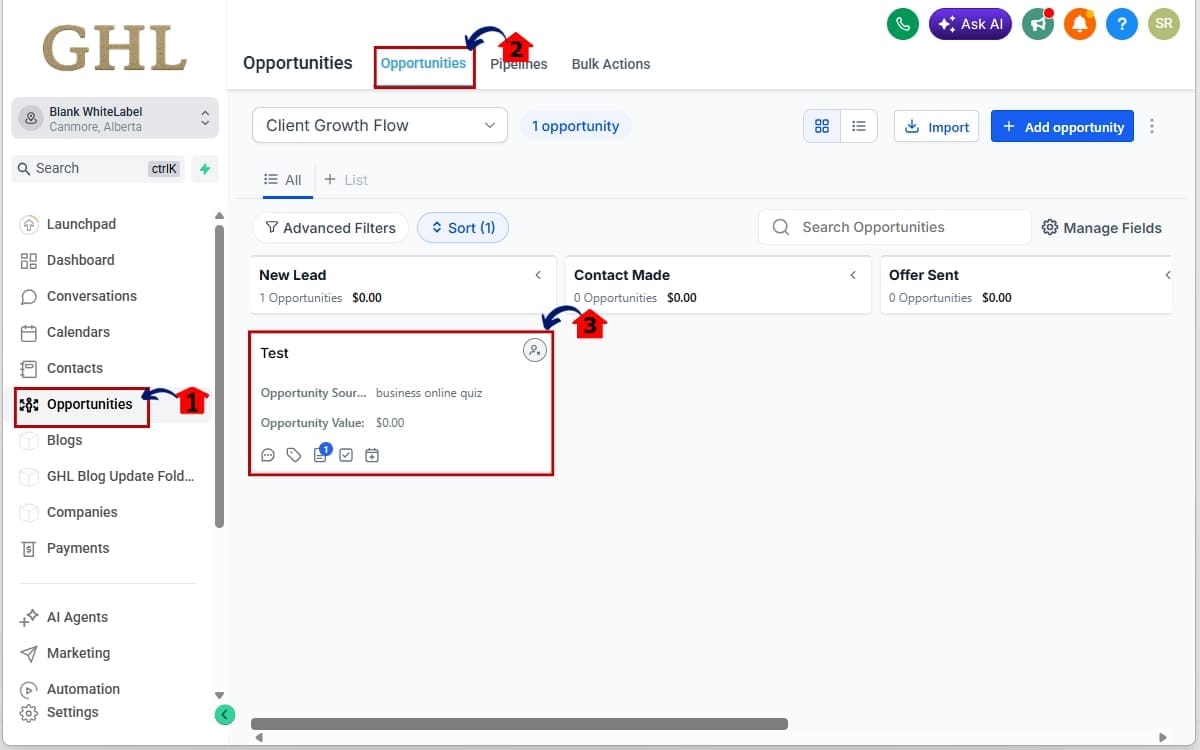
1.1 Click on “Opportunities” in the main left-hand menu.
- This opens your pipeline view (Kanban or List view depending on your settings).
1.2 Click Opportunities in menu
- Select opportunities in the menu above.
1.3 Click on an existing opportunity card to open the opportunity record.
- This opens the detailed opportunity panel where contact details, tasks, notes, and appointments are displayed.
Step 02 – Book a New Appointment from an Opportunity
- If no appointment exists yet, you can create one directly from this screen.
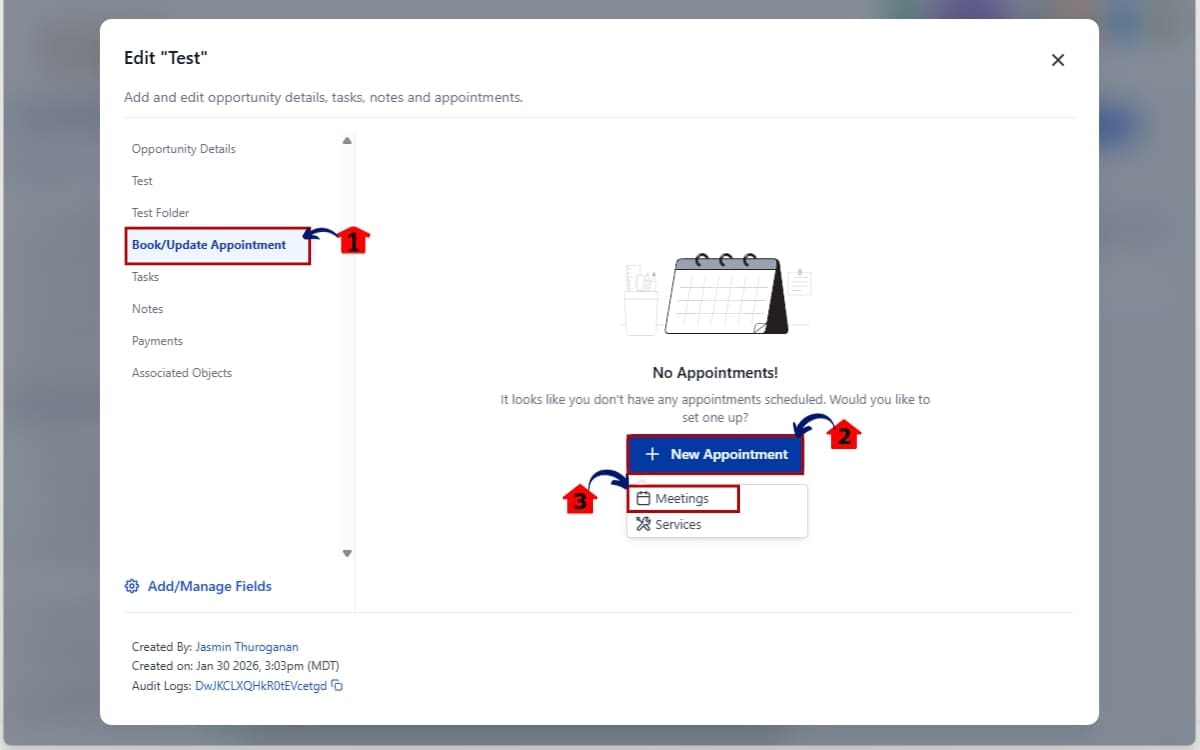
2.1 Inside the opportunity record, click “Book/Update Appointment.”
- The new appointment modal will open.
2.2 Click “new appointment”
- This will open dropdown for appropriate calendar.
2.3 Select the appropriate calendar.
- Choose between Meeting, Service, or Rental (depending on what you have configured).
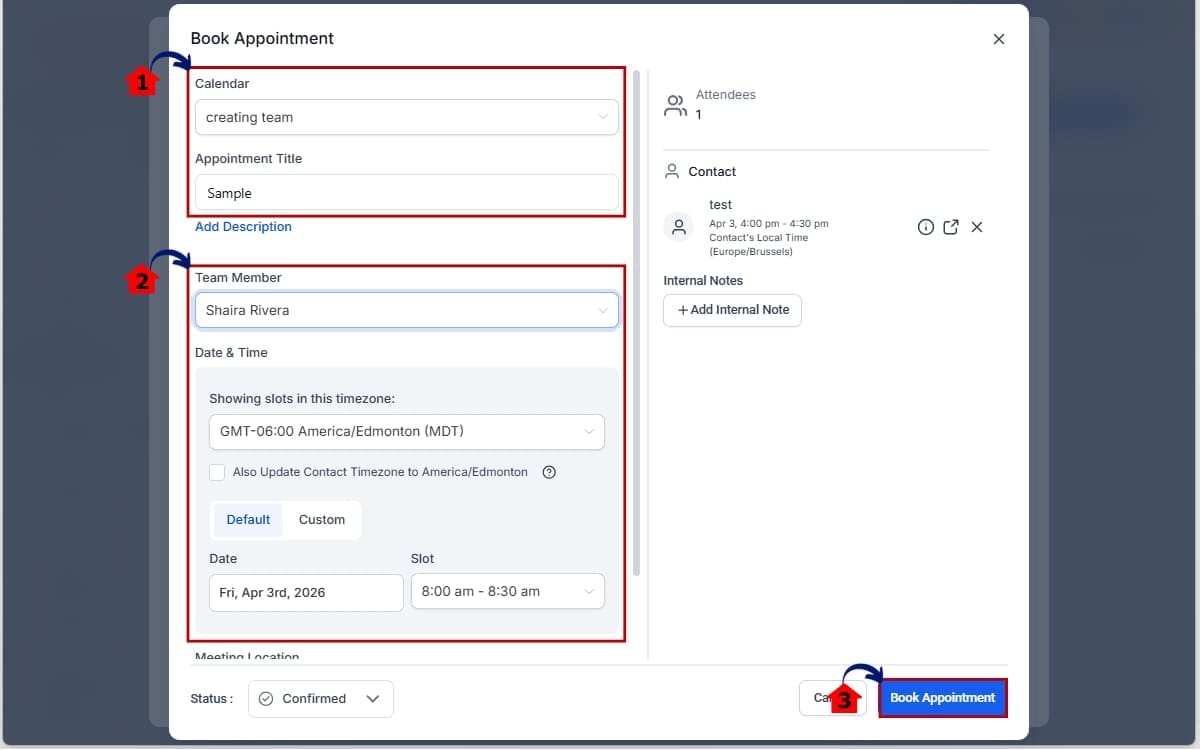
Step 03 – Fill out appointment details in opportunities
- Enter the date, time, and confirm the contact details before saving the appointment.
3.1 Select Calendar and add appointment Title
- Choose the appropriate calendar and enter a clear appointment title.
3.2 Select team member and Choose the date and time.
- Available time slots will display based on your calendar settings.
3.3 Click book appointment
- The appointment is now created and tied directly to the opportunity.
Step 04 – Delete an Appointment (If Needed)
- If the appointment needs to be removed completely:
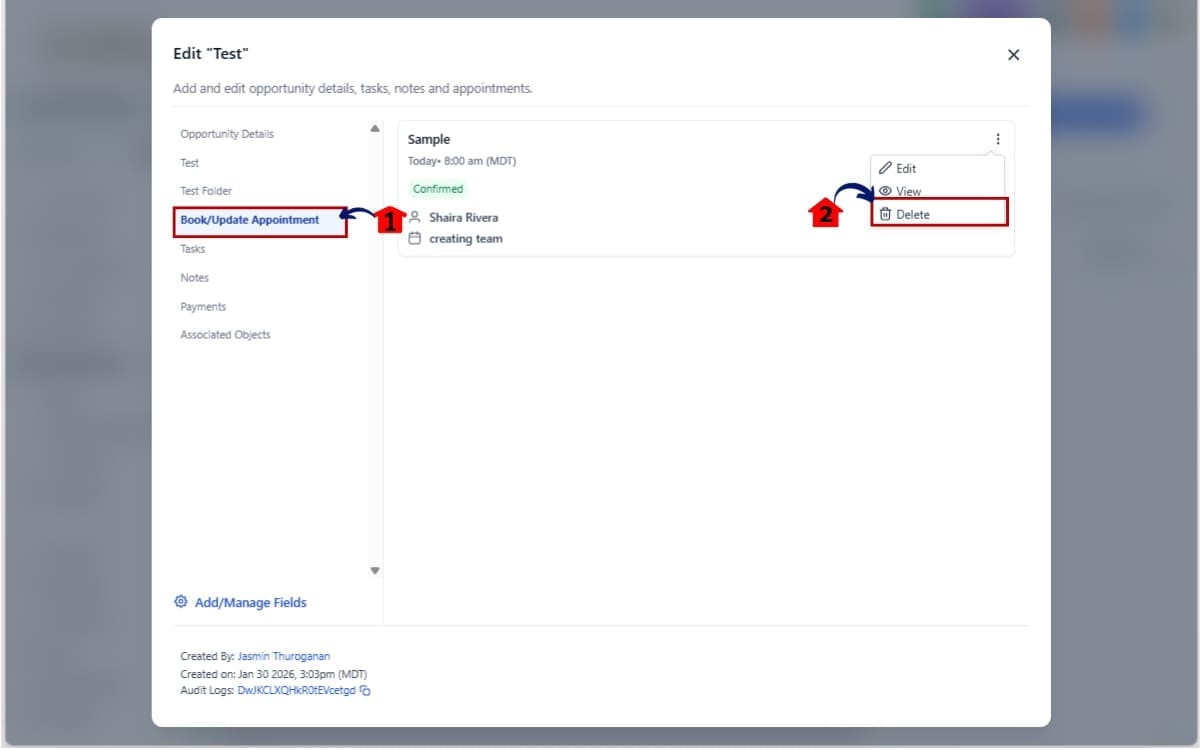
4.1 Click “Book/Update Appointment.”
- Inside the opportunity record, choose “Book/Update Appointment.”
4.2 Select the delete option inside the modal.
- The opportunity will no longer display an associated appointment.
That’s it. Opportunity Appointment Booking now works as a seamless extension of your pipeline, not a separate system.
Pro Tips for Opportunity Appointment Booking
Now that Opportunity Appointment Booking uses the full calendar modal, you can do more than just schedule a time slot.
Here’s how to get the most out of it.
Automate your pipeline movement
Don’t manually drag opportunities after booking.
Instead:
- Create a workflow triggered by “Appointment Booked”
- Add an action to move the opportunity to the correct stage
- Trigger internal notifications for your team
This keeps your pipeline clean without extra clicks.
Use pre-filled editing to speed up reschedules
When a client needs to reschedule, don’t delete and recreate the appointment.
Click Update Appointment.
The modal loads with all existing details. Just adjust the date or time and save. It’s faster and reduces errors.
Align calendar types with pipeline stages
If you use different booking types (Discovery Call, Strategy Session, Paid Service, Rental), align them with specific pipeline stages.
Example:
- Discovery Call → “Consult Scheduled”
- Paid Service Booking → “Service Confirmed”
- Rental Booking → “Rental Reserved”
This improves reporting and forecasting.
Avoid duplicate opportunities
Since each opportunity currently supports one appointment, don’t create new opportunities just to reschedule. Update the existing booking instead. This keeps your CRM clean.
Prepare for multi-appointment support
Right now, each opportunity supports one appointment.
If your workflow requires multiple appointments (like Discovery Call → Follow-Up Call), structure your pipeline stages to reflect progression. When multi-appointment support launches, your structure will already be optimized.
Keep your calendars properly configured
The appointment modal pulls directly from your existing calendar settings.
Make sure:
- Availability is accurate
- Assigned users are correct
- Confirmation emails are configured
- Time zones are set properly
Clean calendar setup = smooth Opportunity Appointment Booking.
Common Mistakes to Avoid
- Forgetting to attach workflows to appointment triggers
- Manually moving pipeline stages instead of automating
- Booking under the wrong calendar type
- Not confirming contact details before saving
This update removes friction.
But automation is what turns it into a real efficiency boost.
What This Means for Your Business
Opportunity Appointment Booking is no longer just a small scheduling feature inside your pipeline.
It is now a fully integrated scheduling system built directly into your CRM workflow.
That changes how your team operates daily.
First, it reduces friction.
Sales reps no longer need to jump between Opportunities and Calendars. Everything happens inside the opportunity record. That means faster booking, faster rescheduling, and fewer missed steps.
Second, it improves pipeline accuracy.
When appointments are tied directly to opportunities using the same full calendar experience, your data becomes cleaner. Your stages reflect real activity. Your reporting becomes more reliable.
Third, it increases team efficiency.
Appointment setters can book calls directly from the deal.
Sales reps can update bookings in seconds.
Virtual assistants can manage scheduling without leaving the pipeline view.
Less context switching means more focus.
Fourth, it supports better automation.
Because the appointment modal is now unified with the main calendar system, triggers like:
- Appointment Booked
- Appointment Rescheduled
- Appointment Completed
- Appointment Cancelled
Work seamlessly with your opportunity stages.
That means you can build workflows that automatically:
- Move deals to “Consult Scheduled”
- Send reminders
- Notify team members
- Trigger follow-ups
- Update internal tasks
Your CRM and your calendar now speak the same language. Finally, it prepares your system for future scalability.
At the moment, you can attach one appointment per opportunity. Support for multiple bookings is on the way. Teams that already run organized pipelines and solid automation won’t need to overhaul anything when it rolls out.
This update may look small on the surface. But operationally, it removes friction from one of the most common daily actions inside GHL: booking and updating appointments.
Cleaner scheduling. Better pipeline flow.Stronger automation. That’s real business impact.
Real-World Workflow Using Opportunity Appointment
Let’s break this down using a simple agency sales process.
Scenario: A marketing agency booking strategy calls for new leads.
Step 1 – Lead Comes In
- A prospect fills out a funnel form
- A contact is created in GHL
- An opportunity is automatically created in the “New Lead” stage
At this point, your sales rep opens the opportunity to review the details.
Step 2 – Strategy Call Is Booked
Inside the opportunity record:
- The rep clicks Book Appointment
- The new appointment modal opens
- They select the “Strategy Call” calendar
- Choose a time slot
- Confirm the booking
The Opportunity Appointment Booking is now directly tied to the opportunity.
No switching tabs. No extra navigation.
Step 3 – Automation Takes Over
Because the Opportunity Appointment Booking is linked to the calendar system, your workflows trigger automatically:
- Opportunity moves to “Consult Scheduled”
- Confirmation email is sent
- SMS reminder is scheduled
- Internal Slack notification is triggered
- Task is created for the assigned sales rep
Everything updates in sync.
Step 4 – Opportunity Appointment Booking Is Completed
When the strategy call is marked as completed:
- A workflow moves the opportunity to “Proposal Sent”
- Follow-up email sequence begins
- Internal reminder task is created
The pipeline stays clean and accurate.
Step 5 – Deal Is Closed
If the client signs:
- Opportunity moves to “Closed Won”
- Onboarding workflow begins
- Asana or internal task board is triggered
- Welcome email is sent
All because the original Opportunity Appointment Booking was tied directly into automation.
Why This Matters
This is where the update really shines.
Because Opportunity Appointment Booking now uses the full scheduling modal:
- Rescheduling does not break automation
- Editing appointments keeps triggers intact
- Calendar types stay consistent
- Data stays tied to the opportunity record
Your CRM becomes predictable. Your team works faster. Your reporting becomes more reliable. This is not just about better UI. It’s about building a smoother sales engine inside GHL.
FAQs About Opportunity Appointment Booking
Final Thoughts on Opportunity Appointment Booking
Opportunity Appointment Booking inside GHL is now fully aligned with the platform’s core scheduling system.
What used to feel like a limited booking tool inside Opportunities is now a complete, unified Opportunity Appointment Booking experience. Meetings, Services, and Rentals all follow the same flow — directly inside your pipeline.
That means:
- Cleaner scheduling
- Faster updates
- Better automation triggers
- Improved CRM accuracy
Your sales team no longer has to jump between sections to manage Opportunity Appointment Booking. Everything happens inside the opportunity record.
That may sound small.
But when you book, reschedule, and manage calls every single day, small friction adds up.
This update removes that friction.
Your calendar and pipeline finally feel connected, not like two systems duct-taped together. Add automation on top, and it really starts to click.
Book a call. Move the stage automatically. Trigger reminders. Notify your team. Close the deal. All connected.
The team here at GHL Growth Garage is always watching for updates that improve daily workflow. This is one of them.
If you manage pipelines, book calls, or rely on structured automation, this upgrade is worth using immediately.
Log into your sub-account. Open an opportunity. Book a test Opportunity Appointment Booking. See the difference yourself.
Have you started using the new Opportunity Appointment Booking modal yet? Let me know how it’s improving your workflow.
Scale Your Business Today.
Streamline your workflow with GoHighLevel’s powerful tools.