- Automatically save every step in your AI-generated workflows with this time-saving GHL update
- Why workflow autosave is a game-changer
- Quick Summary – Workflow Autosave Essentials
- What’s New – Autosave now in AI Builder
- What’s Changed – Manual saving is now optional
- Why This Matters – Reliability and speed
- How to Use – Turn on workflow autosave in GHL
- Pro Tips – Make the most of workflow autosave
- What This Means – More confidence in your workflows
- Frequently Asked Questions –About workflow autosave
Automatically save every step in your AI-generated workflows with this time-saving GHL update
Why workflow autosave is a game-changer
Workflow autosave is now built into AI Builder, and that’s good news if you’ve ever lost progress while building automations. No more starting from scratch because of a refresh, crash, or missed save.
This update solves a simple but frustrating problem. You can now focus on building smarter workflows with AI while everything saves quietly in the background. No extra clicks. No extra stress.
If your agency runs on automations, this small change can make a big difference in your day-to-day work.
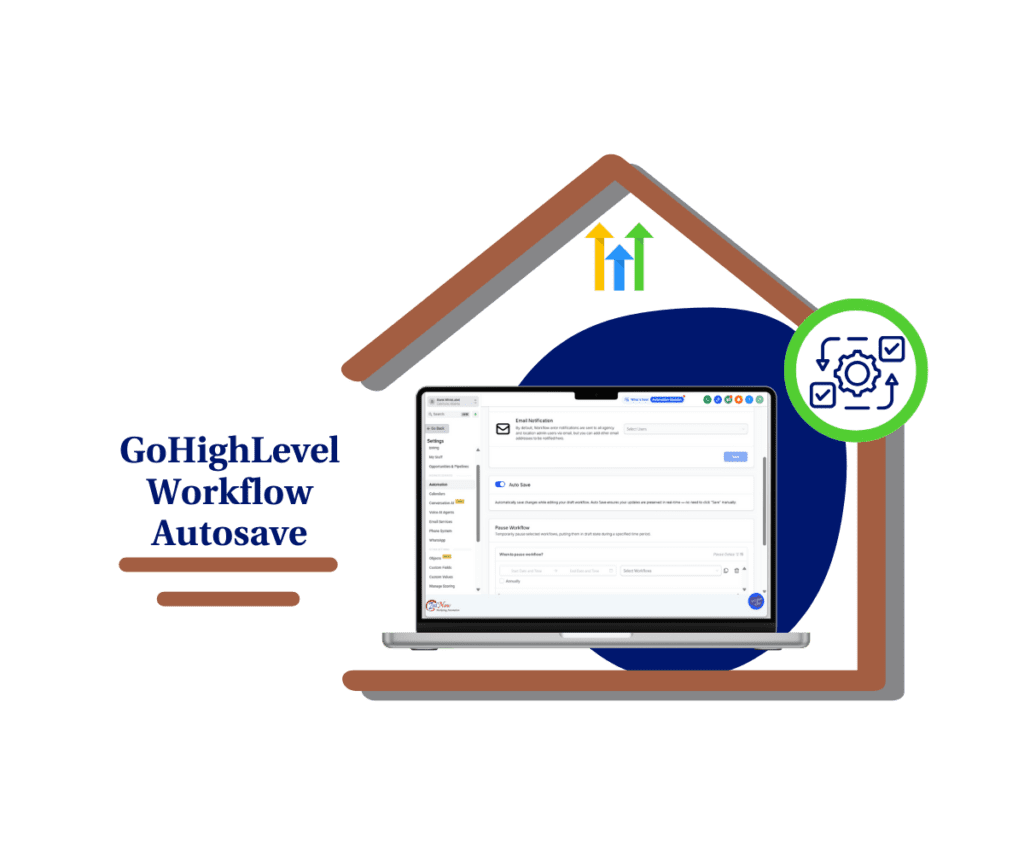
Workflow autosave now works inside AI Builder. That means every step you take is saved as you build. No more stressing over lost edits or clicking save a hundred times. Just focus, build, and keep moving.
Quick Summary – Workflow Autosave Essentials
Purpose: Workflow autosave keeps your AI Builder changes saved in real time so you don’t lose work or waste time redoing steps.
Why It Matters: It removes the risk of losing progress from crashes, refreshes, or missed saves while building workflows.
What You Get: Automatic background saving for any workflow created or edited inside AI Builder, once autosave is enabled.
Time to Complete: Less than 2 minutes to toggle it on in your global workflow settings.
Difficulty Level: Beginner. No technical knowledge needed.
Key Outcome: A faster, more reliable way to build and edit workflows using AI in GoHighLevel.
What’s New – Autosave now in AI Builder
Workflow autosave now works inside the AI Builder. When you generate a new workflow using AI, it saves automatically the moment it’s created.
But it doesn’t stop there.
Automate marketing, manage leads, and grow faster with GoHighLevel.

If you keep editing that workflow through AI Builder, those changes are saved in the background too. You don’t have to hit a button or think twice. It just happens.
This update is part of a bigger move to make AI tools in GoHighLevel more reliable and hands-off for busy users.
What’s Changed – Manual saving is now optional
Workflow autosave is now the default for anything you build or update using AI Builder. Before this, you had to click save every time you made a change. If you forgot, your work was gone.
With workflow autosave, that’s no longer a problem. As soon as a workflow is created with AI Builder, it gets saved automatically. Any changes you make later using the AI tools are saved in real time.
You can still save manually if you want, but workflow autosave now takes care of the basics. It’s one less thing to worry about while you build.
Why This Matters – Reliability and speed
Workflow autosave helps you work with more confidence. When you’re building in AI Builder, everything you do is saved as you go. You don’t need to stop and click save every time. That means less stress and fewer mistakes.
If your browser crashes or your internet drops, workflow autosave still keeps your changes. You won’t lose hours of work because you forgot to hit a button.
Workflow autosave also makes the process faster. You can focus on building without breaking your rhythm. For agencies building lots of workflows or testing ideas quickly, this update saves time and cuts down on repeat work.
How to Use – Turn on workflow autosave in GHL
Workflow autosave is available now in your account. You just need to switch it on in your workflow settings. Once it’s enabled, every AI Builder workflow you create or update will save itself in the background.
No extra steps. No pop-ups. No need to remember to save.
Here’s how to turn on workflow autosave in GoHighLevel:
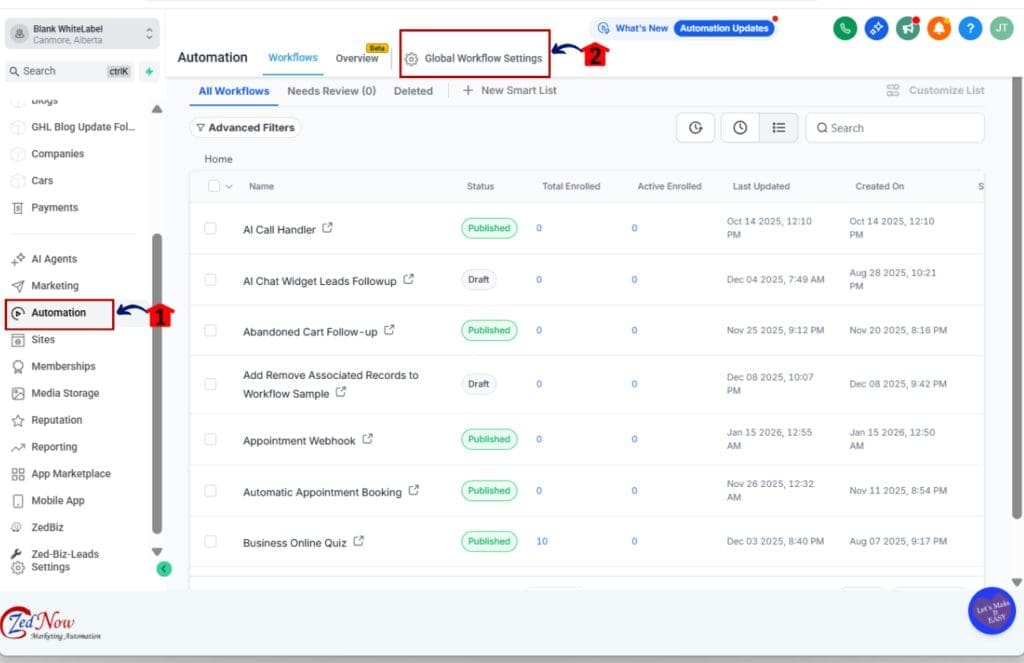
Step 01: Access the Main Left Hand Menu in GoHighLevel
- The Main Menu on the Left side of your screen has all the main areas that you work in when using GHL
1.1 Click on the Automation Menu Item.
- Access the ‘Automation’ section of GoHighLevel
1.2 Click on the Global Workflow Settings tab
- This will open the settings of the global workflow
Step 02: Enable Workflow Autosave
2.1 Scroll down and Look for the “Autosave” toggle
- It’s under the global workflow settings section.
2.2 Switch the toggle to ON
- Once turned on, workflow autosave will start working immediately inside AI Builder.
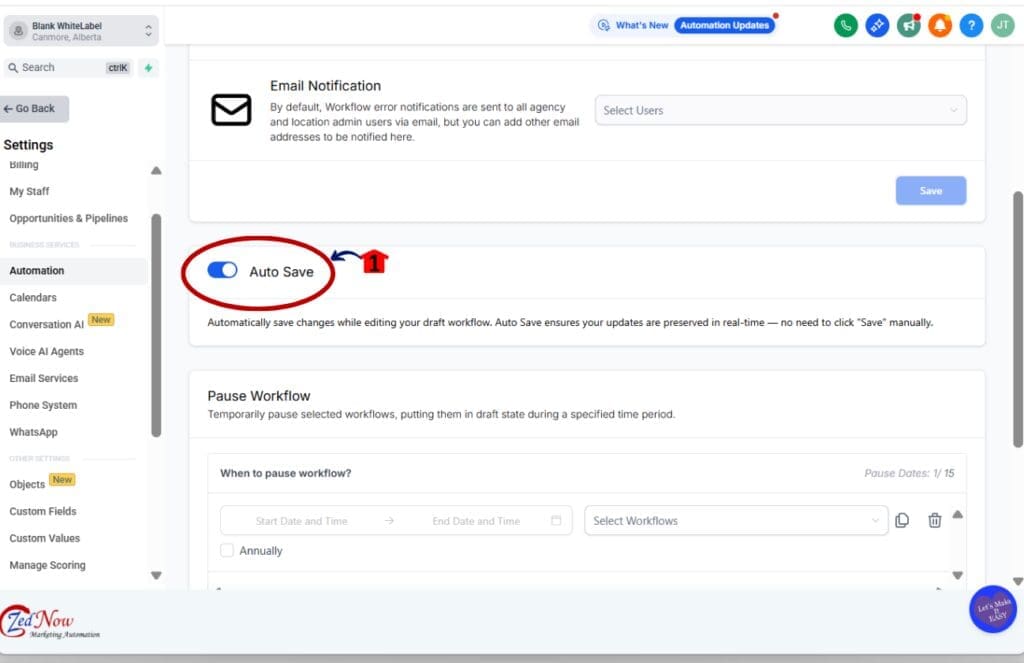
That’s it. There’s no need to hit save again when using AI Builder. Your changes will automatically save in the background while you build.
Note: This setting only applies to workflows created or edited inside AI Builder. If you’re working manually in the visual builder, you’ll still need to click save like usual.
Workflow autosave doesn’t change how you publish or run automations. It simply keeps your edits safe as you go, so you can focus more on building and less on saving.
Pro Tips – Make the most of workflow autosave
Workflow autosave takes care of the basics, but there are still a few smart ways to get more out of it. These tips can help you build faster and avoid headaches later.
Stick to AI Builder when editing
- Autosave only works inside AI Builder. If you switch to manual mode, you’ll need to save changes yourself. If you want full autosave support, keep your edits inside the AI Builder tools.
Clone before big changes
- Even with workflow autosave turned on, it’s still a good idea to clone your workflow before making major edits. This gives you a fallback in case something doesn’t go as planned.
Check your settings once
- Make sure the global autosave toggle is still turned on. If another team member changes it, your workflows won’t autosave until it’s re-enabled.
Preview before publishing
- Just because workflow autosave is active doesn’t mean you should skip checking your setup. Always preview the workflow before publishing, especially when using AI-generated logic or paths.
Use autosave to build faster
- If you’re testing a lot of ideas, workflow autosave can speed things up. You can make quick edits, test outcomes, and keep everything safe without clicking save every time.
What This Means – More confidence in your workflows
Workflow autosave helps you trust the process. When you’re building in AI Builder, every change is saved in real time. You don’t have to think about it. You don’t have to remember to click anything.
This small change makes a big difference, especially if you build a lot of workflows. Workflow autosave gives you more room to focus on the logic and the outcome, not the button at the top of the screen.
If you work with a team, workflow autosave also keeps everyone on track. No lost work. No forgotten changes. It just saves as you go.
You’ll still want to preview before publishing, but you can move faster and feel more confident in your builds. With workflow autosave, your work is safer and your process is smoother.
Frequently Asked Questions –About workflow autosave
Scale Your Business Today.
Streamline your workflow with GoHighLevel’s powerful tools.