- Respondents can leave a form, survey, or quiz and return with every answer saved.
- Quick Summary – Save Form Progress Essentials
- What’s New With Save Form Progress
- What Changed With Save Form Progress
- Why Save Form Progress Matters
- How to Turn On Save Form Progress in GoHighLevel
- Quick Tips for Save Form Progress
- What Save Form Progress Means for Client Work
- Results You Can Expect
- Frequently Asked Questions about Save Form Progress
- Start Using Save Form Progress
Respondents can leave a form, survey, or quiz and return with every answer saved.
Save Form Progress Without Losing Answers
Save Form Progress makes long Forms, Surveys, and Quizzes easier to complete. People can leave before they submit, then return later with their answers still saved. They do not have to start from the beginning.
This is useful when someone needs to find a document, check a date, or take a break. Once the setting is turned on in GoHighLevel, GHL saves their work if they close the browser, refresh the page, or leave the page.
When they return, a Resume Progress window lets them continue or start over. Save Form Progress reduces forced restarts and gives leads and clients a smoother way to finish longer forms.
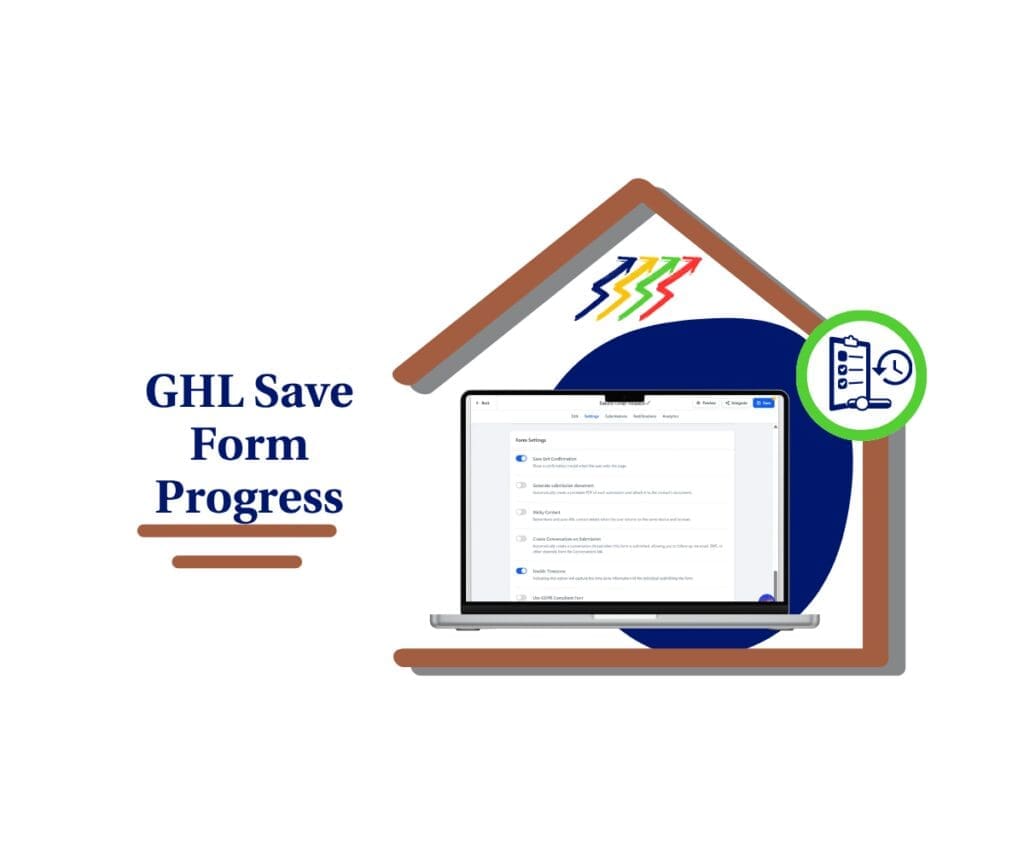
Save Form Progress gives people a simple way to pause a long form, survey, or quiz and return later with their answers still in place. That means fewer forced restarts and a smoother experience for your leads and clients.
Quick Summary – Save Form Progress Essentials
Purpose: Save Form Progress lets people leave a multi-step Form, Survey, or Quiz and return later without losing their answers.
Why It Matters: It reduces forced restarts and makes longer submissions easier to complete.
What You Get: Respondents can choose to continue where they stopped or start over with a new submission.
Time to Complete: Most users can turn on and test the setting in about five minutes.
Difficulty Level: Beginner. The feature is controlled by one toggle inside the asset settings.
Key Outcome: Save Form Progress creates a smoother experience for leads, clients, and anyone completing a longer GHL form.
What’s New With Save Form Progress
Save Form Progress is now available for multi-step Forms, Surveys, and Quizzes in GoHighLevel. You can turn it on from the Settings tab using the Save exit confirmation toggle.
Once it is on, GHL saves a person’s answers if they leave before they submit. This includes closing the browser, refreshing the page, or moving away from the form.
Automate marketing, manage leads, and grow faster with GoHighLevel.

When they return to the same Form, Survey, or Quiz, a Resume Progress window appears. They can continue from where they stopped or start a new submission. Existing assets stay the same until you turn the setting on, so you can choose where Save Form Progress will be most useful.
What Changed With Save Form Progress
Before this update, leaving a multi-step Form, Survey, or Quiz could mean starting again. Save Form Progress now keeps the answers already entered when someone closes, refreshes, or leaves the page.
The feature is not turned on by default. Your existing GHL assets will work as they do now until you enable the Save exit confirmation toggle in Settings. This lets you use it only where it makes sense.
The Resume Progress window also follows the design of your asset. Its button uses the footer colour, while the text uses the label font. It works on both desktop and mobile, so people get a clear and familiar experience on either device.
Why Save Form Progress Matters
Long forms can be useful, but they can also test a person’s patience. Someone may need to check a date, find a document, or stop halfway through. Without Save Form Progress, that interruption can lead to a lost submission.
This feature gives people more control. They can leave a Form, Survey, or Quiz and return when they are ready. That makes it useful for client onboarding, quote requests, detailed surveys, assessments, and lead forms that ask for more than basic contact details.
For agencies, Save Form Progress can improve the user experience without changing the form itself. People are less likely to repeat work, while clients may receive more complete answers. It is a simple update, but it removes a common source of frustration.
How to Turn On Save Form Progress in GoHighLevel
Save Form Progress lets people leave a multi-step Form, Survey, or Quiz and return later with their answers still saved. In this guide, you’ll learn how to open the correct asset, turn on the setting, and save your changes.
Here are the steps we will follow:
- Access the Form, Survey, or Quiz in GHL.
- Enable Save Form Progress.
To start, make sure you are logged in to the correct GoHighLevel sub-account.
Step 01 – Access the Form, Survey, or Quiz in GHL
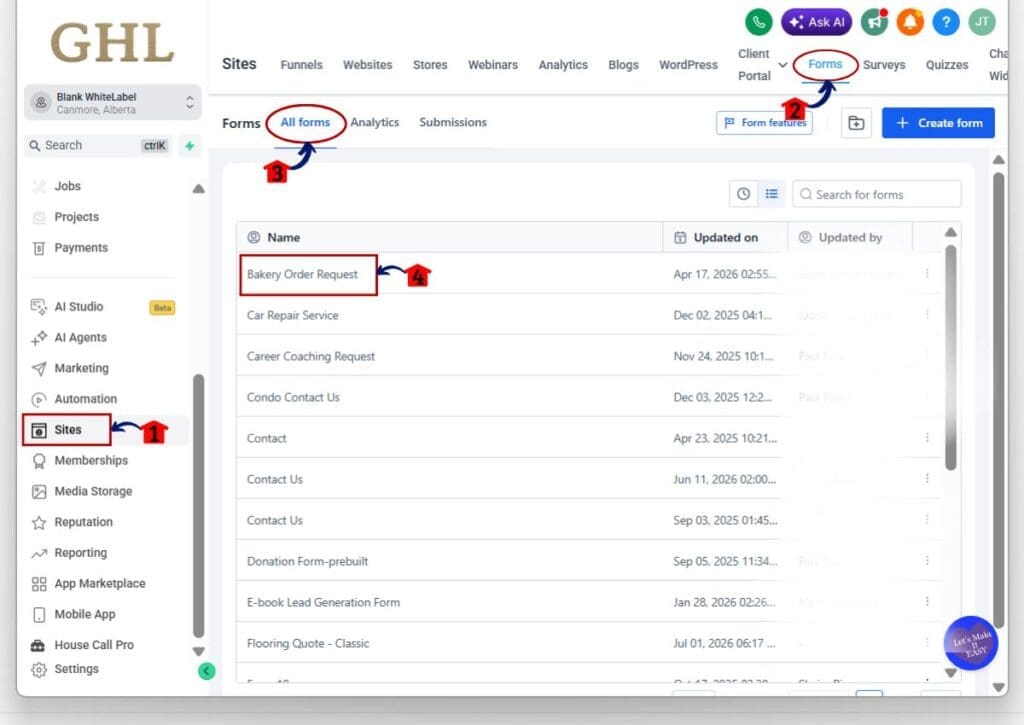
- The main menu on the left side of your screen includes the core areas you use in GoHighLevel.
1.1 Click Sites.
- This opens the main Sites section.
1.2 Click Forms in the top menu.
- The Forms area will open.
1.3 Stay on the All Forms tab.
- This tab shows the forms saved in the sub-account.
1.4 Find the Form you want to update.
- Check the form name before opening it.
1.5 Click the Form name.
- The Form Builder will open.
- For Surveys or Quizzes, follow the same process and select the matching area from the top menu.
Step 02 – Enable Save Form Progress
- The Settings tab includes the option that controls whether unfinished progress is saved.
2.1 Click Settings in the top menu.
- The Form Settings page will open.
2.2 Turn on Save Exit Confirmation.
- This enables Save Form Progress for the selected multi-step Form.
2.3 Click Save.
- The updated setting will now apply to the Form.
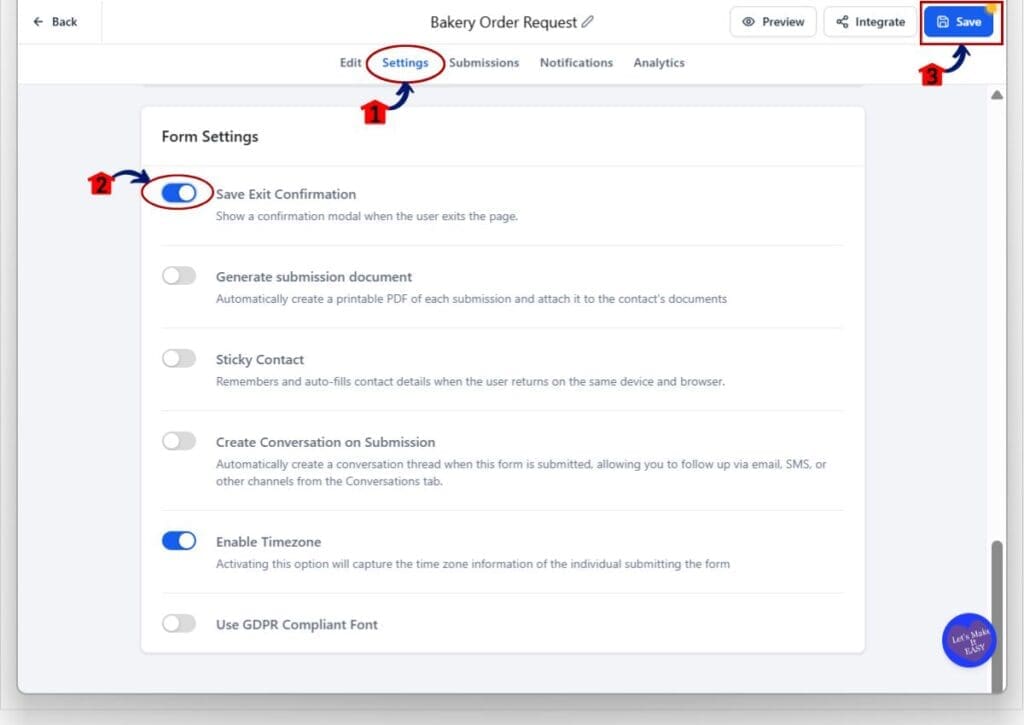
Repeat these steps for any multi-step Surveys or Quizzes where you want people to save their progress and return later.
Once the setting is saved, GHL will keep a respondent’s progress if they leave before submitting. When they return to the same Form, Survey, or Quiz, they can continue where they stopped or start over a new submission.
Quick Tips for Save Form Progress
Use Save Form Progress on longer Forms, Surveys, and Quizzes where people may need time to check details or find documents. It works well for client onboarding, quote requests, applications, and detailed assessments.
Test the feature before you share the live link. Leave the page, return to it, and check both Continue and Start Over. Also review the Resume Progress window on desktop and mobile to make sure the text and buttons are clear.
Do not turn it on just because it is available. Use Save Form Progress where it helps the user. Short forms with only a few fields may not need it.
What Save Form Progress Means for Client Work
Save Form Progress gives agencies a simple way to improve longer client forms without rebuilding them. It is useful for onboarding forms, service applications, quote requests, surveys, and quizzes that ask for detailed answers.
Clients may receive more complete submissions because people do not have to start again after an interruption. The feature also helps keep the experience on brand, since the Resume Progress window uses the Form, Survey, or Quiz colours and fonts.
For agency work, this is a small update with a clear use. Turn it on where longer forms may cause people to stop, then test the full process before sharing the link.
Results You Can Expect
Save Form Progress can reduce the number of people who have to restart a long Form, Survey, or Quiz. It can also make the process feel easier, especially when someone needs time to check details before they submit.
You may see fewer abandoned submissions and more complete answers. Results will depend on the length of the form, the type of questions, and how much effort the user needs to complete it.
This feature will not fix a form that is too long or confusing. Keep the questions clear, remove anything you do not need, and use Save Form Progress as an extra layer of support.
Frequently Asked Questions about Save Form Progress
Start Using Save Form Progress
Save Form Progress gives people more time to finish longer Forms, Surveys, and Quizzes without losing their answers. It also helps reduce forced restarts when someone needs to leave before submitting.
Turn on Save Exit Confirmation in the asset settings, save the change, and test the full process before sharing the live link. Start with the forms that take the most time to complete.
Have you enabled Save Form Progress yet, and where do you plan to use it first?
Scale Your Business Today.
Streamline your workflow with GoHighLevel’s powerful tools.