- Get a live blog post preview with custom code, embeds, and full layout exactly how it will look when published.
- Quick Summary – Blog Post Preview Essentials
- What’s New – Full Blog Post Preview with Custom Code
- What’s Changed – Better Blog Post Preview with Real Results
- Why This Matters – A Better Blog Post Preview Saves Time
- How to Preview and Share Your Blog Post in GHL
- Pro Tips – Get More Out of Blog Post Preview
- What This Means – Smarter Publishing and Better Workflows
- Frequently Asked Questions – Your Blog Post Preview Questions Answered
- Preview Smarter, Publish with Confidence
Get a live blog post preview with custom code, embeds, and full layout exactly how it will look when published.
Blog Post Preview Just Got Real
Blog post preview just got a serious upgrade in GoHighLevel. If you’ve ever clicked “Preview” and ended up staring at a half-broken layout or missing styles, this one’s for you.
Now, what you see in the preview is exactly how your blog will look when it goes live. That includes your custom HTML, CSS, JavaScript, embeds, and widgets. No more guessing. No more last-minute fixes.
This update also comes with a public draft preview link you can share. It’s perfect for getting client approvals or quick feedback from your team without publishing the post.
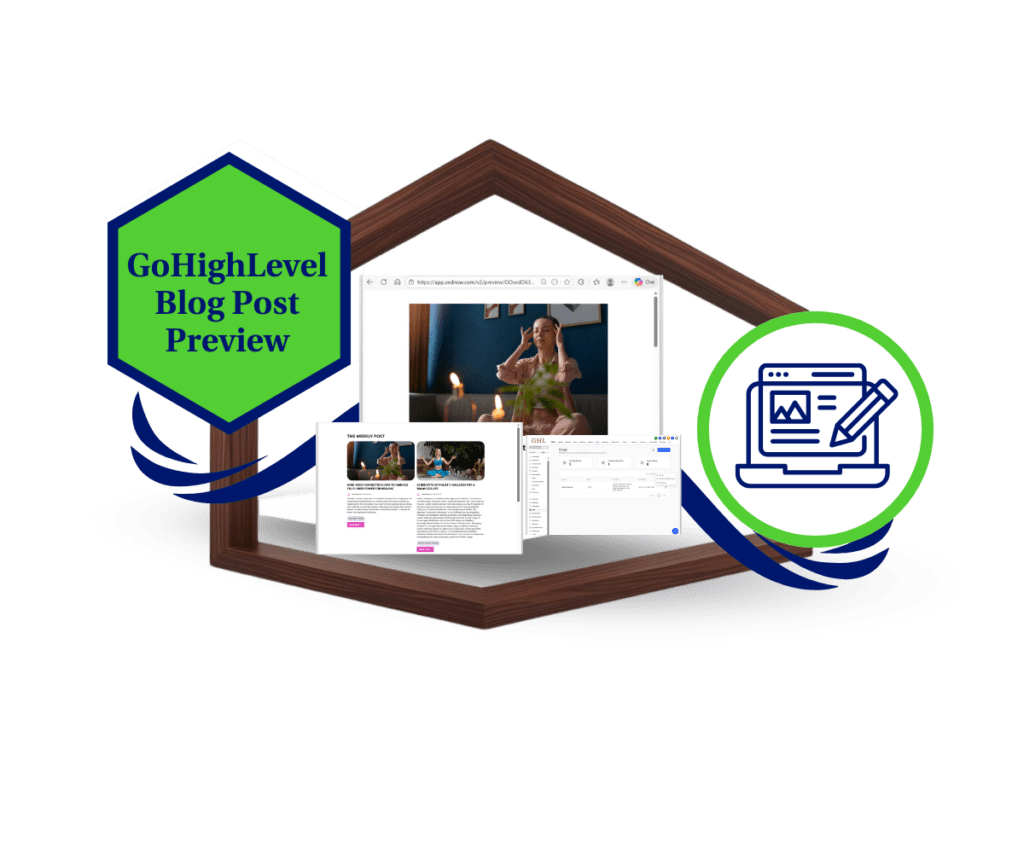
The new blog post preview in GoHighLevel gives you a live view of your content with full support for HTML, CSS, embeds, and custom code. Share draft previews with clients and team members to streamline approvals and avoid formatting issues before publishing.
Quick Summary – Blog Post Preview Essentials
Purpose: This update gives users a true blog post preview that shows exactly how their content will look when published.
Why It Matters: It removes guesswork, helps catch layout issues, and speeds up client reviews with a sharable preview link.
What You Get: A live blog post preview that includes full support for HTML, CSS, JavaScript, embeds, and widgets.
Time to Complete: Less than 2 minutes per post to review and share the preview.
Difficulty Level: Very easy. It’s built right into the GHL Blog Editor.
Key Outcome: You can now preview your blog with full accuracy and share it for fast feedback before publishing.
What’s New – Full Blog Post Preview with Custom Code
The blog post preview in GoHighLevel has been fully upgraded. You can now see your blog exactly how it will look once it’s live. No more surprises after you publish.
The updated blog post preview now supports:
Automate marketing, manage leads, and grow faster with GoHighLevel.

- Custom HTML, CSS, and JavaScript
- Inline styles, widgets, and embed codes
- Full layout design, including spacing and fonts
- Accurate rendering in a new browser tab
This blog post preview works just like the final version of your blog. You can check everything before going live, including advanced formatting and interactive elements.
There’s also a public draft link. That means you can share the blog post preview with a client or teammate, even before you publish. It’s a clean way to get feedback without sending screenshots or giving backend access.
The blog post preview now gives you the confidence to hit publish, knowing exactly what your readers will see.
What’s Changed – Better Blog Post Preview with Real Results
The old blog post preview in GHL was limited. You could see basic content, but it didn’t always match what showed up after publishing. Styles might break, embeds might not load, and custom code often got ignored.
That’s no longer the case.
The new blog post preview now renders everything as it will appear live. This includes full support for:
- Inline styling and CSS formatting
- Embedded widgets and third-party tools
- HTML structure and layout settings
- Custom scripts and advanced design elements
The blog new update is now a true reflection of your final blog. If your layout looks off, you’ll catch it before anyone else does. If a script doesn’t load or a widget breaks, you can fix it ahead of time.
And since you can share the blog post preview with a link, the review process is faster. Clients can see the exact draft version without needing access to your account or tools.
This update closes the gap between editing and publishing. What you preview is what goes live.
Why This Matters – A Better Blog Post Preview Saves Time
A solid blog updates matters more than most people think. If the preview doesn’t match the final post, you’re stuck fixing problems after you hit publish. That’s frustrating, and it slows everything down.
This new blog post preview helps you catch layout issues, broken widgets, or missing styles before the post goes live. It’s the exact version your readers will see. No guessing. No do-overs.
You can also use the blog updates to:
- Check that your custom code and formatting look right
- Test embeds, scripts, and layout elements
- Share a draft preview link with clients or your team
If you run a marketing agency, you know how helpful that is. You get faster approvals, fewer edits, and no awkward fixes after launch.
The blog post preview now works like it should. It shows the real thing so you can publish with confidence.
How to Preview and Share Your Blog Post in GHL
The updated blog post preview is built into the Blog Editor. You don’t need to install anything or adjust any settings. Just follow these steps to check and share your draft before it goes live.
This guide shows you exactly how to use the blog post preview feature in GoHighLevel.
Here’s how to get started:
Step 01: Access the Main Left Hand Menu in GoHighLevel
- The Main Menu on the Left side of your screen has all the main areas that you work in when using GHL
1.1 Click on the Sites Left hand Menu Item.
- Access the ‘Sites’ section of GoHighLevel
1.2 Click the “Blogs” menu
- This will open the Blogs dashboard, where you can view and manage your available blog posts.
1.3 Select an existing blog post or create a new one
- Make sure your content is ready for review.

Step 02: Launch the Blog Post Preview
- This opens a live preview so you can check your post before publishing.
2.1 Click the three vertical dots beside the blog site name
- A menu will appear.
2.2 Click “Preview”
- This will display the list of blog posts for that site.

2.3 Select the blog post you want to preview
- A new browser tab will open with your blog post preview.

2.4 Review your full post layout in the new tab
- Make sure your HTML, CSS, widgets, and embeds display correctly.

Step 03: Share the Public Preview Link
- This is where the new feature really shines. You can send a draft preview to others for feedback.
3.1 Copy the full URL from the new tab
- This is your live, public preview link.
3.2 Send the link to your client, team member, or collaborator
- Anyone with the link can view the blog post preview, even if they don’t have GHL access.

Things to Remember:
- The preview shows exactly what your blog will look like once published.
- Only people with the link can see the draft blog post preview.
- It works with HTML, CSS, JavaScript, widgets, embeds, and more.
- You can’t edit from the preview window. Make changes in the editor, then refresh.
That’s it. Preview your blog, catch any issues early, and share it with confidence.
Pro Tips – Get More Out of Blog Post Preview
The blog post preview is more than a quick look. It’s your chance to catch problems early, share clean drafts, and speed up how you publish.
Here’s how to make the most of it:
Use the blog post preview during client reviews
- Skip the back-and-forth screenshots. Send the preview link so clients can see exactly how the blog looks before it goes live.
Check mobile and desktop views
- Open the blog post preview on different devices. Make sure the layout holds up across screen sizes.
Test all embeds and widgets
- Use the blog post preview to confirm your calendars, videos, forms, and scripts show up and work.
Build a quick review checklist
- Before publishing, use the blog post preview to review layout, spacing, links, and formatting. Small things are easier to catch here.
Preview as you go
- Don’t wait until the blog is done. Open the blog post preview early so you can spot issues and fix them while you’re still editing.
The blog post preview is now a tool you can trust. Use it to avoid mistakes and get feedback while everything’s still in draft.
What This Means – Smarter Publishing and Better Workflows
The improved blog update changes how you publish in GHL. It gives you a clear, accurate look at your post before it goes live. That means fewer errors, faster reviews, and more control over how your content shows up.
This helps in a few big ways:
- You get a real-time view of your blog with all custom styling and embeds included.
- You can fix layout issues, broken links, or missing pieces before anyone else sees them.
- You can share a clean blog post preview link with clients or your team for fast feedback.
This update takes the guesswork out of publishing. The blog post preview now shows you exactly what your audience will see. That gives you peace of mind and helps you move faster.
No more publishing and hoping it looks right. Now, you can check everything with confidence.
Frequently Asked Questions – Your Blog Post Preview Questions Answered
Preview Smarter, Publish with Confidence
The blog post preview in GoHighLevel is now a tool you can count on. It shows your blog exactly how it will look once published. That means fewer mistakes and less guessing.
You can check your layout, test your custom code, and make sure every part of the post works the way it should. You can also share the blog post preview with clients or teammates before going live.
This small change makes a big difference. This update helps you publish with more control, less rework, and better results.
Use the blog post preview every time. It takes just a few seconds and can save you hours.
Scale Your Business Today.
Streamline your workflow with GoHighLevel’s powerful tools.