- GHL users can now manage submission columns before any data comes in, making forms, surveys, and quizzes much easier to organize and report on.
- Quick Summary – Submission Fields Overview
- What Changed in Submission Fields?
- Before and After Submission Fields
- Why Submission Fields Matter to You
- How to Use Manage Columns in GHL
- Pro Tips for Submission Fields
- What Submission Fields Mean for Your Business
- Frequently Asked Questions about Submission Fields
- Conclusion: Submission Fields Make Setup Easier in GHL
GHL users can now manage submission columns before any data comes in, making forms, surveys, and quizzes much easier to organize and report on.
Submission Fields Now Show All Form, Survey, and Quiz Fields in GoHighLevel
Submission Fields in GoHighLevel are now much easier to manage. Before this update, you could only see fields inside Manage Columns after they had at least one submission. That meant users often had to send test submissions just to make certain columns appear. Now GHL shows all fields directly from the form, survey, or quiz setup, even if no data has been submitted yet.
This is a simple update, but it fixes a frustrating problem for a lot of users. If you build forms for clients, run surveys, or manage quizzes, you can now organize your columns before a campaign goes live. Newly added fields also appear automatically in the available fields list, which makes setup much smoother and more predictable.
The team here at GHL Growth Garage likes updates like this because they save time without adding extra complexity. Better Submission Fields visibility means cleaner reporting, easier setup for your team, and less confusion when managing submissions inside GoHighLevel.

The new Submission Fields improvement in GoHighLevel makes it much easier to prepare reports, organize columns, and manage forms before live submissions ever come in. That means less confusion, faster setup, and a cleaner workflow for your team and clients.
Quick Summary – Submission Fields Overview
Purpose: This GoHighLevel update improves how Submission Fields appear inside Forms, Surveys, and Quizzes. You can now view all available fields before any submissions happen.
Why It Matters: Before this update, fields only appeared after collecting data. Now your team can prepare column layouts early without creating fake submissions.
What You Get: You get better visibility, cleaner submission management, and easier reporting setup across forms, surveys, and quizzes.
Time To Complete: Most users can review and organize their Submission Fields in less than 5 minutes.
Difficulty Level: This is a beginner-friendly update with no complicated setup or extra configuration required.
Key Outcome: Your submission views become more organized, more predictable, and easier for your team to manage inside GoHighLevel.
What Changed in Submission Fields?
Submission Fields now show every field from your form, survey, or quiz setup, not just the fields that already have data.
Before this update, Manage Columns only showed fields after someone submitted information through them. That made things awkward. You could build a full form, open the submissions area, and still not see every field you just created.
Automate marketing, manage leads, and grow faster with GoHighLevel.

Now GoHighLevel pulls those fields from the form definition itself. So even if a field has zero submissions, it can still appear in the Add Fields section. This makes it much easier to set up clean submission views before leads, clients, or customers start filling things out.
Before and After Submission Fields
Before this update, Submission Fields could be frustrating to work with. If a field had no submission data yet, it stayed hidden inside Manage Columns. A lot of users ended up sending fake test submissions just to make fields appear. That slowed down setup and made reporting harder than it needed to be.
Now the process is much cleaner. GoHighLevel shows fields directly from the form, survey, or quiz setup itself. That means new fields can appear right away, even before the first real submission comes in. You can organize your columns, prepare reports, and build cleaner views without waiting for data.
This change may look small at first, but it makes the whole submissions experience feel more complete. Agency owners, VAs, and marketers can now prepare forms properly before launch instead of fixing missing fields later.
Why Submission Fields Matter to You
Submission Fields matter because they help you set up cleaner views before the work gets busy. You no longer need to wait for real data or create fake submissions just to see every field. That is a small fix with a big payoff.
This is especially useful for agencies, VAs, and marketers who manage client forms every week. You can prepare the submission view, choose the right columns, and hand it off to your team with less back and forth.
It also helps with reporting. When every field is visible from the start, you can plan your data layout before leads start coming in. Less guessing. Less cleanup. Fewer “where did that field go?” moments.
How to Use Manage Columns in GHL
Submission Fields are managed inside the Submissions area for Forms, Surveys, and Quizzes in GoHighLevel. You will open the form you want, access the submissions page, open Manage Columns, and then choose which fields you want to display in your table view.
Here are the steps to manage Submission Fields in GHL.
- Open the Forms area in Sites.
- Open the Form Submission Area.
- Open Manage Columns.
- Add Submission Fields.
To start make sure you are logged in to your GoHighLevel sub-account.
Step 01 – Open the Forms Area in Sites
- The Main Menu on the left side of your screen has all the main areas that you work in when using GHL.
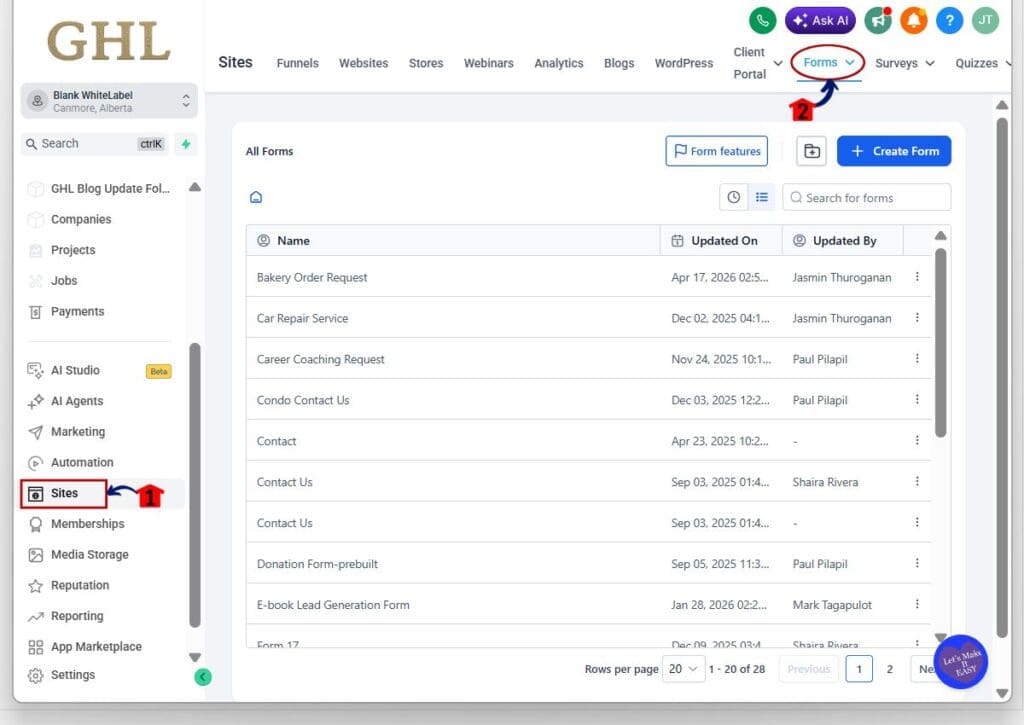
1.1 Click Sites in the left-hand menu.
- This opens the Sites section where you can access Forms, Surveys, and Quizzes.
1.2 Click Forms from the top menu.
- This opens the Forms list where all your forms are shown.
- For this example, we will use Forms because it is the most common option.
Step 02 – Open the Form Submission Area
2.1 Find the form you want to manage from the list.
- This should be the form that contains the fields you want to review.
2.2 Click the three-dot menu beside the form.
- This opens the actions menu for that form.
2.3 Click View Submission.
- This opens the Submissions page for that form.

Step 03 – Open Manage Columns
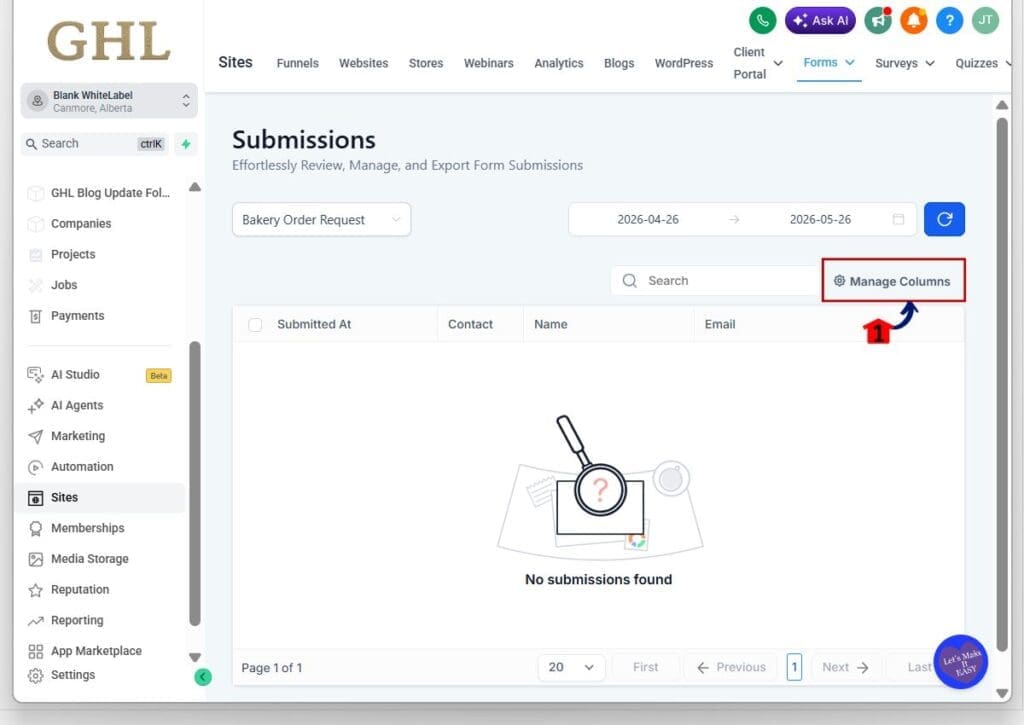
3.1 On the Submissions page, click Manage Columns.
- This opens the Manage Columns panel on the right side of the screen.
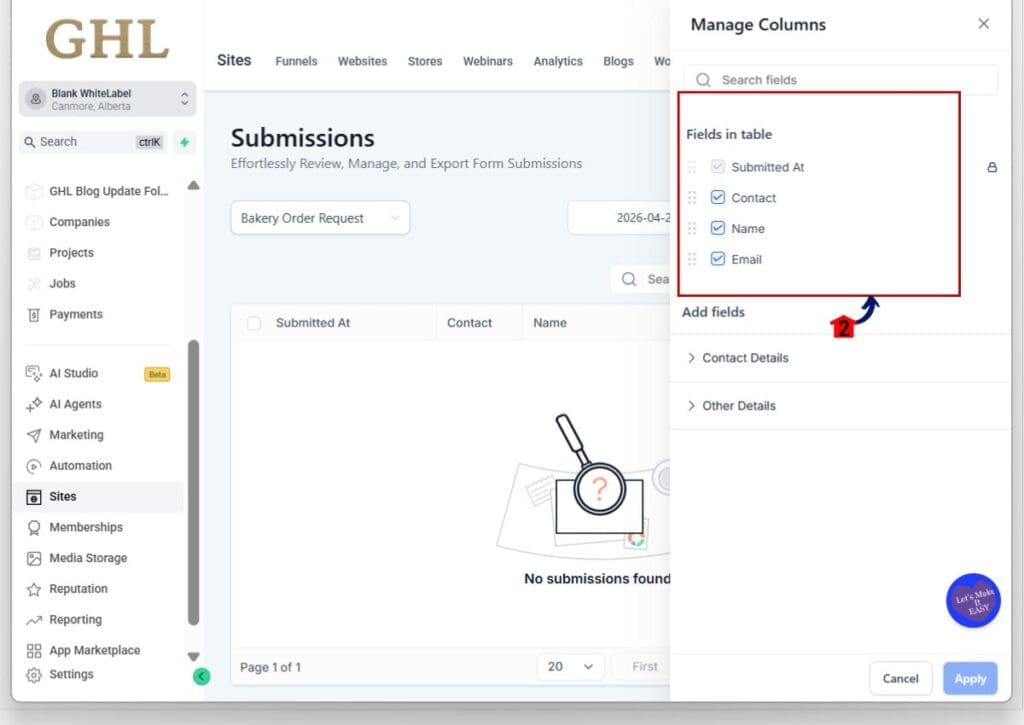
3.2 Review the visible Submission Fields.
- You will now see available fields from the form setup, even if no submission data exists yet.
Step 04 – Add Submission Fields
4.1 Review the Add Fields section inside Manage Columns.
- This area now shows fields pulled directly from the form definition.
4.2 Select the fields you want to display.
- Available but unselected fields can now be added before any submissions happen.
4.3 Click Apply button.
- This updates your submission table with the selected columns.
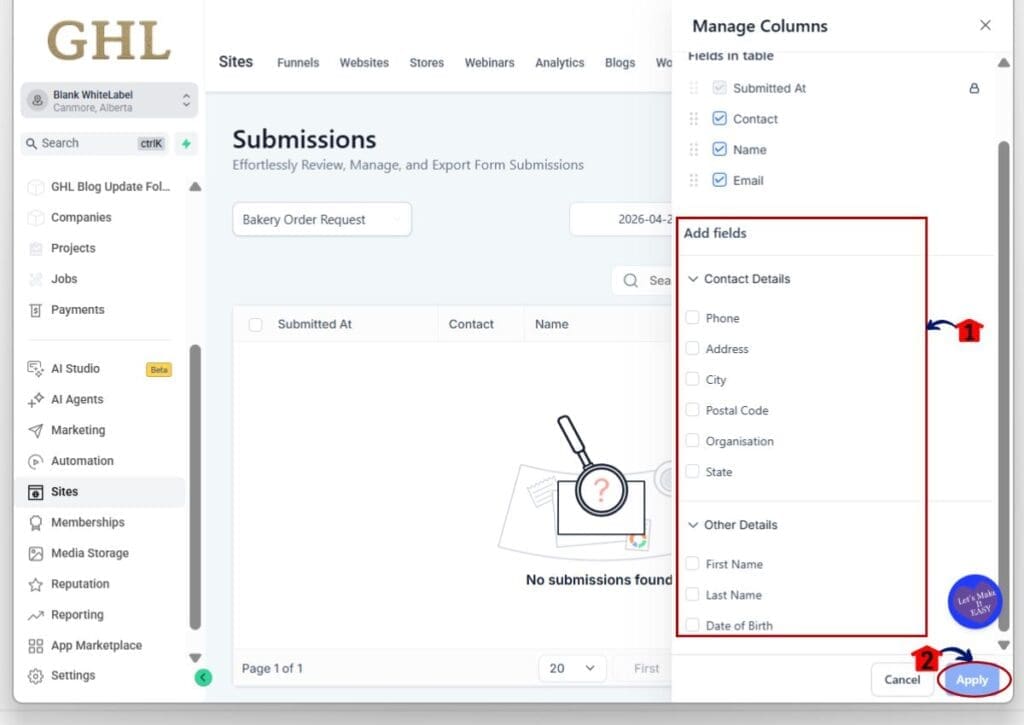
Important note: Newly added fields should now appear in the available fields list automatically, even if those fields have not collected any submission data yet.
Pro Tips for Submission Fields
Submission Fields are easier to manage now, but a few smart habits can make things even smoother. The biggest win is setting up your columns before your form goes live. That way your team already has a clean layout ready when leads start coming in.
Try to keep your field names simple and consistent across forms, surveys, and quizzes. For example, use “Phone Number” everywhere instead of mixing labels like “Phone,” “Mobile,” and “Best Number.” Small details like that make reporting much easier later.
It is also a good idea to review your Manage Columns setup anytime you add new fields to a form. Since GoHighLevel now shows fields before submissions happen, you can organize everything right away instead of waiting for data to appear.
Another quick tip is to build separate submission views for different team members. Your sales team may only need contact details, while your onboarding team may want to see custom intake fields. Cleaner views help everyone work faster without digging through extra columns.
What Submission Fields Mean for Your Business
Submission Fields help your team stay organized before the rush starts. Instead of waiting for leads to submit data, you can prepare your column layout early and make sure the right people see the right information.
For agencies, this makes client setup cleaner. You can build a form, review every field, set the submission view, and hand it off without needing fake entries or extra testing just to reveal columns.
For small businesses, it means less confusion. When new leads come in, the table is already ready. Your team can review names, emails, custom answers, and intake details without digging around or fixing the view later.
Frequently Asked Questions about Submission Fields
Conclusion: Submission Fields Make Setup Easier in GHL
Submission Fields are now easier to manage inside GoHighLevel. You can see all fields from your form, survey, or quiz setup before any submission data comes in.
That means fewer test submissions, cleaner column setup, and less confusion for your team.If you manage forms for clients, this is one of those small updates that makes daily work smoother. Have you tried the new Submission Fields view yet?
Scale Your Business Today.
Streamline your workflow with GoHighLevel’s powerful tools.