

- Move contacts forward when tasks are created or completed.
- Quick Summary – Task Status Automation Overview
- What Task Status Automation Adds
- What Changed in Task Status Automation
- Why Task Status Automation Matters
- How to Set Up Task Status Automation in GHL
- Simple Agency Use Case for Task Status Automation
- Quick Tips for Task Status Automation
- What Task Status Automation Means for Your Business
- Task Status Automation Frequently Asked Questions
- Task Status Automation Makes Workflows Smarter
Move contacts forward when tasks are created or completed.
Task Status Automation Keeps Workflows Moving
Task Status Automation gives GoHighLevel users a simple way to move contacts through a workflow based on real task progress. GHL can now react when a task linked to a contact is created or completed.
Before this update, task events could start a workflow, but they could not be used as Goal Events. That meant agencies often needed extra steps, checks, or workarounds to move a contact forward after a task was finished.
Now, you can choose Task Created or Task Completed inside a Goal Event and add filters for the task name or assignee. This makes Task Status Automation useful for onboarding, sales follow-up, support, and client delivery.

Task Status Automation connects your workflow to real task progress. Contacts can move forward as soon as the right task is created or completed, without extra steps or manual checks.
Quick Summary – Task Status Automation Overview
Purpose: Task Status Automation lets GHL move contacts to a Goal Event when a linked task is created or completed.
Why It Matters: It connects real CRM task progress with the next step in your workflow.
What You Get: You can choose Task Created or Task Completed and filter by task name or assignee.
Time to Complete: Most users can set up and test this Goal Event in about 5 to 10 minutes.
Difficulty Level: Beginner-friendly, especially for users who already know how to edit GHL workflows.
Key Outcome: Your team completes the task, and GoHighLevel handles the next workflow action without extra checks.
What Task Status Automation Adds
Task Status Automation adds a new goal type inside the GoHighLevel Goal Event action. It lets a contact move to a goal branch when a linked task is created or completed.
You can choose Task Created or Task Completed, depending on when the contact should move forward. You can also filter tasks by name or assignee, which helps stop the wrong task from triggering the goal.
Automate marketing, manage leads, and grow faster with GoHighLevel.

The setup uses the same filter options found in task-based workflow triggers. That makes it easier to build clear workflows around real task progress in your CRM.
What Changed in Task Status Automation
Task events were already available as workflow triggers in GoHighLevel. The problem was that they could not be used inside a Goal Event, so contacts could not jump ahead based on task progress.
Task Status Automation fixes that gap. You can now pull a contact to a goal branch when a linked task is created or marked complete.
This gives you a cleaner workflow with fewer extra steps. It also helps your automation follow what your team is doing inside the CRM.
Why Task Status Automation Matters
Task Status Automation helps your workflows follow real work inside the CRM. When your team creates or completes the right task, the contact can move forward without a manual check.
This is useful for onboarding, sales follow-up, client work, and support. It keeps your team’s actions and your customer messages in step, so the next email or workflow action happens at the right time.
It also cuts down on extra workflow steps. That means fewer workarounds, less room for error, and a cleaner setup that is easier to manage.
How to Set Up Task Status Automation in GHL
Task Status Automation lets a contact move to a Goal Event when a linked task is created or completed. In this guide, you’ll learn how to create a workflow, add a Goal Event, and set the task conditions.
Here are the steps we will follow:
- Access the Workflows area in GHL.
- Add a new workflow action.
- Select the Goal Event action.
- Set the Task Status conditions.
To start, make sure you are logged in to the correct GoHighLevel sub-account.
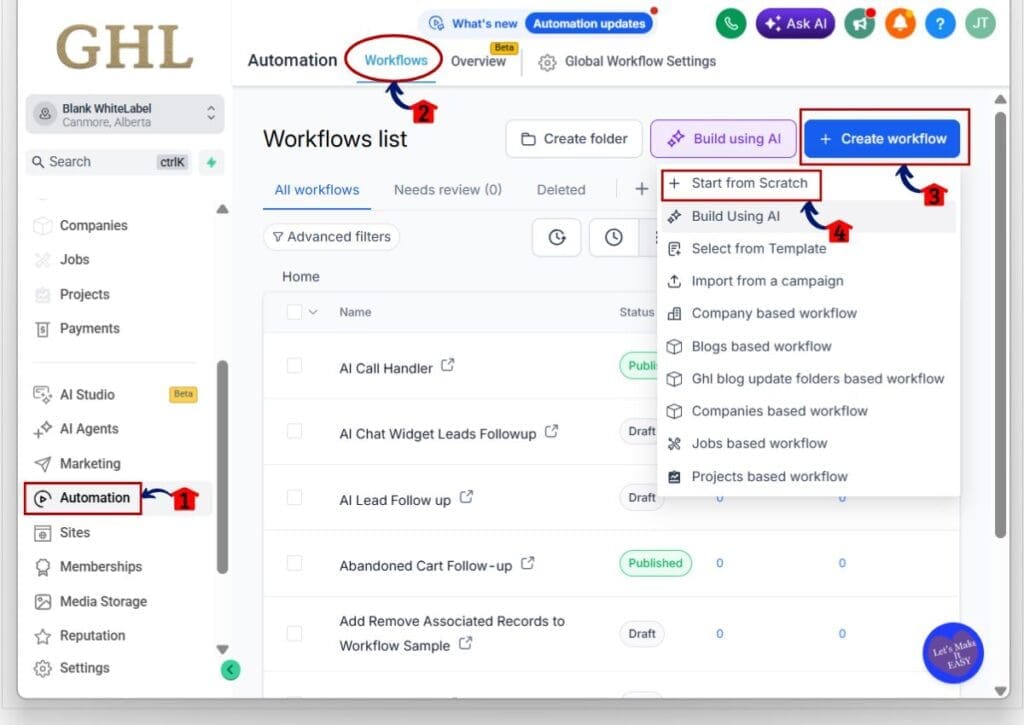
Step 01 – Access the Workflows Area in GHL
- The main menu on the left side of your screen includes the core areas you use in GoHighLevel.
1.1 Click Automation in the left menu.
- This opens the main Automation section.
1.2 Click Workflows in the top navigation.
- This opens the Workflows list, where you can view and manage your current workflows.
1.3 Click Create workflow button.
- A menu with several workflow options will open.
1.4 Click Start from Scratch.
- This opens a blank workflow inside the workflow builder.
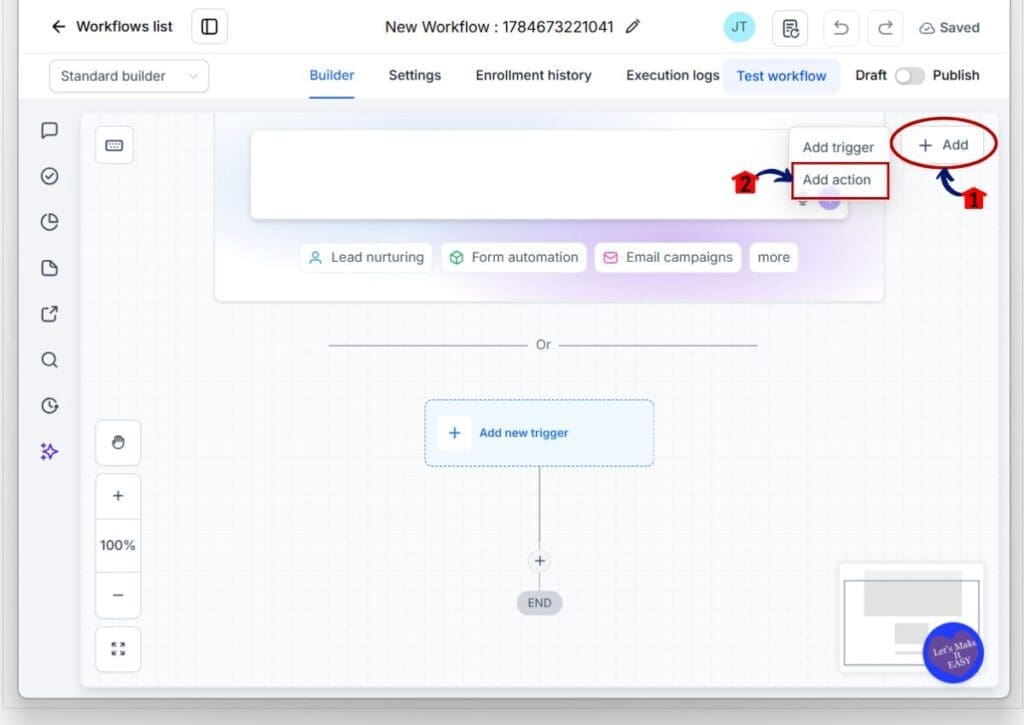
Step 02 – Add a New Workflow Action
- The workflow builder is where you add triggers, actions, and Goal Events to your automation.
2.1 Click the Add button in the top-right area of the builder.
- A small menu will appear.
2.2 Click Add action.
- The Actions panel will open on the right side of the screen.
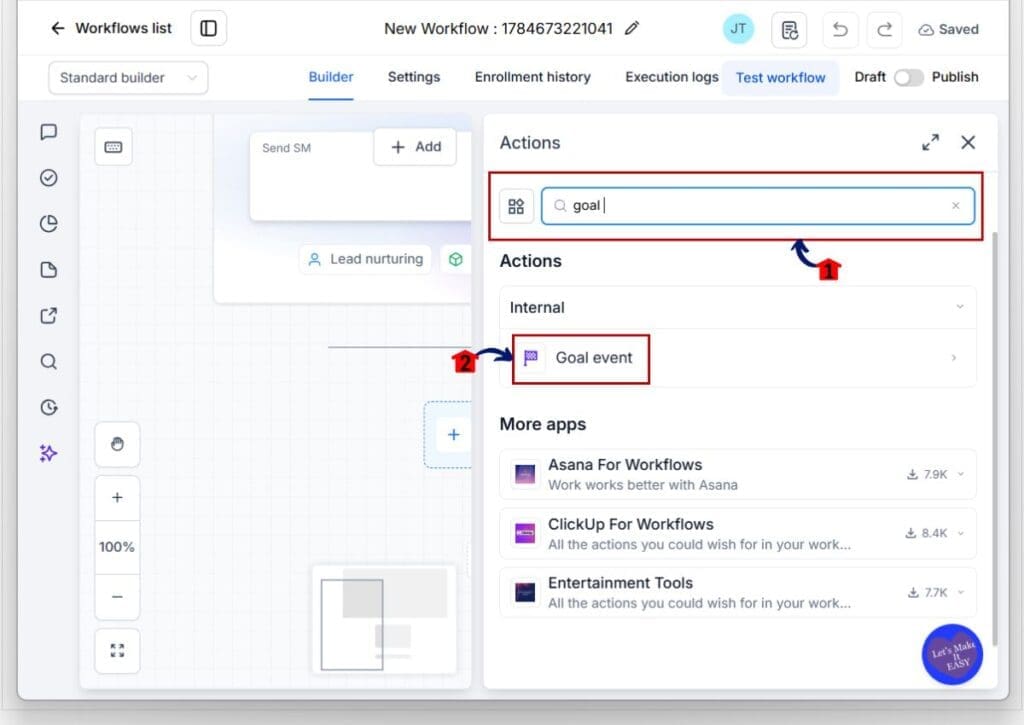
Step 03 – Select the Goal Event Action
- The Actions panel includes all the actions you can add to the workflow.
3.1 Enter “goal” in the search field.
- This filters the list and displays the Goal event action.
3.2 Click Goal event.
- The Workflow Goal settings will open on the right side of the builder.
Step 04 – Set the Task Status Conditions
- The Workflow Goal settings control which task event will move the contact to the goal.
4.1 Enter a clear name in the Action Name field.
- Use a name that explains the purpose of the goal, such as Onboarding Task Completed or Quote Task Completed.
4.2 Open the Select Type of Goal menu.
- Choose Task status.
4.3 Open the Task Event menu.
- Choose Task created or Task completed.
- Select Task created when the contact should move after a new task is added.
- Select Task completed when the contact should move after the task is marked complete.
4.4 Add a Task Name filter when needed.
- This field is optional. Use it when the goal should only respond to a specific task, such as Send Quote.
4.5 Add an Assigned To filter when needed.
- This field is also optional. Use it when the goal should only respond to a task assigned to a certain user.
4.6 Choose what happens if the contact reaches the Goal Event without meeting its conditions.
- For example, you can select End this workflow.
4.7 Click Save action.
- The Goal Event will be added to your workflow.

Once the action is saved, review the full workflow before you publish it. Test Task Status Automation with a sample contact and make sure the correct task moves the contact to the Goal Event.
Simple Agency Use Case for Task Status Automation
A consulting agency uses a form to collect details from a new client. Once the form is submitted, GHL creates a task for the onboarding team.
The contact stays in the workflow while the task is still open. When the team marks it as complete, Task Status Automation moves the contact to the Goal Event.
GHL can then send the next onboarding email or start the next step. This keeps the client journey in step with the work your team has already finished.
Quick Tips for Task Status Automation
Use clear task names so each Goal Event is easy to understand. Names like “Send Quote” or “Complete Onboarding Call” work better than vague labels such as “Follow Up.”
Add filters when your CRM has many active tasks. A Task Name or Assigned To filter helps stop the wrong task from moving a contact through the workflow.
Always test Task Status Automation with a sample contact before publishing. Check that the task is linked to the right contact and that the contact moves to the correct Goal Event.
What Task Status Automation Means for Your Business
Task Status Automation helps your workflow match the work your team is doing inside the CRM. When the right task is created or completed, GHL can move the contact to the next stage without someone checking it by hand.
This can help with onboarding, sales follow-up, support, and client delivery. It keeps internal tasks and customer messages in sync, which means fewer delays and less confusion.
For agencies, this also makes workflows easier to scale. Your team handles the task, and GoHighLevel handles the next action.
Task Status Automation Frequently Asked Questions
Task Status Automation Makes Workflows Smarter
Task Status Automation gives GoHighLevel users a cleaner way to move contacts based on real task progress. You can now use Task Created or Task Completed inside a Goal Event, then add filters for the task name or assignee.
This helps keep your team’s work and your customer follow-up in step. It can reduce manual checks, remove extra workflow steps, and make onboarding, sales, support, and client delivery easier to manage.
Try Task Status Automation in a simple workflow first, test it with a sample contact, and check that the right task moves the contact to the correct goal. How will you use this update in your GHL workflows?
Scale Your Business Today.
Streamline your workflow with GoHighLevel’s powerful tools.


