- GHL Todoist Task Integration: Automate Your Tasks
- Quick Summary – Todoist Task Integration
- Here are this week's HighLevel Updates 🚀
- What’s New With the Todoist Task Integration
- Why the Todoist Task Integration Matters
- How to Set Up the Todoist Task Integration
- Pro Tips for Your Todoist Task Integration
- What Todoist Task Integration Means for Your Business
- FAQs – Todoist Task Integration
- Get More Done With the Todoist Task Integration
GHL Todoist Task Integration: Automate Your Tasks
Want to connect your GHL automations with the tasks your team actually needs to get done? The Todoist Task Integration gives you a simple way to connect GoHighLevel workflows with Todoist Task Integration, so tasks and customer follow-ups can move forward without all the manual work.
The team here at GHL Growth Garage has another exciting GoHighLevel feature guide for you. GHL now lets you use the Todoist Task Integration directly inside the Workflow Builder. Todoist Task Integration activity can trigger GHL workflows, while your workflows can create, update, complete, and manage tasks and projects inside Todoist Task Integration.
Before this integration, moving work between GHL and Todoist could mean another manual handoff or relying on a separate connection. Now, you can bring Todoist directly into your GHL workflows. You get three Todoist triggers that check for new activity every five minutes, along with 12 actions for managing tasks, projects, comments, users, and collaborators.
To set things up, head into Automation → Workflows and open the workflow you want to use. Add a trigger or action and search for Todoist in Apps. Follow the prompt to connect your Todoist account. Once connected, choose the Todoist trigger or action you want to build around.
If Todoist Task Integration is where your team keeps track of the daily grind, this integration could take a few jobs off your plate. A lead comes in or a customer sends a support request through GHL, and Todoist can get the task automatically. When your team finishes that task, GHL can pick things up from there.
The Todoist Task Integration connects customer activity with the work happening behind the scenes. Your team can keep working in Todoist Task Integration while GHL handles more of the repetitive handoffs, updates, and follow-up automatically.
The latest GoHighLevel Changelog includes several other GHL feature updates that round out your daily workflow:
- Wait Action Enhancement: TikTok DM Replies
- India Recurring Mandate Support for Affiliate Indian Signup Pages
- Housecall Pro – More Workflow Actions & Triggers
- Email Services Dashboard for Agencies
- Email Sequences Now Available in Beta Labs
- Group Your Contacts by Source in Dashboards & Reporting
- MMLite Adoption Banner in Conversations
Keep reading for much more on all these updates and a deep dive into the Todoist Task Integration feature!

Quick Summary – Todoist Task Integration
Purpose: The Todoist Task Integration connects GHL workflows with Todoist Task Integration so customer activity and internal team tasks can work together through automation.
Why It Matters: You can reduce manual handoffs between GoHighLevel and Todoist, helping your team spend less time copying information and more time completing important work.
What You Get: The integration includes three Todoist workflow triggers and 12 actions for working with tasks, projects, comments, discovery, and collaborators.
Time to Complete: A basic Todoist Task Integration workflow should take around 10–20 minutes to connect, configure, and test, depending on the automation you’re building.
Difficulty Level: Beginner to Intermediate. Basic task creation is straightforward, while workflows that match Todoist activity back to CRM contacts or dynamically find projects require more planning.
Key Outcome: GHL can automatically send work into Todoist, while Todoist activity can trigger the next step in your GHL workflows, creating a cleaner connection between customer automation and internal work.
Here are this week’s HighLevel Updates 🚀
Wait Action Enhancement: TikTok DM Replies
What’s New:
Instead of continuing after a fixed delay, your workflow can pause until someone replies to your TikTok DM.
Where in GHL:
Found in Automation → Workflows using the Wait action after sending a TikTok DM.
Automate marketing, manage leads, and grow faster with GoHighLevel.

Impact:
Your automation responds when someone actually joins the conversation, rather than after a timer runs out.
Recommended For:
Anyone using TikTok DMs to start conversations with potential customers.
India Recurring Mandate Support for Affiliate Indian Signup Pages
What’s New:
Supports recurring payment mandates for Indian affiliates, helping subscriptions comply with local banking requirements.
Where in GHL:
Available on Affiliate Program signup pages for users in India.
Impact:
Creates a smoother signup experience while reducing payment failures for recurring subscriptions.
Recommended For:
Agencies, SaaS businesses, and affiliate programs onboarding customers in India.
Housecall Pro – More Workflow Actions & Triggers
What’s New:
Adds new workflow triggers and actions for the Housecall Pro integration, giving you more ways to automate field service processes.
Where in GHL:
Inside Automation → Workflows when using the Housecall Pro integration.
Impact:
Expands automation possibilities between HighLevel and Housecall Pro, reducing manual work and improving operational efficiency.
Recommended For:
Home service businesses, field service companies, and agencies managing Housecall Pro clients.
Email Services Dashboard for Agencies
What’s New:
Introduces a centralized dashboard where agencies can monitor email services across their accounts.
Where in GHL:
Found in the Agency View under the new Email Services Dashboard.
Impact:
Makes it easier to monitor email health, identify issues, and manage deliverability from one place.
Recommended For:
Agency owners, support teams, and admins managing multiple client email services.
Email Sequences Now Available in Beta Labs
What’s New:
Introduces Email Sequences as a Beta Labs feature, providing another way to create structured email follow-up campaigns.
Where in GHL:
Enable it from Settings → Labs, then access Email Sequences after activation.
Impact:
Cuts down the time spent checking different areas just to see how your email services are performing.
Recommended For:
Marketers, agencies, coaches, and businesses running nurture campaigns or onboarding emails.
Group Your Contacts by Source in Dashboards & Reporting
What’s New:
Lets you organize contact reports based on where your leads originated.
Where in GHL:
Available within Dashboards & Reporting when viewing contact analytics.
Impact:
Makes it easier to compare lead sources and identify which marketing channels are producing the best results.
Recommended For:
Marketing teams, agency owners, and businesses tracking campaign performance across multiple lead sources.
MMLite Adoption Banner in Conversations
What’s New:
Displays a helpful banner inside Conversations to encourage users to adopt the new MMLite messaging experience.
Where in GHL:
Appears within the Conversations module for eligible accounts.
Impact:
Helps users discover and transition to MMLite while highlighting its benefits directly inside the messaging interface.
Recommended For:
Current HighLevel users exploring the latest messaging experience and teams preparing to migrate to MMLite.
What’s New With the Todoist Task Integration
The Todoist Task Integration brings Todoist directly into the GoHighLevel Workflow Builder. You can now use activity inside Todoist Task Integration to start GHL automations or have an existing workflow take action inside your Todoist account.
On the trigger side, GHL gives you three options: New incomplete task, New completed task, and New project. These are polling triggers, which means GHL checks Todoist Task Integration for matching activity every five minutes.
The other side of the Todoist Task Integration is where things really open up. You get 12 workflow actions covering the task lifecycle, projects, comments, discovery, and team collaboration. You can create, update, and complete tasks, add comments, create projects, move sections, find existing tasks or projects, and manage collaborators.
This gives you automation in both directions. A new event in GHL can create work for your team in Todoist. Then, when someone completes a Todoist Task Integration, that activity can trigger another workflow and help move the customer journey forward in GHL.
One thing to keep in mind is pricing. Todoist triggers and actions are premium workflow components, so premium action credits apply at GHL’s standard automation rate. Your Todoist plan and its limits for projects, tasks, collaborators, and integrations are still billed separately through Todoist Task Integration.
That combination makes this more than another app connection. You can use GHL for customer-facing automation while letting your team manage their day-to-day tasks in Todoist Task Integration, with workflows helping keep the two sides connected.
Why the Todoist Task Integration Matters
A customer does something in GHL. Your team needs to respond. It’s that space in between where things can get missed. With the Todoist Task Integration, GHL can automatically turn that activity into work for your team instead of waiting for someone to create the task by hand.
Think about a new support request coming through a GHL form. Your workflow can find the right Todoist project and automatically create a task with the customer details, priority, labels, and instructions your team needs. The support team gets the work in Todoist Task Integration without someone having to move the information there manually.
The connection isn’t just about sending work into Todoist Task Integration. Once your team checks a task off, that completion can become the signal GHL needs to keep things moving. Maybe a contact gets updated, someone receives an alert, or the customer moves into the next stage.
That makes the Todoist Task Integration especially useful for agencies with different teams handling sales, support, onboarding, fulfillment, and client management. Your team doesn’t have to give up Todoist just because your customer data and automations live inside GoHighLevel.
The real benefit is a cleaner handoff between systems. GHL can handle the customer-facing automation while Todoist Task Integration stays your team’s working task list. Less copying. Fewer forgotten tasks. And a much easier way to keep customer activity and internal work moving together.
How to Set Up the Todoist Task Integration
Setting up the Todoist Task Integration is pretty straightforward. You’ll first connect your Todoist account to GHL, then choose whether Todoist activity should trigger your workflow or whether your workflow should create and manage tasks inside Todoist.
For this guide, we’ll walk through the complete process. We’ll connect Todoist, set up the New incomplete task trigger, and then show you how to use the Create task action.
- Access the Workflow Builder in GoHighLevel.
- Find the Todoist Task Integration.
- Connect and Configure Your Todoist Trigger.
- Configure the Filter and Test Your Todoist Trigger.
- Add the Create Task Action.
- Configure Your Todoist Task.
- Configure and Test Your Todoist Action.
- Test the Complete Workflow.
To start, make sure you are logged in to the correct GoHighLevel sub-account.
Step 01 – Access the Workflow Builder in GoHighLevel
- Start by opening the Workflow Builder, where you’ll create and set up your Todoist automation.
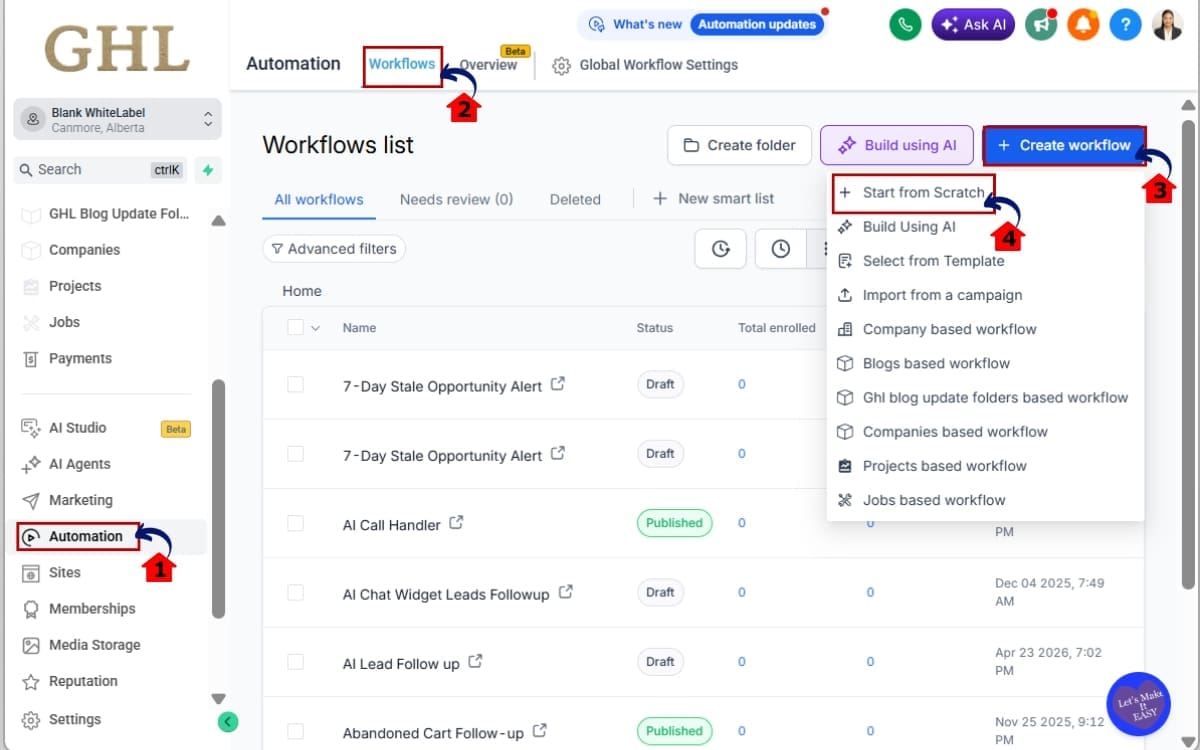
1.1 Go to the main menu on the left side of your screen. Click Automation.
- This opens the Automation area where you can build and manage your GHL workflows.
1.2 Click Workflows.
- Here, you’ll find your existing workflows and the option to create a new one.
1.3 Click Create Workflow.
- This opens the workflow creation screen and gives you options for building your new automation.
1.4 Click Start from Scratch.
- This opens a blank workflow so you can build your Todoist Task Integration from the ground up.
Step 02 – Find the Todoist Task Integration
- Now you’ll add Todoist as the workflow trigger and choose the activity you want GHL to watch for.
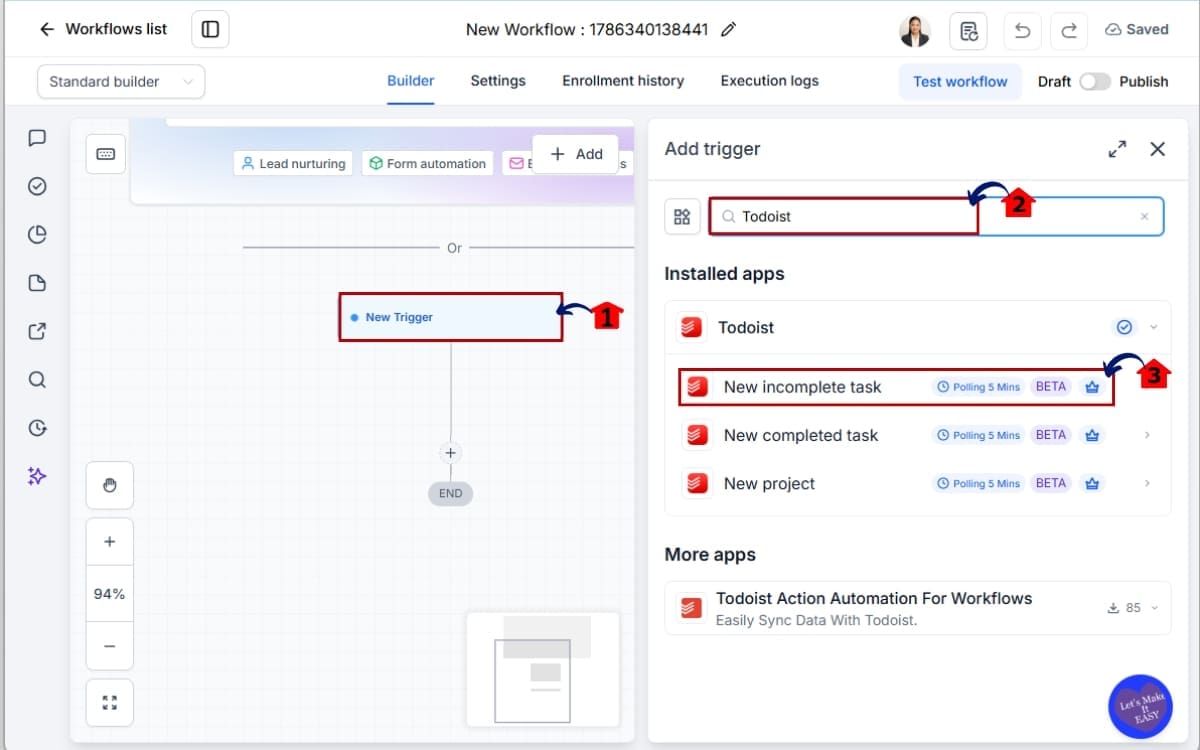
2.1 Inside your workflow, click Add Trigger.
- This opens the trigger menu where you can choose what will start your workflow.
2.2 Open the Apps tab and search for “Todoist.”
- This brings up the available Todoist triggers you can use inside your GHL workflow.
2.3 Select New incomplete task.
- This trigger watches for newly created incomplete tasks in Todoist and can use them to start your workflow.
Step 03 – Connect and Configure Your Todoist Trigger
- Now you’ll connect your Todoist account and give the trigger a clear name so it’s easy to identify inside your workflow.
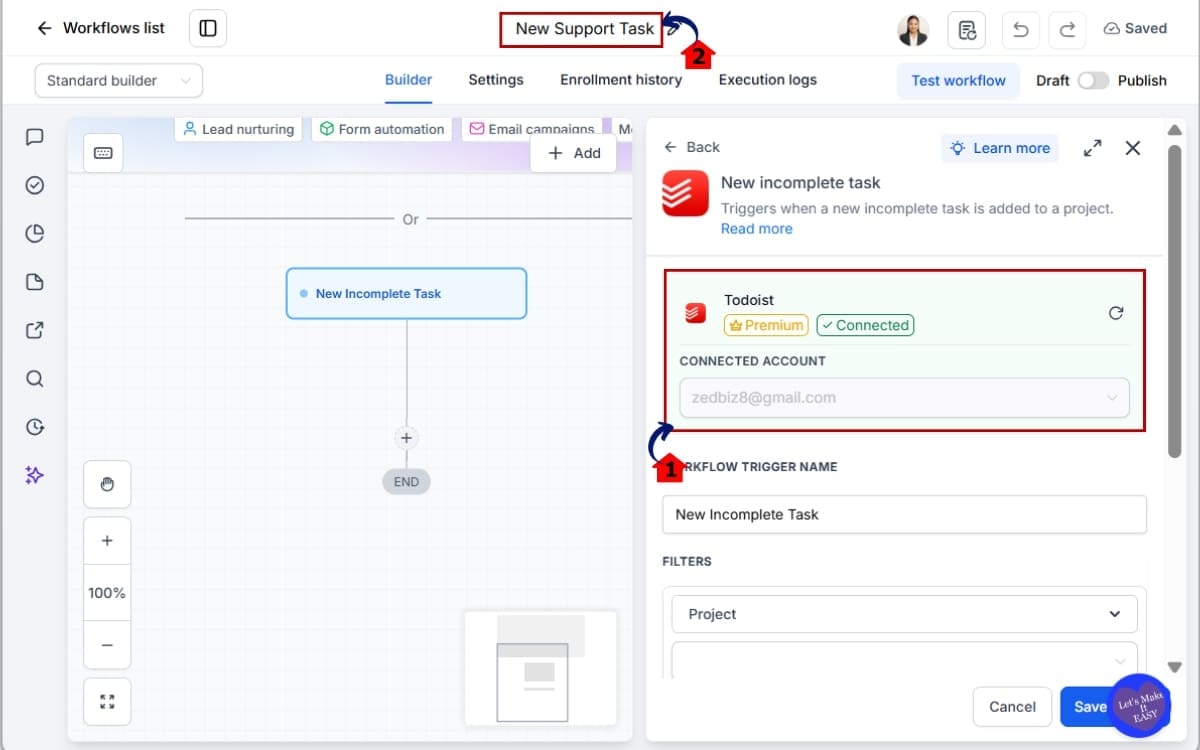
3.1 Find Connected Account inside the Todoist setup panel. Click Connect your account.
- This starts the connection between GHL and Todoist. Follow the prompts to authorize your Todoist account and return to the Workflow Builder.
3.2 Give your Workflow Name a clear label, such as “New Support Task.”
- Use a name that tells you exactly what the trigger is watching for. This makes the workflow much easier to understand and manage later.
Step 04 – Configure the Filter and Test Your Todoist Trigger
- Now you’ll decide which Todoist tasks should trigger the workflow, then test the setup to make sure GHL is finding the right records.
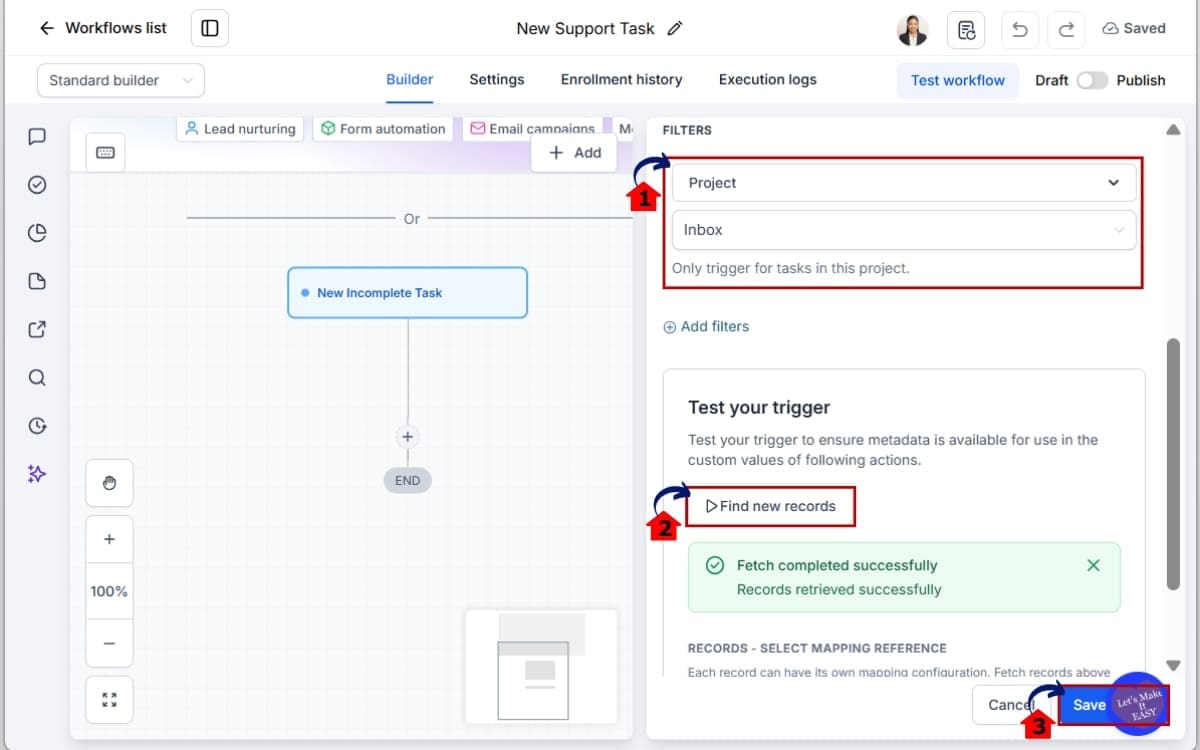
4.1 Open Filters and select Project if you only want to monitor tasks from a specific Todoist project.
- Choose the project you want GHL to watch. If you leave the Project field empty, the trigger can monitor matching tasks across your Todoist projects.
4.2 Find the Test your trigger panel and click Find new records.
- GHL will search for recent Todoist tasks that match your trigger settings. Select one of the returned tasks to use as your test record. If nothing appears, create a new task inside the Todoist project you’re monitoring. Wait for the next five-minute polling cycle, then return to GHL and search again.
4.3 Click Save trigger.
- This saves your trigger settings and keeps the Todoist connection ready for the next steps in your workflow. You can use the same general process when setting up the New completed task or New project triggers. Just choose the trigger you need, apply the right filters, test it, and save.
Step 05 – Add the Create Task Action
- Now you’ll send information in the other direction. This action lets your GHL workflow automatically create a new task inside Todoist.
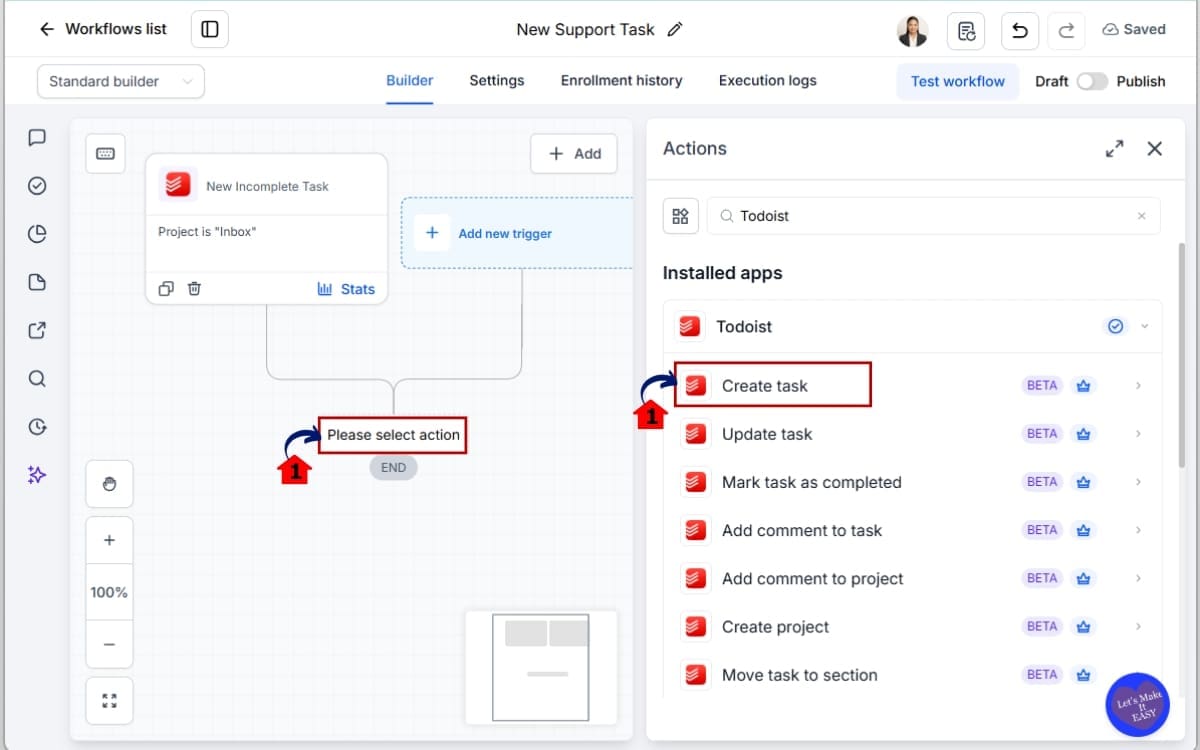
5.1 Click Add to insert a new step into your workflow.
- This opens the workflow action menu, where you can choose what you want GHL to do next.
5.2 Open the Apps tab, select Todoist, and choose Create task from the available actions.
- The Create task action lets your workflow send information from GHL into Todoist and turn it into a new task for your team.
Step 06 – Configure Your Todoist Task
- Under Connected Account, select the Todoist account where you want the task created. Double-check that you’ve selected the correct account, especially if you have more than one Todoist connection inside GHL.
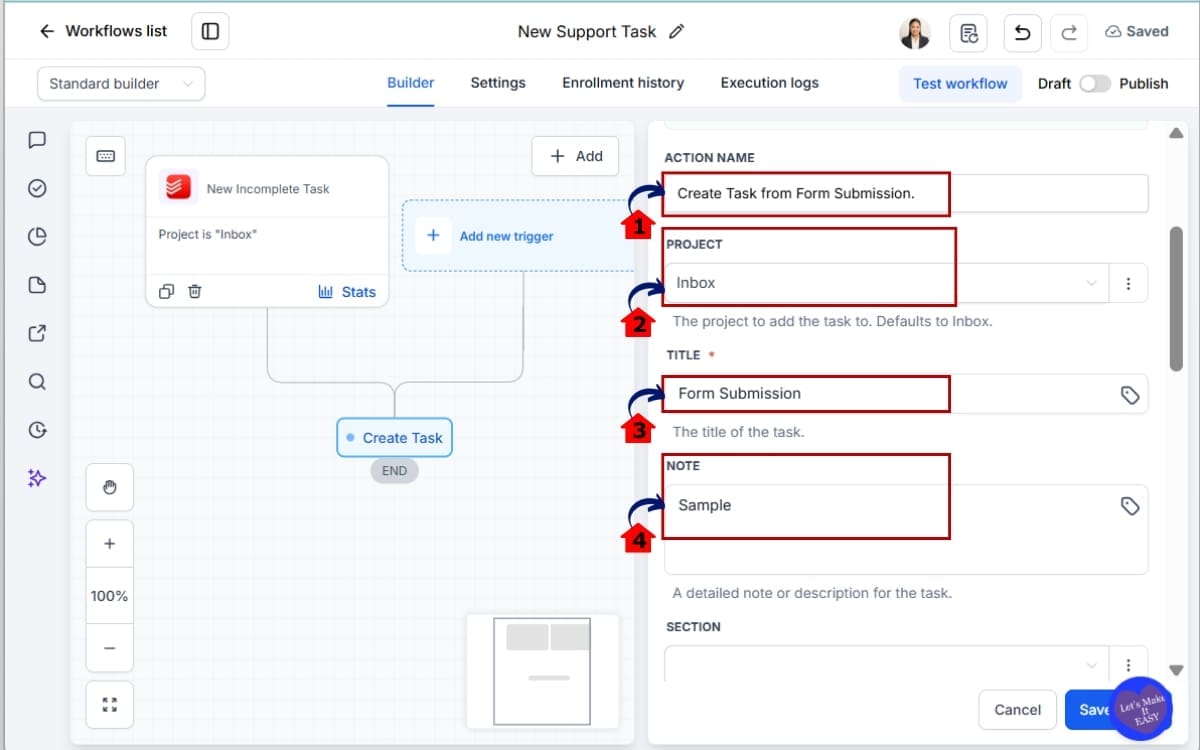
6.1 Enter a clear Action Name, such as “Create Task from Form Submission.”
- Give the action a name that describes what it does. This will make it easier to recognize when you come back to edit the workflow later.
6.2 Select the Todoist Project where the task should be created.
- Choose the project where you want the new task to appear. If you don’t select a project, Todoist will place the task in the Inbox by default. If the project needs to change based on information moving through the workflow, you can use Find projects earlier in the workflow to find the correct project.
6.3 Enter the required task Title.
- Keep the title short and descriptive so your team can quickly see what needs to be done when the task lands in Todoist.
6.4 Add a Note if the task needs more information.
- Use the Note field for customer details, links, instructions, or any extra context your team needs to complete the task.
Step 07 – Configure and Test Your Todoist Action
- Choose one due-date format, not both. Use either Due Date (Human Formatted) or Due Date (Raw Formatted). Choosing only one helps keep the task date clear and avoids conflicting information.
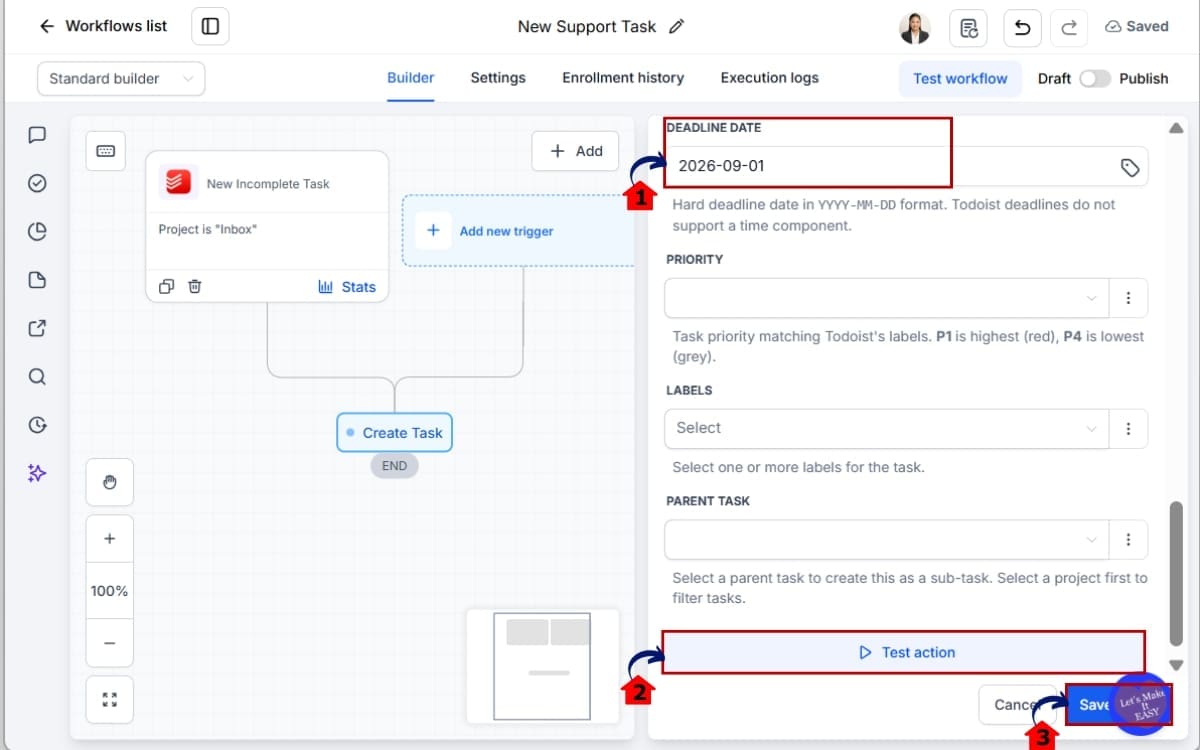
7.1 Add a Deadline Date if the task has a firm deadline.
- Enter the deadline using the YYYY-MM-DD format. Todoist deadlines only use the date, so you don’t need to enter a specific time.
7.2 Click Test action.
- This sends the action to your connected Todoist account so you can confirm the task is being created correctly.
7.3 Click Save.
- Once you’ve checked the test task in Todoist and everything looks right, save the action to keep your settings and continue building your workflow.
Step 08 – Test the Complete Workflow
- Before publishing your Todoist Task Integration, run one final test from beginning to end. This helps you confirm that the trigger and actions are working together as expected.
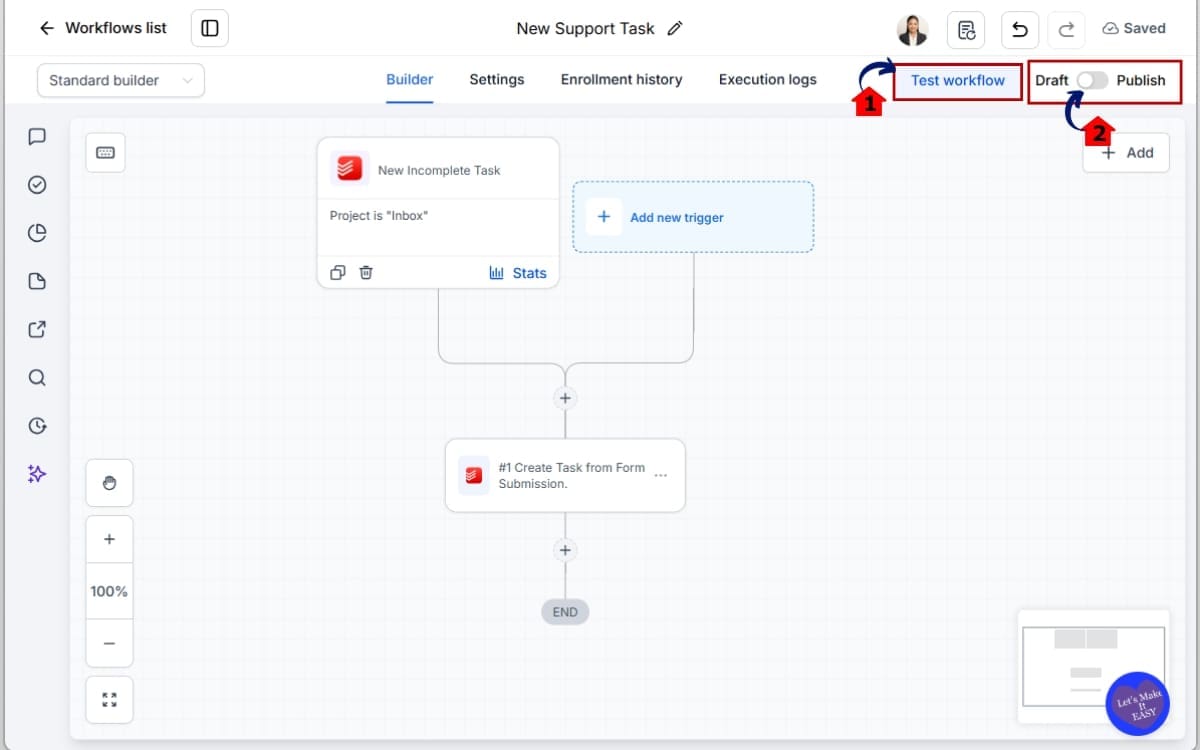
8.1 Click Test Workflow.
- Run the workflow and check that the Todoist trigger is picked up correctly and each action runs as planned. Check your Todoist account as well. Make sure the task appears in the correct project and that the information you added is showing properly.
8.2 Click Publish.
- Once everything is working correctly, publish the workflow to make your Todoist automation live.
That’s it! Your Todoist Task Integration is ready to go. GHL can now connect customer activity with the tasks your team works on inside Todoist, cutting out manual handoffs and keeping the next job moving.
Start with a simple automation before getting fancy. Something like a GHL form submission → Todoist task is easy to test and immediately useful. Once that works, you can build more advanced automations around completed tasks, projects, priorities, labels, comments, and team collaboration.
Pro Tips for Your Todoist Task Integration
Don’t go wild and automate every little thing just because you can. Start with the jobs your team repeats all the time. Then make sure each Todoist task includes the details they’d normally have to go hunting for.
Keep your Todoist task titles short and clear. Put the extra customer details, links, or instructions inside the task note instead. This makes busy Todoist project lists much easier for your team to scan.
Say you’ve got separate Todoist projects for Sales, Support, and Client Work. A support workflow probably doesn’t need to know what’s happening everywhere else. Point the trigger at your Support project, then use extra filters if you only want certain tasks to make it through.
If the correct Todoist project isn’t known when the workflow starts, use the Find projects action before creating the task. This lets your workflow find the target project instead of relying on a project that was manually selected during setup.
Watch your dates too. When creating a task, use either Due Date (Human Formatted) or Due Date (Raw Formatted), not both. You can also add a separate Deadline Date when there’s a firm deadline that needs to be tracked.
And don’t panic if a new Todoist task doesn’t immediately appear while testing your trigger. The Todoist triggers poll for activity every five minutes. Give the integration a full polling cycle, then click Find new records again.
Finally, remember that testing Todoist actions creates real records. Use obvious names like “TEST — DELETE,” verify that everything landed where it should, and clean up your test records afterward.
A little testing now beats finding out your automation has been creating tasks in the wrong project for the last three weeks.
What Todoist Task Integration Means for Your Business
The Todoist Task Integration gives you a practical way to connect what your customers do with what your team needs to do next. Instead of depending on someone to notice an event in GHL and manually create a task, your workflow can make that handoff automatically.
Take a support request as an example. A customer submits a GHL form and marks the issue as urgent. Your workflow can find the Support Backlog project in Todoist, create a high-priority task, add the full request as a note, and apply the right label. Your support team gets everything they need inside the tool they already use.
This could also save your sales team from some double entry. An AE finishes an Acme follow-up and marks the Todoist task complete. Instead of asking them to immediately update everything in GHL too, that completed task can feed into a workflow that takes care of the next CRM step.
This isn’t just useful for sales and support either. Say a new client signs up and your onboarding team needs to take over. GHL can drop a task into Todoist with the deadline, priority, label, and notes already filled in, so whoever gets the job knows where to start.
The big win here isn’t adding another integration to your tech stack. It’s removing repetitive handoffs between the tools you already use.
GHL can keep running your customer-facing automation while Todoist handles your team’s day-to-day work. Connect the two properly, and your team spends less time copying information between systems and more time actually getting the work done.
FAQs – Todoist Task Integration
Get More Done With the Todoist Task Integration
The Todoist Task Integration gives you a practical way to connect what’s happening with your customers in GHL to the work your team handles in Todoist.
A new lead comes in. A customer submits a form. Someone needs to follow up. Instead of relying on another manual handoff, your GHL workflow can help get that work into Todoist and in front of the right person.
The connection can work the other way too. Once your team finishes a Todoist task, that activity can be picked up by GHL and used to keep your automation moving.
If you’re just getting started, keep it simple. Pick one task your team creates over and over again and automate that first. A Form Submission → Create Todoist Task workflow is an easy place to begin.
Get that working, test it properly, and then build from there.
The team here at GHL Growth Garage will keep breaking down new GoHighLevel features and showing you how to actually put them to work in your business.
Have you tried the Todoist Task Integration yet? What’s the first Todoist job you’d like GHL to take off your plate?
Scale Your Business Today.
Streamline your workflow with GoHighLevel’s powerful tools.