- Place chat inside websites, funnels, and landing pages without using a floating bubble.
- Quick Summary – Chat Widget Placement at a Glance
- What’s New With Chat Widget Placement
- Why Chat Widget Placement Matters
- How to Use Chat Widget Placement in GoHighLevel
- Pro Tips for Better Chat Widget Placement
- What Chat Widget Placement Means for Your Business
- Frequently Asked Questions About Chat Widget Placement
- Chat Widget Placement Gives You More Control
Place chat inside websites, funnels, and landing pages without using a floating bubble.
Chat Widget Placement Gives You More Control
Chat Widget Placement in GoHighLevel is now more flexible, and that gives you more control over how conversations appear on your pages. Instead of relying only on a floating chat bubble, you can now place supported chat widgets directly inside websites, funnels, landing pages, and other page layouts.
Before this update, Embedded placement was only available for Live Chat and Voice AI. Now, GHL supports Embedded placement for All-in-One Chat, Email / SMS, WhatsApp, Facebook, Instagram, Live Chat, and Voice AI. That means more of your chat options can stay visible inside the page instead of sitting in the bottom corner.
This is a simple change, but it can make the customer experience feel much cleaner. You can place chat where it makes the most sense, such as beside an offer, on a contact page, or inside a support section, while keeping the conversation easy to find and use.

The new Chat Widget Placement options give you more control over where conversations happen. You can now place chat directly inside key pages, keep it visible, and create a smoother experience for leads and customers.
Quick Summary – Chat Widget Placement at a Glance
Purpose: This update gives you more control over Chat Widget Placement by letting you choose between Sticky and Embedded/Inline layouts.
Why It Matters: You can place chat directly inside websites, funnels, landing pages, and support pages instead of relying on a floating bubble.
What You Get: Embedded/Inline placement now works with All-in-One Chat, Email / SMS, WhatsApp, Facebook, Instagram, Live Chat, and Voice AI.
Time To Complete: Most users can update one Chat Widget in about 5 to 10 minutes.
Difficulty Level: This is a beginner-friendly setup with only a few changes inside the Chat Widget Builder.
Key Outcome: You can create a cleaner chat experience that fits the page and keeps conversations visible where visitors are most likely to need them.
What’s New With Chat Widget Placement
Chat Widget Placement in GHL now gives you the choice between Sticky and Embedded across all supported chat types. That means the update is no longer limited to Live Chat and Voice AI.
Embedded placement now works with All-in-One Chat, Email / SMS, WhatsApp, Facebook, Instagram, Live Chat, and Voice AI. When you choose Embedded, the full chat experience opens right inside the page and stays visible.
Automate marketing, manage leads, and grow faster with GoHighLevel.

The floating chat bubble is removed, the opening prompt does not appear, and the widget cannot be minimized. GHL also updates the builder preview automatically and hides settings that only apply to floating chat bubbles. The result is a cleaner setup that is easier to match with the page you are building.
Why Chat Widget Placement Matters
Chat Widget Placement gives you more control over where conversations happen on a page. Instead of making every visitor look for a floating bubble, you can place chat right beside the content, offer, or support area they are already using.
That can be useful on landing pages, booking pages, contact pages, sales funnels, and support sections. It helps keep the conversation connected to the reason the visitor is on the page in the first place.
For agencies, this also opens up more design options for client sites. You can use Embedded placement where chat should stay visible, while keeping Sticky placement on pages where a floating bubble makes more sense. It is a small update, but it gives you more flexibility to build a cleaner customer experience.
How to Use Chat Widget Placement in GoHighLevel
Chat Widget Placement can now be changed to Embedded/Inline for supported GHL Chat Widgets. In this guide, you’ll learn how to open the Chat Widget Builder, switch the widget from Sticky to Embedded/Inline, adjust its size, and save your changes.
Here are the steps we will follow:
- Open the Chat Widget Builder in GHL.
- Change the Chat Widget Placement.
- Adjust the Widget Dimensions and save.
To start, make sure you are logged in to the correct GoHighLevel sub-account.
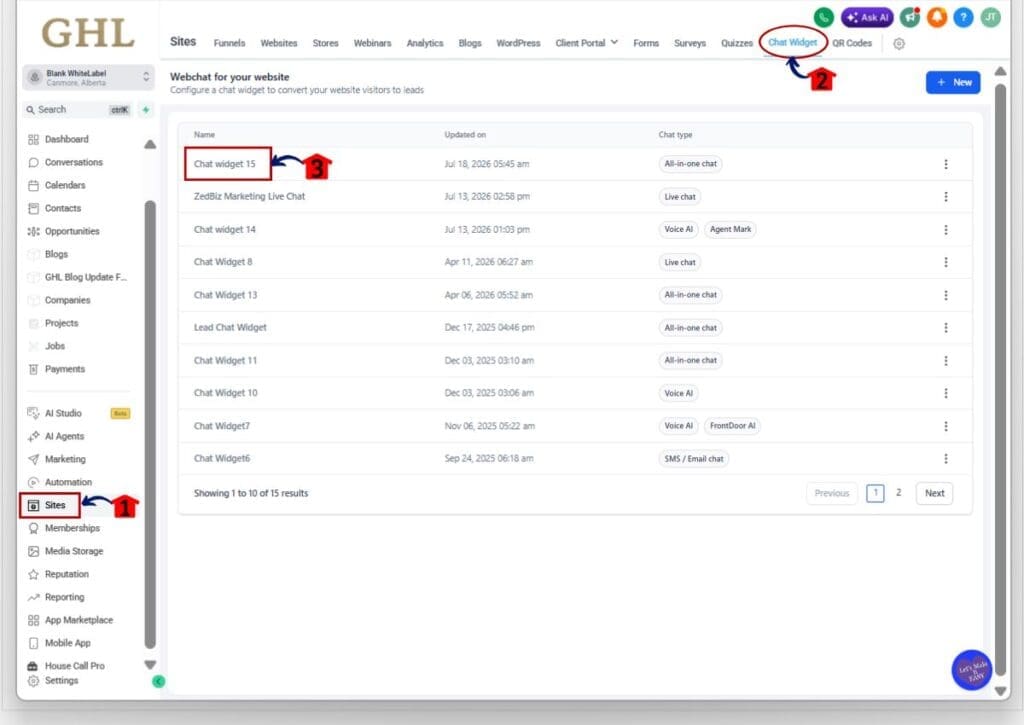
Step 01 – Open the Chat Widget Builder in GHL
- The main menu on the left side of your screen includes the main areas you use in GoHighLevel.
1.1 Click Sites.
- This opens the main Sites section.
1.2 Click Chat Widget in the top menu.
- The Chat Widget page will open and show the widgets available in your sub-account.
1.3 Click the Chat Widget you want to edit.
- The Chat Widget Builder will open so you can update its settings.
Step 02 – Change the Chat Widget Placement
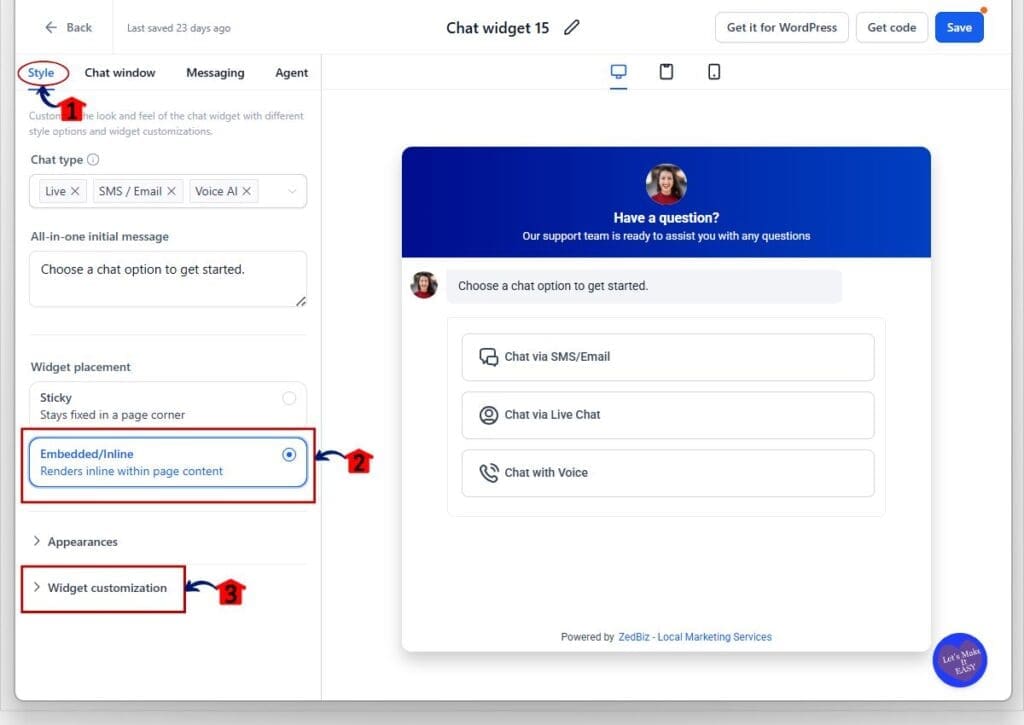
- The Style tab includes the main display and placement settings for your Chat Widget.
2.1 Click Style.
- The Style settings will open on the left side of the Chat Widget Builder.
2.2 Find Widget placement and select Embedded/Inline.
- The widget will change from a floating Sticky layout to an inline layout that renders inside your page content.
2.3 Click Widget customization.
- This opens the settings used to control the size and appearance of the embedded widget.
Step 03 – Adjust the Widget Dimensions and Save
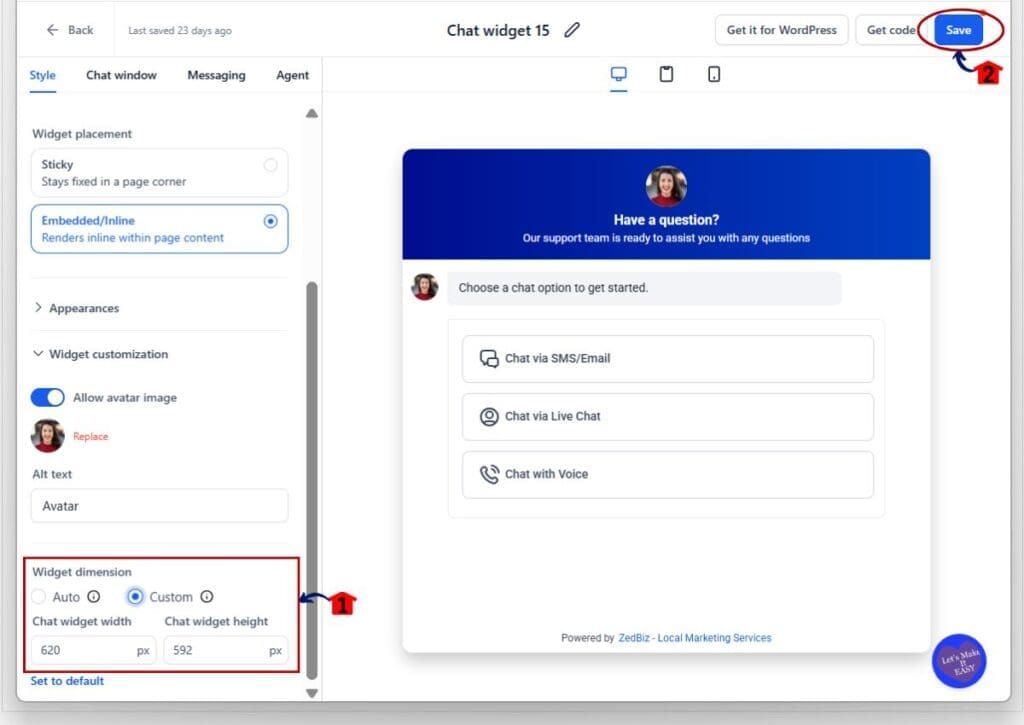
- Embedded widgets can use automatic dimensions or a custom width and height.
3.1 Find the Widget dimension section.
- You can choose between Auto and Custom sizing.
3.2 Select Custom if you want to control the widget size.
- Enter the width and height you want to use for the embedded chat widget.
- In the example shown, the widget is set to:
- Width: 620 px
- Height: 592 px
3.3 Click Save in the top-right corner.
- GHL will save the new Chat Widget Placement and dimension settings.
Once Embedded/Inline Chat Widget Placement is active, the widget will display directly inside the page instead of appearing as a floating bubble. The widget stays visible as part of the page layout, which gives you more control over where visitors see and use it.
Pro Tips for Better Chat Widget Placement
Chat Widget Placement works best when the widget feels like a natural part of the page. Put it close to the point where a visitor may need help, such as a contact section, booking area, support page, or funnel step.
Use Embedded/Inline placement when you want chat to stay visible. Use Sticky placement when you want the widget to stay out of the way until someone is ready to open it. For embedded chat, check the widget size so it fits the page without making the layout feel crowded.
If you use All-in-One Chat, keep the channel choices simple. Offer the options your visitors are most likely to use, then test the page on desktop and mobile before you publish.
What Chat Widget Placement Means for Your Business
Chat Widget Placement gives you more control over how people start a conversation with your business. Instead of using the same floating bubble on every page, you can place chat where it makes the most sense for the visitor.
For example, you could add embedded chat beside a booking form, inside a support page, or near a service offer in a funnel. That keeps the conversation close to the action the visitor is already taking, which can make the page feel easier to use.
For agencies, this also gives you more room to build different chat experiences for different clients. You can use Embedded/Inline placement on pages where chat should stay visible, while keeping Sticky placement on pages where a floating widget is still the better fit.
Frequently Asked Questions About Chat Widget Placement
Chat Widget Placement Gives You More Control
The latest Chat Widget Placement update gives you a simple way to control where conversations appear. You can keep using Sticky placement for a floating chat bubble, or switch to Embedded/Inline when you want the chat to stay visible inside the page.
That added choice can make websites, funnels, landing pages, and support pages feel more organized. It also gives agencies more freedom to match the chat experience to the page instead of forcing every visitor into the same layout.
If you are already using GHL Chat Widgets, this update is worth testing on a page where visitors often need help or have questions. Try both placement options and see which one fits the page better.
Scale Your Business Today.
Streamline your workflow with GoHighLevel’s powerful tools.