

- Reorder fields faster in GoHighLevel Forms, Surveys, and Quizzes with smoother dragging and automatic scrolling.
- Quick Summary – Builder Auto Scroll Overview
- Why This Matters to You – Builder Auto Scroll Saves Real Time
- What’s New – Builder Auto Scroll Improves Dragging
- How to Use Builder Auto Scroll in GHL Forms
- Pro / Quick Tips – Get More From Builder Auto Scroll
- What This Means for Your Business – Cleaner Builds, Faster Delivery
- Real-time Application for Business – Where Builder Auto Scroll Helps Most
- Frequently Asked Questions – Builder Auto Scroll in GoHighLevel
- Conclusion – Builder Auto Scroll Keeps You Moving
Reorder fields faster in GoHighLevel Forms, Surveys, and Quizzes with smoother dragging and automatic scrolling.
Builder Auto Scroll Makes Building Faster
Builder Auto Scroll fixes one of the most annoying parts of building long Forms, Surveys, and Quizzes in GoHighLevel. If you have ever dragged a field up the page and had to stop, drop it, scroll, then try again, you know how slow that gets.
With this update, dragging feels smoother and more controlled. You will see a light gray shadow on the element you are moving, so it is easier to tell what is being dragged and where it will land.
The real win is that long builds now scroll for you while you drag. When you reach the top or bottom edge of the builder, Builder Auto Scroll moves the page automatically, so you can place elements higher or lower without breaking your flow.
Builder Auto Scroll removes the most annoying part of building long Forms, Surveys, and Quizzes in GoHighLevel: constant drag-drop-scroll-repeat. With Builder Auto Scroll, you can reposition elements smoothly, get clearer visual feedback, and finish builds faster with fewer mistakes.
Quick Summary – Builder Auto Scroll Overview
Purpose: This guide shows you how to use Builder Auto Scroll in GoHighLevel so you can reorder elements in long Forms faster without stopping to scroll manually.
Why It Matters: Long Forms, Surveys, and Quizzes are hard to rearrange when you keep drag-dropping and scrolling, and this update makes that process smoother and less error-prone.
What You Get: You get a simple walkthrough that explains where to find the Form Builder, how the new drag shadow works, and how to trigger Builder Auto Scroll while moving fields.
Time To Complete: Most users can test and start using Builder Auto Scroll in about 3 to 5 minutes.
Difficulty Level: This is beginner-friendly and requires no setup, toggles, or settings changes.
Key Outcome: You can reposition fields up or down long Forms in one smooth drag, with clearer visual feedback and fewer misdrops.
Why This Matters to You – Builder Auto Scroll Saves Real Time
Builder Auto Scroll matters because most form builds do not stay small for long. A simple lead form turns into an intake form. Then it turns into a full onboarding form. Once you hit 20 or 30 fields, reordering becomes a slow grind.
Before this update, moving elements in a long Form, Survey, or Quiz usually meant drag, drop, scroll, and then repeat. That breaks your focus and it increases mistakes. It is easy to drop a field in the wrong spot, then spend extra time fixing it.
Automate marketing, manage leads, and grow faster with GoHighLevel.

Now, Builder Auto Scroll keeps the page moving while you drag, so you can place elements exactly where they belong in one smooth motion. That means faster builds, fewer misdrops, and a cleaner workflow for you and your team.
What’s New – Builder Auto Scroll Improves Dragging
Builder Auto Scroll comes with a few small changes that make the builder feel better right away. Nothing new to learn. It just works the way you expected it to work in the first place.
First, when you drag an element, you will now see a subtle gray shadow on it. That shadow makes it easier to track what you are moving, especially when you are working fast or your form has a lot of sections.
Second, the drag-and-drop motion feels smoother and more polished. And when your form, survey, or quiz is long, Builder Auto Scroll will move the page up or down as you drag near the top or bottom edge, so you can reposition elements without stopping to scroll by hand.
How to Use Builder Auto Scroll in GHL Forms
Builder Auto Scroll is used inside the Form Builder while you are editing a form. You will drag any form element to a new position, and the page will scroll for you when you reach the top or bottom edge of a long form.
Here are the steps to use Builder Auto Scroll in GoHighLevel using a Form as the example.
- Access the Form Builder inside GHL Sites.
- Drag an element and watch the new visual feedback.
- Trigger Builder Auto Scroll on a long form.
To start make sure you are logged in to your GoHighLevel sub-account.
Step 01 – Access the Form Builder inside GHL Sites
- The Main Menu on the left side of your screen has the main areas you work in when using GHL.
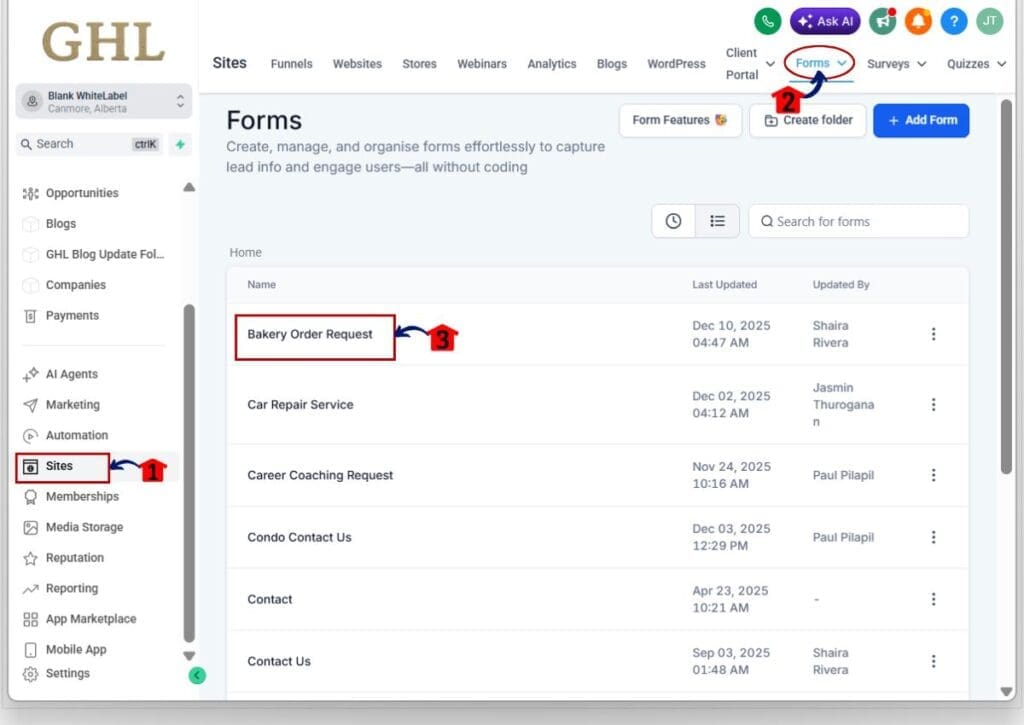
1.1 Click Sites main menu item.
- This opens the Sites section where you can access Forms, Survey, Quizzes.
- For our example we will use a Forms.
1.2 Click Forms.
- This opens the Forms area where you can view and edit existing forms.
1.3 Click the Form name you want to update.
- The Form Builder will load for that form.
- For this example, choose a longer form so you can clearly see Builder Auto Scroll working.
Step 02 – Drag an element and watch the new visual feedback
2.1 Scroll to a section that has multiple fields.
- This makes it easier to test dragging and reordering.
2.2 Click and hold the element you want to move.
- You can use a text field, dropdown, or any question block.
2.3 Start dragging the element up or down the form.
- You will notice a subtle gray shadow on the element while it is being dragged.
2.4 Move the element toward the spot where you want it to live.
- The smoother motion makes it easier to control placement.
Step 03 – Trigger Builder Auto Scroll on a long form
3.1 Keep holding the element while dragging.
- Do not release the click yet.
3.2 Move your cursor close to the bottom edge of the builder.
- Builder Auto Scroll will start scrolling the form downward.
3.3 Move your cursor close to the top edge of the builder.
- Builder Auto Scroll will scroll upward the same way.
3.4 Continue until you reach the section where you want to place the element.
- This lets you move fields higher or lower without stopping to scroll by hand.
3.5 Release your mouse to drop the element in the new position.
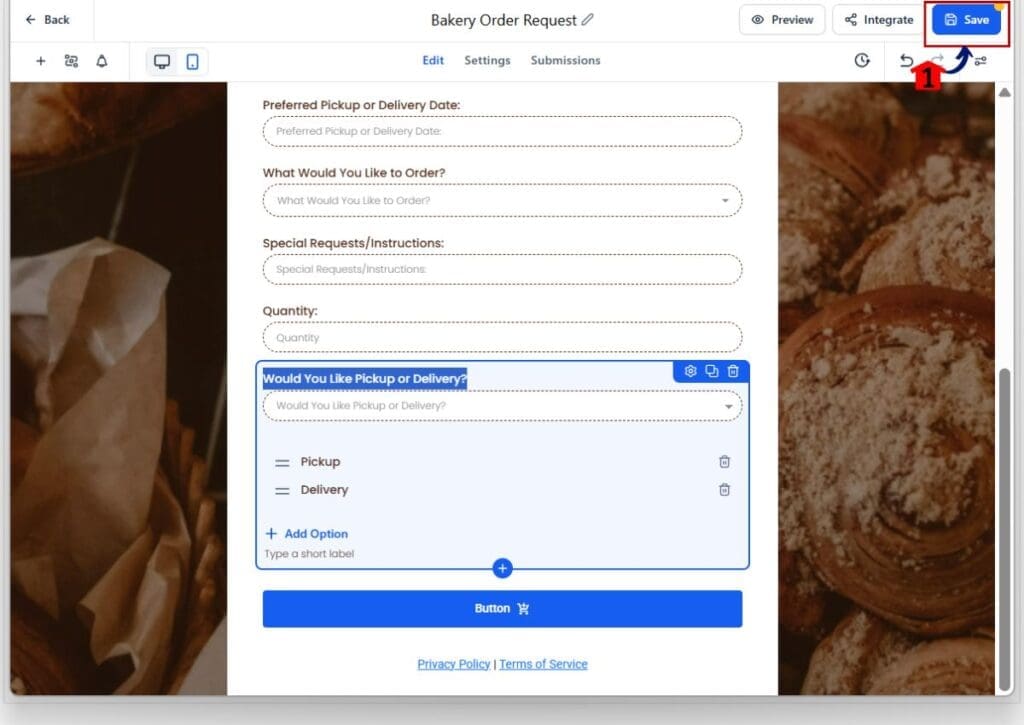
3.6 Click Save Button to save the form and run a quick preview.
- This confirms the form still flows the way you want.
Pro / Quick Tips – Get More From Builder Auto Scroll
Builder Auto Scroll is simple, but a few habits will make it even smoother when you are working fast. The goal is to reorder fields without losing your place or breaking the flow of your form.
First, work in chunks instead of fixing the whole form at once. Move the fields for one section, then stop and scan that section before moving on. This prevents the common mistake where you move five things and then forget what the original order was.
Next, drag slowly when you are near your target spot. The new shadow helps, but it is still possible to drop a field one line too high or too low if you rush it. If you are building for a client, do a quick preview after any major reorder so you can confirm the form reads in the right order.
A few quick wins you can use right away:
- Put easy questions first and place longer questions later to improve completion.
- Group related fields together, like contact info, service needs, and budget.
- If a form is very long, add clear section labels so you know where to drop fields when Builder Auto Scroll moves the page.
What This Means for Your Business – Cleaner Builds, Faster Delivery
Builder Auto Scroll makes your build process faster, but the bigger win is consistency. When it is easier to move fields around, you are more likely to keep forms organized instead of leaving them “good enough.” That leads to cleaner client assets and fewer revisions later.
For agencies, this shows up in a few practical ways. Your team can rebuild or improve long intake forms without wasting time on the drag-drop-scroll routine. VAs can handle updates faster. And when a client asks for changes like “move these questions higher” or “group these fields together,” it becomes a quick edit instead of a frustrating task.
It also helps protect your conversion flow. When your form is ordered well, people finish it more often. Builder Auto Scroll makes it easier to put the right questions in the right place, which improves completion and helps you collect better lead data.
Real-time Application for Business – Where Builder Auto Scroll Helps Most
Builder Auto Scroll is not just a “nice” builder upgrade. It directly improves how fast you can ship lead capture and client onboarding assets inside GoHighLevel. When you can reorder fields without breaking your flow, you can test, refine, and launch faster.
Here are a few real ways to use it in marketing workflows:
- Lead generation forms: Put the easy fields first, like name and email, then move higher-friction questions lower. This keeps more people completing the form.
- Application forms: Group questions by topic so the form reads like a simple interview. Contact info first, service details next, budget and timeline last.
- Onboarding intake forms: Reorder questions to match your onboarding call. That way the client fills it out in the same order you review it.
- Quiz funnels: Move your key “segmenting” questions earlier so you can tag leads faster and route them into the right workflow.
The bottom line is simple. Builder Auto Scroll makes it easier to keep your forms clean and intentional. That helps you collect better data, reduce drop-offs, and spend less time doing tiny edits that should have taken 30 seconds.
Frequently Asked Questions – Builder Auto Scroll in GoHighLevel
Conclusion – Builder Auto Scroll Keeps You Moving
Builder Auto Scroll is a small GoHighLevel update that removes a real annoyance in the Form Builder. Dragging feels smoother, the gray shadow makes it clearer what you are moving, and long forms now scroll while you drag so you can place fields faster.
If you build Forms, Surveys, or Quizzes often, this saves time and helps you keep your layouts clean. It also makes quick client edits less painful, especially when you are working with long intake or application forms.
Try Builder Auto Scroll on one of your longer forms today and reorder a few sections in one pass. What is the longest form you have built in GHL so far?
Scale Your Business Today.
Streamline your workflow with GoHighLevel’s powerful tools.


