

- Introduction – AI Workflow Builder in GHL
- Quick Summary – AI Workflow Builder Essentials
- Here are this weeks HighLevel Updates
- What’s New in the AI Workflow Builder
- Why the AI Workflow Builder Is Now 10X Faster
- New AI Workflow Builder Capabilities Explained
- Why the AI Workflow Builder Matters for Agencies
- How to Use the AI Workflow Builder in GHL
- Pro Tips for Getting the Most from AI Workflow Builder
- Real-World Applications of the AI Workflow Builder
- FAQs AI Workflow Builder Labs
- Conclusion – The Future of AI Workflow Builder in GHL
Introduction – AI Workflow Builder in GHL
AI Workflow Builder in GHL worked. You typed a prompt, generated a workflow, reviewed it, made a few edits, and moved on. On the surface, it did exactly what it promised.
But when you were building real client automations at scale, the friction showed up fast.
Workflow generation could take close to a minute. Template builds took even longer. If the AI selected the wrong trigger or created a messy If/Else condition, you had to manually clean it up. Editing Wait steps meant diving back into settings instead of simply telling the AI what you wanted.
It worked. But it slowed you down.
Agencies felt this the most. When you’re building onboarding sequences, lead nurture flows, appointment reminders, task automations, and internal SOP systems across multiple sub-accounts, every extra second matters. Every generation error breaks momentum. Every manual adjustment eats into billable time.
Now that changes.
GHL has rebuilt the AI Workflow Builder from the inside out. Workflow creation is now up to 2X faster. Template generation is up to 10X faster. Simple prompts can complete in as little as 15 seconds. Trigger and action selection is significantly more accurate, and condition-related errors have been dramatically reduced.
And the upgrades don’t stop at speed.
You can now edit If/Else and Wait steps through multi-turn conversation. You can configure workflow settings and rename workflows directly from your prompt. Voice dictation is supported. A built-in post-generation To-Do list prevents incomplete publishing. Integration apps like ClickUp and Asana are fully understood. Data can now link across actions automatically.
It’s no longer just an AI assistant.
The AI Workflow Builder is now production-ready automation infrastructure inside GHL.
The upgraded AI Workflow Builder cuts build time down fast while making your automations more accurate and easier to adjust. Agencies can now roll out smarter systems in minutes instead of spending hours wiring everything manually.
The latest GoHighLevel Changelog includes several other GHL feature updates that round out your daily workflow:
- New QR Code Styling Options: Shapes, Borders, and Rim Text
- Collapse & Resize Pipeline Stages in Kanban View
- Notes just got smarter for the contacts page!
- New Asana actions in workflows – Find Project and Find section
- Email AI + Knowledge Base Integration 🚀
- Dialer: Auto-minimize, Pin & Drag
- Schema Markup Using AI
Keep reading for much more on all these updates and a deep dive into the AI Builder feature!
Quick Summary – AI Workflow Builder Essentials
Purpose:
This guide explains the major upgrades to the AI Workflow Builder in GHL and shows agencies how to use the new speed, editing, and integration capabilities to build production-ready automations faster.
Why It Matters:
The AI Workflow Builder now generates workflows up to 10X faster with fewer errors, smarter trigger selection, and conversational editing. This reduces build time, improves accuracy, and protects agency margins.
What You Get:
You get faster workflow creation, post-generation To-Do validation, voice dictation, improved Wait and If/Else logic editing, integration intelligence, and automatic data linking across actions.
Time To Complete:
Reading this guide takes about 8–10 minutes. Building your first AI-powered workflow using these upgrades can take less than 5 minutes.
Difficulty Level:
Beginner to Intermediate. The AI Workflow Builder lowers the technical barrier, but reviewing and refining workflows still requires basic automation knowledge.
Key Outcome:
After following this guide, you’ll be able to build, edit, and deploy scalable workflows inside GHL using the upgraded AI Workflow Builder with greater speed, confidence, and precision.
Here are this weeks HighLevel Updates
New QR Code Styling Options: Shapes, Borders, and Rim Text
What it does:
Lets you stop using boring QR codes. You can now tweak the shape, style the border, and add text around the edge.
Where in GHL:
Accessible via Sites → QR Codes and within QR tools embedded in Funnel and Website builders.
Automate marketing, manage leads, and grow faster with GoHighLevel.

Impact:
Improves visual presentation and brand alignment while increasing scan appeal.
Best suited for:
Agencies that care about branding, small businesses running local promotions, online stores, and teams pushing QR campaigns.
Collapse & Resize Pipeline Stages in Kanban View
What it does:
Lets you hide pipeline stages you’re not actively using and adjust column widths so your board fits the way you work.
Where in GHL:
Inside Opportunities when you’re viewing your pipeline in Kanban mode.
Impact:
No more dragging your screen forever just to find the deals that matter.
Best suited for:
Owners running multi-stage pipelines, reps working deals every day, and anyone fed up with a messy board.
Notes Just Got Smarter for the Contacts Page
What it does:
Upgrades the notes area so it’s easier to write, review, and keep things organized inside a contact record.
Where in GHL:
Found directly within each contact’s profile under Notes.
Impact:
Makes it simpler to see what’s been discussed and who added what — without digging through clutter.
Best suited for:
Teams collaborating on accounts and businesses that document every client touchpoint.
New Asana Actions in Workflows – Find Project & Find Section
What it does:
Lets your workflow check what already exists in Asana before adding anything new.
Where in GHL:
Go to Workflows, add an action, and choose the Asana integration.
Impact:
No more duplicate projects. No more messy task boards. Just cleaner automation.
Best suited for:
Operations teams and agencies that rely on Asana to manage client delivery.
Email AI + Knowledge Base Integration
- What it does:
Allows Email AI to reference your Knowledge Base for smarter, more accurate responses. - Where in GHL:
Found in Conversations → Email composer with AI enabled and Knowledge Base settings under AI configuration. - Impact:
Smarter email suggestions that understand your business and help you reply quicker. - Best suited for:
Support teams, agencies managing inboxes, and businesses scaling communication with AI.
Dialer: Auto-Minimize, Pin & Drag
- What it does:
Lets you auto-minimize the dialer during calls, pin it in place, and drag it anywhere on screen. - Where in GHL:
Found in Conversations → Dialer. - Impact:
Cleaner workspace and easier multitasking during sales or support calls. - Best suited for:
Sales teams, outbound callers, appointment setters, and agencies making daily calls.
Schema Markup Using AI
- What it does:
Generates structured schema markup automatically using AI for SEO enhancement. - Where in GHL:
Found in Sites → Website or Funnel settings within AI or SEO sections. - Impact:
Improves search visibility without manual coding. - This works well for:
Teams building websites that need stronger search visibility, from agencies to small local businesses.
What’s New in the AI Workflow Builder
The AI Workflow Builder didn’t just get faster. It got smarter, more accurate, and far more usable for real agency workflows.
Before, you’d hit generate… and wait. Sometimes 50 seconds. Sometimes longer. Now most workflows are ready in under 30 seconds. Quick prompts can finish in about 15. And those heavier template builds that used to push past 90 seconds? They’re done in just a few seconds.
That speed alone changes how often you’ll use it.
But reliability was also upgraded. Generation errors have been significantly reduced, especially around condition logic and node creation. If/Else steps are more accurate. Trigger and action selection now better matches your intent based on the prompt you provide.
Then come the capability upgrades. After generation, you now receive a clear To-Do list highlighting any missing inputs like credentials or custom values. Clicking a To-Do item takes you directly to the action that needs attention. No more accidentally publishing incomplete workflows.
You can also configure workflow settings and rename your workflow directly through your AI prompt. That means fewer manual adjustments after generation.
No more manual rewiring just to fix a condition. If something’s off in an If/Else or Wait step, say what needs to change and the AI updates it. This is clearly building toward deeper AI control inside the workflow builder.
You can now talk through your workflow instead of typing everything out. Just describe what you want, and the system builds it from your voice.
Integration app support has expanded as well. The AI Workflow Builder now understands apps like Asana and ClickUp. If you tell it to create a task in ClickUp, it will select and configure the correct integration action automatically.
And one of the most powerful upgrades is data linking across actions. Outputs from one action can now be referenced in another. For example, a GPT action’s output can be automatically mapped into an email body without manual configuration.
Autosave is also now respected. If autosave is enabled in your workflow settings, AI-generated workflows will automatically save after generation or editing.
This isn’t just a speed boost. It’s a foundational upgrade to how automation is built inside GHL.
Why the AI Workflow Builder Is Now 10X Faster
Speed sounds nice in a changelog. But in agency operations, speed equals margin.
There was a time when creating a workflow meant waiting close to a full minute. One workflow? No big deal. But build ten in a row, and you’ve just spent ten minutes watching a loading screen. Spread that across your team and multiple client accounts, and the lost time adds up before you even notice it.
Now the AI Workflow Builder completes most builds in under 30 seconds. Simple prompts can finish in 15 seconds. Template generation that once stretched past 90 seconds now wraps up in under 7 seconds.
That’s not incremental improvement.
That’s operational acceleration.
But speed without accuracy is dangerous. That’s why the error reduction matters just as much. Node generation failures have been reduced. Condition logic errors are significantly lower. The AI now selects triggers and actions with greater precision based on your use case.
This reduces cleanup time after generation. Less manual correction. Less troubleshooting. Fewer broken logic branches.
For agencies building onboarding flows, lead nurture sequences, booking automations, internal task workflows, and multi-step sales pipelines, this means momentum stays intact. You generate. You review. You finalize. You deploy.
Instead of generate. Wait. Fix. Rebuild.
And because autosave is now respected during generation and editing, you’re not at risk of losing work mid-build. That small detail alone prevents frustration during longer workflow sessions.
The AI Workflow Builder is no longer something you “try.” It’s something you rely on.
New AI Workflow Builder Capabilities Explained
The speed upgrade is impressive. But the new capabilities are what make the AI Workflow Builder truly production-ready.
Let’s start with the post-generation To-Do list.
After the AI builds your workflow, you now see a clear checklist of items that require your input. Missing credentials. Custom values. Required configuration steps. Instead of hunting through actions manually, you click a To-Do item and it takes you directly to the exact step that needs attention. This prevents incomplete workflows from being published by mistake.
Next is conversational editing for If/Else and Wait steps.
Previously, if the AI generated a condition slightly wrong, you had to manually rewrite it. Now you can simply tell the system what to change. Want to modify a time window? Adjust a branching condition? Update a date-based Wait step? You can do it through multi-turn conversation instead of digging through menus.
This alone reduces one of the highest friction areas in workflow building.
Then there’s workflow settings and naming via AI.
You can now instruct the AI to rename the workflow and configure its settings directly from your original prompt. That means fewer manual adjustments after generation and cleaner automation structure from the start.
Voice dictation has also been added.
Instead of typing out a complex automation idea, you can describe it verbally. This speeds up creative planning and makes automation building more accessible for users who prefer speaking over typing.
Integration intelligence is another major leap.
The AI Workflow Builder now understands integration apps like Asana, ClickUp, and others. If you say “create a task in ClickUp when a lead books,” the system selects the proper integration action and configures it correctly. You no longer need to manually search for the right integration node.
And then there’s data linking across actions. This is big.
If a GPT action generates output, that output can now automatically be mapped into another action like an email body or SMS. The AI handles the field mapping for you. This works across a wide range of supported actions and eliminates manual data mapping steps.
Smarter Wait step generation also adds guardrails around dates, time windows, and branching logic. You can configure advanced time-based behavior in a single prompt.
And finally, autosave support ensures that if autosave is enabled in your workflow settings, nothing is lost during generation or editing.
The AI Workflow Builder is no longer just generating structures.
It’s configuring logic, validating dependencies, mapping data, and guiding completion.
Why the AI Workflow Builder Matters for Agencies
Agencies don’t struggle with ideas. They struggle with execution speed.
When you’re managing multiple client accounts, building onboarding systems, lead nurture flows, booking automations, review requests, internal task routing, and sales follow-ups, automation volume adds up fast. Every extra minute spent building or fixing workflows reduces your margin.
The upgraded AI Workflow Builder directly attacks that bottleneck.
First, build time is dramatically reduced. When workflows generate in 15–30 seconds instead of a minute or more, your team stays in momentum. That means faster deployment for new clients and quicker revisions when campaigns change.
Second, error reduction protects scalability. Fewer broken conditions and failed node generations mean less manual troubleshooting. Your VAs and automation specialists can confidently generate, review, and publish instead of constantly debugging.
Third, conversational editing lowers the skill barrier. Junior team members can modify If/Else and Wait logic without deep technical knowledge. They describe what they want. The AI adjusts the logic. This reduces training time and dependency on one senior automation expert.
Integration intelligence also expands what’s possible. Agencies can now build cross-platform systems faster. CRM triggers. ClickUp tasks. Asana updates. GPT-driven follow-ups. All configured through natural language instead of manual setup.
And the post-generation To-Do list ensures no workflow goes live half-finished.
For SaaS agencies reselling GHL, this is even bigger. Snapshot creation becomes faster. Client onboarding becomes smoother. Internal SOP workflows become easier to replicate.
The AI Workflow Builder isn’t just a convenience tool anymore. It’s a leverage multiplier.
How to Use the AI Workflow Builder in GHL
The AI Workflow Builder is accessed inside the Workflows section of your GHL sub-account. You will use it to generate a workflow from a written or voice prompt, review the automation it creates, adjust logic if needed, and publish it once everything is confirmed.
The steps below walk you through accessing the builder, generating your workflow, reviewing the output, making edits using conversational tools, and safely pushing it live. Follow each step carefully to ensure your automation runs exactly as intended.
- Access the Main Left Hand Menu in GoHighLevel.
- Generate a Workflow Using AI Builder.
- Review the Generated Workflow of AI.
- Finalize Workflow Settings and Save.
To start, make sure you are logged in to your GoHighLevel sub-account.
Step 01 – Access the Main Left Hand Menu in GoHighLevel
- The Main Menu on the left side of your screen contains all the primary areas you work in when using GHL.
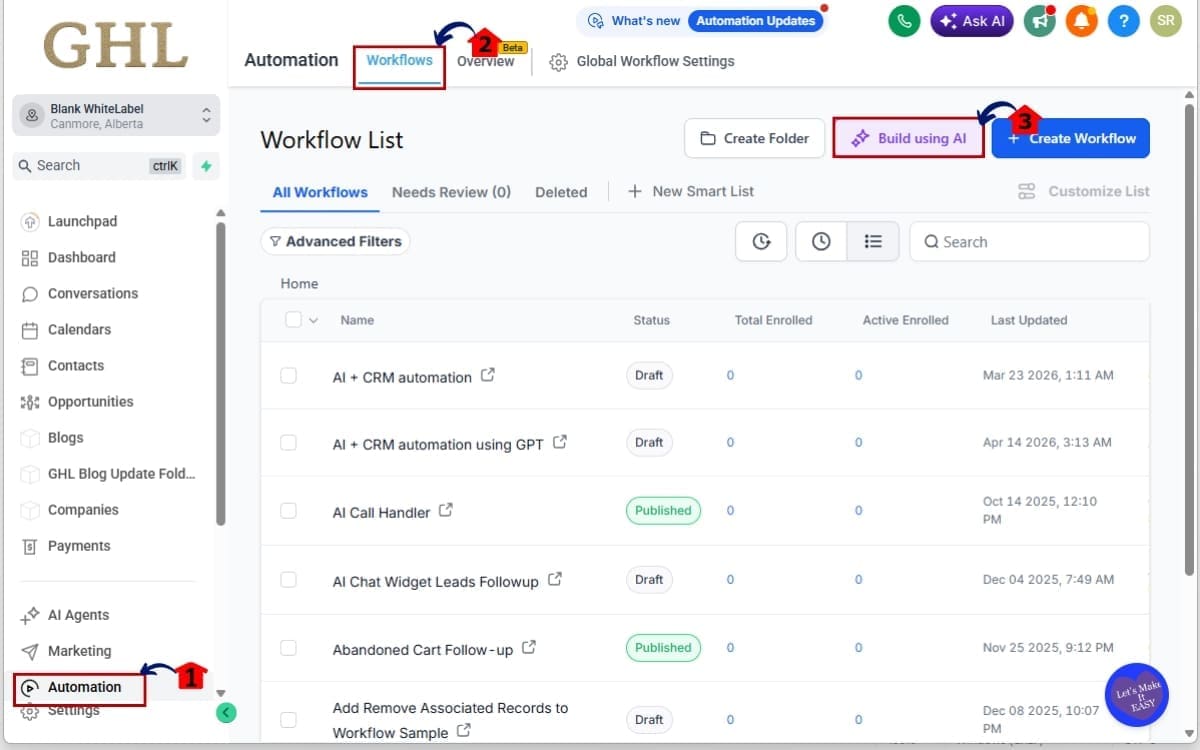
1.1 Click on the Automation menu item.
- This is where all workflows and triggers are managed.
1.2 Click on “Workflows.”
- You’ll now see your existing workflows list.
1.3 Click the “Build Using AI” button.
- This opens the workflow creation options.
Step 02 – Generate a Workflow Using AI Builder
- In this step, you will describe the automation you want to create. The AI Workflow Builder will generate the workflow based on your instructions.
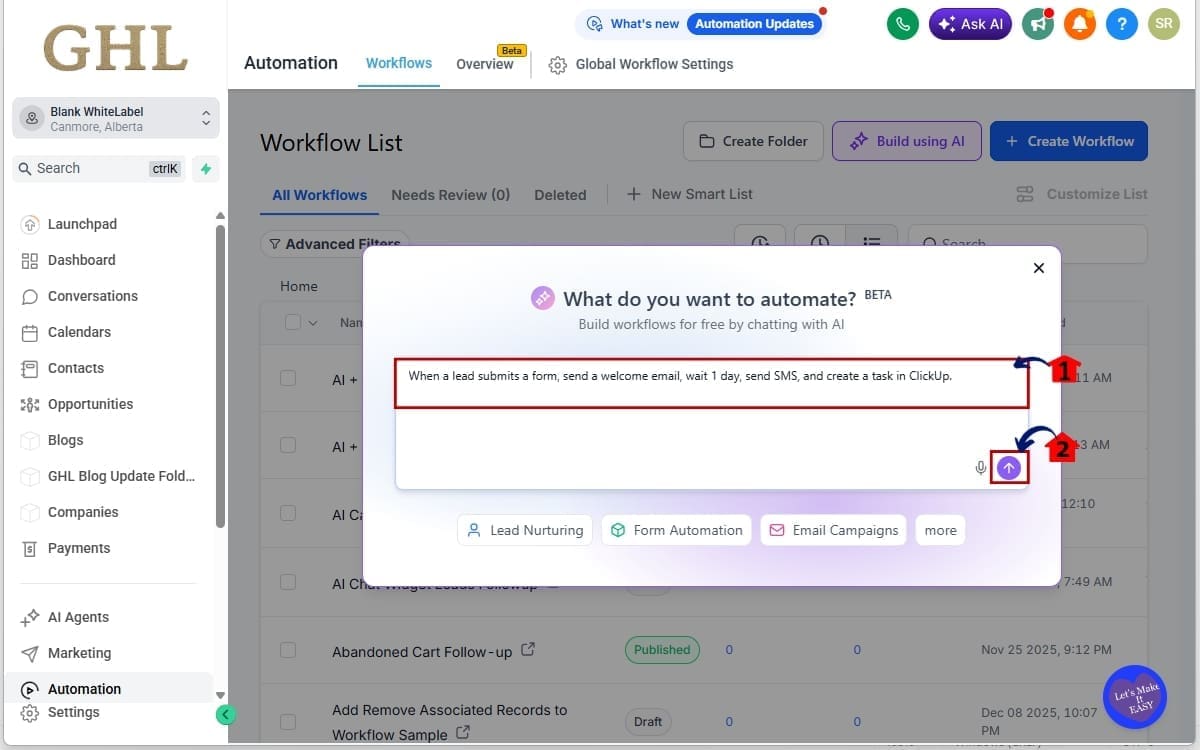
2.1 In the prompt field, clearly describe your goal.
- Example: “When a lead submits a form, send a welcome email, wait 1 day, send SMS, and create a task in ClickUp.”
2.2 Click the Arrow Up icon or select “Submit.”
- This sends your prompt to the AI and begins workflow generation.
Step 03 – Review the Generated Workflow
- After the AI builds your workflow, review it carefully before publishing. This ensures all logic, timing, and integrations are correct.
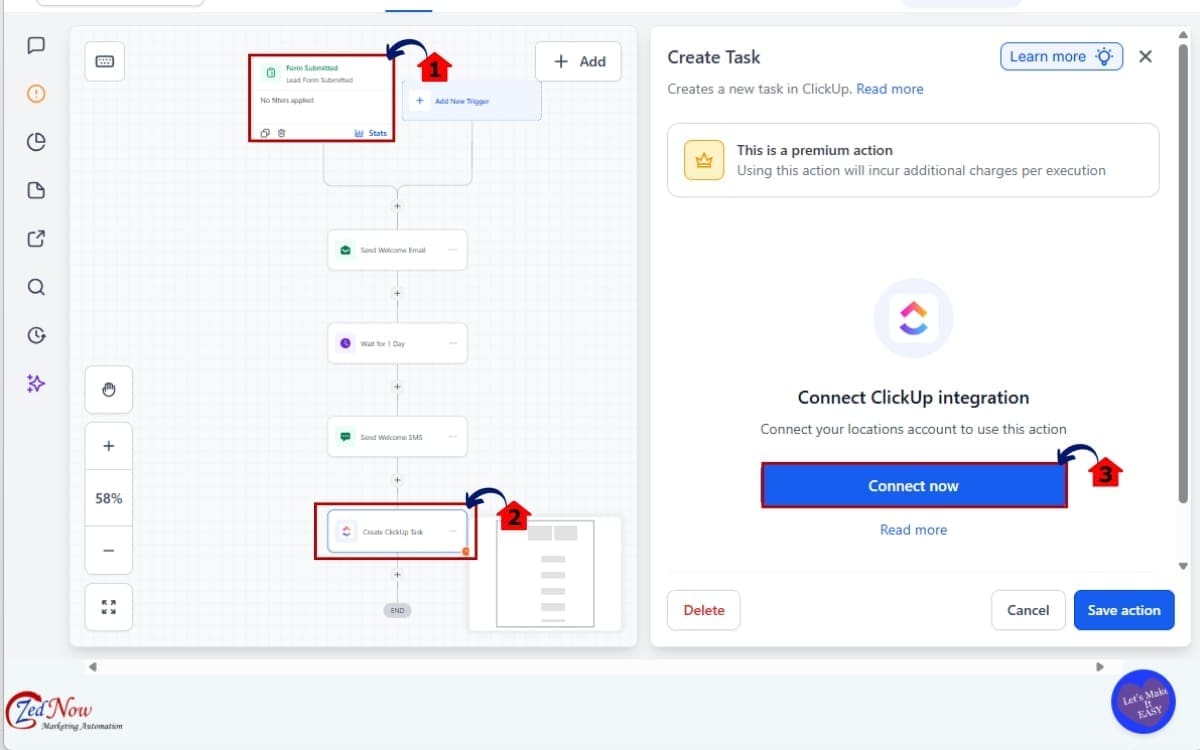
3.1 Review the trigger and each action in sequence.
- Check delays, message content, conditions, and integration steps to ensure everything matches your intent.
3.2 Check the Post-Generation To-Do List.
- This section highlights missing credentials, required fields, or configuration items that must be completed.
3.3 Click each To-Do item to resolve it.
- The system will take you directly to the action that needs attention so you can fix it quickly.
Step 04 – Finalize Workflow Settings and Save
- Before publishing, review and confirm your final workflow settings to ensure everything is ready to go live.
4.1 Rename the workflow if needed.
- You can include naming instructions in your original AI prompt, or manually update the name here for clarity and organization.
4.2 Click “Save.”
- This ensures your latest edits are stored. If autosave is enabled, the AI Builder will automatically save your changes.
4.3 Click “Publish.”
- Your workflow is now live and will begin running based on the trigger conditions you defined.
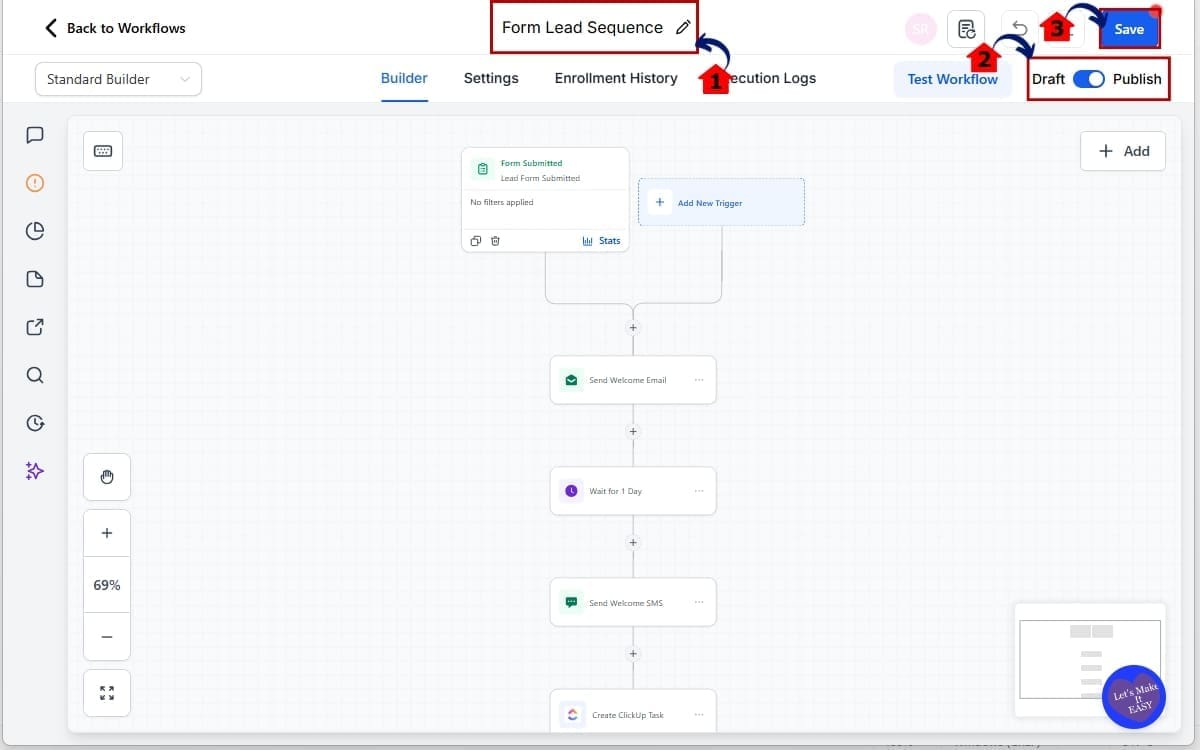
At this point, you’ve built a production-ready automation using the AI Workflow Builder in minutes instead of manually constructing each step.
Pro Tips for Getting the Most from AI Workflow Builder
The AI Workflow Builder is a strong tool, but the results you get really come down to how clearly you guide it.
Here’s how to get better results every time.
- Start with clear outcomes
Before you type anything, define the end goal of the automation. Are you nurturing a lead? Booking an appointment? Creating internal tasks? When your outcome is clear, your prompt becomes sharper.
- Be specific in your prompts
Instead of saying “follow up with leads,” say “When a form is submitted, send a welcome email, wait 1 day, send SMS reminder, and create a ClickUp task if no reply.” Specific instructions improve trigger and action accuracy.
- Name tools explicitly
If you want to use GPT, ClickUp, Asana, SMS, or Email, say so clearly. The AI Workflow Builder now understands integrations, but clarity improves precision.
- Use conversational editing instead of manual fixes
If an If/Else condition is slightly off, don’t rebuild it manually. Tell the AI what to change. This saves time and reduces logic errors.
- Always review the To-Do list before publishingEven though generation errors are reduced, credentials and custom values still need confirmation. The To-Do checklist is your safety net.
- Test with a sample contact
Run the workflow once before deploying it live for a client. Confirm triggers fire correctly and data maps properly across actions. - Save winning prompts
If a prompt delivers a solid workflow, save it somewhere handy. Before long, you’ll have a shared set of proven prompts your team can lean on for faster builds. - Avoid vague timing instructions Instead of “wait a bit,” specify “wait 2 days” or “wait until Monday at 9 AM.” The smarter Wait step guardrails work best with clear instructions.
The agencies that benefit most from the AI Workflow Builder are the ones that treat prompting like a system, not a guess.
Real-World Applications of the AI Workflow Builder
The AI Workflow Builder isn’t just faster. It changes how agencies build and scale systems inside GHL.
Let’s break this down with practical examples.
- Client Onboarding Automation
When a new client signs, you can prompt the AI Workflow Builder to create a complete onboarding sequence. Trigger from a closed opportunity. Send a welcome email. Wait one day. Send an intake form. Create internal tasks. Notify your team in Slack. All generated in seconds instead of manually dragging and connecting every action. - Lead Nurture Sequences
Imagine running paid ads for a client. A lead fills out a form. The AI Workflow Builder creates a structured follow-up system with email, SMS, wait steps, conditional branches, and even GPT-powered personalized messaging. You describe the strategy. The AI builds the structure. - Appointment Booking + Task Creation
When a contact schedules a call, the workflow can send confirmations, issue reminders, wait for the result, and create a task in ClickUp or Asana. With native integration support, everything is linked automatically without extra setup. - Internal SOP Automation
Agencies can automate internal processes just as easily. For example, when a deal moves to “Won,” create a project board task, notify fulfillment, assign responsibilities, and start an onboarding checklist. The AI Workflow Builder understands multi-step logic without you building it piece by piece. - GPT-Powered Follow-Ups
You can now instruct the AI to generate a GPT step and use its output inside an email action. The system automatically links the data across actions. That eliminates one of the most technical parts of advanced automation builds. - Snapshot Scaling
If you build snapshots for SaaS clients, this update dramatically reduces build time. Instead of manually constructing every workflow inside a snapshot, you can generate, review, and refine faster. That shortens deployment timelines and increases delivery capacity.
The real value here isn’t just speed. It’s leverage.
The AI Workflow Builder allows agencies to produce more automation in less time, with fewer errors, and less technical friction.
FAQs AI Workflow Builder Labs
Conclusion – The Future of AI Workflow Builder in GHL
The AI Workflow Builder has officially crossed the line from “cool feature” to “core infrastructure.”
It’s faster. It’s smarter. It’s more reliable. And most importantly, it’s built for agencies that move fast.
With 2X faster workflow creation, 10X faster template generation, conversational editing for If/Else and Wait steps, smarter integration handling, automatic data linking, voice dictation, and built-in completion checklists, this is no longer experimental automation.
It’s scalable execution. If you’re building onboarding systems, lead nurture flows, appointment automations, internal SOP workflows, or SaaS snapshots, the AI Workflow Builder now removes friction that used to slow you down.
Less manual setup. Fewer logic errors. Faster deployment. Higher leverage. That’s what this upgrade really delivers.
The team here at GHL Growth Garage has been waiting for this one. This update doesn’t just improve workflow creation — it changes how agencies structure their entire automation process inside GoHighLevel.
If you haven’t tested the upgraded AI Workflow Builder yet, now is the time.
Go build something real with it. Then refine your prompting system. Then scale it across accounts.
Because this is where automation inside GHL is headed.
Have you tried the new AI Workflow Builder yet? What workflow are you building first? Let me know.
Scale Your Business Today.
Streamline your workflow with GoHighLevel’s powerful tools.


