- Pick the phone number or email your review requests come from.
- Quick Summary – Review Request Sender at a Glance
- More Control Over Who Sends the Request
- Why a Familiar Sender Matters
- How to Set Your Review Request Sender in GHL
- Quick Tips for Choosing the Right Review Request Sender
- What This Means for Your Business
- Frequently Asked Questions about Review Request Sender
- A Small Change That Makes Review Requests Better
Pick the phone number or email your review requests come from.
Take More Control of Your Review Requests
Your Review Request Sender now gives you more control over the phone number or email customers see when a review request is sent from GHL. You can set a default sender for SMS, WhatsApp, and email at the location level.
That sender can then be used across manual review requests, campaigns, and workflows. This helps keep your review outreach consistent and makes it easier for customers to recognize who the message is coming from.
For agencies and local businesses, this is a simple but useful update. Instead of letting the system choose the sender, you can now pick the Review Request Sender that best matches the business and gives customers a more familiar experience.

The new Review Request Sender setting gives you more control over how review requests reach your customers. You can use a familiar phone number or email across manual sends, campaigns, and workflows for a more consistent experience.
Quick Summary – Review Request Sender at a Glance
Purpose: This update lets you choose the default phone number and email used for review requests in GHL.
Why It Matters: A familiar Review Request Sender can make your messages feel more consistent and easier for customers to recognize.
What You Get: You can set a default sender for email and SMS review requests at the location level.
Time To Complete: Most users should be able to update these settings in just a few minutes.
Difficulty Level: Easy. The settings are simple to find and change inside the Reputation area.
Key Outcome: Your review requests can come from a sender that better matches the business and creates a cleaner customer experience.
More Control Over Who Sends the Request
The new Review Request Sender setting lets you choose which phone number or email is used when GHL sends a review request. You can now set a default phone number for SMS and WhatsApp, plus a default email address for email review requests.
Once you choose the sender, GHL uses it across manual review requests, campaigns, and workflows. This means your review messages can come from a number or email your customers already know, instead of relying on a sender picked by the system.
Automate marketing, manage leads, and grow faster with GoHighLevel.

This is a simple change, but it gives you better control over your review process. It also helps keep your communication more consistent across the different ways you ask customers for feedback.
Why a Familiar Sender Matters
A familiar Review Request Sender can make your messages feel more trusted and easier to recognize. If a customer sees a phone number or email they already know, they are less likely to wonder where the request came from.
This also helps agencies keep each client account more consistent. A local business can use the same number or email customers already see in other messages, while the agency can manage that choice at the location level.
The biggest benefit is simple. You get more control over the customer experience. Your review requests can feel more professional, more consistent, and better matched to the business sending them.
How to Set Your Review Request Sender in GHL
The Review Request Sender setting in GoHighLevel lets you choose the default email address and SMS phone number used for review requests. This gives you more control over the sender your customers see.
Here are the steps we will follow:
- Open Reputation Settings and Set the Email Sender.
- Set the SMS Review Request Sender.
To start, make sure you are logged in to the correct GoHighLevel sub-account.
Step 01 – Open Reputation Settings and Set the Email Sender
- The main menu on the left side of your screen includes the main areas you use in GoHighLevel.
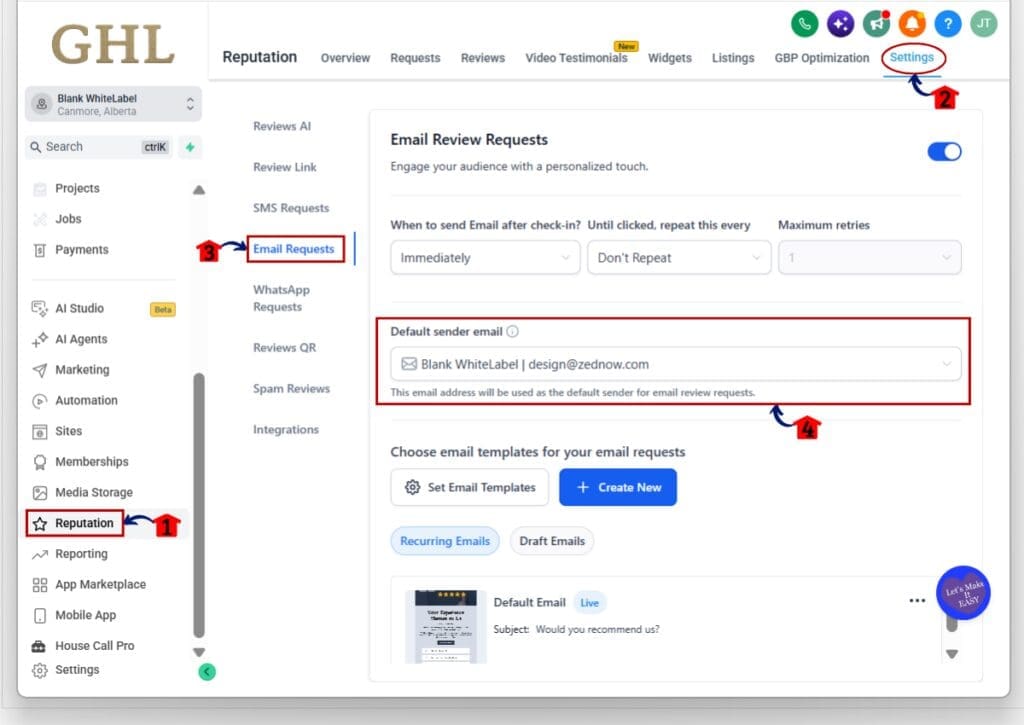
1.1 Click Reputation.
- This opens the Reputation area in your GHL sub-account.
- You will see the main Reputation tools across the top of the page.
1.2 Click Settings in the top menu.
- This opens the Reputation Settings area.
- You will see several review settings listed on the left side of the page.
1.3 Click Email Requests.
- This opens the Email Review Requests settings.
- You can manage when review emails are sent, how often they repeat, and which email address is used as the sender.
1.4 Go to Default sender email.
- Open the dropdown menu.
- Select the email address you want to use for review requests.
- This email address will be used as the default sender for email review requests.
Step 02 – Set the SMS Review Request Sender
- The SMS Requests area lets you choose the default phone number used for SMS review requests.
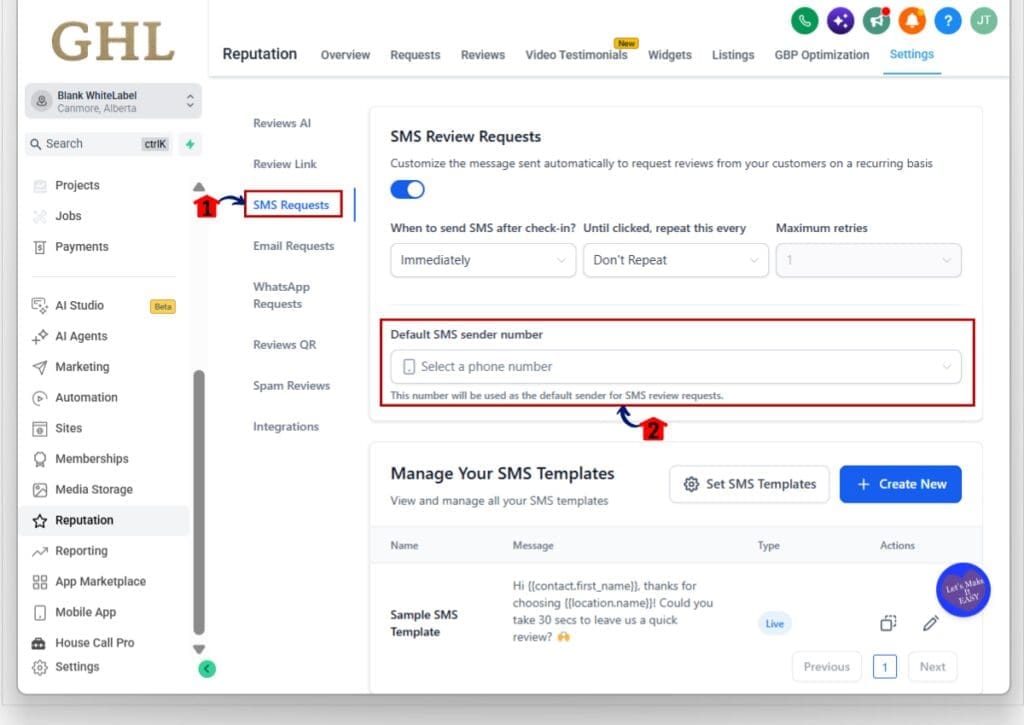
2.1 Click SMS Requests in the left-side menu.
- This opens the SMS Review Requests settings.
- You can also manage the timing and repeat settings for SMS review requests from this page.
2.2 Go to Default SMS sender number.
- Open the phone number dropdown.
- Select the phone number you want to use for SMS review requests.
- This number will be used as the default sender for SMS review requests.
Once both settings are selected, GHL will use your chosen Review Request Sender for supported email and SMS review requests. This helps keep your messages more consistent and gives customers a better chance of recognizing who the request came from.
Quick Tips for Choosing the Right Review Request Sender
Use a Review Request Sender that customers already recognize. A familiar phone number or email makes the request feel more natural and helps avoid confusion.
Keep the sender consistent when you can. For agencies, check each client sub-account and make sure the selected email or phone number matches that business.
Before sending a larger batch, send a quick test first. This gives you a chance to confirm the right Review Request Sender is showing before the request goes out to more customers.
What This Means for Your Business
A consistent Review Request Sender can make your outreach feel more professional and easier to recognize. If customers already know the phone number or email, the request feels like it came from the business they dealt with, not from a random system.
For a local business, that could mean using the same number customers see for appointment or service messages. For an agency, it means setting the right sender inside each client account so every review request matches that brand.
The update will not guarantee more reviews on its own, but it can help create a cleaner customer experience. Small details like this matter when you want your follow-up process to feel clear, familiar, and well managed.
Frequently Asked Questions about Review Request Sender
A Small Change That Makes Review Requests Better
The Review Request Sender update gives you a simple way to control which email or phone number customers see when a review request is sent. That helps keep your outreach clear, familiar, and consistent.
For agencies, it also makes each client account easier to manage. You can choose the sender that fits the business instead of relying on a system-selected option.
It is a small setting, but it can make the review process feel more polished. Have you updated the Review Request Sender in your GHL accounts yet?
Scale Your Business Today.
Streamline your workflow with GoHighLevel’s powerful tools.