

- See which channels are bringing in the most contacts with the new Source grouping option for Contacts widgets in GHL dashboards and reports.
- Quick Summary – Contact Source Reporting Essentials
- What’s New with Contact Source Reporting
- Why Contact Source Reporting Matters to You
- How to Use Contact Source Reporting in GoHighLevel
- Pro Tips for Better Contact Source Reporting
- What Contact Source Reporting Means for Your Business
- Contact Source Reporting Frequently Asked Questions
- Conclusion
See which channels are bringing in the most contacts with the new Source grouping option for Contacts widgets in GHL dashboards and reports.
Contact Source Reporting in GoHighLevel
Contact source reporting in GoHighLevel is now easier because you can group Contacts widgets by Source inside dashboards and reports.
This means you can see where your contacts are coming from without digging through extra reports. You can break down contact counts by source, such as forms, funnels, ads, referrals, imports, or other lead channels. It’s a simple update, but a useful one.
For agencies and business owners, this helps you spot what’s working faster. If one source brings in most of your contacts, you’ll see it clearly. If another source is falling flat, you’ll catch that too. No guessing. Just cleaner reporting inside GHL.
Contact source reporting gives you a faster way to see which channels are filling your CRM with new contacts. Instead of guessing where leads are coming from, you can use Source grouping in GHL dashboards to spot what’s working and where to focus next.
Quick Summary – Contact Source Reporting Essentials
Purpose: This update helps GHL users see where their contacts are coming from by grouping Contacts widgets by Source inside dashboards and reports.
Why It Matters: Contact source reporting gives you a clearer view of which channels are creating contact volume, so you are not guessing where leads are coming from.
What You Get: You get a Contacts by source widget that shows contact counts by source, such as ads, forms, funnels, referrals, imports, or chat widgets.
Time To Complete: Most users can set this up in about 3 to 5 minutes once they are inside the Dashboard area.
Difficulty Level: This is beginner-friendly. You only need to edit a dashboard, add the Contacts by source widget, and confirm that the Group field is set to Source.
Key Outcome: You can review lead source activity faster, clean up client reporting, and make better decisions about which channels deserve more attention.
What’s New with Contact Source Reporting
Contact source reporting now works inside Contacts widgets in GoHighLevel dashboards and reports, giving you a clearer view of where new contacts come from.
You can now open a Contacts widget and use the Group By dropdown to select Source. Once selected, GHL will bucket your contact counts by source. This could help you compare contacts from ads, forms, funnels, referrals, imports, chat widgets, or other channels you use to bring leads into the CRM.
Automate marketing, manage leads, and grow faster with GoHighLevel.

This is the same Source grouping many users already use for Opportunities. Now it is available for Contacts too. That makes reporting more consistent across GHL, so you can review contacts and opportunities without switching your thinking every time.
Why Contact Source Reporting Matters to You
Contact source reporting helps you see which channels are actually bringing new people into your GoHighLevel CRM.
That matters because not every source performs the same. One campaign might bring in a pile of contacts, while another barely moves the needle. With Source grouping, you can spot those patterns faster and make better decisions about ads, forms, funnels, referrals, and follow-up work.
For agencies, this also makes client reporting cleaner. You can show where contacts are coming from in a simple dashboard view. That helps clients understand what is working without making them dig through messy data or long reports.
How to Use Contact Source Reporting in GoHighLevel
Contact source reporting is used inside the Dashboard area in GoHighLevel. In this How-To, we will focus on opening the dashboard, adding the Contacts by source widget, checking the Group setting, and saving the widget so your contact source data shows clearly.
Here are the steps to use contact source reporting.
- Access the Dashboard area in GHL.
- Open the Add widget panel and Select the Contacts widget group .
- Select the Contacts by source widget.
- Confirm the widget settings.
- Choose Source from the Group dropdown.
- Save the widget.
- Review the Contacts by source widget.
To start, make sure you are logged in to your GoHighLevel sub-account.
Step 01: Access the Dashboard area in GHL
- The main menu on the left side of your screen has the core areas you work in when using GoHighLevel.
1.1 Click Dashboard in the left menu.
- This opens the main Dashboard area in GHL.
1.2 Click Edit dashboard near the top right of the screen.
- This puts your dashboard into edit mode so you can add or change widgets.

Step 02: Open the Add widget panel and Select the Contacts widget group
- This is where you start adding a new reporting widget to your dashboard.
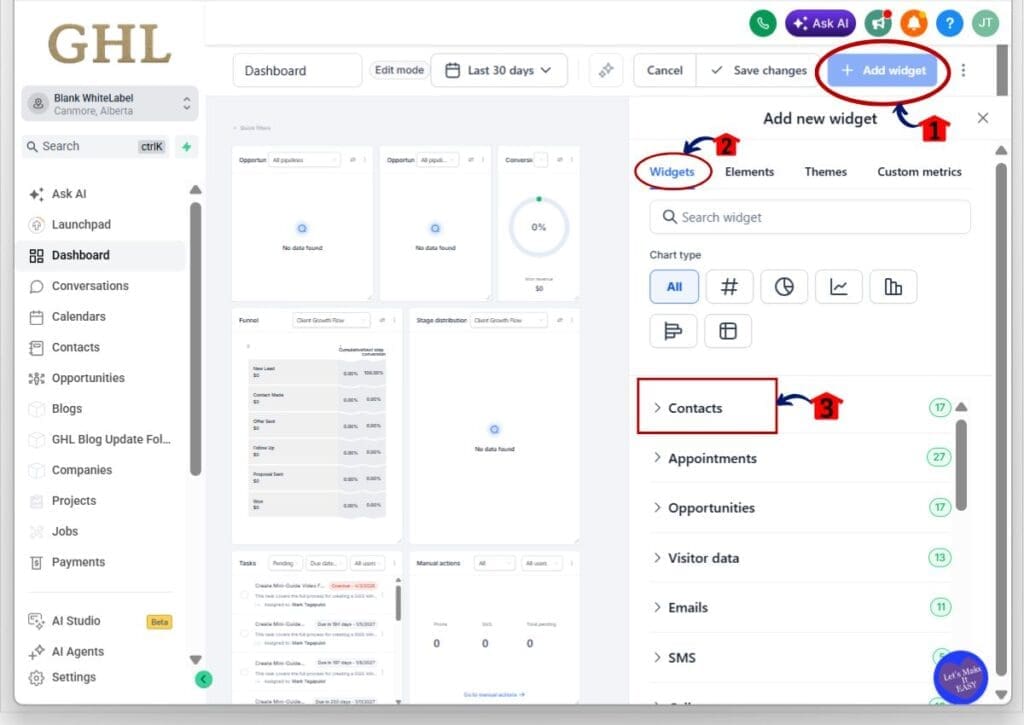
2.1 Click Add widget in the top right area of the dashboard.
- This opens the Add new widget panel on the right side of the screen.
2.2 Review the widget options.
- You will see tabs like Widgets, Elements, Themes, and Custom metrics.
2.3 Click the Contacts section if it is collapsed.
- This opens the available Contacts widgets.
Step 03: Select the Contacts by source widget
- This is the widget used for contact source reporting.
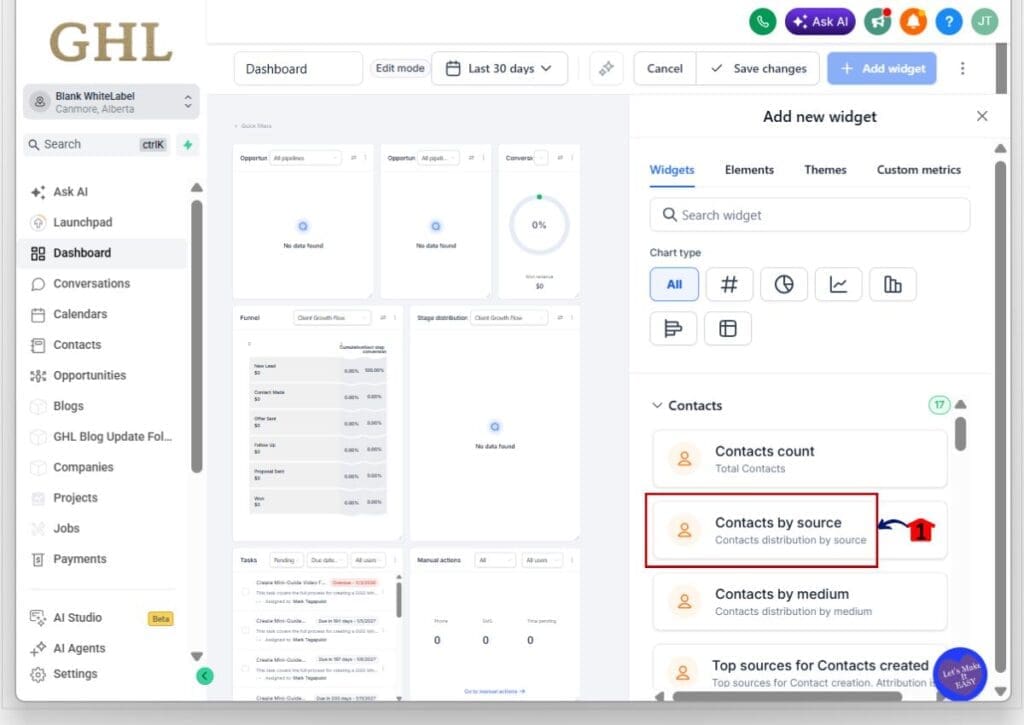
3.1 Look for Contacts by source under the Contacts section.
- The description should show that it displays contact distribution by source.
3.2 Click Contacts by source.
- This opens the widget setup screen.
Step 04: Confirm the widget settings
- This is where you check the basic widget setup before saving it.
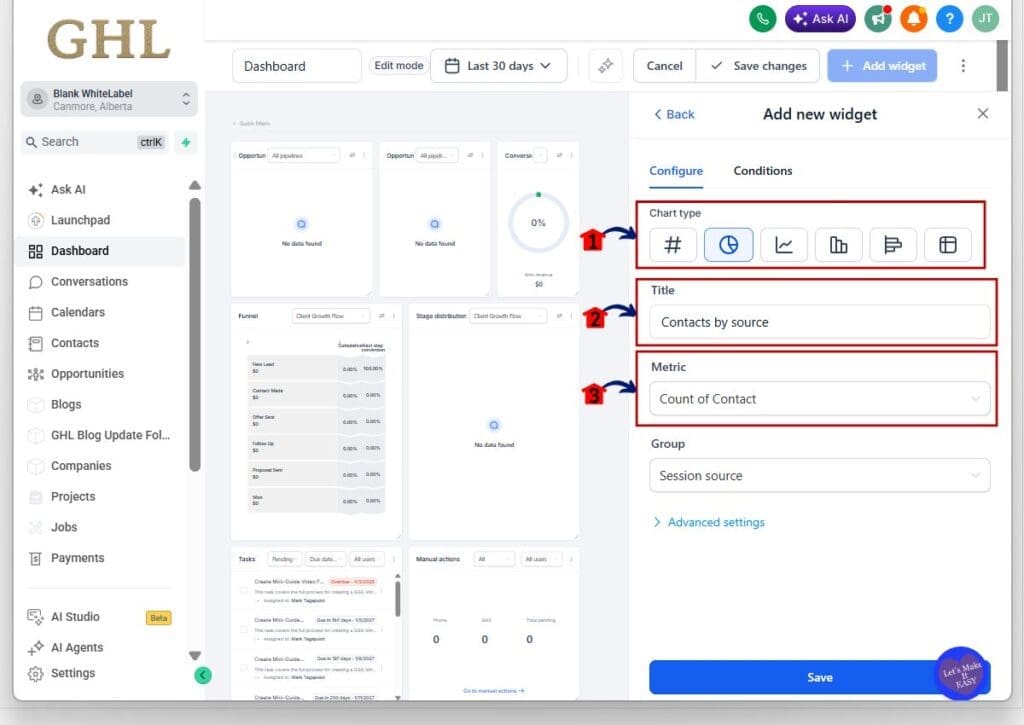
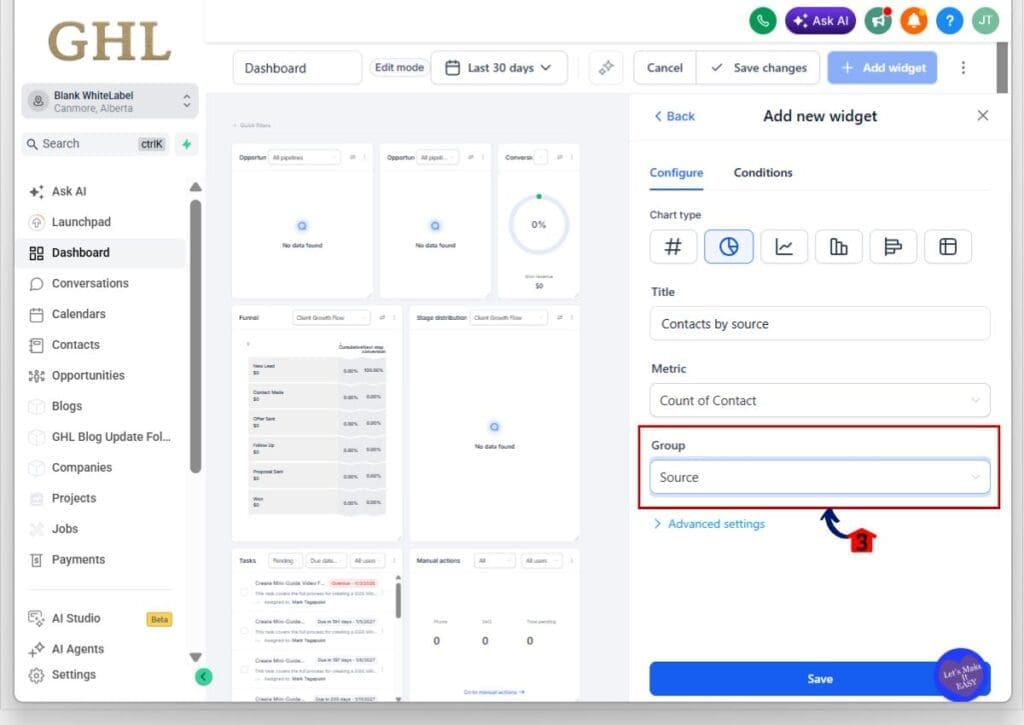
4.1 Review the Chart type.
- A donut chart is commonly used for this widget, since it shows source distribution clearly.
4.2 Check the Title field.
- You can keep it as Contacts by source, or adjust the title if needed.
4.3 Check the Metric field.
- The metric should be Count of Contact.
Step 05: Choose Source from the Group dropdown
- This is the key setting for contact source reporting.
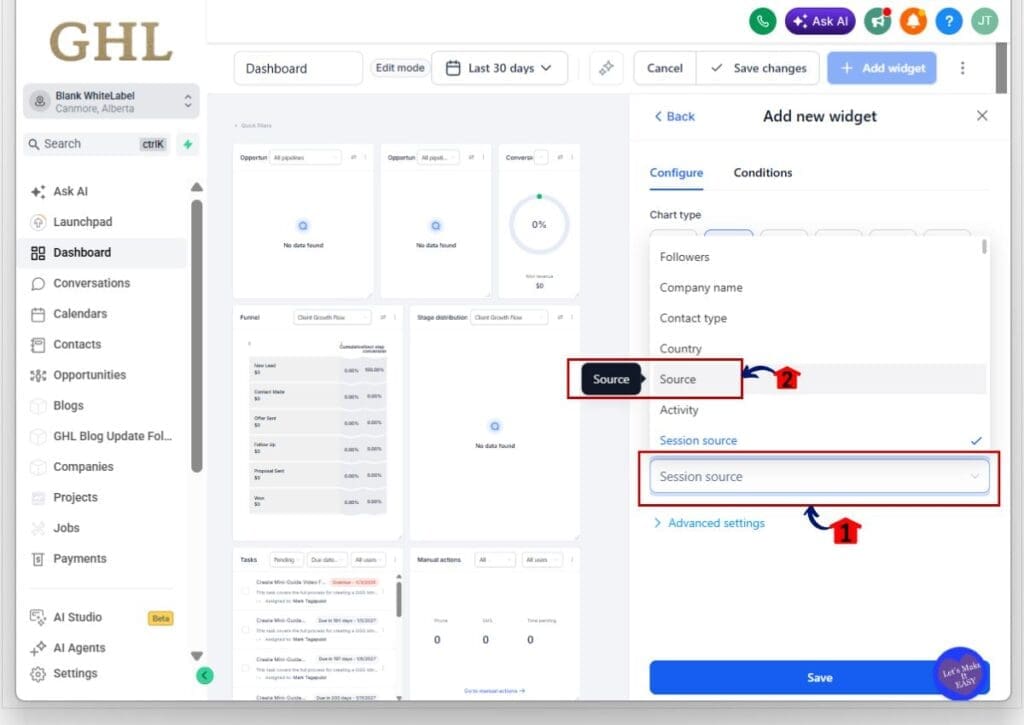
5.1 Find the Group dropdown.
- This controls how the contact data is grouped inside the widget.
5.2 Click the Group dropdown.
- You will see different grouping options.
5.3 Select Source.
- This tells GHL to group your contacts by their original source.
5.4 Make sure the Group field now shows Source.
- This confirms the widget is set up for contact source reporting.
Step 06: Save the widget
- This step adds the widget to your dashboard.
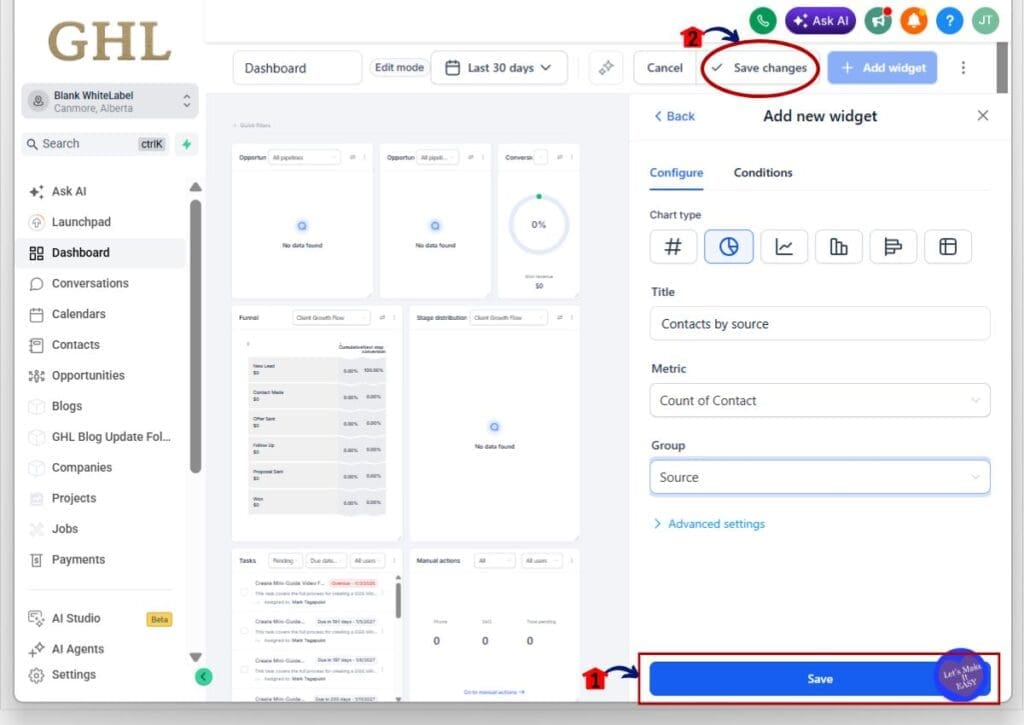
6.1 Click Save at the bottom of the widget panel.
- This saves the Contacts by source widget.
6.2 Click Save changes at the top of the dashboard.
- This saves the dashboard layout and keeps your new widget in place.
Step 07: Review the Contacts by source widget
- Now you can check the final dashboard view.
7.1 Look for the Contacts by source widget on your dashboard.
- It should show a chart with contacts grouped by source.
7.2 Review the source labels beside the chart.
- These labels show where your contacts came from.
7.3 Use the data to spot your strongest contact sources.
- If one source is bringing in most of your contacts, you’ll see it right away.
7.4 Compare the source data with your active campaigns.
- This helps you decide where to spend more time, fix weak spots, or report results to clients.
That is it. Once the Contacts by source widget is added and saved, your dashboard gives you a simple view of where your contacts are coming from. This makes contact source reporting easier to use and much faster to understand.
Pro Tips for Better Contact Source Reporting
Contact source reporting works best when your source names are clean and easy to understand. Try not to use five different names for the same channel, such as “Facebook,” “FB Ads,” and “Facebook Lead Form.” That turns a simple report into a messy one.
It also helps to compare Contacts by source with Opportunities by source. A source may bring in lots of contacts, but that does not always mean those contacts are good leads. Look at both views so you can see which channels bring volume and which ones lead to real sales chances.
For agencies, this is a useful widget to add to client dashboards. It gives clients a quick view of where contacts are coming from without making them sort through a long report. After you launch a new ad, form, funnel, or campaign, check this widget to make sure the right source is showing up.
What Contact Source Reporting Means for Your Business
Contact source reporting helps you make better choices with your time, budget, and follow-up. Instead of guessing which channel is bringing in contacts, you can see it right on your GHL dashboard.
This is useful when you are running several lead channels at once. One source may bring in more contacts, while another may bring fewer but better ones. When you can see that clearly, it is easier to adjust your ads, funnels, forms, and referral campaigns.
For agencies, this also makes client reporting cleaner. You can show clients where contacts are coming from in a simple visual widget. That keeps the conversation focused on real data, not hunches, opinions, or “I think this is working” talk.
Contact Source Reporting Frequently Asked Questions
Conclusion
Contact source reporting in GoHighLevel is a simple update, but it solves a real reporting problem. You can now see where your contacts are coming from right inside your dashboard, without digging through extra data.
With the Contacts by source widget, you can spot which channels are bringing in the most contacts, check if your campaigns are tracking correctly, and give clients a clearer view of lead activity. It also lines up better with Source grouping for Opportunities, which keeps your reporting more consistent.
Try adding the widget to one of your main dashboards and review it after your next campaign goes live. You may find out fast which source deserves more attention and which one needs a little work.
Scale Your Business Today.
Streamline your workflow with GoHighLevel’s powerful tools.


