

- Introduction – Image URL Upload Makes Media Management
- Quick Summary – GHL Image URL Upload
- Here are this weeks HighLevel Updates
- Why GHL Image URL Upload Matters
- How to Use GHL Image URL Upload
- Pro Tips for GHL Image URL Upload
- What This Means for Your Business
- Frequently Asked Questions for Image URL Upload
- Conclusion – Image URL Upload
Introduction – Image URL Upload Makes Media Management
GHL Image URL Upload sounds like a small update. Until you realize how many times you’ve downloaded an image just so you could upload it again.
You’ve done it before. Find an image. Download it. Save it to your computer. Open Media Storage. Upload it. Organize it into the right folder.
The Image URL Upload gets added. But the workflow is broken.
If you’re managing websites, funnels, emails, blogs, or client assets inside GHL, you know the routine. Every Image URL Upload requires extra steps before it can be used.
After the tenth Image URL Upload of the day, those extra steps start to feel pretty unnecessary.
It slows momentum. It creates unnecessary admin work. It wastes time. GHL Image URL Upload fixes that problem.
You can now import images directly from a public Image URL Upload without downloading them first.
Paste the link. Review the image preview. Check the file details. Click Import. Done.
The image is automatically added to your current Media Storage folder and works just like any other uploaded file.
And here’s what agencies, marketers, and VAs will love.
Whether you’re pulling images from stock photo websites, CDNs, shared client folders, or public image libraries, you can bring assets into GHL faster than ever without the extra download-and-upload process.
Fewer steps. Faster workflows.Better media management.
The latest GoHighLevel Changelog includes several other GHL feature updates that round out your daily workflow:
- New QR Code Styling Options: Shapes, Borders, and Rim Text
- Collapse & Resize Pipeline Stages in Kanban View
- Notes just got smarter for the contacts page!
- New Asana actions in workflows – Find Project and Find section
- Email AI + Knowledge Base Integration 🚀
- Dialer: Auto-minimize, Pin & Drag
- Schema Markup Using AI
Keep reading for much more on all these updates and a deep dive into the Image URL upload feature!
Quick Summary – GHL Image URL Upload
Purpose
GHL Image URL Upload allows you to import images directly into Media Storage using a public image URL, eliminating the need to download files before uploading them.
Why It Matters
This update removes unnecessary steps from your workflow, helping agencies, marketers, and virtual assistants manage image assets more efficiently.
What You Get
You can preview images before importing, automatically retrieve file names and dimensions, validate image links, and import assets directly into your current Media Storage folder.
Time To Complete
Most image imports take less than 30 seconds from start to finish once you have the public image URL.
Difficulty Level
Beginner-friendly. If you can upload a file into Media Storage, you can use GHL Image URL Upload.
Best For
Marketing agencies, funnel builders, website designers, virtual assistants, content managers, and business owners who regularly work with image assets.
Key Outcome
Reduce manual downloading and uploading while keeping your Media Storage organized and your projects moving faster.
Business Impact
Small workflow improvements like this can save significant time when multiplied across websites, funnels, campaigns, blogs, and multiple client accounts.
Here are this weeks HighLevel Updates
New QR Code Styling Options: Shapes, Borders, and Rim Text
What it does:
Lets you stop using boring QR codes. You can now tweak the shape, style the border, and add text around the edge.
Where in GHL:
Accessible via Sites → QR Codes and within QR tools embedded in Funnel and Website builders.
Automate marketing, manage leads, and grow faster with GoHighLevel.

Impact:
Improves visual presentation and brand alignment while increasing scan appeal.
Best suited for:
Agencies that care about branding, small businesses running local promotions, online stores, and teams pushing QR campaigns.
Collapse & Resize Pipeline Stages in Kanban View
What it does:
Lets you hide pipeline stages you’re not actively using and adjust column widths so your board fits the way you work.
Where in GHL:
Inside Opportunities when you’re viewing your pipeline in Kanban mode.
Impact:
No more dragging your screen forever just to find the deals that matter.
Best suited for:
Owners running multi-stage pipelines, reps working deals every day, and anyone fed up with a messy board.
Notes Just Got Smarter for the Contacts Page
What it does:
Upgrades the notes area so it’s easier to write, review, and keep things organized inside a contact record.
Where in GHL:
Found directly within each contact’s profile under Notes.
Impact:
Makes it simpler to see what’s been discussed and who added what — without digging through clutter.
Best suited for:
Teams collaborating on accounts and businesses that document every client touchpoint.
New Asana Actions in Workflows – Find Project & Find Section
What it does:
Lets your workflow check what already exists in Asana before adding anything new.
Where in GHL:
Go to Workflows, add an action, and choose the Asana integration.
Impact:
No more duplicate projects. No more messy task boards. Just cleaner automation.
Best suited for:
Operations teams and agencies that rely on Asana to manage client delivery.
Email AI + Knowledge Base Integration
- What it does:
Allows Email AI to reference your Knowledge Base for smarter, more accurate responses. - Where in GHL:
Found in Conversations → Email composer with AI enabled and Knowledge Base settings under AI configuration. - Impact:
Smarter email suggestions that understand your business and help you reply quicker. - Best suited for:
Support teams, agencies managing inboxes, and businesses scaling communication with AI.
Dialer: Auto-Minimize, Pin & Drag
- What it does:
Lets you auto-minimize the dialer during calls, pin it in place, and drag it anywhere on screen. - Where in GHL:
Found in Conversations → Dialer. - Impact:
Cleaner workspace and easier multitasking during sales or support calls. - Best suited for:
Sales teams, outbound callers, appointment setters, and agencies making daily calls.
Schema Markup Using AI
- What it does:
Generates structured schema markup automatically using AI for SEO enhancement. - Where in GHL:
Found in Sites → Website or Funnel settings within AI or SEO sections. - Impact:
Improves search visibility without manual coding. - This works well for:
Teams building websites that need stronger search visibility, from agencies to small local businesses.
Why GHL Image URL Upload Matters
Most GHL users won’t save hours every week with one big feature. They save hours by removing dozens of small, repetitive tasks.
That’s exactly what GHL Image URL Upload does.
Until now, getting an Image URL Upload into Media Storage meant an extra stop on the journey. Find the image online, download it, then upload it into GHL.
It wasn’t difficult. It was just unnecessary. Now that extra step is gone.
You can grab an Image URL Upload from the web and add it straight to Media Storage without all the extra handling in between.
For agencies, that’s a huge win. Many agencies receive image assets from clients through shared drives, cloud storage links, websites, or content libraries. Rather than downloading every image individually, team members can now import assets directly into GHL and continue building campaigns without interruption.
Virtual assistants will benefit too. If you’re responsible for updating websites, loading blog images, creating funnels, or managing content across multiple client accounts, removing even a few clicks from every task can make a noticeable difference over the course of a week.
Marketers spend enough time creating campaigns. Anything that cuts out unnecessary admin work is a welcome change.
The added validation tools make the process even better.
GHL automatically checks the Image URL Upload, displays a preview, retrieves file information, and identifies image dimensions before the import is completed. This gives you confidence that the asset is correct before it reaches your Media Storage library.
There’s also an important compliance benefit. The copyright confirmation step helps remind users that they should have permission to use imported images. This creates a better process for agencies and businesses that regularly work with stock photography, licensed assets, and client-provided media.
At its core, this update is about efficiency. Less downloading. Less uploading. Less manual work.
More time spent building, marketing, and growing your business.
How to Use GHL Image URL Upload
The Image URL Upload feature is available in the Media Storage section of your GHL sub-account. You’ll start by opening the folder where you want to save the image, then use the Upload from URL option to import an Image URL Upload from a public link.
The steps below will show you how to import an image, review the preview and file details, confirm the required copyright declaration, and save the image to your Media Storage library.
- Access Media Storage in GHL.
- Start the URL Import Process in Media Storage.
- Add the Public Image URL Upload in Upload.
- Import the Image URL Upload in Media Storage.
- Verify the Image Was Imported.
To start, make sure you are logged in to your GoHighLevel sub-account.
Step 01 – Access Media Storage in GHL
- Navigate to the Media Storage area where you’ll import and manage image files.
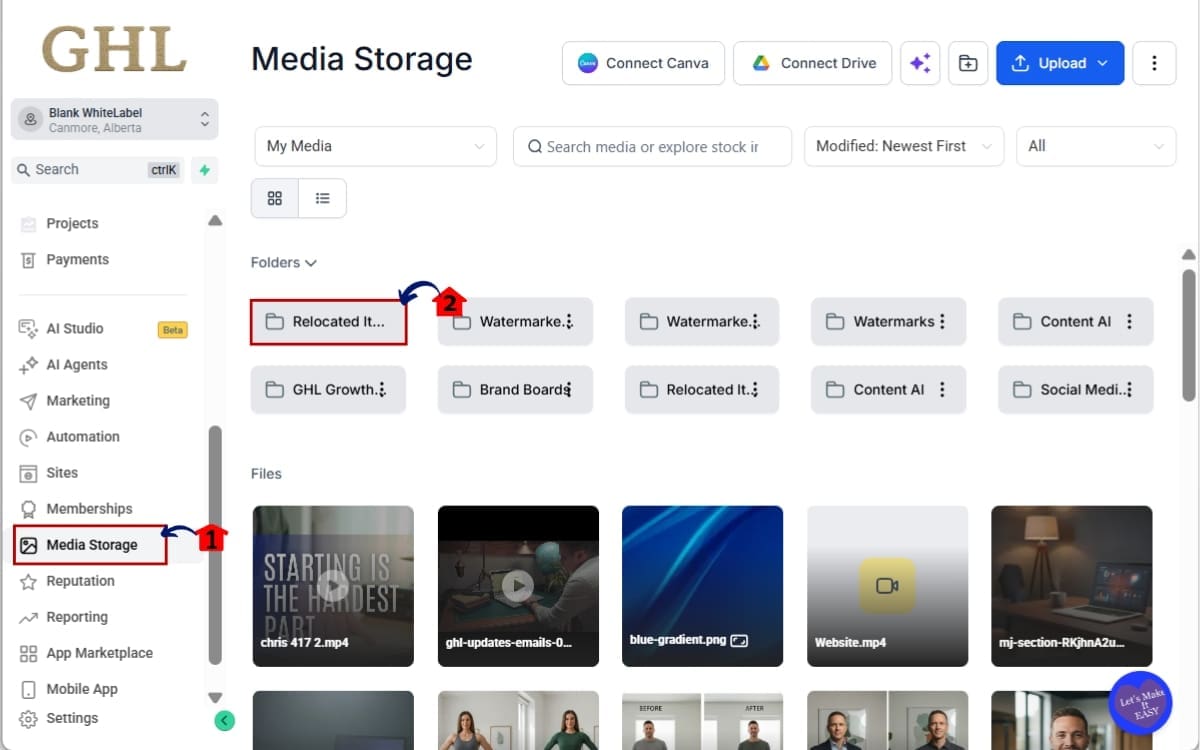
1.1 Access the Main Left Hand Menu and Locate and open the Media Storage section.
- Left side of your screen contains all the primary areas used within GHL. Media Storage is where your images, graphics, and uploaded media assets are stored.
1.2 Open the folder where you want the imported image to be saved.
- Keeping assets organized now will save time later.
Step 02 – Start the URL Import Process in Media Storage
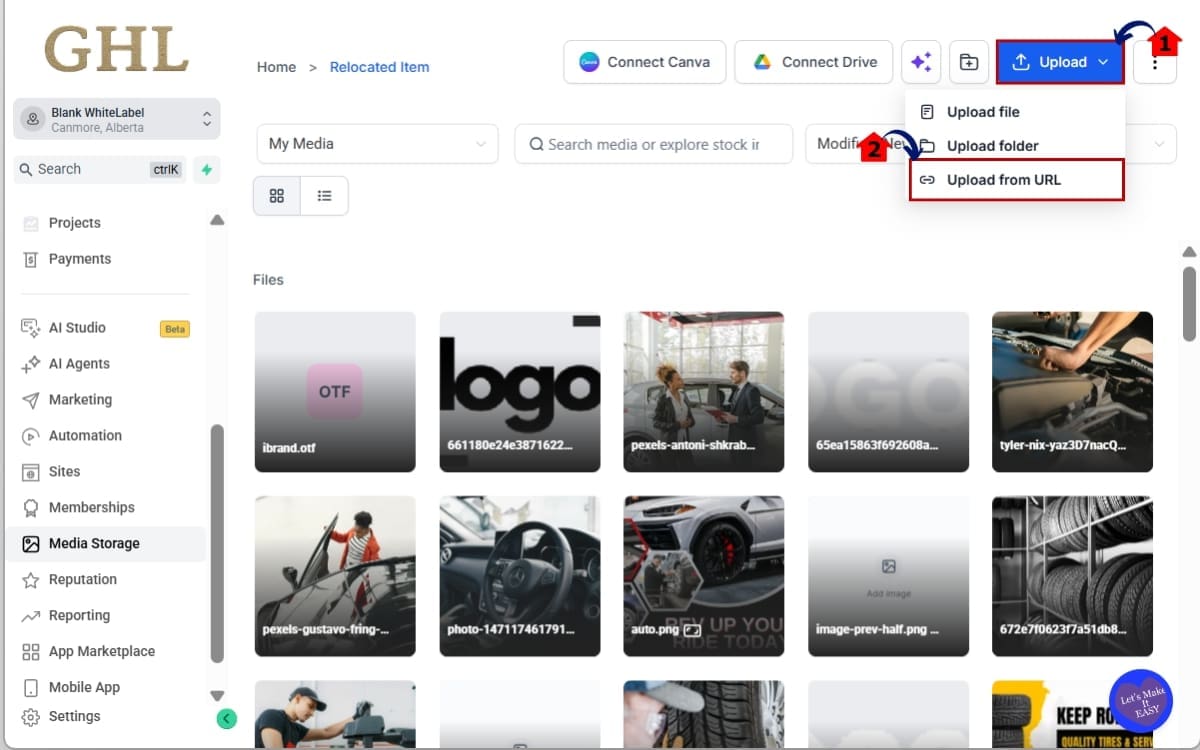
- Open the Upload menu and choose the option to import an image from a public URL.
2.1 Click the Upload button.
- This displays the available upload options for Media Storage.
2.2 Select Upload From URL.
- This new option allows you to import images directly from a public image link.
Step 03 – Add the Public Image URL in Upload
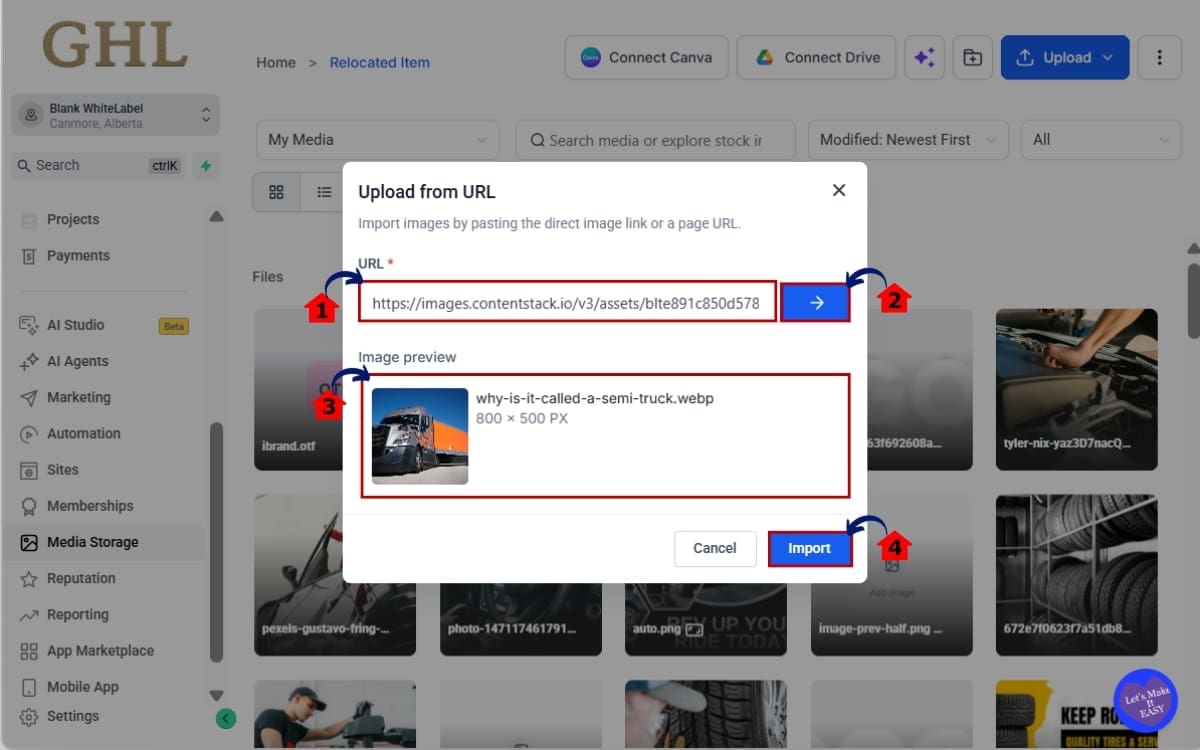
- The URL import window will appear. You’ll see a field where you can paste your image URL.
3.1 Locate the image you want to import. Copy the direct public image URL and Paste the URL into the URL field.
- The image must be publicly accessible.
3.2 Click the arrow button.
- GHL will begin validating the image. The system will retrieve image information automatically.
3.3 Review the file name and Review the image dimensions.
- GHL automatically retrieves the file name from the source. Width and height details are displayed automatically.
3.4 Click Import.
- The image is added to your current Media Storage folder and can be used like any other uploaded image.
Step 04 – Import the Image in Media Storage
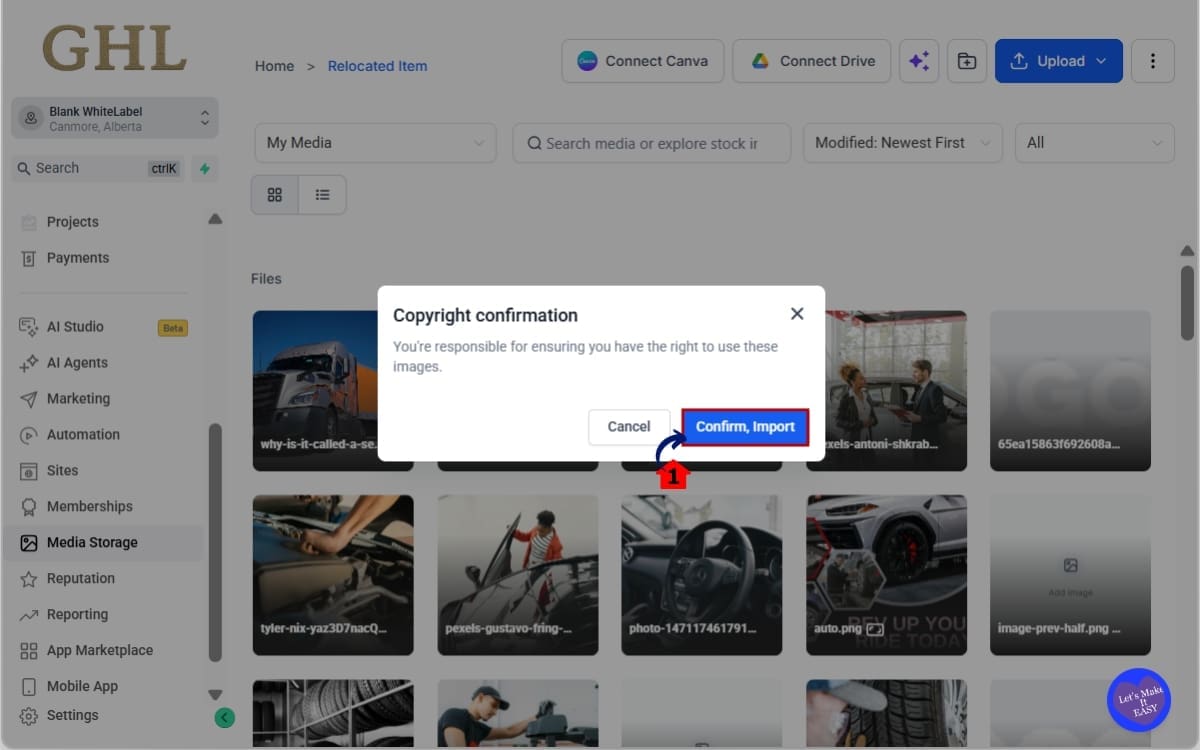
- Confirm you have the right to use the image and complete the import process.
4.1 Review the copyright confirmation prompt and Confirm ownership or usage rights.
- This step confirms you have permission to use the image. Complete the import process.
Step 05 – Verify the Image Was Imported
- Confirm the image has been successfully added to your Media Storage folder and is ready to use.
5.1 Confirm the image appears in the current directory.
- Use the image anywhere inside GHL.
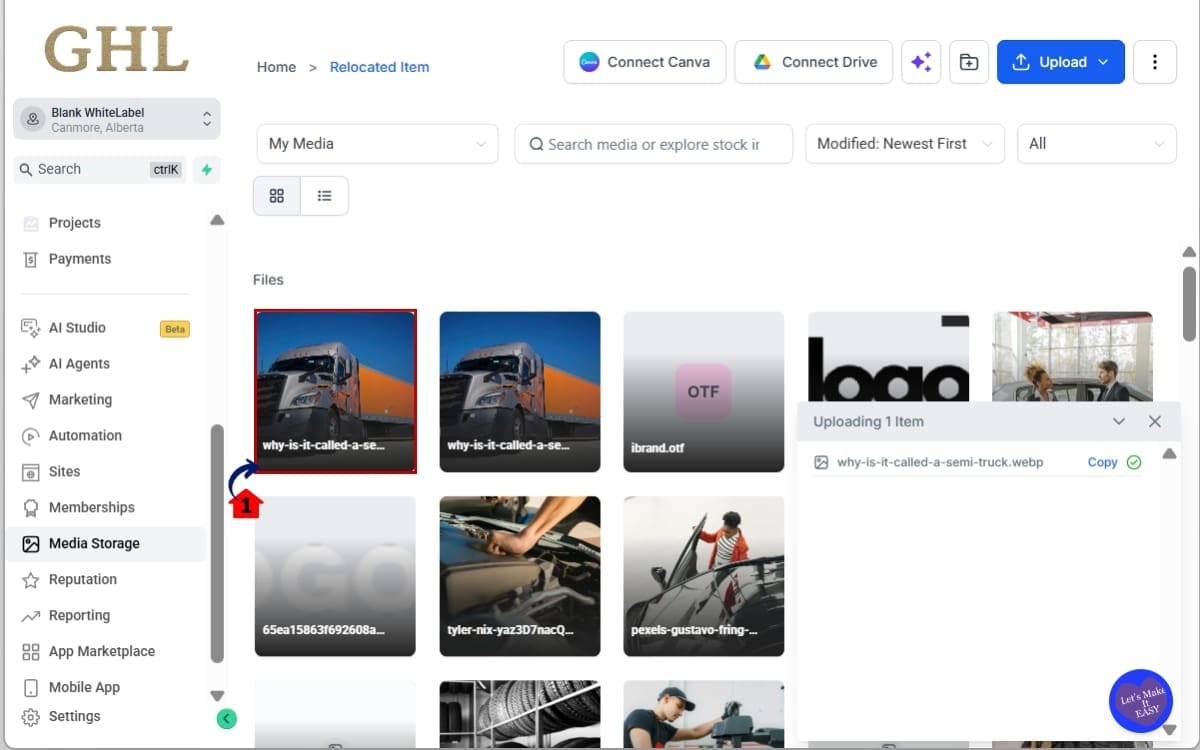
That’s it. No downloading. No saving files to your desktop. No re-uploading. Just copy the URL, review the image, and import it directly into GHL Media Storage.
Pro Tips for GHL Image URL Upload
GHL Image URL Upload is already a time-saver out of the box.
But with a few simple habits, you can make your Media Storage even more organized and efficient.
Organize Your Folders Before Importing
Pick the right folder first. Future you will be glad you did.
This can save hours later when you’re searching for assets across multiple campaigns and client accounts.
A simple structure might include:
- Client Assets
- Funnel Images
- Website Graphics
- Email Campaign Images
- Social Media Content
Good folder structure makes finding assets much less painful.
Use High-Quality Source Images
Not every image that works is worth using.
Before importing, check:
- Image resolution
- File dimensions
- Branding consistency
- Mobile responsiveness
The right image can instantly improve the look of a page.
Build a Reusable Asset Library
Many agencies repeatedly use:
- Icons
- Background images
- Team photos
- Brand assets
- Promotional graphics
If you use the same assets regularly, give them a permanent home inside Media Storage.
Your future self will thank you.
Verify Image Rights First
The copyright confirmation screen isn’t there by accident.
Always ensure you have permission to use:
- Stock images
- Client-provided assets
- Shared image libraries
- Third-party content
A little attention upfront can save you from fixing problems later.
Use URL Imports During Funnel Builds
When creating funnels or websites, you often discover images while building.
Instead of stopping your workflow to download and upload files, use Image URL Upload immediately and keep moving.
Momentum matters.
Most projects don’t get delayed by one big problem. They get delayed by dozens of little interruptions.
Common Mistakes to Avoid
For the most part, the process is smooth. A few simple checks can help keep it that way.
The good news?
They’re easy to avoid.
Using Private Image Links
The image URL must be publicly accessible.
If the image is stored behind:
- Login screens
- Private Google Drive folders
- Restricted file systems
- Membership areas
GHL may not be able to retrieve the image.
If the preview doesn’t load, this is often the first thing to check.
Importing the Wrong Image
Always review the thumbnail preview before clicking Import.
A quick glance can prevent:
- Incorrect graphics
- Outdated images
- Client asset mix-ups
- Duplicate uploads
The preview feature exists for a reason.
Use it.
Ignoring Image Dimensions
Large images can slow down:
- Websites
- Landing pages
- Funnel pages
- Blog posts
Always review the detected dimensions before importing.
Sometimes resizing an image before use can improve page performance significantly.
Saving Images in the Wrong Folder
This seems small until your Media Storage contains hundreds or thousands of assets.
Take a few extra seconds to select the correct folder before importing.
Organization becomes more valuable as your account grows.
Assuming Every URL Will Work
Not every image link on the internet is a direct image URL.
For best results, use links that point directly to:
- JPG files
- PNG files
- WEBP files
- Other supported image formats
If GHL cannot retrieve the image preview, double-check the source link first.
At the end of the day, the feature is designed to make media management easier.
Follow these simple best practices and you’ll get the maximum benefit from GHL Image URL Upload while avoiding the most common mistakes.
What This Means for Your Business
Most updates fall into one of two categories. They’re either exciting but rarely used. Or they’re simple improvements that save time every single day.
GHL Image URL Upload falls into the second category. At first glance, it looks like a small convenience feature. In reality, it removes friction from one of the most common tasks inside GHL. And when you remove friction, productivity increases.
Agencies Can Move Faster
Agency teams handle a constant stream of client assets.
Images come from:
- Client websites
- Google Drive folders
- Dropbox links
- Stock photo libraries
- Content creation teams
- Brand asset repositories
Previously, every image required a download before it could be added to Media Storage.
Now, team members can import assets directly from public image URLs and continue building immediately.
That means:
- Faster onboarding
- Faster website builds
- Faster funnel launches
- Faster campaign deployment
When multiplied across dozens of clients, the time savings become significant.
Virtual Assistants Can Reduce Admin Work
Many VAs spend hours each week uploading content and organizing assets.
It’s not difficult work.
It’s repetitive work.
GHL Image URL Upload removes one of the most repetitive parts of the process.
Instead of managing download folders, desktop files, and duplicate uploads, assets can move directly into GHL from their original source.
Less admin work.
Less file management.
More productivity.
Marketers Can Launch Campaigns Faster
Speed matters in marketing.
The faster you can move from idea to execution, the faster you can generate results.
Imagine you’re building:
- A landing page
- A lead magnet funnel
- An email campaign
- A seasonal promotion
- A client website
During the build process, you discover the perfect image.
Instead of stopping your workflow to download and upload files, you simply import the image directly into Media Storage and keep building.
No interruptions.
No workflow breaks.
No wasted momentum.
Better Media Organization at Scale
As GHL accounts grow, Media Storage can quickly become crowded.
This update helps teams stay organized by importing images directly into the folder they are actively working in.
That means:
- Cleaner file structures
- Better asset management
- Easier collaboration
- Faster asset retrieval
Organization becomes even more important when multiple team members are working inside the same account.
Small Improvement. Big Impact.
The best software updates aren’t always the flashy ones.
Sometimes they’re the updates that quietly remove unnecessary steps from your daily workflow.
That’s exactly what GHL Image URL Upload does.
It helps agencies work faster.
It helps marketers stay focused. It helps teams manage assets more efficiently. And it does it with just a few clicks.
Less downloading. Less uploading. More doing.
Frequently Asked Questions for Image URL Upload
Conclusion – Image URL Upload
GHL Image URL Upload may look like a small update, but it solves a problem that almost every GoHighLevel user encounters.
For years, importing images meant downloading files first and then uploading them back into Media Storage. It worked, but it added unnecessary steps to an already busy workflow.
Now, those extra clicks are gone.
With a simple public image URL, you can preview the image, verify the file details, confirm usage rights, and import it directly into your Media Storage folder in seconds.
For agencies, marketers, virtual assistants, and business owners, that means faster content creation, better asset management, and fewer interruptions while building campaigns, websites, funnels, and client projects.
Sometimes the best updates aren’t the biggest ones.
They’re the ones that quietly save time every single day.
GHL Image URL Upload does exactly that.
Give it a try inside your Media Storage account and see how much faster your workflow becomes.
And if you enjoy staying ahead of the latest GoHighLevel updates, check back regularly for more practical GHL guides, feature breakdowns, and step-by-step tutorials.
Have you started using GHL Image URL Upload yet?
Let us know how it’s fitting into your workflow and what assets you’re importing most often. 🚀
Scale Your Business Today.
Streamline your workflow with GoHighLevel’s powerful tools.


