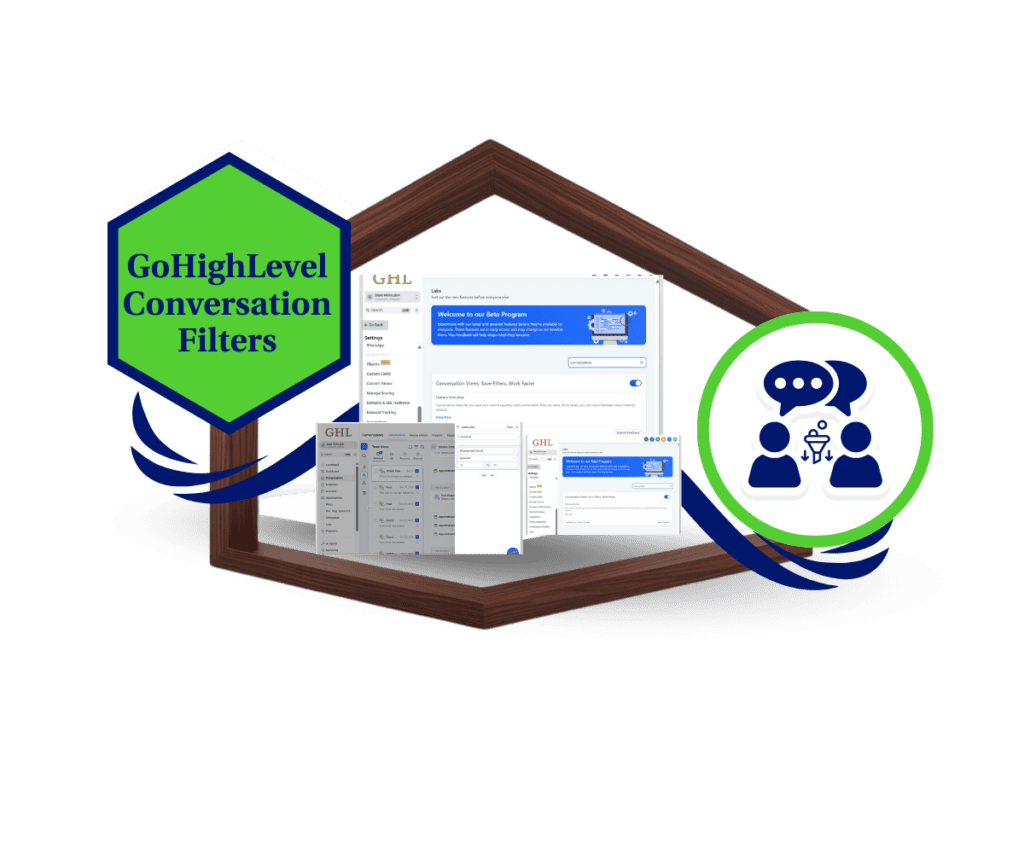
- Cut through the clutter and stay focused by saving your go to conversation filters as smart views.
- Quick Summary – Conversation Filters at a Glance
- What’s New – Save Views of Conversation Filters
- What Changed – From Manual Filtering to Smart Views
- Why It Matters – Save Time, Stay Focused, Reduce Noise
- How to Use Saved Conversation Filters in GoHighLevel
- Pro Tips – Real-World Use Cases for Conversation Filters
- Frequently Asked Questions About Conversation Filters
- What This Means – More Control, Better Workflows
- Results You Can Expect – Speed and Clarity
- One Small Feature, Big Daily Impact
Cut through the clutter and stay focused by saving your go to conversation filters as smart views.
Save Time with Conversation Filters
Conversation filters are a key part of managing daily messages in GoHighLevel. But rebuilding those filters every time you check your inbox? That’s a time suck.
If you often search for unassigned chats, certain channels, or high-priority tags, you’ve likely repeated the same clicks more times than you can count. It slows you down and adds clutter to your workflow.
Now, GHL has introduced a smarter way to work. You can save your favorite conversation filters as reusable views. No more starting from scratch. Just click the view you want, and your inbox updates instantly.
It’s a simple change that helps you focus, stay organized, and respond faster. Whether you’re working solo or managing a team, saved views give you back control.
With saved conversation filters, you can skip the busywork and get straight to what matters.
Quick Summary – Conversation Filters at a Glance
Purpose: This update lets you save your most-used conversation filters as views, helping you manage your inbox faster and with less effort.
Why It Matters: You no longer need to set the same filters every day. One-click views reduce busywork and help you focus on the right messages.
What You Get: A new “Views” panel in the Conversations tab where you can create, access, and share saved conversation filters.
Time to Complete: About 5 minutes to set up your first saved view.
Difficulty Level: Easy. Just turn it on in Labs and follow a few simple steps.
Key Outcome: A cleaner, faster inbox experience with better team alignment and less time spent filtering messages.
What’s New – Save Views of Conversation Filters
GoHighLevel now gives you the option to save your conversation filters as views. This means you can set up a filtered inbox once and return to it anytime without repeating the same steps.
The new “Views” panel in Conversations is where it starts. Click “+ Create View,” choose the filters you use most, give your view a name, and save it. That’s it. Your saved conversation filters will show up in the sidebar for quick access.
Automate marketing, manage leads, and grow faster with GoHighLevel.

For example, you can save a view for unassigned conversations, one for specific tags like “hot leads,” or a view just for one communication channel like Instagram or Google My Business. No need to keep clicking through the same filters every time.
Admins also have the option to share conversation filters with other users. This helps teams stay in sync and see the same conversations without guessing which filters to use.
The goal is simple. Let you focus faster and avoid rebuilding filters every time you log in.
What Changed – From Manual Filtering to Smart Views
Using conversation filters used to mean starting from scratch every time. You’d open the Conversations tab, pick your filters, wait for the results, then do it all over again later in the day.
That process got old fast.
Now, instead of rebuilding your conversation filters each time, you can save them as views. Click once, and your inbox shows you only what you need. No extra steps. No wasted clicks.
This change brings more consistency to your day. If you always check unassigned chats or want to track messages with certain tags, just save those filters once. Your saved conversation filters will be ready every time you log in.
Admins can also share these saved views with their teams. That means everyone sees the same filtered inbox and stays focused on the same tasks.
You’re not changing how filters work; you’re just making them easier to use.
Why It Matters – Save Time, Stay Focused, Reduce Noise
Conversation filters help you stay organized, but when you have to reset them every day, they slow you down. That’s where saved views make a difference.
Instead of reapplying the same filters over and over, you can now access your saved conversation filters with one click. This keeps you focused on the messages that matter most and cuts out the noise from your inbox.
It also helps you respond faster. Whether you’re checking unassigned messages, following up on leads, or tracking support chats, your saved view gets you there quicker.
For teams, shared conversation filters mean everyone works from the same list. No more guessing what to look at or where to start.
You get more done with fewer clicks. It’s that simple.
How to Use Saved Conversation Filters in GoHighLevel
This update is part of the new Conversations UI in GoHighLevel. It’s not on by default, but you can enable it in your Labs settings. Once it’s live, you’ll be able to save and reuse your most-used conversation filters with just one click.
Here’s how to set it up and start using saved views right away.
Step 1.0 – Access the Settings Area in GoHighLevel
- Go to the left-hand sidebar, look all the way to the bottom.
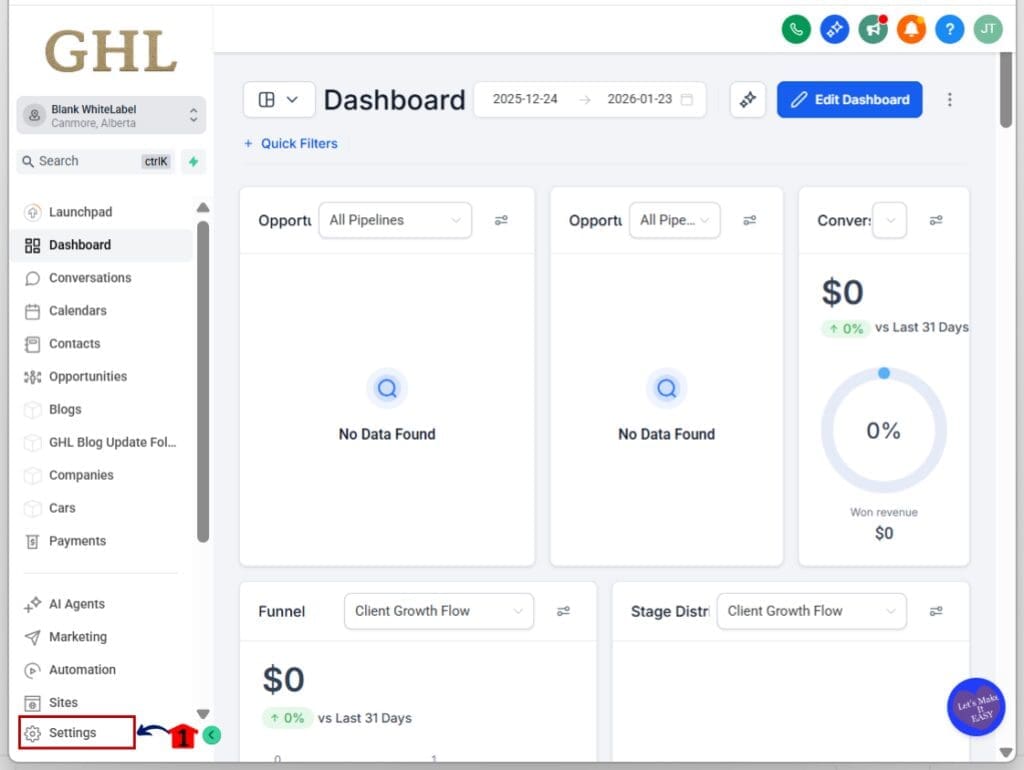
1.1 Click on the gear icon ⚙️ labeled “Settings.”
- You’ll now be in the main Settings dashboard, where you can access:
- Business Info
- Billing
- My Staff
- Phone System
- Labs
- and more.
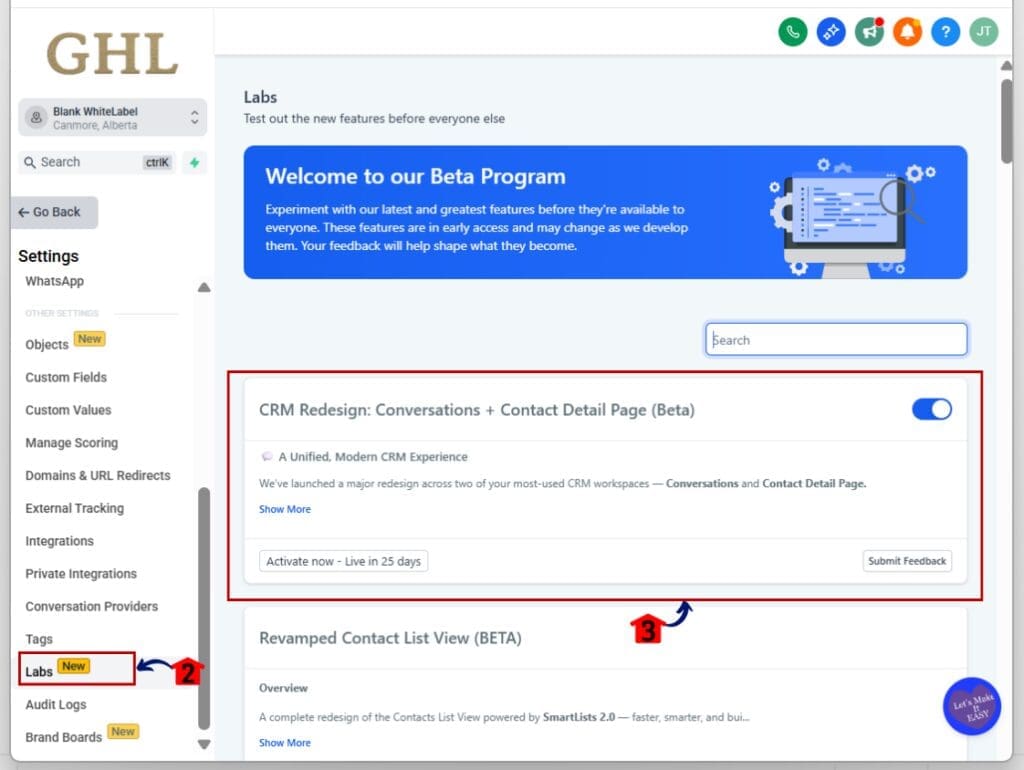
1.2 Click into the Labs
- This is where you toggle on new update features
1.3 Look for CRM Redesign: Conversations and Contacts Detail Page (Beta)
1.4 Toggle it ON
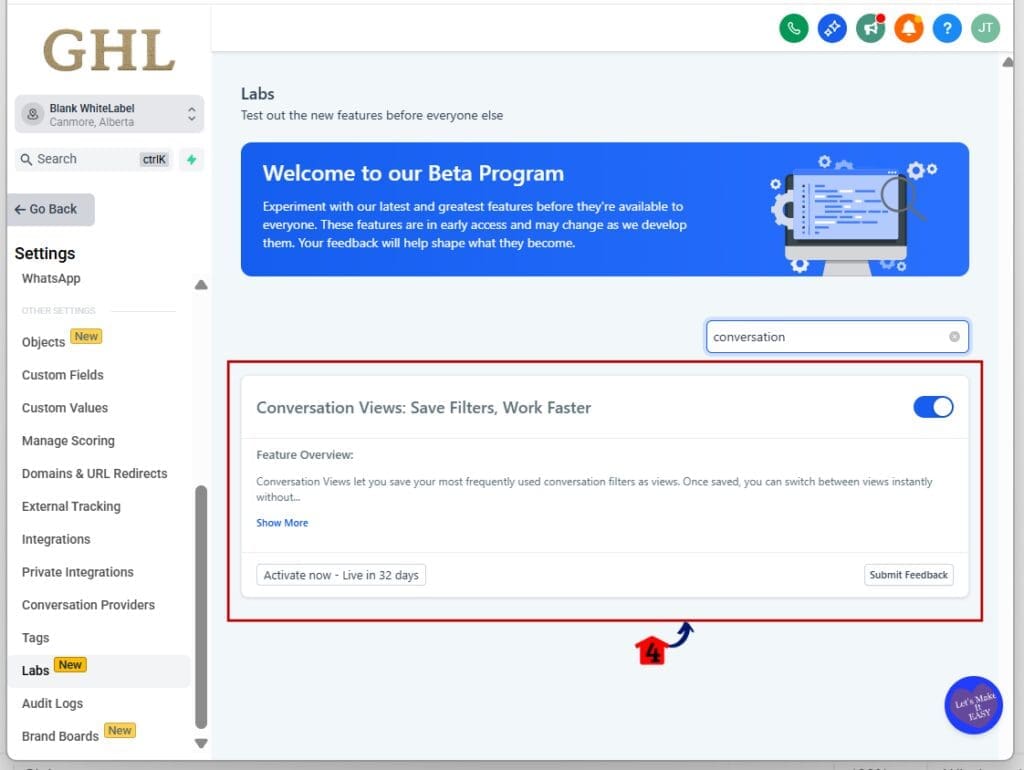
1.5 In Labs, scroll to Conversation Views: Save Filters, Work Faster
1.6 Toggle this ON too
Step 02 – Open the Conversations Page
- Now that the new layout is active, go to your inbox.
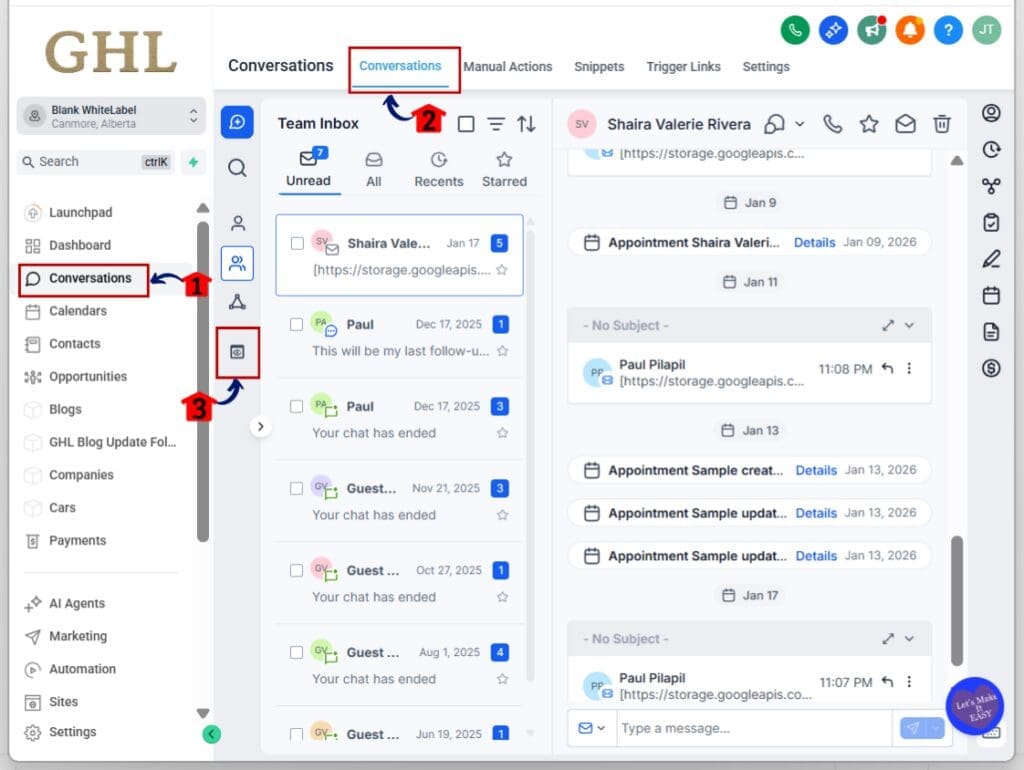
2.1 Click “Conversations” from the main left-hand menu
- Access the ‘Conversations’ section of GoHighLevel
- This shows your Conversations dashboards
2.2 Click on the Conversations Tab
- This will show the existing conversations in your inbox
2.2 Look to the left sidebar and find the “Views” section
- This is where your saved conversation filters will live
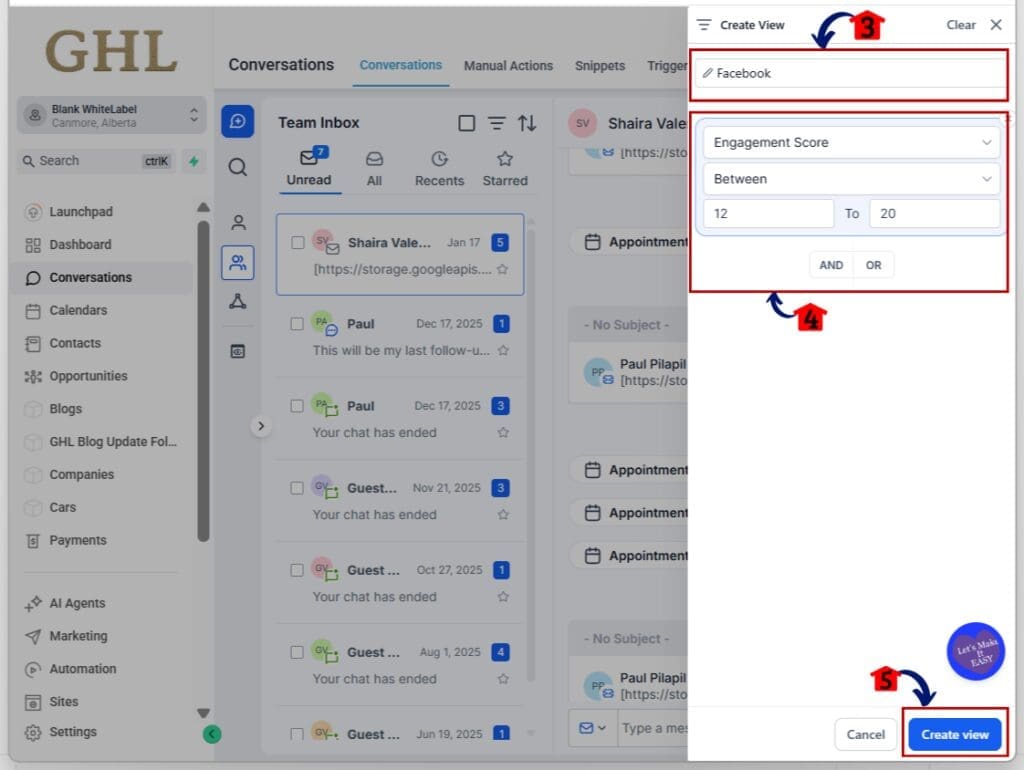
Step 03 – Create Your First Conversation Filter View
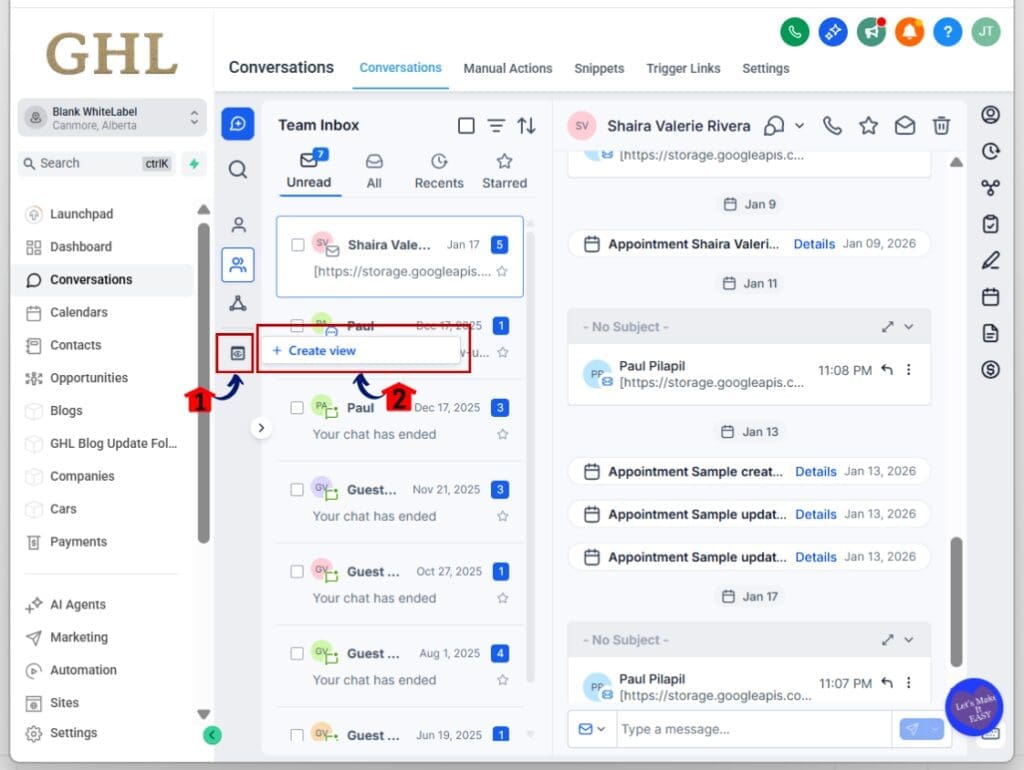
3.1 Click on the View Icon
3.2 Click on the Create View
- a pop-up window will appear
3.2 Set up your filters just like you normally would
- Examples: Unassigned chats, Instagram messages, tagged leads
3.3 Name your view something clear and useful
3.4 Set the filter type and the condition of the view
3.4 Click Create View button
- You now have a reusable conversation filter view that lives in your sidebar.
Step 04 – Use and Share Your Saved Views
4.1 Click any saved view to instantly apply the filters
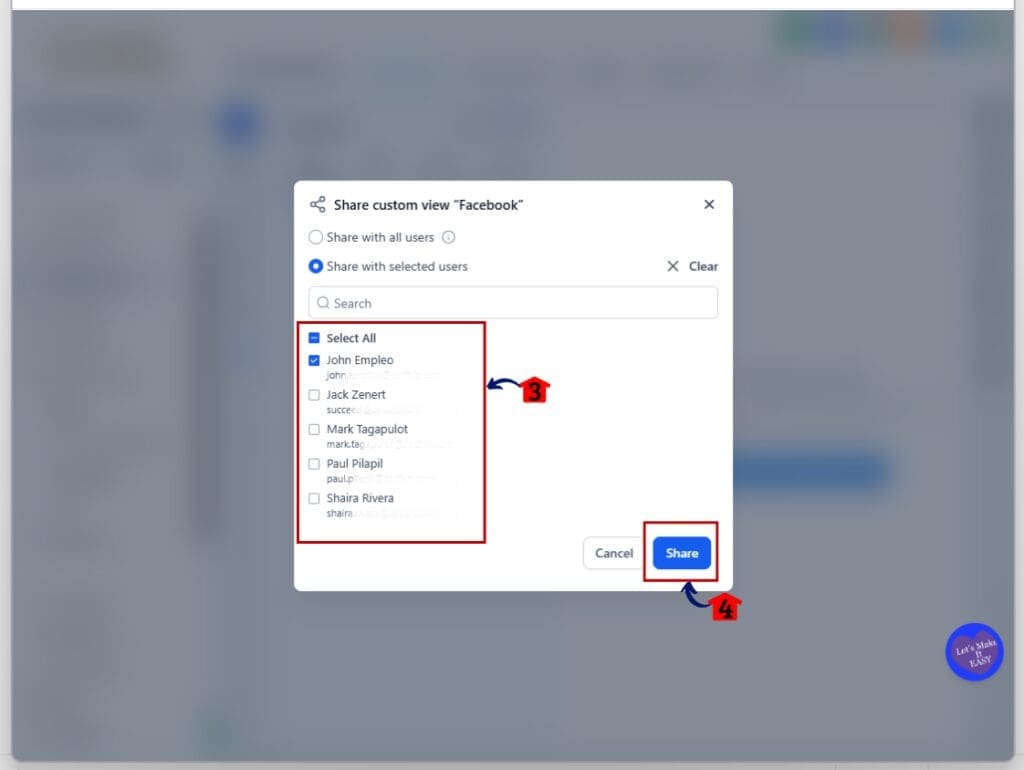
4.2 To share a view (admin only), click the three dots next to the view name
4.3 Choose “Share”
- A pop-up window will appear

4.4 Select users or roles
4.5 Click Share button
- Your saved conversation filters are now live and ready for daily use.
Step 05 – Use Filters Like Normal, Only Smarter
5.1 No need to rebuild filters each day
5.2 Just click the view you want and get to work
5.3 Everything updates in real-time based on the filters you saved
That’s it. Your conversation filters are now faster, easier to use, and ready to keep you focused.
Pro Tips – Real-World Use Cases for Conversation Filters
Saved conversation filters are more than just a excellent feature. They help you work faster and stay on top of what matters. Here are a few simple ways to make them part of your daily workflow.
Support Teams
- Use conversation filters to keep things moving. Create a view for unassigned chats, another for open tickets, and one for tags like “bug” or “billing.” It helps your support team focus on the right issues at the right time.
Sales Teams
- If you’re following up with leads, set up views with conversation filters for tags like “hot lead” or “demo requested.” You can also filter by channel to see only messages from Facebook or Instagram. It keeps your inbox clean and focused.
Multi-Channel Conversations
- Managing several channels at once? Build a saved view for each one. Set up conversation filters for Instagram, Google Business, or Messenger, and switch between them in seconds.
Client-Specific Views
- Agencies can use tags to group conversations by client or campaign. Then, save those conversation filters as views. Now you can check in on a client’s inbox without sorting through unrelated messages.
Manager Dashboards
- If you’re leading a team, use saved conversation filters to track important accounts, open issues, or long wait times. Share those views with your team to make sure everyone is focused on the same work.
Used well, saved conversation filters can give your inbox structure, speed, and purpose.
Frequently Asked Questions About Conversation Filters
These updates make it easy to keep your inbox filtered, focused, and fast.
What This Means – More Control, Better Workflows
Saved conversation filters give you more control over your inbox without adding more work. Instead of rebuilding filters every time, you can get straight to the messages that matter.
This update is also about helping teams stay aligned. When everyone is using the same saved conversation filters, there’s no confusion about what to look at or who owns what. That’s a big win for team workflows.
Whether you’re running sales, support, or agency ops, having easy access to your go-to filters makes your day smoother. It cuts down on clicking, reduces distractions, and gives you a clearer view of what needs attention.
You’ll spend less time sorting through messages and more time replying to the right ones.
Results You Can Expect – Speed and Clarity
Saved conversation filters make your inbox easier to manage. Instead of setting filters every time, you click once and see exactly what you need.
You’ll move faster. Less time spent digging through messages means more time responding to the ones that matter. That helps you stay focused and reduces mistakes.
Your team benefits too. Shared conversation filters keep everyone on the same page. When each person is working from the same view, it’s easier to track progress and handle new messages.
The more you use saved conversation filters, the more time you save. What feels like a small change now can add to hours each week.
One Small Feature, Big Daily Impact
Saved conversation filters fix a simple but annoying problem. If you’ve been clicking through the same filters every day, this feature gives you a better way.
Now, you can set your filters once and save them. When you’re ready to work, just pick your saved view, and your inbox is already filtered.
This helps you move faster and stay focused. It also makes teamwork easier. Shared conversation filters mean everyone is looking at the same list and working on the same priorities.
It’s a small change that takes pressure off your day. Try saving one view and see how much smoother your inbox feels.
Scale Your Business Today.
Streamline your workflow with GoHighLevel’s powerful tools.